Zavedení
This manual provides detailed instructions for the setup, operation, maintenance, and troubleshooting of your Docooler Wireless Mechanical Keyboard, Fun Cake House edition. Please read this manual thoroughly before using the product to ensure optimal performance and longevity.
The Docooler Wireless Mechanical Keyboard features red switches, PBT keycaps, a high-clear display, and a volume control knob. It supports multiple connectivity options including 2.4G wireless, Bluetooth, and wired connections, and is compatible with Windows, Mac, iOS, and Android systems.
Obsah balení
Ověřte, zda jsou v balení přítomny všechny položky:
- 1x Docooler Wireless Mechanical Keyboard (Fun Cake House)
- 1x USB Cable (for wired connection and charging)
- 1x 2.4G USB přijímač
- 1x Uživatelská příručka (tento dokument)
Nastavení
1. Nabíjení klávesnice
Before initial use, fully charge the keyboard. Connect the provided USB cable to the keyboard's USB-C port and the other end to a USB power source (e.g., computer USB port, wall adapter). The display will indicate charging status. A full charge typically takes 2-3 hours.
The keyboard is equipped with an 1850mAh rechargeable lithium battery.
2. Možnosti připojení
Your keyboard supports three connection modes: 2.4G Wireless, Bluetooth (BT), and Wired USB.
2.1. Bezdrátové připojení 2.4G
- Locate the 2.4G USB receiver, usually stored in a compartment on the keyboard.
- Zapojte 2.4G USB přijímač do volného USB portu v počítači.
- Switch the keyboard's connection mode to 2.4G (refer to the Provozní režimy section for details on switching modes).
- The keyboard should automatically connect. The display will show the 2.4G connection icon.
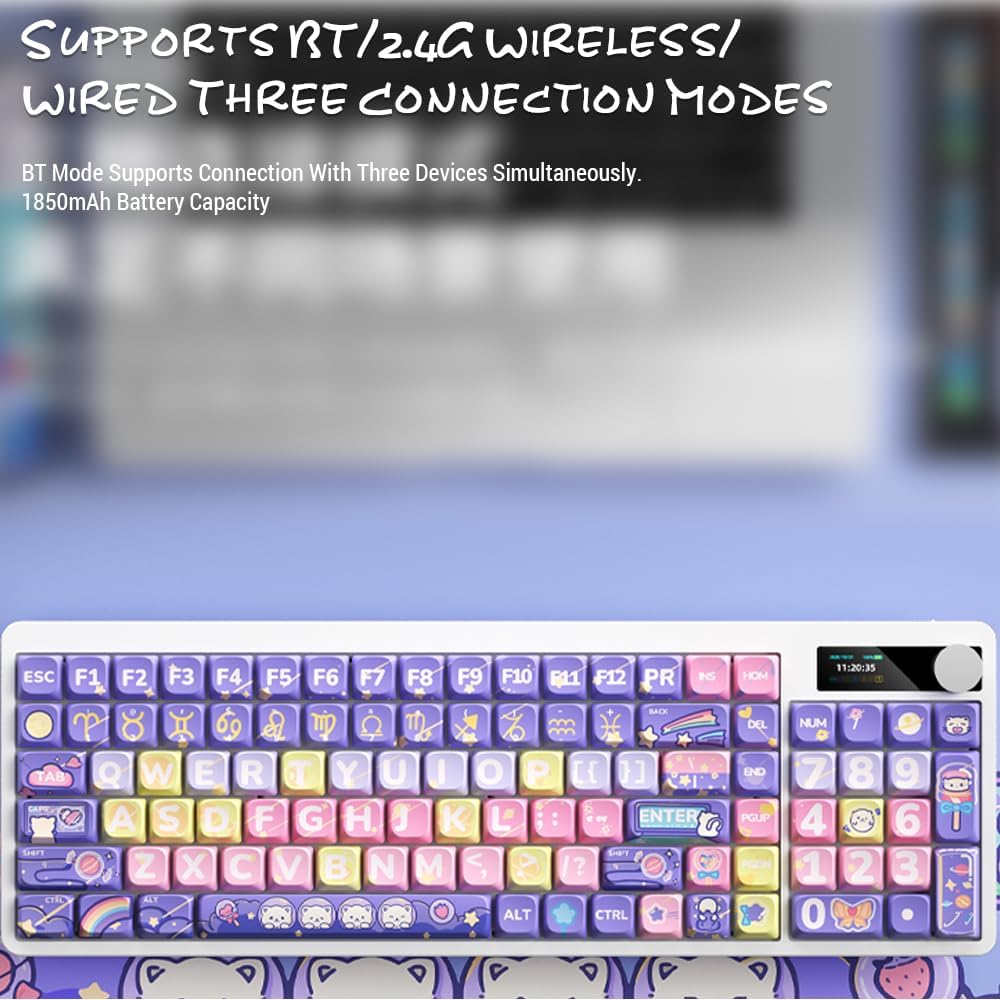
Image: Keyboard display showing 2.4G wireless connection status.
2.2. Bluetooth (BT) Connection
Klávesnice se může připojit až ke třem zařízením Bluetooth současně.
- Switch the keyboard's connection mode to Bluetooth (BT1, BT2, or BT3).
- Na svém zařízení (počítači, tabletu, chytrém telefonu) povolte Bluetooth a vyhledejte nová zařízení.
- Select "Docooler Keyboard" (or similar name) from the list of available devices.
- Pokud se zobrazí výzva, zadejte párovací kód zobrazený na obrazovce.
- Once paired, the display will show the Bluetooth connection icon for the selected channel.
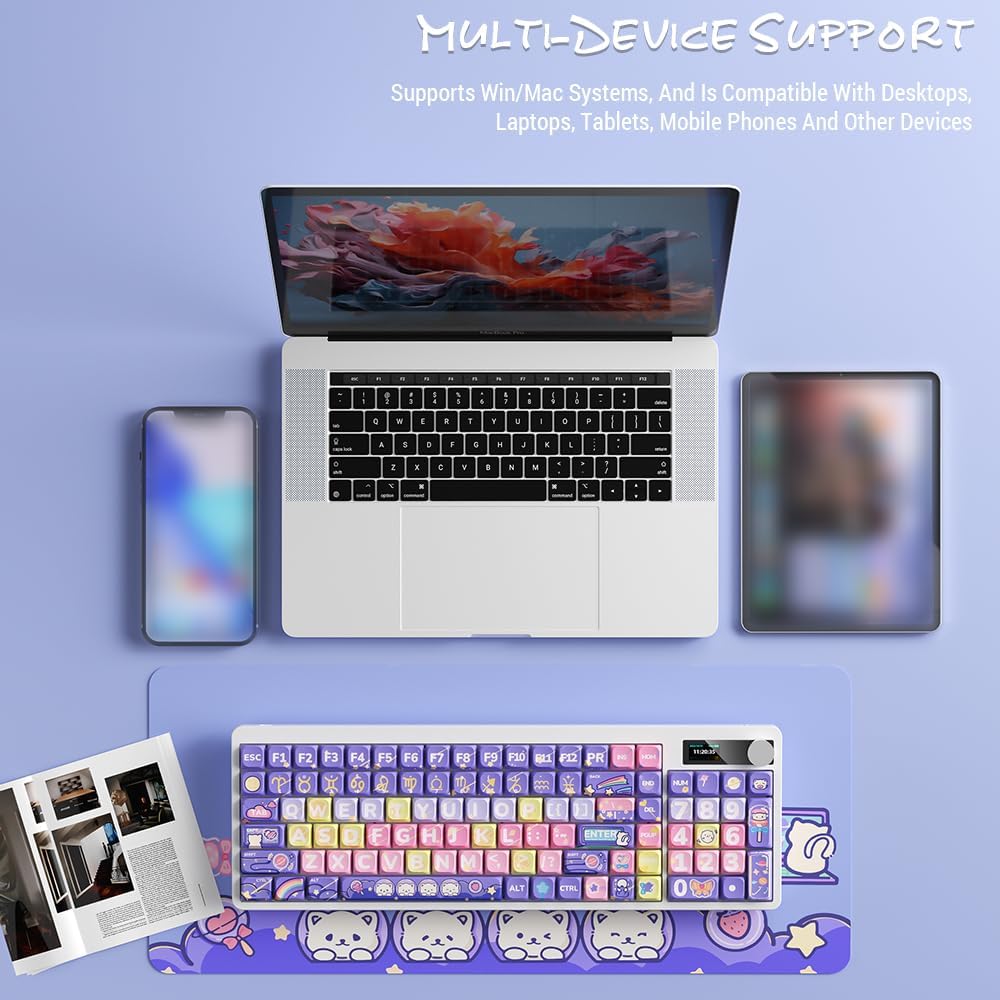
Image: Docooler keyboard demonstrating multi-device support, connected to a laptop, tablet, and smartphone via Bluetooth.
2.3. Drátové USB připojení
- Connect the provided USB cable directly from the keyboard to your computer's USB port.
- Switch the keyboard's connection mode to Wired (refer to the Provozní režimy sekce).
- Klávesnice bude rozpoznána jako standardní USB klávesnice.
Návod k obsluze
1. Přepínání režimů připojení
Use the dedicated mode switch or key combination (refer to the keyboard's specific function keys, often marked with icons for 2.4G, BT, and USB) to cycle through the connection modes. The display screen will clearly indicate the active mode.

Image: Close-up of the keyboard display showing indicators for Bluetooth, 2.4G, and wired connection modes, along with battery status and time.
2. High Clear Display Functions
The integrated display provides real-time information and customization options. It can show:
- Datum a čas
- Úroveň baterie
- Connection Mode (2.4G, BT1/2/3, Wired)
- Nastavení podsvícení
- Úroveň hlasitosti
- Custom Images or Dynamic GIFs (customization via software, if available)

Obrázek: Podrobný view of the keyboard's high-clear display, illustrating various functions such as date, time, power, connection mode, and backlight settings.
3. Ovladač hlasitosti
The metal knob located on the top right of the keyboard allows for quick adjustment of system volume. Rotate clockwise to increase volume, counter-clockwise to decrease. Pressing the knob typically mutes/unmutes audio.

Image: Close-up of the unique metal round knob, highlighting its function for adjusting brightness and volume.
4. Nastavení podsvícení
The keyboard features a colorful backlight. Use the dedicated function keys (often Fn + specific keys) or the display menu to cycle through different lighting effects, adjust brightness, and change colors. Refer to the display for visual feedback on backlight settings.
5. Funkční klávesy (kombinace Fn)
Mnoho kláves má sekundární funkce, které jsou přístupné podržením Fn key and pressing the desired key. Common Fn combinations include:
- Fn+F1-F12: Multimedia controls (play/pause, volume, track skip), application shortcuts.
- Fn + klávesy se šipkami: Backlight brightness/speed adjustment.
- Fn + Win: Lock/unlock Windows key.
- Fn + Mode Key: Switch between 2.4G, BT, and Wired modes.
Consult the keycap legends for specific Fn functions on your "Fun Cake House" keyboard.
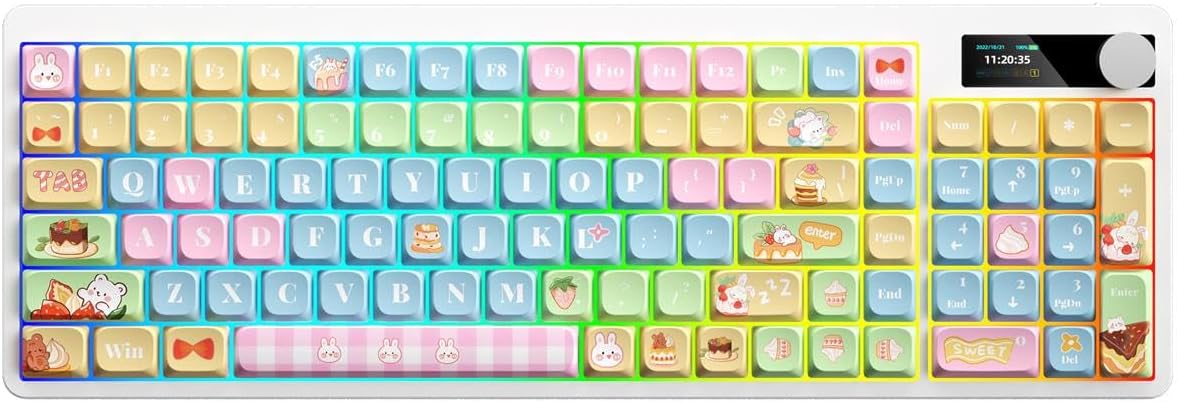
Image: Full layout of the Docooler Wireless Mechanical Keyboard in the Fun Cake House design, showing all 101 keys, the display, and the volume knob.
Údržba
1. Čištění
- Před čištěním odpojte klávesnici od všech zdrojů napájení a zařízení.
- Použijte měkký hadřík, který nepouští vlákna dampKlávesy a povrch klávesnice otřete vodou nebo jemným čisticím roztokem.
- Pro odstranění prachu a nečistot mezi klávesami použijte stlačený vzduch nebo malý kartáč.
- Avoid using harsh chemicals, abrasives, or solvents, as these can damage the keyboard's finish and keycap legends.
2. Keycap Removal (Optional)
The PBT keycaps can be removed for deeper cleaning or replacement. Use a keycap puller to gently lift keycaps straight up. Avoid excessive force to prevent damage to the switch stems.
3. Skladování
When not in use for extended periods, store the keyboard in a cool, dry place away from direct sunlight and extreme temperatures. Ensure the battery is partially charged (around 50%) before long-term storage to preserve battery health.
Odstraňování problémů
Klávesnice nereaguje
- Zkontrolujte baterii: Ensure the keyboard is charged. Connect it via USB cable to charge.
- Zkontrolujte režim připojení: Verify the keyboard is in the correct mode (2.4G, BT, or Wired) for your device.
- 2.4G Issues: Ensure the USB receiver is securely plugged in. Try a different USB port.
- Problémy s Bluetooth: Re-pair the keyboard with your device. Ensure Bluetooth is enabled on your device. Try forgetting the device and re-pairing.
- Wired Issues: Ensure the USB cable is securely connected to both the keyboard and the computer. Try a different USB cable or port.
- Restartovat: Restartujte počítač/zařízení a klávesnici.
Keys Not Registering / Double Typing
- Čisté klávesy: Remove keycaps and clean any debris around the switch.
- Aktualizace firmware: Check the Docooler official webna webu, kde najdete veškeré dostupné aktualizace firmwaru pro váš model.
Podsvícení nefunguje
- Nastavení jasu: Ensure the backlight brightness is not set to minimum or off. Adjust using Fn combinations or the display menu.
- Šetření energie: The backlight may turn off after a period of inactivity to save battery. Press any key to reactivate.
Display Screen Issues
- Cyklus napájení: Vypněte a znovu zapněte klávesnici.
- Jas: Ensure the display brightness is not set too low.
Specifikace
| Model | Docooler Wireless Mechanical Keyboard (Fun Cake House) |
| Typ přepínače | Červené přepínače |
| Klíčenky | PBT |
| Konektivita | 2.4G Wireless, Bluetooth (BT), Wired USB |
| Podsvícení | Barevné podsvícení |
| Převrácení klíče | Full Key Rollover |
| Zobrazit | High Clear Display |
| Knoflík | Metal Volume Control Knob |
| Baterie | Dobíjecí lithiová baterie 1850 mAh 3.7 V |
| Rozložení klíče | 101 Keys (with display screen + knob) |
| Podporované systémy | Windows, Mac, iOS, Android |
| Rozměry | 39.7 x 13.4 x 1.7 cm (15.6 x 5.3 x 0.7 palce) |
| Hmotnost | 621 g (1.37 lb) |

Image: Diagram illustrating the dimensions of the Docooler Wireless Mechanical Keyboard: 39.7cm (15.6in) length and 13.4cm (5.3in) width.
Informace o záruce
Docooler products are covered by a limited warranty from the date of purchase. This warranty covers manufacturing defects in materials and workmanship. It does not cover damage caused by accident, misuse, abuse, modification, improper installation, or normal wear and tear.
For specific warranty terms and conditions, please refer to the warranty card included with your product or visit the official Docooler webmísto.
Zákaznická podpora
If you encounter any issues or have questions regarding your Docooler Wireless Mechanical Keyboard that are not addressed in this manual, please contact our customer support team.
- E-mail: support@docooler.com
- Webmísto: Visit the official Docooler website for FAQs, drivers, and additional support resources: www.docooler.com
When contacting support, please have your product model (B0DB7YPHFK) and purchase information ready.