
Zavedení
This manual provides comprehensive instructions for the HP 255 Dual Wireless Mouse (Model 8R3U1UT). This device offers dual-mode connectivity via 2.4 GHz wireless (USB-A dongle) and Bluetooth 5.0, ensuring compatibility with Windows, ChromeOS, and macOS. It features a 1600 DPI optical sensor for precise control and is designed for comfortable, ambidextrous use.
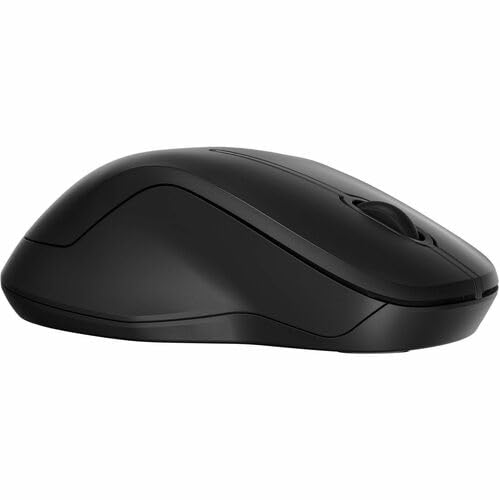
Obrázek: Shora dolů view of the HP 255 Dual Wireless Mouse, showcasing its symmetrical black design.
Obsah balení
Ověřte, zda jsou v balení přítomny všechny položky:
- HP 255 Dual Wireless Mouse
- USB-A Wireless Dongle (typically stored inside the mouse)
- Stručný průvodce (pokud je součástí dodávky)
- Poznámka: 1 AA battery is required and not included.
Nastavení
1. Instalace baterie
- Najděte kryt přihrádky na baterie na spodní straně myši.
- Posuňte nebo zvedněte kryt pro otevření přihrádky.
- Vložte jednu baterii typu AA a dbejte na správnou polaritu (+/-).
- Bezpečně zavřete kryt bateriového prostoru.
The mouse requires one AA battery for operation. Batteries are not included with the product.
2. Connecting via 2.4 GHz Wireless (USB-A Dongle)
- Remove the USB-A wireless dongle from its storage slot, typically located inside the battery compartment or near it.
- Plug the USB-A dongle into an available USB-A port on your computer (Windows, ChromeOS, or macOS).
- Zapněte myš pomocí vypínače na její spodní straně.
- The mouse should automatically connect to your computer. No additional drivers are typically required for this plug-and-play connection.
3. Připojení přes Bluetooth 5.0
- Ujistěte se, že je v počítači povoleno rozhraní Bluetooth.
- Zapněte myš pomocí vypínače na její spodní straně.
- Press and hold the Bluetooth pairing button (often located on the underside of the mouse, or combined with the mode switch) until the indicator light starts blinking, indicating pairing mode.
- On your computer, navigate to Bluetooth settings:
- Windows: Settings > Devices > Bluetooth & other devices > Add Bluetooth or other device.
- MacOS: System Settings > Bluetooth.
- ChromeOS: Quick Settings panel > Bluetooth.
- Select "HP 255 Mouse" or a similar name from the list of available devices and follow any on-screen prompts to complete pairing.
- The indicator light on the mouse will stop blinking and remain solid (or turn off) once successfully paired.
Návod k obsluze
Tlačítka myši
The HP 255 Dual Wireless Mouse features 3 buttons:
- Levé tlačítko myši: Primary function for selecting items, opening links, etc.
- Kliknutí pravým tlačítkem: Secondary function for context menus and additional options.
- Rolovací kolečko / Prostřední tlačítko: Používá se k procházení dokumentů a web pages. Pressing it down often acts as a middle-click button for specific functions.
DPI (body na palec)
The mouse operates at a fixed resolution of 1600 DPI, providing smooth and precise cursor control across various surfaces.
Správa napájení
- Vypínač: Use the ON/OFF switch on the underside of the mouse to conserve battery life when not in use.
- Automatický režim spánku: The mouse enters a low-power sleep mode after a period of inactivity to extend battery life. Move the mouse or click a button to wake it up.
- Životnost baterie: A single AA battery can provide up to 12 months of usage, depending on usage patterns.
Údržba
- Čištění: K čištění myši použijte měkký, suchý hadřík. V případě odolných nečistot lehceamphadřík vodou. Nepoužívejte agresivní chemikálie ani abrazivní čisticí prostředky.
- Čištění senzoru: Periodically clean the optical sensor on the underside of the mouse with a soft, lint-free cloth to ensure optimal tracking performance.
- Výměna baterie: Replace the AA battery when the mouse performance degrades or the low battery indicator (if present) illuminates.
- Skladování: When not in use for extended periods, turn off the mouse and consider removing the battery to prevent leakage. Store the USB dongle inside the mouse for safekeeping.
Odstraňování problémů
Myš nereaguje
- Zkontrolujte baterii: Ujistěte se, že je baterie AA správně vložena a dostatečně nabitá. V případě potřeby ji vyměňte.
- Vypínač: Verify the mouse is turned ON.
- USB Dongle (2.4 GHz):
- Ensure the dongle is securely plugged into a working USB-A port.
- Try plugging the dongle into a different USB-A port.
- Ensure the dongle is within range (typically up to 10 meters) and not obstructed.
- Bluetooth (Bluetooth 5.0):
- Ujistěte se, že je v počítači povoleno rozhraní Bluetooth.
- Re-attempt the pairing process as described in the "Connecting via Bluetooth 5.0" section.
- Ensure the mouse is within Bluetooth range (typically up to 10 meters).
- Odeberte myš ze seznamu zařízení Bluetooth v počítači a znovu ji spárujte.
- Povrch: Ensure you are using the mouse on a suitable surface. Highly reflective or transparent surfaces may affect optical tracking.
Nepravidelný pohyb kurzoru
- Vyčistěte optický senzor na spodní straně myši.
- Zkuste použít myš na jiném povrchu.
- Ujistěte se, že v blízkosti není žádné silné elektromagnetické rušení.
Specifikace
| Název modelu | HP 255 Dual Wireless Mouse (8R3U1UT) |
| Technologie připojení | Wireless (2.4 GHz via USB-A dongle), Bluetooth 5.0 |
| Detekce pohybu | Optický |
| Rozlišení pohybu | 1600 DPI |
| Počet tlačítek | 3 (Vlevo, Vpravo, Kolečko/Uprostřed) |
| Orientace rukou | Obouruký |
| Zdroj napájení | 1 x AA baterie (není součástí balení) |
| Životnost baterie | Až 12 měsíců |
| Kompatibilní operační systémy | Windows, ChromeOS, macOS |
| Materiál | 50% Post-Consumer Recycled Plastics |
| Rozměry (D x Š) | 5.3 cm D x 3.4 cm Š (přibližně) |
Záruka a podpora
Informace o záruce a technickou podporu naleznete v dokumentaci dodané s produktem nebo navštivte oficiální stránky podpory HP. webmísto:
Keep your purchase receipt and product model number (8R3U1UT) handy when contacting support.