
Zavedení
This manual provides comprehensive instructions for the setup, operation, maintenance, and troubleshooting of your HP 27-inch All-in-One Desktop PC. Please read this manual thoroughly to ensure proper use and to maximize the performance of your device.
1. Nastavení
1.1 Rozbalení a počáteční umístění
Carefully remove all components from the packaging. Ensure all included accessories, such as the wireless keyboard and mouse, are present. Place the All-in-One PC on a stable, flat surface. The display height can be adjusted for comfortable viewIng.

Image 1.1: The HP 27-inch All-in-One Desktop PC, accompanied by its wireless keyboard and mouse, ready for setup.
1.2 Připojení periferních zařízení
Connect the power adapter to the PC and a power outlet. The wireless keyboard and mouse are pre-paired or can be connected via their respective USB dongles or Bluetooth. Utilize the available ports for additional peripherals:
- USB-C 3.0 (5Gbps signaling rate): 1 port
- USB-A 3.0 (5Gbps signaling rate): 2 porty
- USB-A 2.0: 2 porty
- HDMI výstup: 1 port for external display
- RJ-45 (Ethernet): 1 port for wired network connection
- Kombinace sluchátek/mikrofonu: 1 port
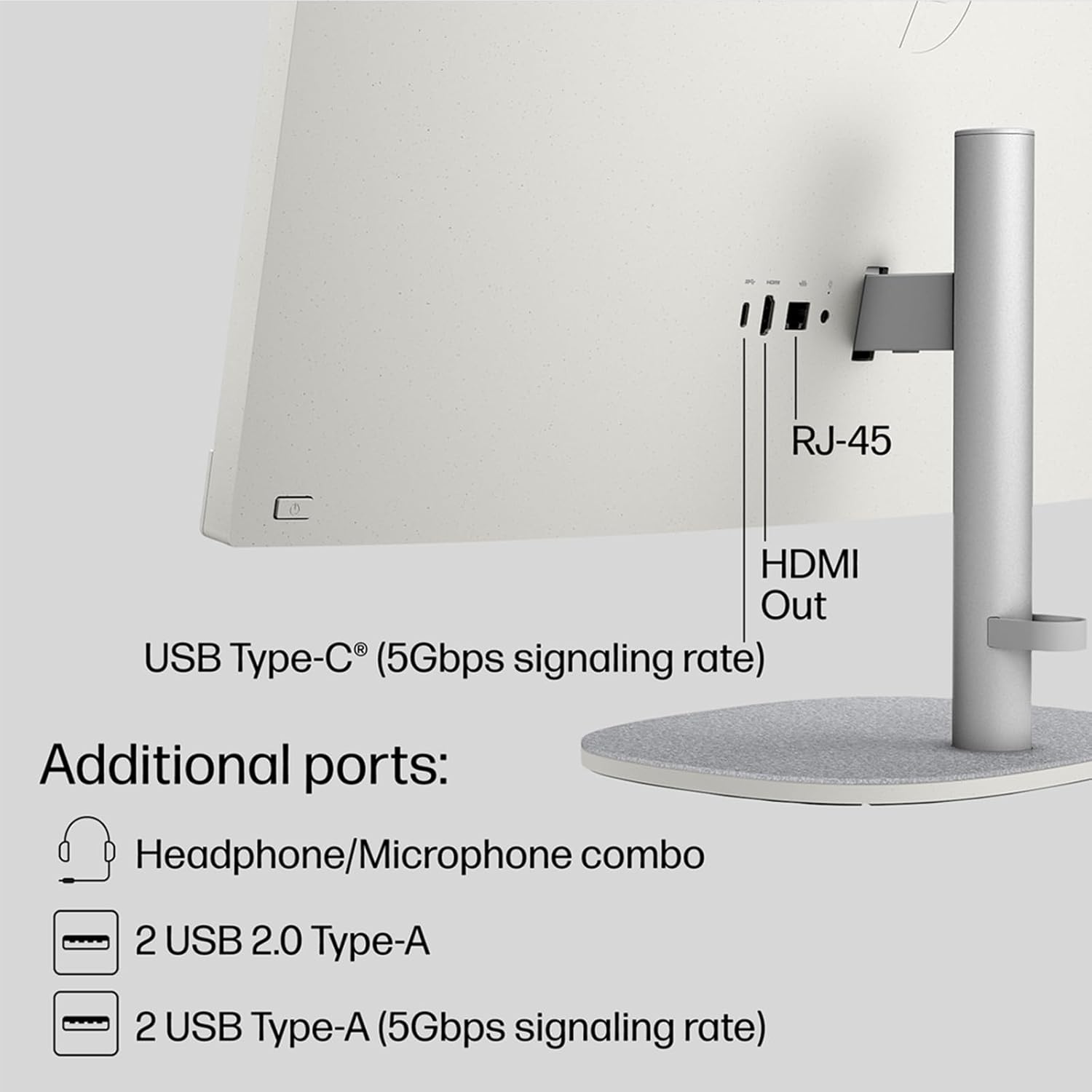
Obrázek 1.2: Detailní view of the rear connectivity ports on the HP All-in-One Desktop PC.
1.3 Počáteční zapnutí a nastavení operačního systému
Press the power button to turn on the PC. Follow the on-screen instructions to complete the Windows 11 Pro setup. This includes setting up your user account, network connection (Wi-Fi 6 or Ethernet), and privacy settings. The system may guide you through the MyHP setup for personalized settings and support.

Image 1.3: The MyHP application interface, designed to simplify initial setup and device management.
2. Návod k obsluze
2.1 Windows 11 Pro (nad)view
Your HP All-in-One PC runs on Windows 11 Pro, offering advanced features for productivity and security. Familiarize yourself with the Start Menu, Taskbar, and File Explorer for efficient navigation. The touchscreen display allows for intuitive interaction with the operating system.

Image 2.1: The clean and organized desktop environment of Windows 11 Pro.
2.2 Funkce dotykové obrazovky
The 27-inch Full HD IPS touchscreen allows for direct interaction with applications and the operating system. Use gestures such as tap, swipe, pinch-to-zoom, and scroll for navigation and control. The anti-glare panel minimizes reflections for a comfortable viewzkušenosti.
2.3 Integrated Features and AI Capabilities
The Intel Ultra 7-155U processor with integrated Intel Graphics provides robust performance for various tasks, including accelerated content creation and high-resolution gaming. The system leverages built-in AI capabilities to enhance productivity and streamline workflows.
Intel Unison: This feature allows seamless connection between your PC and mobile devices, enabling universal control and simplified file sdílení.

Image 2.2: Summary of key hardware and software features, including processor, graphics, memory, storage, OS, and display.
2.4 Kamera a zvuk
The integrated HP True Vision FHD IR camera supports Windows Hello for secure facial recognition login. Its 88-degree wide-angle field of view is suitable for video conferencing. Dual array microphones and advanced noise reduction software ensure clear audio communication.
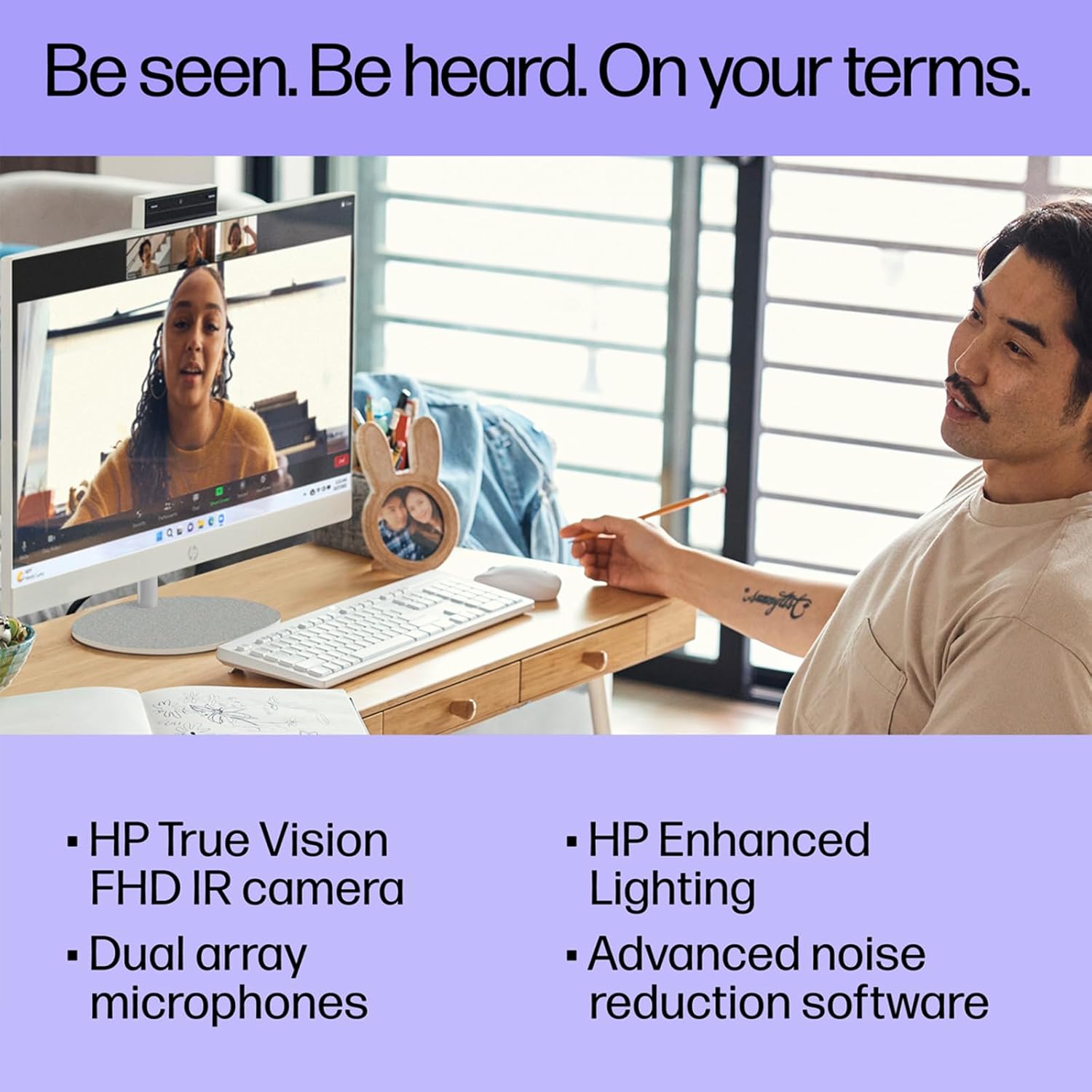
Image 2.3: The HP True Vision FHD IR camera in action during a video conference, emphasizing clear visuals and audio.
3. Údržba
3.1 Čištění zařízení
To maintain optimal performance and appearance, regularly clean your HP All-in-One PC. Use a soft, lint-free cloth slightly dampened with water or a screen-safe cleaner for the display. For the chassis, a dry or slightly damp cloth is sufficient. Avoid abrasive cleaners or spraying liquids directly onto the device.
3.2 Aktualizace softwaru
Ensure your operating system and drivers are kept up-to-date. Windows Update automatically downloads and installs critical updates. You can manually check for updates by navigating to Nastavení > Aktualizace systému Windows. Regularly updating your system enhances security and performance.
4. Řešení problémů
This section provides solutions to common issues. For more complex problems, refer to the HP support webnebo kontaktujte zákaznický servis.
- Bez napájení: Ensure the power cable is securely connected to both the PC and the power outlet. Verify the power outlet is functional.
- Problémy se zobrazením: If the screen is blank, check if the PC is powered on. If an external monitor is connected, ensure the correct input source is selected on the monitor.
- Periferní zařízení nereaguje: For wireless devices, check battery levels and ensure the USB dongle (if applicable) is properly inserted. For wired devices, try a different USB port.
- Pomalý výkon: Close unnecessary applications. Check for background processes consuming high resources via Task Manager (Ctrl+Shift+Esc). Ensure sufficient free storage space.
- Problémy s připojením k síti: Verify Wi-Fi is enabled and connected to the correct network. For wired connections, ensure the Ethernet cable is securely plugged in. Restart your router/modem if necessary.
- Serial Number/Warranty Recognition: If you encounter issues with HP recognizing your device's serial number for warranty or support, locate the physical serial number on the device (often on a label on the back or bottom) and contact HP support directly with this information.
5. Specifikace
Below are the detailed technical specifications for the HP 27-inch All-in-One Desktop PC.

Image 5.1: Quick overview of the HP All-in-One PC's core specifications.
| Funkce | Detail |
|---|---|
| Zobrazit | 27-inch Full HD (1920 x 1080) IPS Touchscreen, Anti-glare |
| Procesor | Intel Ultra 7-155U (12-core, up to 4.8 GHz) |
| Grafika | Intel Integrated Graphics |
| Paměť (RAM) | 32 GB DDR5 (rozšiřitelná až na 64 GB) |
| Skladování | 1TB SSD (PCIe NVMe M.2) |
| Operační systém | Windows 11 Pro |
| Bezdrátové připojení | Wi-Fi 6 (802.11ax), Bluetooth 5.3 |
| Porty | 1x USB-C 3.0, 2x USB-A 3.0, 2x USB-A 2.0, 1x HDMI Out, 1x RJ-45, 1x Headphone/Mic Combo |
| Webvačka | HP True Vision FHD IR Camera (1080p) |
| Zvuk | Integrated Speakers, Dual Array Microphones |
| Rozměry (Š x H x V) | 24.11 x 7.34 x 20.35 palce |
| Hmotnost | 12.9 libry |
| Zahrnuté příslušenství | Wireless Keyboard, Wireless Mouse |

Image 5.2: Physical dimensions of the HP All-in-One Desktop PC.
6. Záruka a podpora
6.1 Záruka na produkt
Your HP All-in-One PC is covered by HP's standard limited warranty. For specific terms and conditions, including warranty duration and coverage details, please refer to the official warranty documentation included with your product or visit the official HP support webUschovejte si doklad o koupi pro případ reklamace.
6.2 Zákaznická podpora
Pro technickou pomoc, stažení ovladačů nebo další informace navštivte oficiální stránky podpory HP. website. You can typically find support resources, FAQs, and contact options by searching for your product model on the HP webwebu. Než budete kontaktovat podporu, mějte připravené sériové číslo produktu.
Note: The original seal may be opened for necessary upgrades to meet advertised specifications. This process is performed by qualified technicians.