
1. Úvod
The SHREYANS SRS58-201 is a portable monochrome thermal printer designed for printing labels and receipts. It features Bluetooth and USB connectivity, an auto-cutter function, and is compatible with various mobile and desktop applications. This manual provides detailed instructions for setting up, operating, and maintaining your printer.
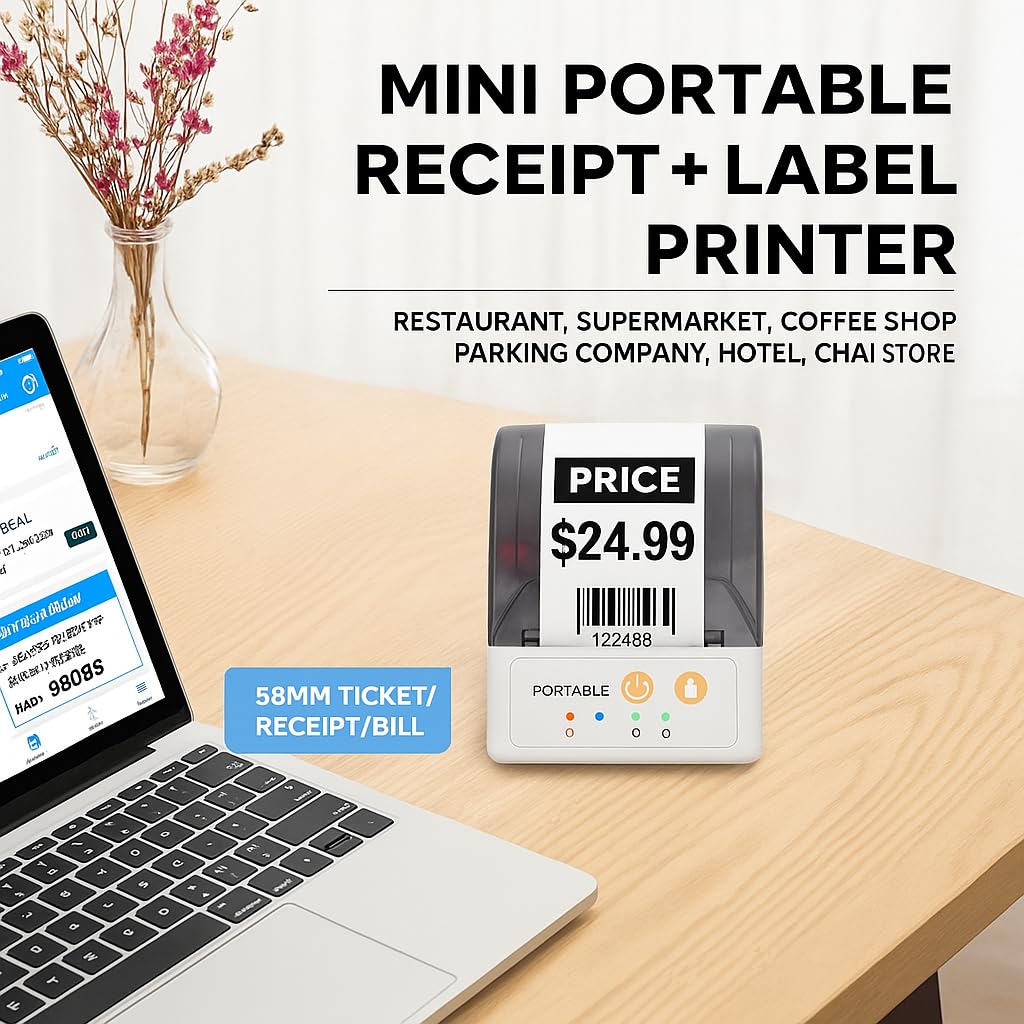
Image: The SHREYANS SRS58-201 printer on a desk, illustrating its compact size and versatility for various business environments like restaurants, supermarkets, and coffee shops.

Image: The SHREYANS SRS58-201 printer being carried in a pocket, highlighting its portability and ease of transport.

Image: The SHREYANS SRS58-201 printer held in a hand, demonstrating its lightweight and mini body design for convenient carrying.
2. Bezpečnostní informace
Please read all safety instructions before using the printer to ensure safe and proper operation.
- Tiskárnu nerozebírejte ani neupravujte. Mohlo by dojít k poškození nebo úrazu elektrickým proudem.
- Chraňte tiskárnu před vodou, vlhkostí a přímým slunečním zářením.
- Use only the specified power adapter and battery.
- Zabraňte pádu tiskárny na zem nebo jejímu vystavení silným nárazům.
- Nedotýkejte se tiskové hlavy ihned po tisku, může být horká.
- Ensure proper ventilation when operating the printer.
3. Obsah balení
Ověřte, zda jsou v balení přítomny všechny položky:
- SHREYANS SRS58-201 Printer
- USB kabel
- Termo papírová role (startovací)
- Uživatelská příručka
4. Konec produktuview
Familiarize yourself with the main components of the SHREYANS SRS58-201 printer.
4.1. Součásti tiskárny
- Paper Cover Release Button: Opens the paper compartment.
- Přihrádka na papír: Holds the thermal paper roll.
- Vypínač: Zapíná/vypíná tiskárnu.
- Tlačítko Feed: Feeds paper manually.
- Indikátory stavu: LEDs indicating power, Bluetooth, and error status.
- USB port: For charging and data connection to a computer.
- tisková hlava: Generates thermal prints.
- Automatická řezačka: Automatically cuts the paper after printing.
5. Nastavení
5.1. Nabíjení baterie
The printer is equipped with a 1500mAh lithium battery. Before first use, fully charge the printer.
- Connect the USB cable to the printer's USB port and the other end to a power adapter (not included) or a computer's USB port.
- Rozsvítí se kontrolka nabíjení.
- A full charge typically takes 2-3 hours. The indicator light will change or turn off when charging is complete.

Image: The SHREYANS SRS58-201 printer next to a battery icon, detailing battery capacity (1500mAh), charging time (2-3 hrs), standby time (7 days), and continuous printing time (7 hrs).
5.2. Loading Paper/Labels
- Press the paper cover release button to open the paper compartment.
- Insert a 58mm thermal paper roll, ensuring the printing side faces the print head.
- Vytáhněte malé množství papíru ven z řezačky.
- Pevně zavřete kryt papíru, dokud nezacvakne na místo.
5.3. Connecting via Bluetooth (Mobile Devices)
The printer connects to smartphones and tablets via Bluetooth using the "Shreyans Label Edit" app.
- Ensure the printer is powered on. The Bluetooth indicator light should be blinking.
- Download and install the "Shreyans Label Edit" app from your device's app store (Android/iOS).
- Povolte na svém mobilním zařízení Bluetooth.
- Open the "Shreyans Label Edit" app and navigate to the printer connection settings.
- Hledat available Bluetooth devices and select "SRS58-201" or a similar name.
- If prompted, enter the pairing PIN (usually 0000 or 1234).
- Po připojení se kontrolka Bluetooth na tiskárně rozsvítí nepřetržitě.

Image: A smartphone displaying a label editing app connected via Bluetooth to the SHREYANS SRS58-201 printer, demonstrating wireless label editing capabilities.
5.4. Installing Drivers (Windows System PC)
To use the printer with a Windows computer, you need to install the printer driver.
- Připojte tiskárnu k počítači pomocí dodaného kabelu USB.
- Obtain the latest printer driver from the SHREYANS official webwebu nebo dodaném instalačním CD (pokud je to relevantní).
- Dokončete instalaci ovladače podle pokynů na obrazovce.
- After installation, the printer should appear in your device manager.
6. Návod k obsluze
6.1. Zapnutí/vypnutí
- Zapnutí: Press and hold the Power button until the power indicator light illuminates.
- Vypnutí: Press and hold the Power button until the power indicator light turns off.
6.2. Printing Labels/Receipts
- Ensure the printer is connected to your device (via Bluetooth or USB) and has paper loaded.
- Open your desired application (e.g., "Shreyans Label Edit" app, POS software, or a document editor on PC).
- Create or select the label/receipt you wish to print.
- Initiate the print command from the application. The printer will automatically print and cut the output.
6.3. Using the Auto-Cutter
The SRS58-201 features an integrated auto-cutter for clean and precise cuts.
- The auto-cutter activates automatically after each print job is completed.
- This feature enhances efficiency and provides a professional finish to your labels and receipts.
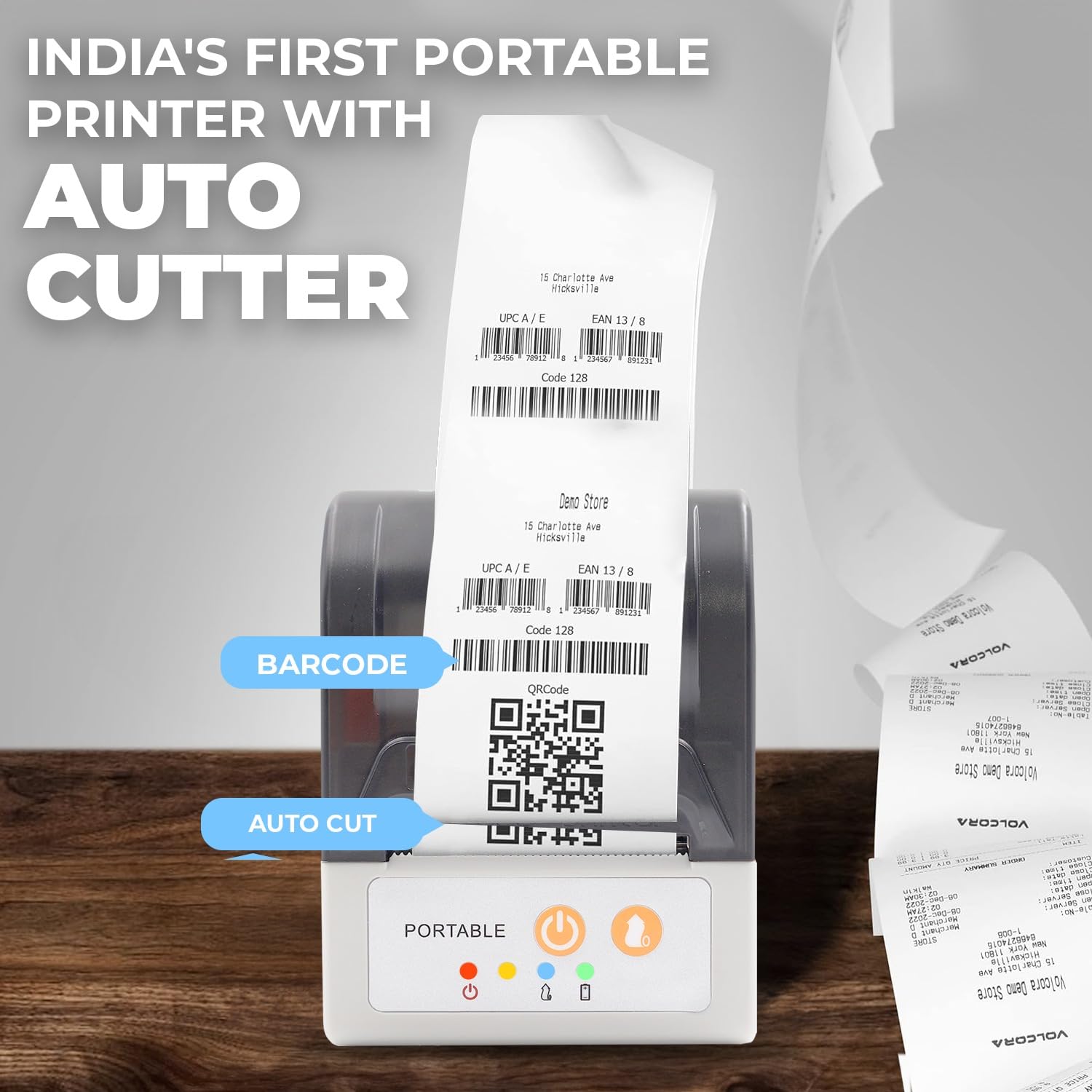
Image: The SHREYANS SRS58-201 printer showing a printed receipt with a barcode and QR code, highlighting the auto-cut feature for clean separation of documents. Example links: Volcora test QRcode, VolcoraTest128, 1234567891231, 0123456789128.
6.4. Compatible POS Software
The SHREYANS SRS58-201 supports various POS software for seamless integration:
- Vyappar
- Mybillbook
- Zomato
- Swiggy
- PayTM
- PhonePay
- Gpay
- And other custom applications.
7. Údržba
7.1. Čištění tiskárny
Pravidelné čištění pomáhá udržovat kvalitu tisku a prodlužuje životnost tiskárny.
- Turn off the printer and disconnect it from power before cleaning.
- Použijte měkký hadřík, který nepouští vlákna dampened with isopropyl alcohol to gently wipe the print head.
- Vyčistěte dráhu papíru a válečky, abyste odstranili veškerý papírový prach nebo nečistoty.
- Allow all components to dry completely before re-using the printer.
7.2. Péče o baterie
- Vyhněte se častému úplnému vybíjení baterie.
- Store the printer in a cool, dry place if not used for extended periods.
- Charge the battery periodically (e.g., every 3 months) to prevent deep discharge.
8. Řešení problémů
Běžné problémy a jejich řešení naleznete v tabulce níže.
| Problém | Možná příčina | Řešení |
|---|---|---|
| Tiskárna se nezapne | Slabá baterie; Tlačítko napájení nebylo správně stisknuto | Charge the printer; Press and hold the Power button for a few seconds. |
| Nelze se připojit přes Bluetooth | Bluetooth not enabled; Incorrect pairing; Printer out of range | Ensure Bluetooth is on; Re-pair the device; Move closer to the printer; Restart both devices. |
| Špatná kvalita tisku | Low battery; Dirty print head; Incorrect paper type | Charge the printer; Clean the print head; Ensure you are using thermal paper. |
| Paper jam or no paper feed | Paper incorrectly loaded; Paper compartment not closed; Obstruction | Re-load paper correctly; Ensure cover is latched; Remove any obstructions. |
| Printer auto-feeds excessively | Software setting; Firmware issue | Check print settings in your application; Update printer firmware if available; Contact customer support if issue persists. |
9. Specifikace
| Funkce | Detail |
|---|---|
| Název modelu | SRS58-201 |
| Technologie tisku | Tepelný |
| Tiskový výstup | Monochromatický |
| Technologie připojení | Bluetooth, USB |
| Maximální velikost média | 58 mm |
| Maximální rychlost tisku (černobíle) | 30 ppm |
| Maximální rozlišení černobílého tisku | 1200 dpi |
| Speciální funkce | Auto-Cutter |
| Kapacita baterie | 1500 XNUMX mAh |
| Doba nabíjení | 2-3 hodin |
| Doba nepřetržitého tisku | 7 hodin |
| Pohotovostní doba | 7 dní |
| Kompatibilní zařízení | Smartphones (Android, iOS), Windows PC |
| Rozměry produktu | 4H x 8Š x 11V centimetrů |
| Hmotnost položky | 340 gramů |
| Výrobce | Shreyans Retail Solution |
| Země původu | Indie |
10. Záruka a podpora
For warranty information and technical support, please refer to the documentation provided with your purchase or visit the official SHREYANS website. Contact details for customer service are typically available on the product packaging or the brand's online portal.