
Turtle Beach TBM-1104-05
Uživatelská příručka k bezdrátové herní myši Turtle Beach Kone II Air
Model: TBM-1104-05
Zavedení
The Turtle Beach Kone II Air is an ergonomic wireless gaming mouse designed for unparalleled gaming freedom. It features exceptional battery life, precise tracking, and extensive customization options. This manual provides detailed instructions for setting up, operating, maintaining, and troubleshooting your Kone II Air mouse to ensure optimal performance.
Co je v krabici

Image: The retail package contents, including the mouse, USB receiver, charging cable, adapter, and grip tape.
- Turtle Beach Kone II Air Wireless Gaming Mouse
- Bezdrátový přijímač USB-A
- PhantomFlex USB-C to USB-A Charging Cable
- USB-A to USB-C Receiver Adapter
- Uchopovací páska
- Rychlý průvodce
Nastavení
1. Počáteční nabíjení
Before first use, it is recommended to fully charge your Kone II Air mouse. Connect the PhantomFlex USB-C to USB-A charging cable to the USB-C port located at the front of the mouse and to a powered USB-A port on your computer or a USB wall adapter.
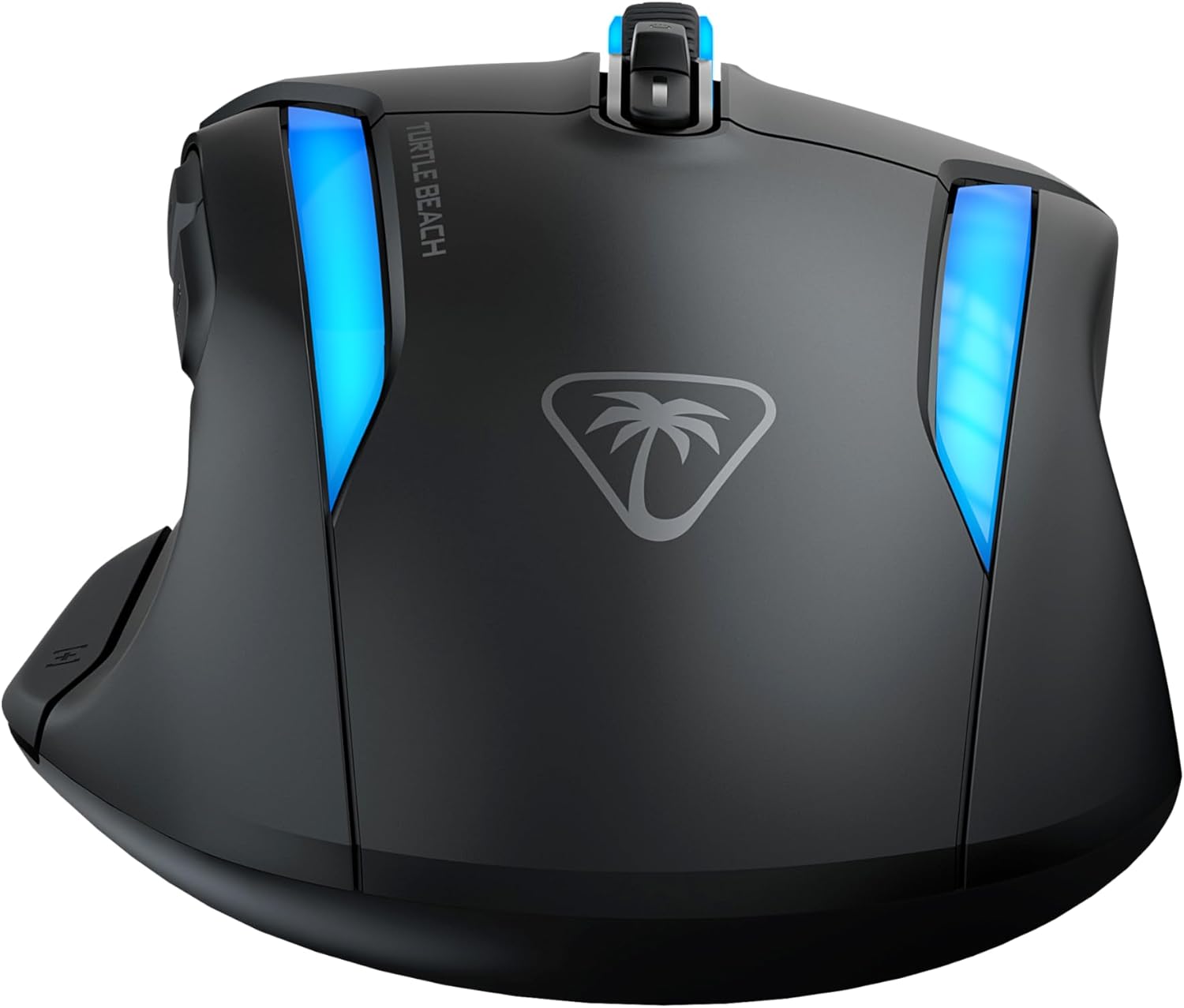
Image: The front of the mouse with the USB-C charging port visible.
2. Připojení myši
The Kone II Air offers two wireless connection modes: 2.4 GHz Wireless and Bluetooth.
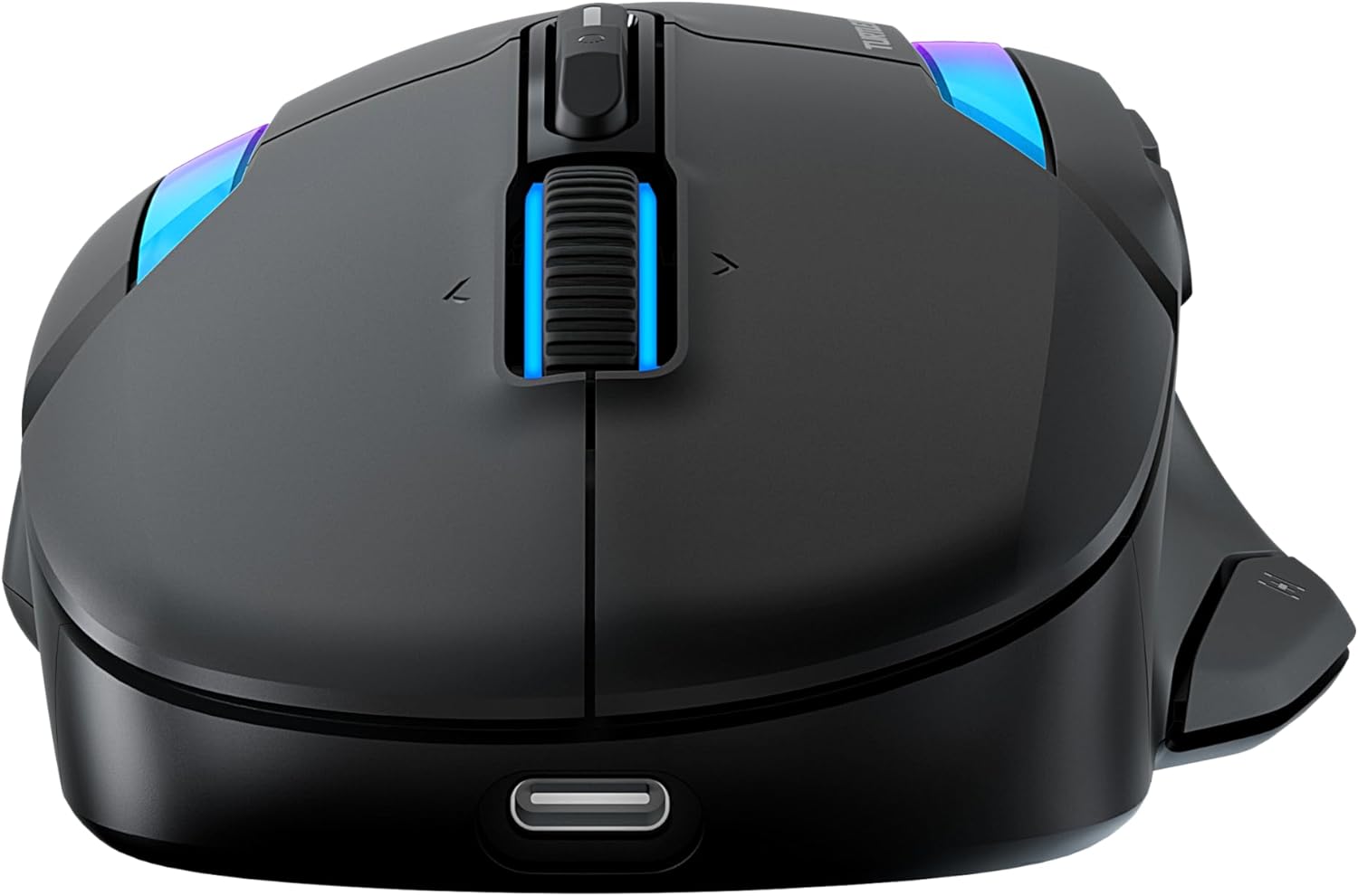
Image: The bottom of the mouse, highlighting the switch for 2.4GHz wireless and Bluetooth modes.
2.1. 2.4 GHz Wireless Connection (Low Latency)
- Locate the USB-A wireless receiver stored in the compartment on the underside of the mouse.
- Plug the USB-A wireless receiver directly into an available USB-A port on your computer. For convenience, you can use the included USB-A to USB-C adapter if your computer only has USB-C ports.
- Slide the switch on the underside of the mouse to the 2.4 GHz wireless icon.
- Váš počítač by měl automaticky detekovat a nainstalovat potřebné ovladače. Myš je připravena k použití.
2.2. Bluetooth Connection (Low Latency)
- Slide the switch on the underside of the mouse to the Bluetooth icon.
- V počítači přejděte do nastavení Bluetooth.
- Select "Add a device" or "Pair new device".
- Select "Turtle Beach Kone II Air" from the list of available devices.
- Dokončete proces párování podle pokynů na obrazovce.
3. Applying Grip Tape (Optional)
For enhanced control and grip, you can apply the included grip tape to the sides of the mouse. Ensure the mouse surface is clean and dry before applying for optimal adhesion.
Ovládání myši
1. Ergonomický design a úchop
The Kone II Air is ergonomically designed to fit medium to large hands, accommodating various grip styles including palm, claw, and fingertip grips.
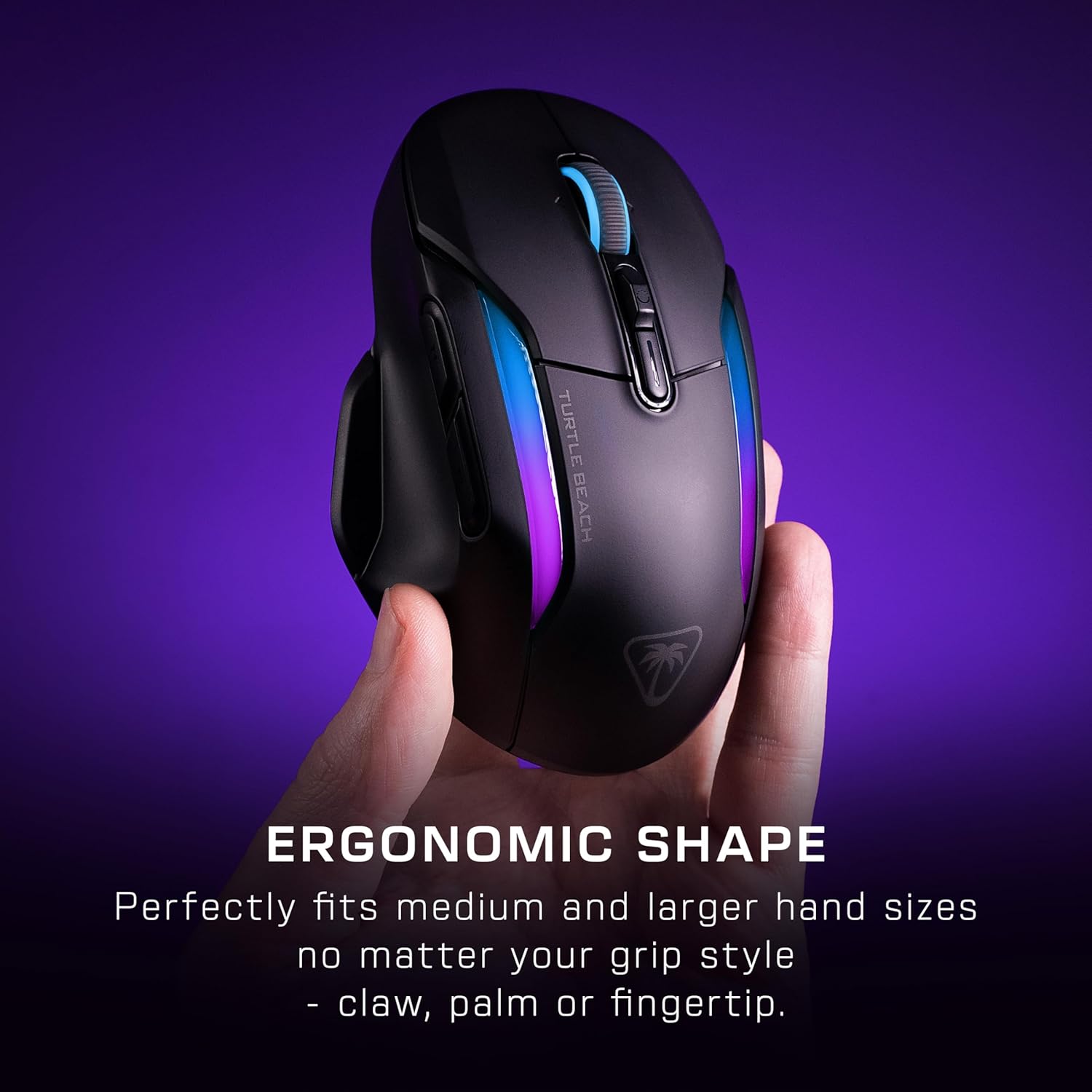
Image: A hand gripping the Kone II Air mouse, illustrating its comfortable ergonomic design.
2. Customizable Buttons and Easy-Shift[+]
The mouse features 7 programmable buttons and a 4D scroll wheel. With Easy-Shift[+] technology, you can expand these into 21 customizable functions, allowing for extensive personalization of your gaming experience.

Obrázek: Pohled zhora view of the mouse with circles highlighting the 7 primary buttons and the Easy-Shift[+] button, indicating their customizability.
3. 4D Multifunction Scroll Wheel
The 4D scroll wheel offers both free-spin and tactile scrolling options, along with fully customizable tilt controls for fluid content navigation and additional in-game commands.
4. DPI Adjustment and Tracking
Equipped with the Owl-Eye 26,000 DPI optical sensor, the mouse provides exceptional tracking performance. DPI settings can be adjusted to suit your preference, ranging from 50 to 26,000 DPI, with a tracking speed of 650 IPS (16.5 m/s).
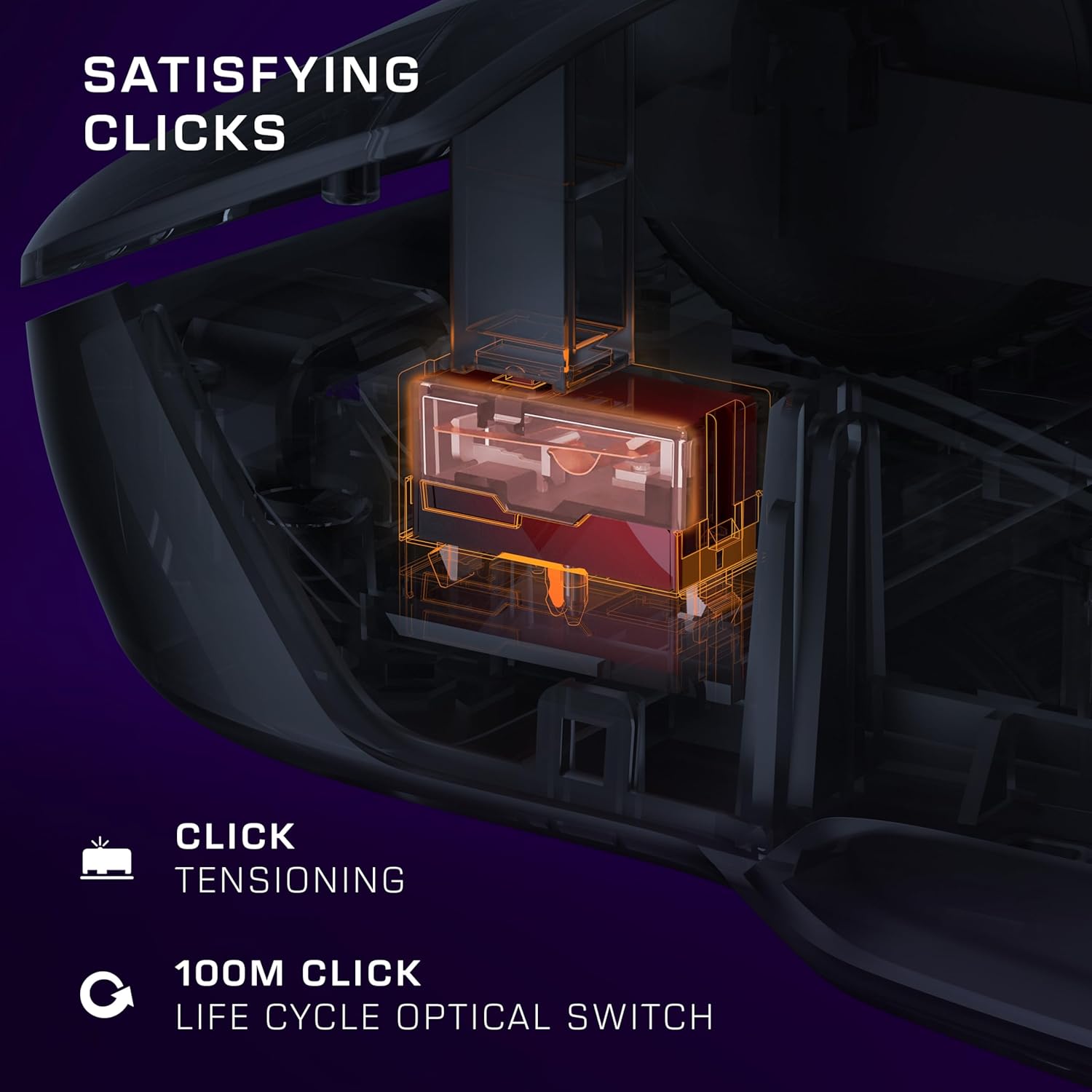
Image: A transparent overlay showing the internal components of the mouse, focusing on the 26K DPI optical sensor for smooth tracking.
5. Optical Switches and Click Tensioning
The Kone II Air features TITAN optical switches, ensuring precise and reliable clicks with a lifecycle of 100 million clicks. The pre-tensioned buttons provide satisfying and rapid click responses.
Obrázek: Detailní interní view of the mouse, illustrating the optical switch mechanism responsible for click responsiveness and durability.
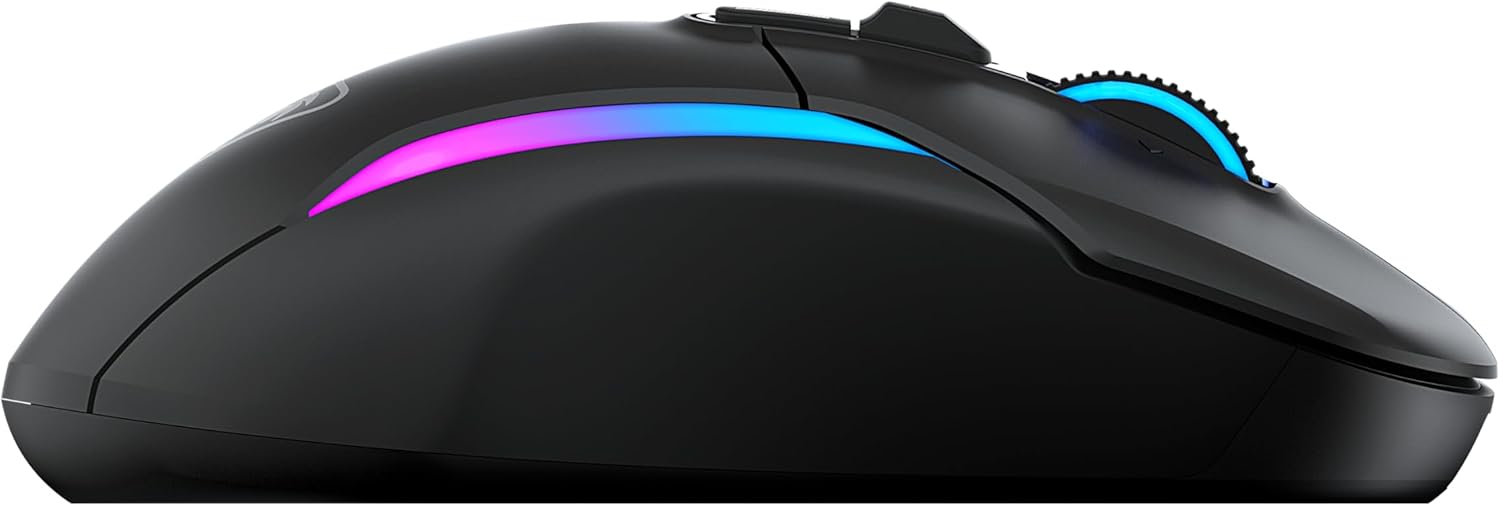
6. RGB osvětlení
Personalize your gaming setup with the dual-zone programmable RGB lighting. Settings can be adjusted via the companion software (if available, check Turtle Beach webstránky pro stahování softwaru).
7. Životnost baterie
Enjoy extended gaming sessions with up to 350 hours of battery life in low-latency Bluetooth connection or up to 130 hours in high-performance 2.4 GHz wireless mode.

Image: The mouse illuminated with RGB lighting, accompanied by icons indicating battery life for both 2.4GHz wireless and Bluetooth connections.
Údržba
1. Čištění
To maintain optimal performance and appearance, regularly clean your mouse. Use a soft, dry, lint-free cloth to wipe down the surface. For stubborn dirt, slightly damphadřík vodou. Nepoužívejte agresivní chemikálie, abrazivní čisticí prostředky ani rozpouštědla.
2. Péče o baterie
To maximize battery lifespan, avoid fully discharging the mouse frequently. Recharge the mouse when the battery indicator suggests low power. Store the mouse in a cool, dry place when not in use for extended periods.
3. PTFE Feet
The mouse features pure, heat-treated PTFE feet for incredible glide. Keep the mousepad surface clean to prevent debris from accumulating on the feet, which can affect glide performance. Replacement feet may be available from Turtle Beach support if they wear out over time.

Image: The underside of the mouse, clearly showing the smooth, white PTFE feet designed for effortless gliding.
Odstraňování problémů
1. Myš nereaguje
- Zkontrolujte baterii: Ensure the mouse is charged. Connect it to the charging cable.
- Zkontrolujte režim připojení: Verify the switch on the underside of the mouse is set to the correct mode (2.4 GHz or Bluetooth) for your connection type.
- Bezdrátové připojení 2.4 GHz: Ujistěte se, že je USB přijímač bezpečně zapojený do funkčního USB portu. Zkuste jiný USB port.
- Bluetooth: Ensure Bluetooth is enabled on your computer and the mouse is paired. Try unpairing and re-pairing the mouse.
- Restartovat: Restartujte počítač.
2. Erratic Tracking or Cursor Movement
- Čistit senzor: Ujistěte se, že optický senzor na spodní straně myši je čistý a bez prachu nebo nečistot.
- Povrch: Use the mouse on a clean, uniform, non-reflective surface. A good quality mousepad is recommended.
- Nastavení DPI: Pokud je kurzor příliš citlivý, upravte nastavení DPI na nižší hodnotu.
3. Tlačítka nereagují
- Konflikt softwaru: If you have other mouse software installed, it might conflict. Try uninstalling other mouse drivers/software.
- Resetovat: Refer to the Quick Start Guide or Turtle Beach support for instructions on how to reset the mouse to factory settings, if available.
Specifikace
| Funkce | Detail |
|---|---|
| Číslo modelu | TBM-1104-05 |
| Konektivita | Bezdrátové připojení 2.4 GHz, Bluetooth |
| Senzor | Optický senzor Owl-Eye |
| Rozsah DPI | 50 - 26 000 DPI |
| Rychlost sledování | 650 IPS (16.5 m/s) |
| Spínače | TITAN Optical Switches (100M click lifecycle) |
| Programovatelná tlačítka | 7 buttons, 21 functions with Easy-Shift[+] |
| Rolovací kolečko | 4D Multifunction (Free-spin & Tactile, Tilt) |
| Battery Life (2.4 GHz) | Až 130 hodin |
| Výdrž baterie (Bluetooth) | Až 350 hodin |
| Rozměry (D x Š x V) | 17.9 x 11.5 x 0.3 cm (přibližné, na základě údajů o produktu) |
| Hmotnost | Není uvedeno v poskytnutých datech |
| Kompatibilita | PC (Windows 7, Windows XP, Linux), Personal Computer |
Informace o záruce
The Turtle Beach Kone II Air Wireless Gaming Mouse comes with a 2letá záruka výrobce. Please retain your proof of purchase for warranty claims. For detailed warranty terms and conditions, refer to the official Turtle Beach webnebo kontaktujte jejich zákaznickou podporu.
Podpora
For further assistance, technical support, or to download the latest software and drivers for your Turtle Beach Kone II Air mouse, please visit the official Turtle Beach support webweb. Najdete tam také často kladené otázky a komunitní fóra.
Official Turtle Beach Webmísto: www.turtlebeach.com
Ask a question about this manual
Ask about setup, troubleshooting, compatibility, parts, safety, or missing instructions. Manuals+ will review the question and use this page’s manual context to help answer it.