
Zavedení
Děkuji za nákupasing the KTC H27S17 27-inch WQHD 180Hz Curved Gaming Monitor. This manual provides essential information for the safe and efficient use of your new monitor. Please read it thoroughly before use and retain it for future reference.
Konec produktuview Video
Video: Oficiální video s produktemasing the key features and design of the KTC H27S17 27-inch Curved Gaming Monitor.
Obsah balení
Ověřte, zda jsou v balení obsaženy všechny níže uvedené položky:
- Napájecí kabel
- Kabel DisplayPort
- Napájecí adaptér
- Stojan na monitor
- Základna stojanu
- Driver CD (or download link)
- Montážní šrouby
- Instruction Manual (Japanese version)
- Rychlý průvodce
- Záruční list
Pokyny pro nastavení
1. Sestavení stojanu
Attach the stand base to the monitor stand using the provided screws. Then, securely attach the assembled stand to the back of the monitor.
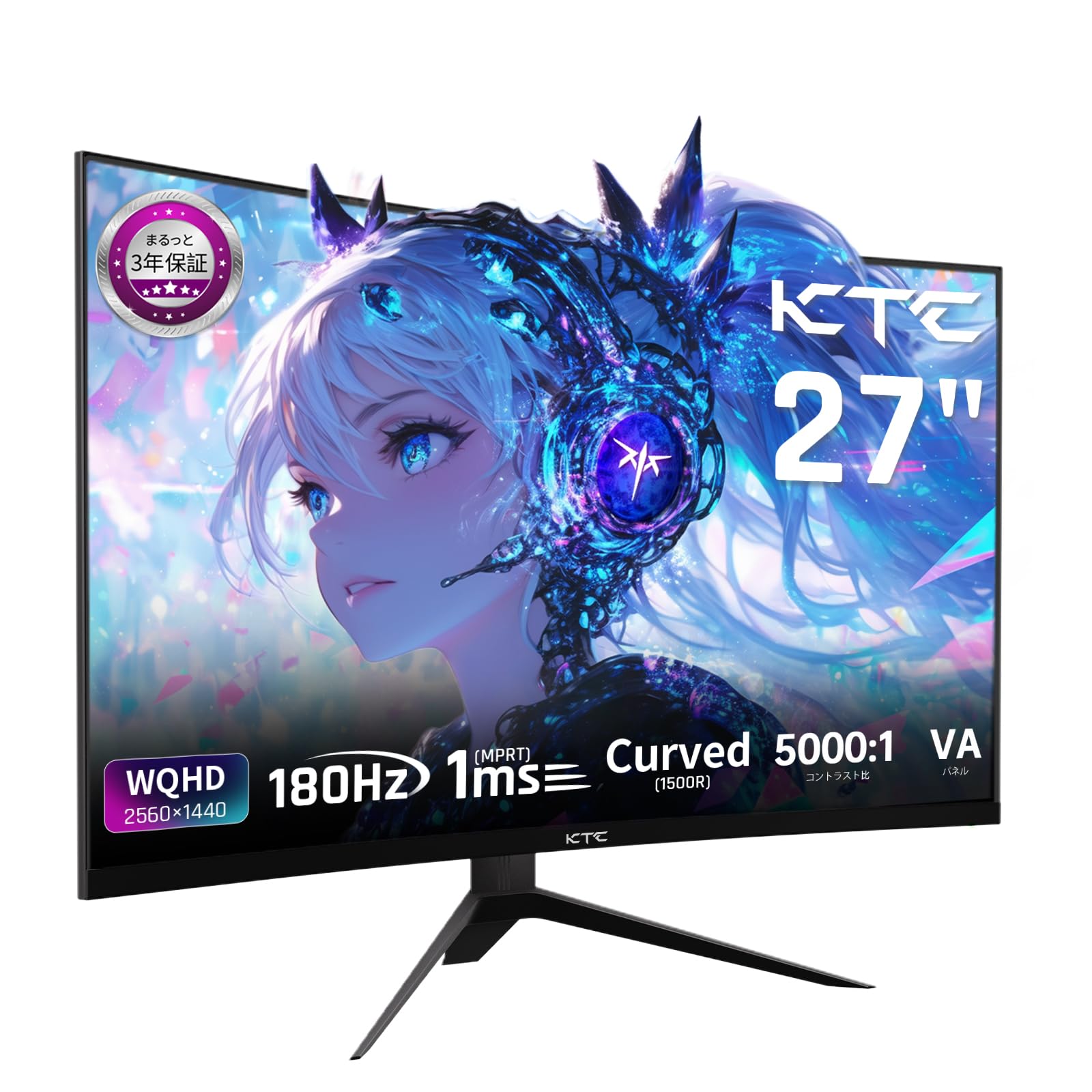
Image: The KTC H27S17 monitor fully assembled with its stand, viewed zepředu.
2. Připojení ke zdroji napájení
Připojte napájecí adaptér ke vstupnímu portu stejnosměrného proudu monitoru a poté zapojte napájecí kabel do zásuvky ve zdi.
3. Připojení k zařízení
Use the appropriate cable (DisplayPort or HDMI) to connect your computer or gaming console to the monitor. Ensure the cable is securely connected to both the monitor and your device.

Obrázek: Zadní view of the monitor showing the various input ports including DC, USB, HDMI, DisplayPort, and headphone jack.
4. Montáž VESA (volitelné)
The monitor supports VESA 100mm x 100mm mounting. If using a VESA mount, remove the stand and attach the monitor to your VESA-compatible arm or wall mount using appropriate screws.
Image: Diagram illustrating the VESA 100x100mm mounting pattern and tilt adjustment range on the back of the monitor.
Návod k obsluze
Zapnutí/vypnutí
Stisknutím tlačítka napájení, které se obvykle nachází na zadní nebo spodní straně monitoru, jej zapnete nebo vypnete. Kontrolka napájení se rozsvítí, když je monitor zapnutý.
Nabídka na obrazovce (OSD).
Use the joystick or buttons on the monitor to navigate the OSD menu. This menu allows you to adjust various display settings such as brightness, contrast, color temperature, input source, and gaming features.
Výběr zdroje vstupu
If multiple devices are connected, use the OSD menu to select the desired input source (HDMI 1, HDMI 2, DisplayPort 1, DisplayPort 2).
Funkce displeje
Curved Display (1500R)
Zakřivení 1500R poskytuje pohlcující zážitek viewing experience, reducing eye strain during extended use by matching the natural curve of the human eye.

Image: A curved monitor displaying a vibrant image, highlighting the 1500R curvature for an immersive experience.
WQHD Resolution (2560x1440)
Experience detailed visuals with WQHD (2560x1440) resolution, offering approximately 1.7 times the pixel density of Full HD displays.

Image: A monitor displaying a high-resolution image, emphasizing the clarity of WQHD (2560x1440) compared to lower resolutions.
High Refresh Rate (180Hz) and Fast Response Time (1ms MPRT)
The 180Hz refresh rate and 1ms (MPRT) response time ensure smooth, blur-free visuals, crucial for fast-paced gaming and action scenes.

Image: A split screen comparison on the monitor, demonstrating the difference between 180Hz/1ms and 60Hz/5ms, highlighting reduced motion blur.
Vibrant Color Reproduction and HDR10
With sRGB 132%, DCI-P3 104%, Adobe RGB 112% color volume, and HDR10 support, the monitor delivers accurate and vivid colors with enhanced contrast between bright and dark areas.

Image: A monitor displaying a colorful scene, illustrating the wide color gamut and high contrast ratio (5000:1).
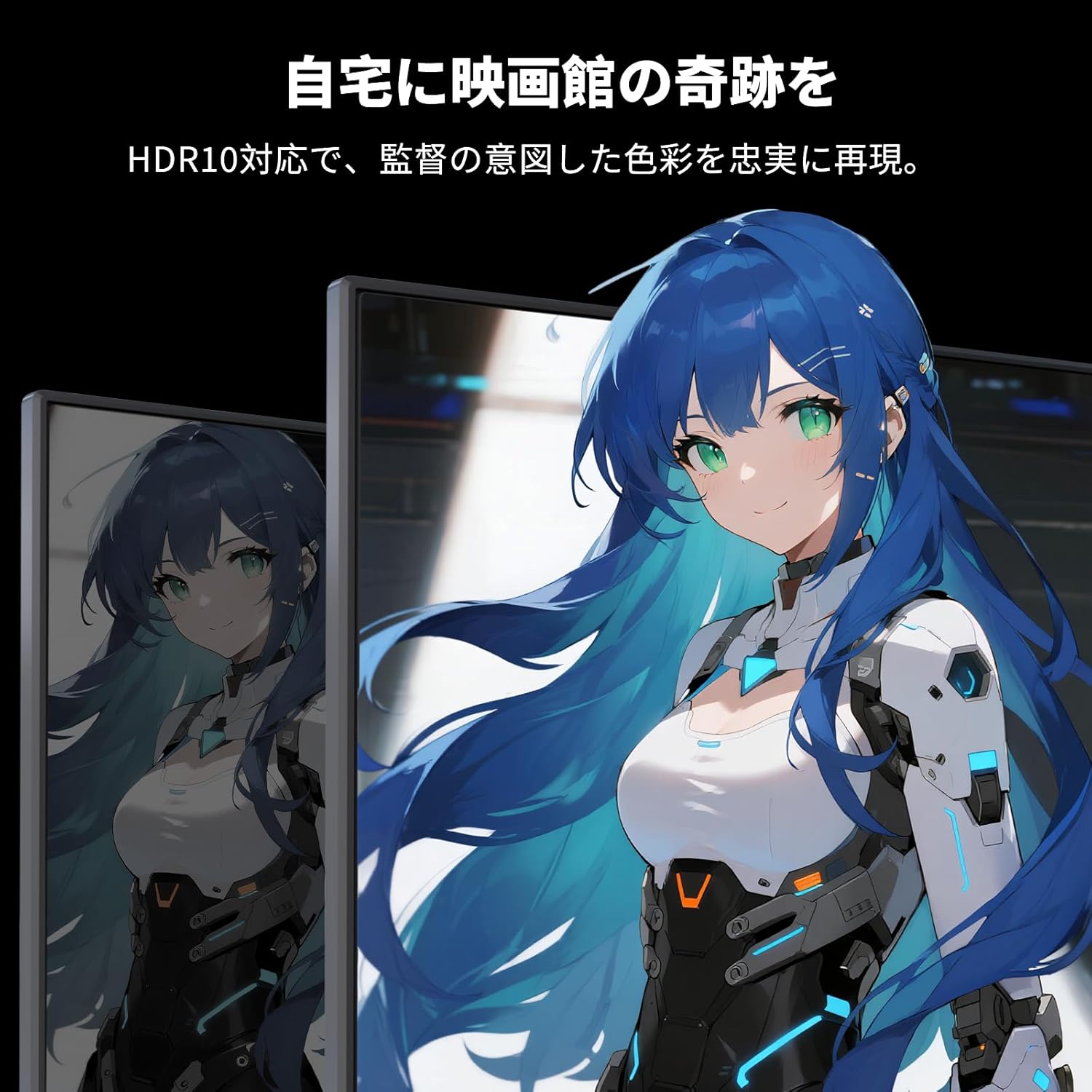
Image: A monitor showing a scene with HDR10 enabled, demonstrating improved dynamic range and detail in both bright and dark areas.
Technologie adaptivní synchronizace
Adaptive Sync (FreeSync and G-Sync compatible) eliminates screen tearing and stuttering, providing a fluid gaming experience.

Image: A split screen comparison on the monitor, showing the difference between Adaptive Sync OFF (screen tearing) and ON (smooth image).
Funkce péče o zrak
The monitor includes Flicker-Free technology and a Low Blue Light mode to reduce eye strain during prolonged use.

Image: Illustrations demonstrating Flicker-Free technology and Low Blue Light mode, designed to reduce eye fatigue.
Konektivita
The KTC H27S17 monitor offers multiple connectivity options:
- 2× HDMI 2.0: Supports WQHD (2560x1440) at 144Hz.
- 2× DisplayPort 1.4: Supports WQHD (2560x1440) at 180Hz.
- 1 x USB 2.0: For firmware upgrades only.
- 1 x 3.5mm Headphone Jack: Pro audio výstup.
- 1 x DC Input: Pro připojení napájení.
Obrázek: Podrobný view of the monitor's rear panel, highlighting the DC input, USB port, HDMI ports, DisplayPort inputs, and headphone jack.
Physical Adjustments
Nastavení sklonu
The monitor stand allows for tilt adjustment from -5 to 15 degrees, enabling you to find an optimal viewúhel sklonu pro pohodlí.
Image: Diagram illustrating the tilt adjustment range of the monitor stand.
Kompatibilita VESA
The monitor is compatible with VESA 100mm x 100mm mounting standards, allowing for flexible installation with monitor arms or wall mounts.
Údržba
Čištění obrazovky
Jemně otřete obrazovku měkkým hadříkem, který nepouští vlákna. V případě odolných skvrn lehceampOmyjte hadřík vodou nebo roztokem na čištění obrazovky. Nepoužívejte agresivní chemikálie ani abrazivní materiály.
Cleaning the Monitor Body
Wipe the monitor body with a soft, dry cloth. Do not use liquid cleaners directly on the monitor.
Skladování
Pokud monitor delší dobu nepoužíváte, skladujte jej na chladném a suchém místě, mimo dosah přímého slunečního záření a extrémních teplot.
Odstraňování problémů
Pokud narazíte na problémy s monitorem, podívejte se na následující běžná řešení:
- Bez napájení: Ensure the power cable and adapter are securely connected and the power outlet is functional.
- Bez signálu: Verify that the input cable (HDMI/DisplayPort) is correctly connected to both the monitor and the source device. Select the correct input source via the OSD menu.
- Blikající/zkreslený obraz: Check cable connections. Ensure your graphics card drivers are up to date. Try adjusting the refresh rate in your device's display settings.
- Mrtvé pixely: While rare, a small number of dead pixels may be within manufacturing tolerances. Refer to the warranty policy for details.
- Audio Issues (Headphone Jack): Ensure headphones are fully plugged in. Check audio settings on your connected device.
For further assistance, please contact KTC customer support.
Specifikace
| Funkce | Specifikace |
|---|---|
| Značka | KTC |
| Model | H27S17 |
| Velikost obrazovky | 27 palců |
| Rezoluce | WQHD (2560 x 1440 pixelů) |
| Poměr stran | 16:9 |
| Zakřivení | 1500R |
| Typ panelu | VA |
| Obnovovací frekvence | 180 Hz |
| Doba odezvy | 1 ms (MPRT) |
| Kontrastní poměr | 5000:1 |
| Jas | 300 cd/m² |
| Barevný gamut | sRGB 132% / DCI-P3 104% / Adobe RGB 112% |
| Podpora HDR | HDR10 |
| Adaptivní synchronizace | FreeSync, G-Sync Compatible |
| Konektivita | 2x HDMI 2.0, 2x DisplayPort 1.4, 1x USB 2.0 (Upgrade only), 1x Headphone Jack |
| VESA Mount | Rozměr 100 mm x 100 mm |
| Nastavení sklonu | -5 až 15 stupňů |
| Funkce péče o zrak | Bez blikání, nízká hladina modrého světla |
Záruka a podpora
KTC provides a 3-year warranty and a 12-month exchange service for this product. For any questions or issues, please contact customer support.
- Telefon: 050-3606-8990
- E-mail: podpora@ktcplay.com

Image: Information regarding KTC's 3-year warranty and contact details for customer support.
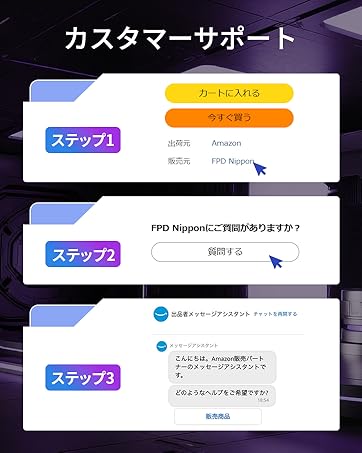
Image: Step-by-step guide on how to contact customer support via Amazon.