
1. Úvod
This manual provides essential instructions for setting up, operating, and maintaining your Brother DCP-L2622DW multifunction laser printer. The Brother DCP-L2622DW is a versatile device offering print, scan, and copy functionalities, designed for efficient use in home or small office environments. It features high-resolution monochrome printing, automatic duplex printing, and flexible connectivity options including Wi-Fi and USB.
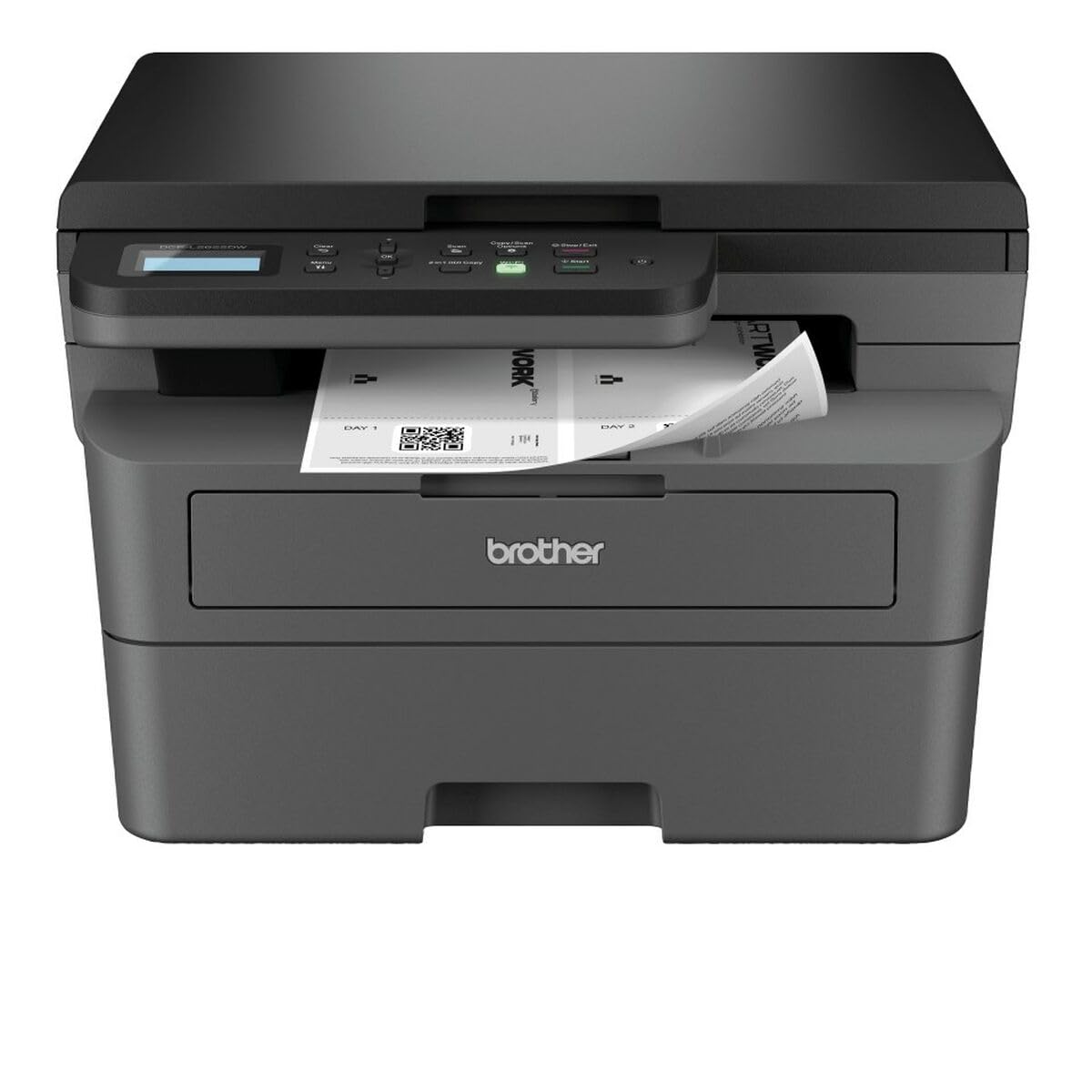
Obrázek 1: Brother DCP-L2622DW Multifunction Laser Printer. This image displays the front view of the printer, highlighting its compact design and integrated control panel.
2. Nastavení
2.1 Vybalení a umístění
- Opatrně vyjměte tiskárnu z obalu.
- Odstraňte všechny ochranné pásky a balicí materiály z vnější i vnitřní strany tiskárny.
- Place the printer on a flat, stable surface with adequate ventilation.
2.2 Připojení napájení
- Připojte napájecí kabel k napájecímu vstupu tiskárny.
- Zapojte druhý konec napájecího kabelu do uzemněné elektrické zásuvky.
- Do not power on the printer until all other setup steps are complete.
2.3 Instalace tonerové kazety a fotoválce
- Otevřete přední kryt tiskárny.
- Remove the toner cartridge and drum unit assembly from its protective bag.
- Tonerovou kazetu pevně vložte do fotoválce, dokud nezapadne na místo.
- Slide the combined toner and drum unit assembly into the printer until it clicks.
- Zavřete přední kryt.
2.4 Vkládání papíru
- Úplně vytáhněte zásobník papíru.
- Upravte vodítka papíru podle formátu papíru (např. A4).
- Vložte papír do zásobníku a ujistěte se, že je rovný a nepřesahuje rysku maximálního naplnění.
- Jemně zatlačte zásobník papíru zpět do tiskárny.
2.5 Connecting to a Computer (USB/Wi-Fi)
- USB připojení: Connect a USB cable (not included) from the printer to your computer.
- Wi-Fi připojení:
- Zapněte tiskárnu.
- Use the printer's control panel to navigate to the Network settings.
- Vybrat WLAN a pak Průvodce nastavením.
- Vyberte ze seznamu svou síť Wi-Fi a zadejte heslo.
- Potvrďte připojení.
2.6 Instalace ovladače
- Insert the installation CD (if provided) into your computer, or download the latest drivers from the official Brother support webmísto.
- Dokončete instalaci ovladače podle pokynů na obrazovce.
3. Obsluha tiskárny
3.1 Základní tisk
- Otevřete dokument, který chcete vytisknout, v počítači.
- Vybrat Vytisknout z nabídky aplikace (např. File > Tisk).
- Ensure the Brother DCP-L2622DW is selected as the printer.
- Adjust print settings such as number of copies, paper size, and duplex printing (if desired).
- Klikněte Vytisknout.
3.2 Automatic Duplex Printing
- When printing from your computer, access the printer properties or preferences.
- Hledejte možnost související s 2-stranný tisk or Duplex.
- Select the desired duplex setting (e.g., Long-edge binding, Short-edge binding).
- Proceed with printing. The printer will automatically print on both sides of the paper.
3.3 Skenování dokumentů
- Place the document face down on the scanner glass, aligning it with the guide marks.
- From your computer, open the Brother iPrint&Scan application or other scanning software.
- Vybrat Skenovat and choose your desired settings (e.g., resolution, color mode, destination).
- Klikněte Skenovat k zahájení procesu.
- Alternatively, you can initiate a scan from the printer's control panel and send it to your computer.
3.4 Kopírování dokumentů
- Položte dokument lícem dolů na sklo skeneru.
- Na ovládacím panelu tiskárny stiskněte tlačítko Kopie tlačítko.
- Use the arrow keys to adjust the number of copies or other settings (e.g., reduce/enlarge).
- Stiskněte Start začít kopírovat.
4. Údržba
4.1 Čištění tiskárny
- Vnější: Vnější povrch tiskárny otřete měkkým hadříkem, který nepouští vlákna. Nepoužívejte abrazivní čisticí prostředky ani rozpouštědla.
- Sklo skeneru: Gently clean the scanner glass with a soft, lint-free cloth moistened with a non-abrasive glass cleaner.
- Korónový drát: Periodically clean the corona wire inside the drum unit by sliding the green tab from left to right several times.
4.2 Výměna tonerové kazety a fotoválce
- When the printer indicates a low toner or drum life, order a replacement.
- Open the front cover and remove the old toner/drum assembly.
- Separate the toner cartridge from the drum unit.
- Unpack the new toner cartridge and insert it into the old or new drum unit until it clicks.
- Insert the new assembly into the printer and close the front cover.
- Reset the drum counter if prompted by the printer.
4.3 Odstranění zaseknutého papíru
- If a paper jam occurs, the printer's display will show an error message.
- Open the appropriate covers (front cover, back cover, or paper tray) as indicated by the error message.
- Opatrně vytáhněte zaseknutý papír ve směru dráhy papíru. Dávejte pozor, abyste papír netrhli.
- Close all covers and trays. The printer should resume printing.
5. Řešení problémů
5.1 Běžné problémy a řešení
| Problém | Možná příčina | Řešení |
|---|---|---|
| Tiskárna netiskne | Not powered on, cable disconnected, driver issue, paper jam, out of toner. | Check power and connections. Reinstall drivers. Clear jams. Replace toner. |
| Špatná kvalita tisku | Low toner, dirty drum unit, incorrect paper type, fuser issue. | Replace toner. Clean corona wire/drum. Use recommended paper. Contact support if fuser issue suspected. |
| Wi-Fi připojení je nestabilní | Weak signal, incorrect password, router issue. | Move printer closer to router. Re-enter Wi-Fi password. Restart router and printer. |
| Chyba uvíznutí papíru | Paper stuck in paper path. | Follow instructions in section 4.3 to clear the jam. |
5.2 Chybové zprávy
Refer to the printer's LCD display for specific error codes or messages. Consult the full online manual or Brother support webweb s podrobným vysvětlením a řešením pro každý chybový kód.
6. Specifikace
| Funkce | Detail |
|---|---|
| Název modelu | DCP-L2622DW |
| Funkce | Tisk, skenování, kopírování |
| Technologie tisku | Laser |
| Tisk výstupu | Monochromatický |
| Maximální rychlost tisku (černobíle) | 34 stran za minutu |
| Maximální rozlišení tisku | 1200 x 1200 dpi |
| Čas výstupu první stránky | 8.5 sekund |
| Oboustranný tisk | Automatický |
| Typ skeneru | Valník |
| Maximální rozlišení skenování | 1200 x 1200 dpi |
| Konektivita | USB, Wi-Fi |
| Vnitřní paměť | 256 MB |
| Vstupní kapacita papíru | 250 listů |
| Výstupní kapacita papíru | 120 listů |
| Podporované velikosti médií | A4, A5, A6, B5, Envelopes, Labels |
| Rozměry (D x Š x V) | 42.5 x 57.5 x 42.5 cm |
| Hmotnost položky | 10100 gramů |
| Spotřeba energie | 470 wattů |
7. Informace o záruce
This Brother DCP-L2622DW multifunction laser printer comes with a Omezená záruka. For detailed information regarding the terms, conditions, and duration of your warranty, please refer to the warranty card included with your product or visit the official Brother support webUschovejte si doklad o koupi pro případ reklamace.
8. Zákaznická podpora
Pro další pomoc, technickou podporu, stažení ovladačů nebo přístup k kompletní uživatelské příručce navštivte oficiální stránky podpory Brother. website. You can typically find support resources by searching for your model number (DCP-L2622DW) on their webmísto.
Oficiální podpora Brothera Webmísto: www.brother.com/support