
Zavedení
Thank you for choosing the HP Series 5 527sf Monitor. This manual provides essential information for the safe and efficient use of your new display. Please read this manual thoroughly before operating the monitor and retain it for future reference.
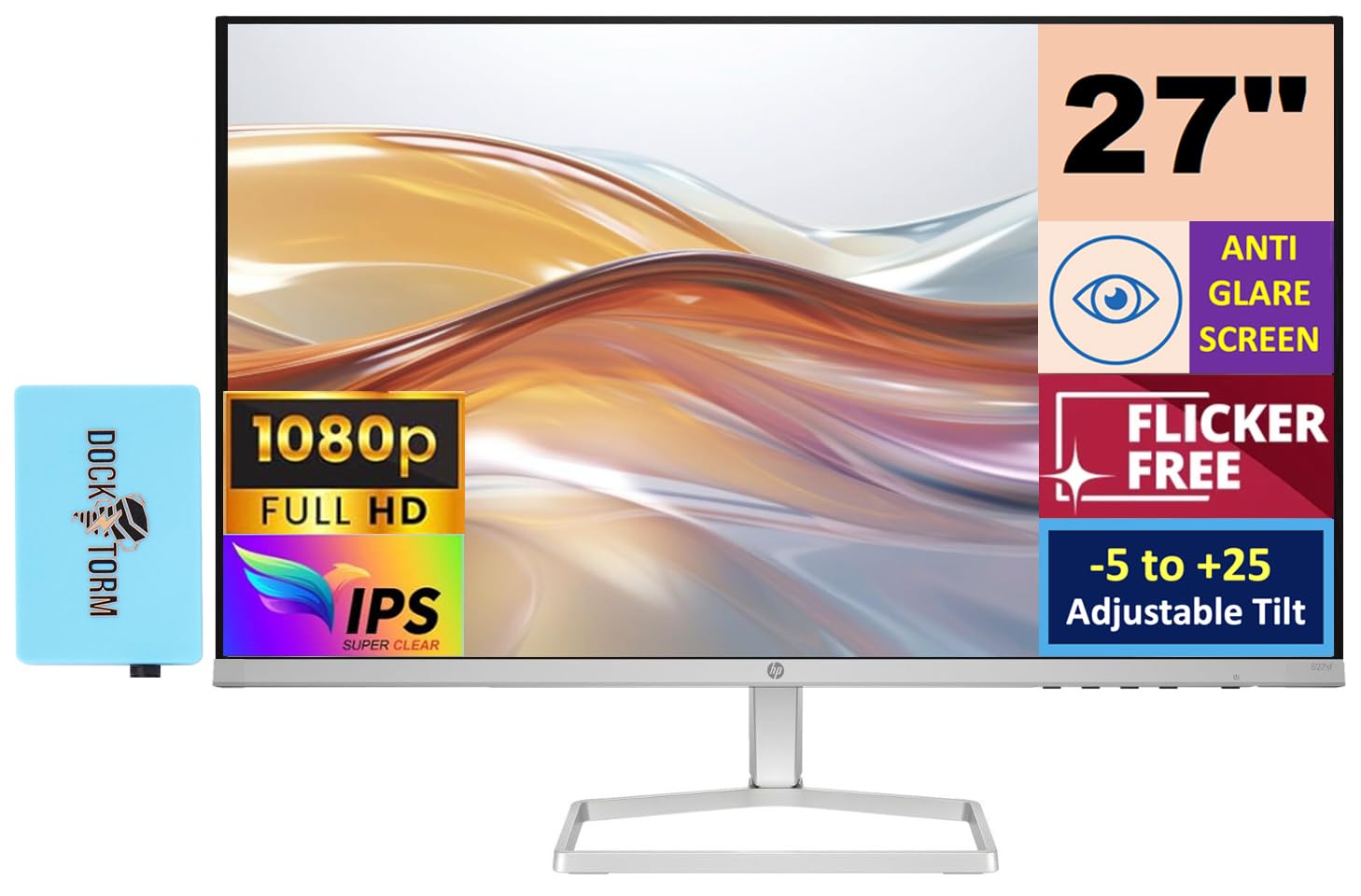
Obrázek 1: Přední strana view of the HP Series 5 527sf Monitor.
Bezpečnostní informace
Pro zajištění bezpečného provozu a prevenci poškození dodržujte následující bezpečnostní opatření:
- Nevystavujte monitor dešti ani vlhkosti.
- Nezakrývejte ventilační otvory.
- Používejte pouze napájecí adaptér dodaný s monitorem.
- Neumísťujte monitor na nestabilní povrch.
- Odpojte napájecí kabel během bouřek nebo pokud jej nebudete delší dobu používat.
- Veškeré opravy svěřte kvalifikovanému servisnímu personálu.
Co je v krabici
Při vybalení ověřte, zda jsou všechny položky přítomny:
- Monitor HP řady 5 527sf
- Stojan na monitor (základna a krk)
- Power Adapter and AC Power Cord
- HDMI kabel
- Quick Setup Guide / Document Kit
- Docztorm Dock (speciální edice přenosného datového centra Docztorm)

Figure 2: Included Docztorm Portable USB Hub.
Nastavení
1. Sestavení stojanu monitoru
- Opatrně vyjměte komponenty monitoru a stojanu z obalu.
- Připevněte krk stojanu k panelu monitoru. Ujistěte se, že bezpečně zacvakne na místo.
- Připevněte základnu stojanu k hrdlu stojanu. Utáhněte všechny šrouby, pokud jsou součástí dodávky.
2. Propojovací kabely
The HP Series 5 527sf Monitor offers multiple connectivity options. Refer to the rear view of the monitor for port locations.

Obrázek 3: Zadní view with power, VGA, and HDMI ports.
- Připojení napájení: Connect the power adapter to the monitor's power input, then plug the AC power cord into a wall outlet.
- Připojení HDMI: Use the provided HDMI cable to connect your computer's HDMI output to one of the monitor's HDMI ports (HDMI 1 or HDMI 2).
- Připojení VGA: If your computer uses VGA, connect a VGA cable from your computer's VGA output to the monitor's VGA port.
3. Počáteční zapnutí
- Stiskněte tlačítko napájení na monitoru.
- Turn on your computer. The monitor should automatically detect the input signal.
- If no image appears, ensure cables are securely connected and select the correct input source using the monitor's OSD (On-Screen Display) menu.
Obsluha monitoru
Ovládání monitoru
The monitor controls are typically located on the bottom right bezel or rear of the monitor. These buttons allow you to navigate the On-Screen Display (OSD) menu to adjust various settings.
Úprava nastavení zobrazení
Use the OSD menu to customize your viewzkušenosti:
- Jas/kontrast: Adjust these settings to suit your environment and preference.
- Nastavení barev: Select from preset color modes or manually adjust color temperature and RGB values.
- Výběr vstupu: Manually switch between HDMI 1, HDMI 2, and VGA inputs if auto-detection fails.
- HP Eye Ease (filtr pro potlačení modrého světla): This feature is always-on and reduces blue light emissions without impacting color accuracy, contributing to eye comfort.

Figure 4: HP Eye Ease technology for reduced blue light.
Nastavení sklonu
The monitor stand allows for tilt adjustment from -5 to +25 degrees. Gently hold the top and bottom edges of the monitor panel and tilt it to your desired viewing angle. No buttons or levers are required for this adjustment.
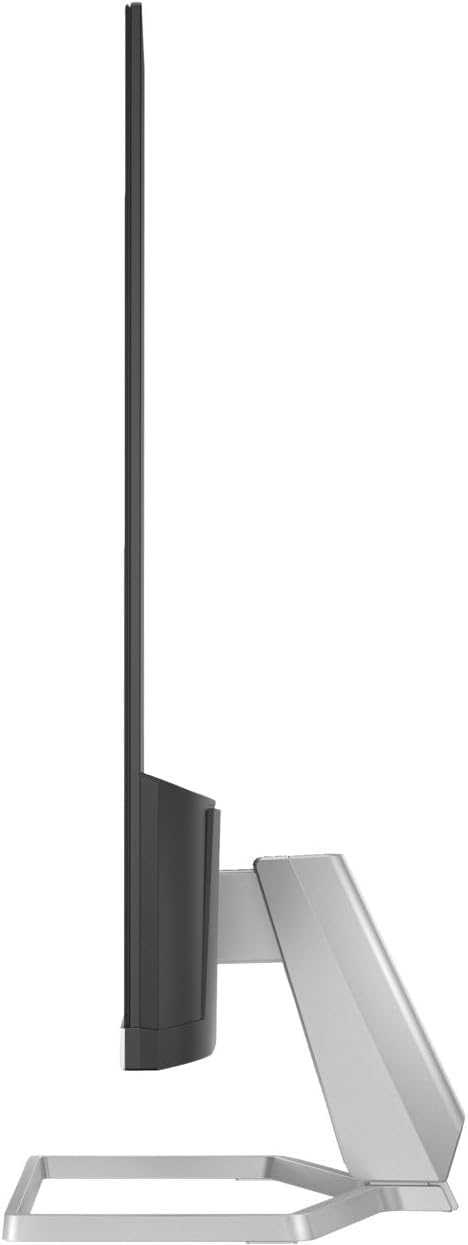
Obrázek 5: Boční profíkfile ilustrující možnost naklápění monitoru.
Údržba
Čištění monitoru
- Před čištěním monitor vždy odpojte.
- Lehce používejte měkký hadřík, který nepouští vlákna dampvodou nebo neabrazivním čističem obrazovek.
- Nestříkejte čisticí prostředek přímo na obrazovku.
- Vyhněte se používání agresivních chemikálií nebo abrazivních materiálů.
Obecná péče
- Chraňte monitor před přímým slunečním zářením a zdroji tepla.
- Zajistěte dostatečné větrání v okolí monitoru.
- Nepokládejte těžké předměty na monitor ani na jeho kabely.
Odstraňování problémů
If you encounter issues with your monitor, try the following solutions:
| Problém | Možné řešení |
|---|---|
| Na obrazovce není žádný obraz | Check power cable connection. Verify video cable is securely connected to both monitor and computer. Ensure correct input source is selected in OSD menu. |
| Blikající nebo nestabilní obraz | Check video cable for damage or loose connections. Ensure display resolution and refresh rate are supported by your computer's graphics card. |
| Barvy se zobrazují nesprávně | Adjust color settings in the OSD menu. Ensure your graphics card drivers are up to date. |
| Monitor se nezapne | Confirm power cable is plugged into a working outlet. Check power adapter connection to the monitor. |
If the problem persists after trying these steps, please contact HP customer support.
Specifikace
| Funkce | Detail |
|---|---|
| Značka | HP |
| Název modelu | 527 sf |
| Číslo modelu | Series 5 527sf |
| Velikost obrazovky | 27 palce |
| Rezoluce | Full HD 1080p (1920x1080) |
| Typ zobrazení | IPS |
| Obnovovací frekvence | 100 Hz |
| Doba odezvy | 5 milisekund |
| Jas | 300 nitů |
| Kontrastní poměr | 1500:1 |
| Viewúhel | 178 stupňů |
| Konektivita | 2x HDMI 1.4, 1x VGA |
| Adaptivní synchronizace | FreeSync |
| Další funkce | Anti-glare Screen, Flicker-Free, Tilt Adjustment (-5 to +25 degrees), HP Eye Ease (Low-Blue Light) |
| VESA Mount Support | Žádný |
| Rozměry položky (D x Š x V) | 7.4"H x 23.93"Š x 17.21"V |
| Hmotnost položky | 7.05 libry |
| UPC | 196384005196 |
Záruka a podpora
Informace o záruce
Na váš monitor HP řady 5 527sf se vztahuje omezená záruka. Prostudujte si prosím záruční list, který je součástí balení produktu, nebo navštivte oficiální webové stránky HP. webstránky pro podrobné podmínky.
Zákaznická podpora
For technical assistance, troubleshooting, or warranty claims, please contact HP customer support through their official website or the contact information provided in your product documentation. Have your monitor's model number and serial number ready when contacting support.