
Zavedení
This manual provides essential information for the setup, operation, and maintenance of your omiXimo Gaming PC, model XEON016. This high-performance system is equipped with an Intel Xeon processor, an NVIDIA RTX 4060 graphics card, 16GB DDR4 RAM, and a 1000GB SSD, designed for demanding computing tasks including gaming and content creation.
Please read this manual thoroughly before using your new PC to ensure proper installation and optimal performance.
Vlastnosti produktu
- INTEL XEON Processor: Offers robust performance for multitasking and gaming applications.
- NVIDIA RTX 4060 Graphics Card: Delivers high-fidelity visuals and smooth frame rates for an immersive gaming experience.
- 16 GB DDR4 RAM: Poskytuje ample memory for running multiple applications and demanding games simultaneously without performance degradation.
- 1000 GB SSD Storage: Ensures rapid system boot-up, quick application loading, and fast file převody.
- Předinstalovaný systém Windows 11 Pro: The operating system is pre-installed, allowing for immediate use upon setup.
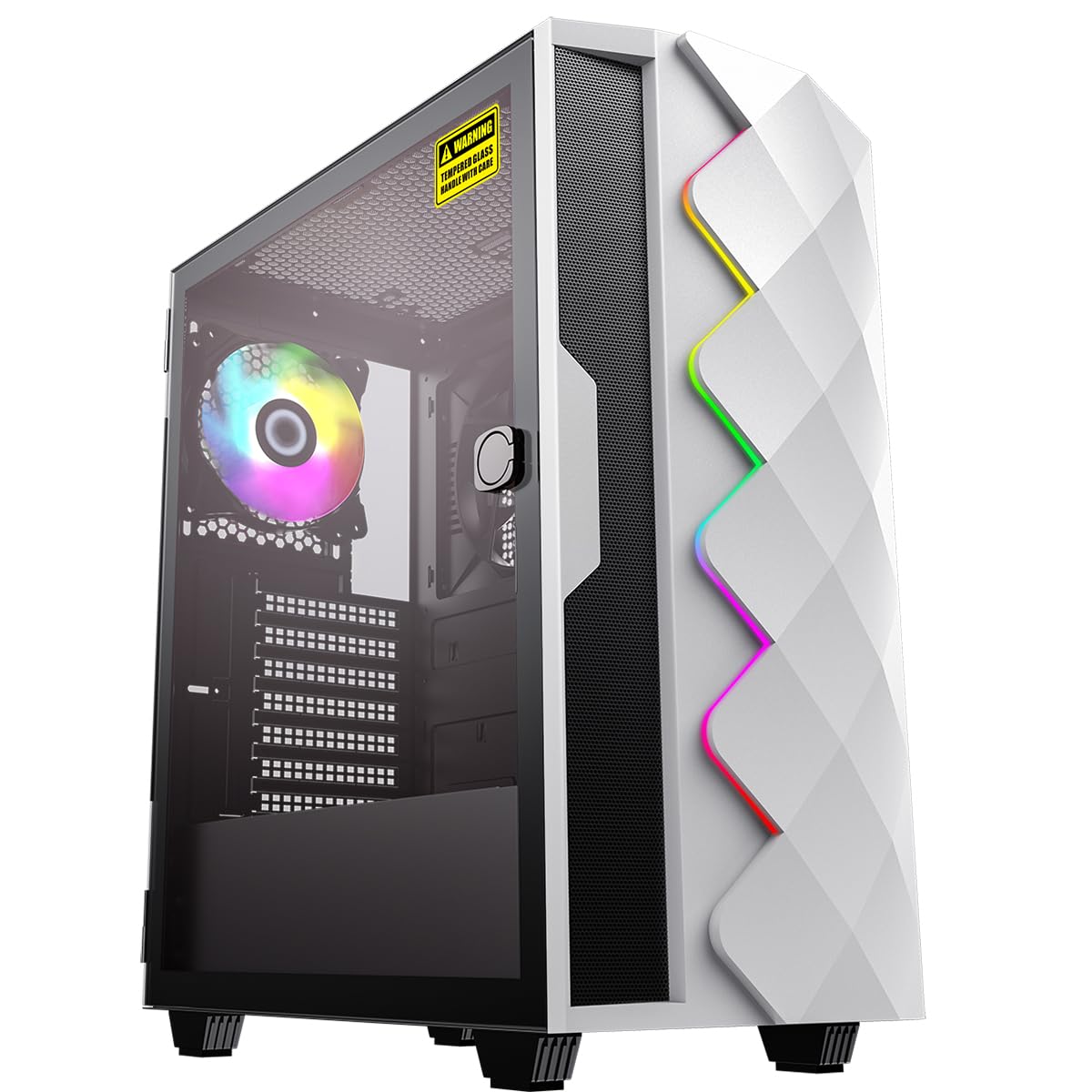
Obrázek 1: Přední strana view of the omiXimo Gaming PC XEON016.
Průvodce nastavením
- Rozbalení: Opatrně vyjměte počítač a veškeré příslušenství z obalu. Obal uschovejte pro budoucí přepravu nebo reklamaci.
- Připojení periferií:
- Připojte monitor(y) k portům grafické karty (HDMI, DisplayPort) umístěným na zadní straně počítače.
- Připojte klávesnici a myš k dostupným USB portům.
- If using a wired network, connect an Ethernet cable to the LAN port.
- Připojte reproduktory nebo sluchátka k audio konektorům.
- Připojení napájení: Connect the power cable to the PC's power supply unit (PSU) and then to a wall outlet.
- První spuštění: Press the power button on the front of the PC. The system will initiate the Windows 11 Pro setup process. Follow the on-screen instructions to complete the initial setup, including language, region, and user account creation.

Obrázek 2: Zadní view of the PC showing various connection ports.
Návod k obsluze
Zapnutí/vypnutí
- Zapnutí: Stiskněte tlačítko napájení umístěné na předním panelu.
- Vypnout: V systému Windows klikněte na tlačítko Start a poté vyberte Napájení > Vypnout. Pokud to není nutné, nevypínejte počítač přímo, abyste předešli ztrátě dat.
- Restartovat: V systému Windows klikněte na tlačítko Start a poté vyberte Napájení > Restartovat.
Připojení k síti
- Kabelové připojení: Ensure an Ethernet cable is connected from your router to the PC's LAN port. The connection should be automatically detected.
- Bezdrátové připojení: If your PC includes a Wi-Fi adapter, click the network icon in the system tray, select your Wi-Fi network, enter the password, and connect.
Instalace softwaru
Software can be installed from various sources:
- Obchod Microsoft: Access the Microsoft Store app to download and install applications.
- Web Stahování: Stáhnout instalaci files (.exe, .msi) from official websites and run them to install software.
Údržba
Čištění
- Vnější: Použijte měkký, damp hadříkem k čištění vnějších povrchů. Nepoužívejte abrazivní čisticí prostředky.
- Prachové filtry: Regularly check and clean the dust filters (if present) on the case to maintain optimal airflow.
- Vnitřní součásti: For internal cleaning, it is recommended to consult a professional or refer to advanced guides. Ensure the PC is powered off and unplugged before opening the case.
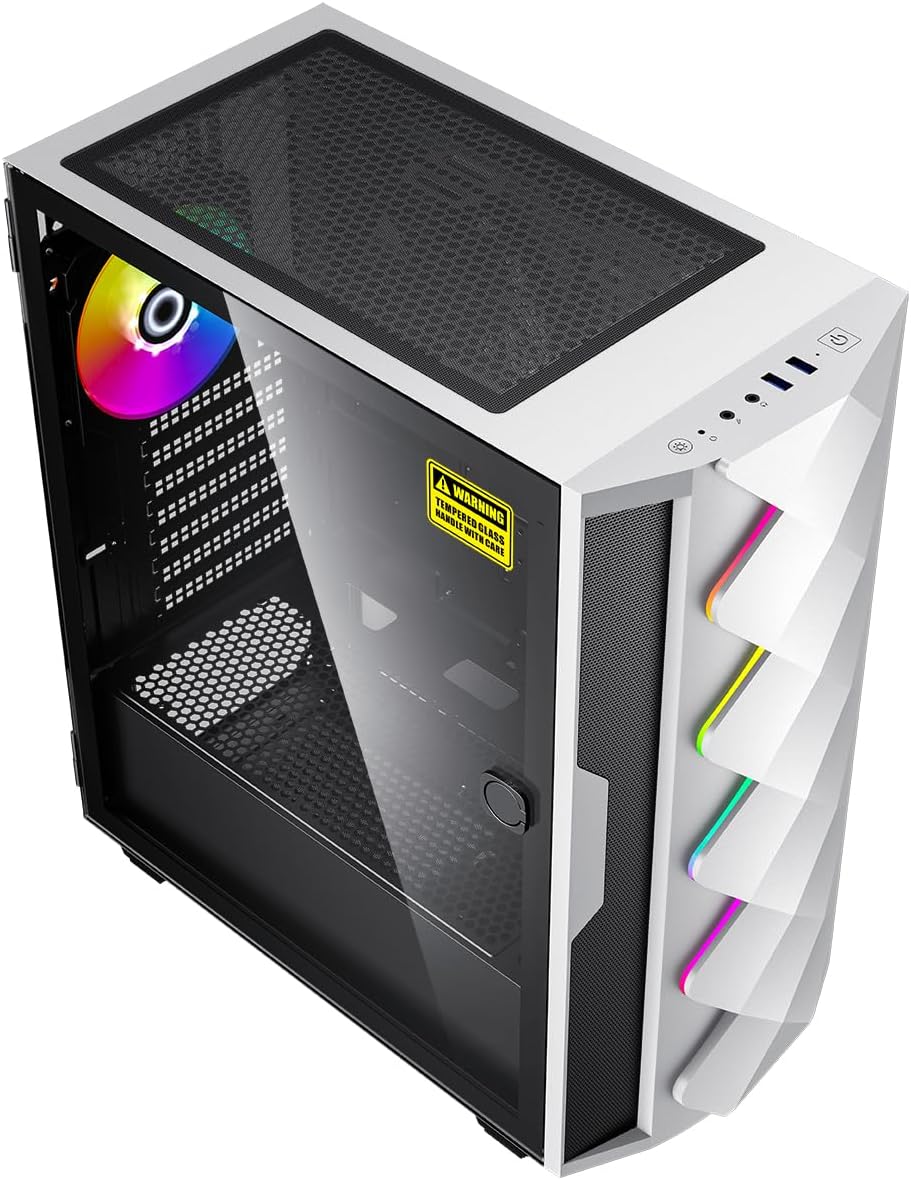
Obrázek 3: Vnitřní view of the PC, showing components and potential dust filter locations.
Aktualizace softwaru
Regularly update your operating system, drivers, and applications to ensure security, stability, and performance. Windows Update can be accessed via Settings > Windows Update.
Větrání
Ensure the PC is placed in a well-ventilated area, away from direct sunlight or heat sources. Do not block the air vents on the case.
Odstraňování problémů
| Problém | Možná příčina | Řešení |
|---|---|---|
| Počítač se nezapne. | Power cable loose, power outlet faulty, PSU issue. | Check power cable connections. Try a different power outlet. Ensure PSU switch is ON. |
| Žádné zobrazení na monitoru. | Monitor cable loose, monitor off, incorrect input selected, graphics card issue. | Ensure monitor is powered on and connected to the graphics card. Check monitor input settings. |
| Systém je pomalý nebo nereaguje. | Too many applications running, insufficient RAM, malware, outdated drivers. | Close unnecessary programs. Check Task Manager for resource usage. Run antivirus scan. Update drivers. |
| PC is overheating. | Blocked vents, dust buildup, fan malfunction. | Ensure proper ventilation. Clean dust filters. Check fan operation. |
Specifikace
| Komponent | Detail |
|---|---|
| Značka | omiXimo |
| Číslo modelu | XEON016 |
| Procesor | Intel Xeon (3.5 GHz) |
| Grafická karta | NVIDIA GeForce RTX 4060 (8 GB GDDR6) |
| BERAN | 16 GB DDR4 (Max. 64 GB supported) |
| Skladování | 1000 GB SSD (Note: Some specifications mention 512GB, but product description indicates 1000GB total capacity) |
| Operační systém | Windows 11 Pro |
| Porty USB 2.0 | 2 |
| Porty USB 3.0 | 4 |
| HDMI porty | 1 |
| Optická mechanika | Žádný |
| Hardwarová platforma | PC |
| Barva | Černý |
Záruka a podpora
For warranty information and technical support, please refer to the documentation included with your purchase or visit the official omiXimo webUschovejte si doklad o koupi pro případ reklamace.
If you encounter issues not covered in this manual, please contact omiXimo customer support for assistance.