
1. Úvod
This manual provides instructions for the setup, operation, and maintenance of your Andoer Mini 1080P Wireless Monitor Camera. Please read this manual thoroughly before using the device to ensure proper functionality and safety.

Image 1: Andoer Mini 1080P Wireless Monitor Camera. This image displays the compact camera unit along with icons indicating its main features: WiFi connectivity, motion detection, and night vision capabilities. A family setting is visible in the background, suggesting home security use.
2. Konec produktuview
2.1 Klíčové vlastnosti
- 1080P High-Definition Monitoring: Provides clear, real-time video surveillance.
- Bezdrátové připojení: Connects to WiFi for remote viewing via a mobile application.
- Infračervené noční vidění: Ensures clear images in low-light conditions.
- Inteligentní detekce pohybu: Sends remote alarm reminders to your mobile device upon detecting abnormal movement.
- Uložení karty TF: Supports up to 32GB TF card for video recording and playback (card not included).
- Vestavěná dobíjecí baterie: Features a 300mAh lithium battery for portable operation.
2.2 Obsah balení
Balíček obsahuje následující položky:
- 1 x bezdrátová kamera
- 1 x Clamp
- 1 x Držák základny
- 2 x USB kabel
- 1 x Uživatelská příručka (anglicky)
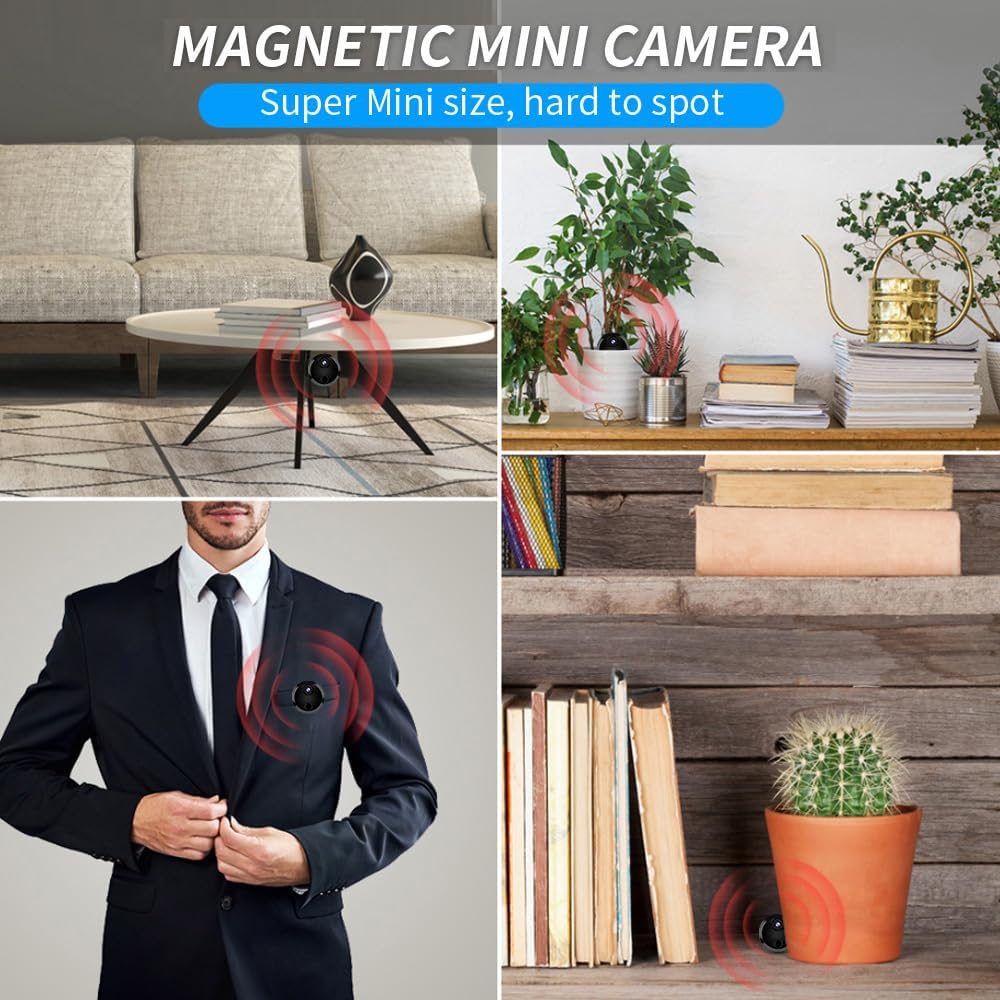
Image 2: Magnetic Mini Camera. This image shows the compact camera discreetly placed in various home and office environments, such as on a shelf, under a table, or attached to clothing, demonstrating its versatility and small form factor.
3. Nastavení
3.1 Nabíjení fotoaparátu
Before initial use, fully charge the camera's built-in 300mAh lithium battery. Connect one of the provided USB cables to the camera's charging port and the other end to a 5V DC power source (e.g., a USB wall adapter or computer USB port). The charging indicator light will illuminate during charging and turn off when fully charged.
3.2 Vložení TF karty (volitelné)
For video storage, insert a TF card (up to 32GB, not included) into the designated slot on the camera. Ensure the card is inserted correctly with the contacts facing the proper direction. The camera will automatically begin recording to the TF card once powered on and configured.
3.3 Mobile Application Download and Installation
To access remote viewing and control features, download the dedicated mobile application. Refer to the specific instructions provided in the included paper manual for the correct app name and download method (e.g., QR code scan or app store search).
3.4 Připojení k Wi-Fi
- Zapněte fotoaparát.
- Open the mobile application on your smartphone.
- Follow the in-app instructions to add a new device. This typically involves scanning a QR code on the camera or connecting to the camera's direct Wi-Fi hotspot first, then configuring it to connect to your home or office Wi-Fi network.
- Once connected, the camera's status indicator will confirm a successful Wi-Fi connection.
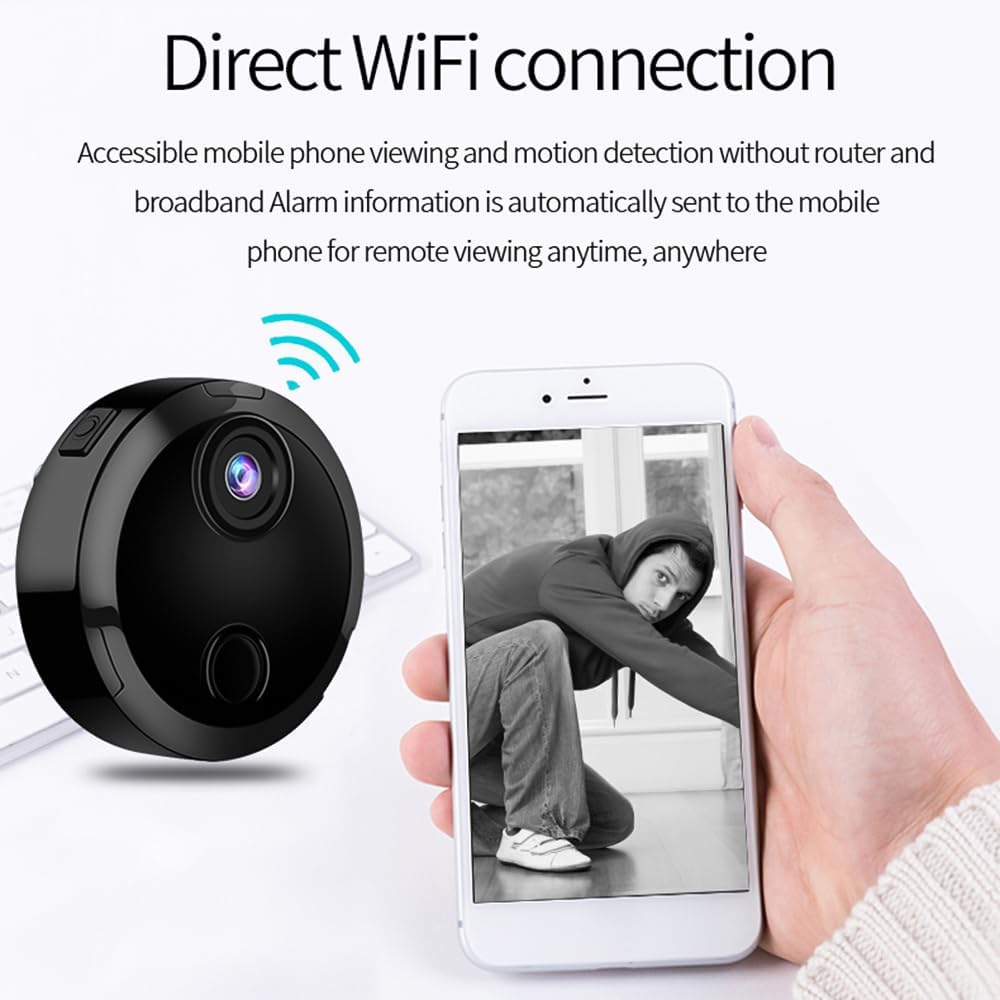
Image 3: Direct WiFi Connection. This image illustrates the camera's ability to connect directly via WiFi, enabling accessible mobile phone viewing and motion detection alerts without requiring a separate router or broadband connection for initial setup.
4. Návod k obsluze
4.1 Vzdálené živé vysílání ViewIng
After successfully connecting the camera to your Wi-Fi network and the mobile application, you can access the live video feed from anywhere using your smartphone. Open the app and select your camera to view foo v reálném časetage.
4.2 Detekce pohybu a alarmy
The camera is equipped with intelligent motion detection. When movement is detected within the camera's field of view, the mobile application will send an immediate remote alarm notification to your smartphone. You can adjust motion detection sensitivity settings within the app.

Image 4: Wi-Fi Connection, Intelligent Motion Detection Alarm. This image depicts the camera's motion detection feature, showing a person being detected in a room, and a smartphone displaying an alert. Icons for alarm and motion detection are also present.

Image 5: Intelligent Detection, Remote Push. This image focuses on the mobile application's functionality, showing a smartphone screen with a red box highlighting a detected object (a person) and indicating that a remote alarm reminder has been sent.
4.3 Noční vidění
The camera features built-in infrared night vision for clear monitoring in dark environments. The night vision function can be automatically activated or manually controlled via the mobile application. Refer to the app settings for specific controls.
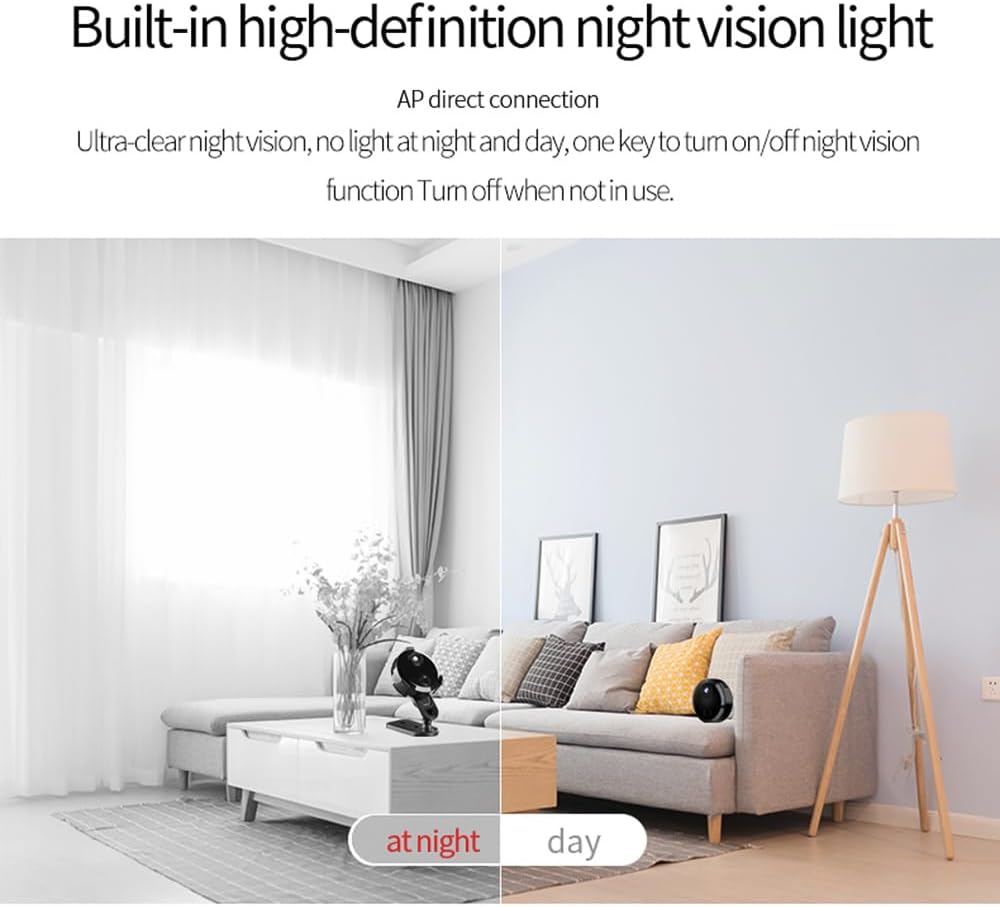
Image 6: Built-in High-Definition Night Vision Light. This split image demonstrates the camera's night vision capability, showing a clear view of a room during the day on one side and an equally clear, albeit monochrome, view of the same room at night with night vision activated on the other side.
4.4 Nahrávání a přehrávání videa
Videos are recorded to the inserted TF card. You can review zaznamenané footage directly through the mobile application. The app allows you to browse, play back, and manage stored videos.
4.5 Multi-User and Multi-Camera ViewIng
The mobile application supports viewing live video from multiple cameras simultaneously (up to 4 cameras as shown in some illustrations) and allows multiple users to access the camera feed concurrently. Share access permissions through the app settings.

Image 7: Remote Control - Support View 4 Cameras Live Video on APP. This image illustrates the mobile application's ability to display live video feeds from up to four different cameras simultaneously on a single smartphone screen, along with icons representing multi-user access.
5. Údržba
- Čištění: K čištění objektivu a těla fotoaparátu používejte měkký, suchý hadřík. Nepoužívejte tekuté čisticí prostředky ani abrazivní materiály.
- Péče o baterie: To prolong battery life, avoid fully discharging the camera frequently. Recharge the battery regularly, especially if the camera will be stored for an extended period.
- Skladování: Fotoaparát skladujte na chladném a suchém místě mimo dosah přímého slunečního záření a extrémních teplot.
- Aktualizace firmwaru: Pravidelně kontrolujte mobilní aplikaci, zda nejsou k dispozici aktualizace firmwaru pro kameru, abyste zajistili optimální výkon a zabezpečení.
6. Řešení problémů
| Problém | Možná příčina | Řešení |
|---|---|---|
| Fotoaparát se nezapne. | Slabá nebo vybitá baterie. | Charge the camera using the provided USB cable and a 5V DC power source. |
| Nelze se připojit k Wi-Fi. | Incorrect Wi-Fi password; camera too far from router; network interference. | Verify Wi-Fi password. Move camera closer to the router. Ensure no strong interference sources are nearby. Reset camera and try connecting again. |
| Bez dálkového ovládání viewing via app. | No internet connection on phone or camera; app not properly configured. | Check internet connectivity on both your phone and the camera. Ensure the camera is successfully connected to Wi-Fi and added to the app. |
| Motion detection alerts are not received or are inaccurate. | Motion detection sensitivity too low/high; app notifications disabled. | Adjust motion detection sensitivity in the app. Ensure app notifications are enabled on your smartphone. |
| TF card not recording or recognized. | TF card not inserted correctly; card is full or corrupted; unsupported card format. | Reinsert the TF card. Format the TF card via the app (if available) or on a computer. Ensure the card is within the supported 32GB capacity. |
7. Specifikace
| Funkce | Detail |
|---|---|
| Rozlišení záznamu videa | 1080p |
| Protokol připojení | Wi-Fi |
| Skladování | TF card, max. 32GB (not included) |
| Baterie | Lithiová baterie 300mAh |
| Nabíjecí svtage | DC 5V |
| Formát videa | AVI, MP4 |
| Image Coding | H.264 |
| Hmotnost položky | 4.7 unce |
| Rozměry balení | 5.91 x 3.15 x 1.57 palce |
| Vnitřní/venkovní použití | Uvnitř, venku |
| Speciální funkce | Pohybový senzor, noční vidění |
| Kompatibilní zařízení | Smartphone (Android controller type mentioned, but generally compatible with smartphones) |
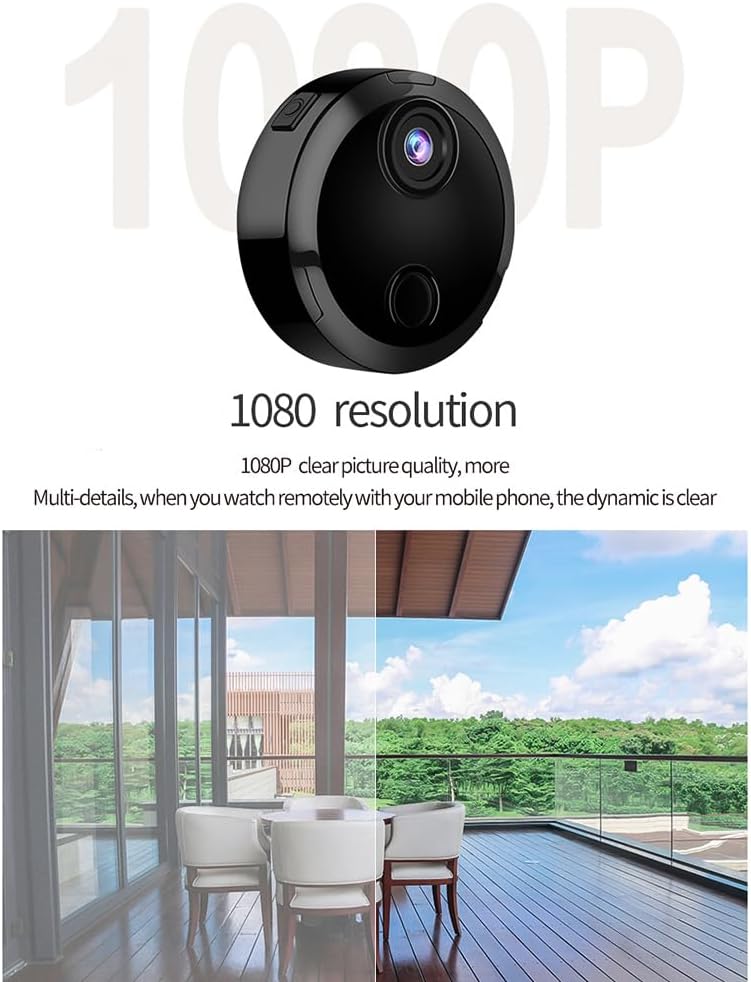
Image 8: 1080P Resolution. This image highlights the camera's 1080P resolution capability, showing the camera unit alongside a clear, detailed outdoor scene, emphasizing the high-quality video output.
8. Informace o záruce
Please refer to the warranty card included in your product packaging or contact the manufacturer directly for detailed warranty information. Standard warranty terms typically cover manufacturing defects for a specified period from the date of purchase.
9. Zákaznická podpora
For technical assistance, troubleshooting, or product inquiries, please contact Andoer customer support. You may find contact information on the product packaging, the official Andoer website, or through the mobile application's help section.
You can also visit the official Andoer store on Amazon for more information: Andoer Store