
1. Úvod
This manual provides essential instructions for the safe and efficient use of your Brother DCP-L2605DW Auto Duplex Laser Printer. This multifunction device offers print, scan, and copy capabilities, designed for home and small office environments. Please read this manual thoroughly before operating the printer and keep it for future reference.

Image: The Brother DCP-L2605DW multifunction laser printer, a compact device for printing, scanning, and copying.
2. Co je v krabici
Ověřte, zda jsou v balení přítomny všechny součásti:
- Brother DCP-L2605DW Laser Printer Unit
- Napájecí kabel
- USB kabel
- Instalační CD (pro ovladače a software)
- Inbox Toner Cartridge (TN-2570XL, approximately 3000 pages yield)
3. Nastavení
3.1 Vybalení a počáteční umístění
Carefully remove the printer from its packaging. Place the printer on a stable, flat surface with adequate ventilation. Ensure sufficient space around the printer for paper trays and cable connections.
3.2 Instalace tonerové kazety
- Otevřete přední kryt tiskárny.
- Vyjměte sestavu fotoválce a tonerové kazety z ochranného obalu.
- Tonerovou kazetu několikrát jemně vodorovně protřepejte, aby se toner rovnoměrně rozprostřel.
- Tonerovou kazetu pevně vložte do fotoválce, dokud nezapadne na místo.
- Slide the drum unit and toner cartridge assembly back into the printer.
- Zavřete přední kryt.
3.3 Vkládání papíru
- Pull out the paper tray completely from the printer.
- Upravte vodítka papíru tak, aby odpovídala formátu vkládaného papíru.
- Load up to 250 sheets of paper (up to 163 GSM) into the tray. Ensure the paper is flat and not curlvyd.
- Jemně zatlačte zásobník papíru zpět do tiskárny, dokud nezacvakne na místo.
3.4 Připojení napájení
Connect the power cable to the printer and then to a grounded electrical outlet. Turn on the printer using the power button.
3.5 Možnosti připojení
Your printer supports multiple connectivity methods:
- USB 2.0: Připojte tiskárnu přímo k počítači pomocí dodaného kabelu USB.
- Ethernet (LAN): Connect the printer to your network router or switch using an Ethernet cable for wired network access.
- Wi-Fi (Wireless LAN): Connect the printer to your wireless network. Follow the on-screen instructions on the printer's LCD display to configure Wi-Fi settings.
- Přímé připojení Wi-Fi: Allows direct connection from mobile devices without a router. Refer to the printer's LCD menu for Wi-Fi Direct setup.
3.6 Instalace ovladačů a softwaru
Insert the included Installation CD into your computer's CD-ROM drive and follow the on-screen instructions to install the necessary drivers and software. Alternatively, download the latest drivers from the official Brother support webmísto.
Video: Krátký overview of the Brother DCP-L2605DW printer, highlighting its features and specifications. This video provides a visual summary of the product's capabilities and design.
4. Návod k obsluze
4.1 Tisk dokumentů
Tisk z počítače nebo mobilního zařízení:
- Ensure the printer is powered on and connected to your device or network.
- Otevřete dokument nebo obrázek, který chcete vytisknout.
- Vybrat Vytisknout z nabídky aplikace.
- Vybrat Brother DCP-L2605DW jako vaši tiskárnu.
- Adjust print settings such as paper size, orientation, and number of copies.
- Pro Automatic Duplex Printing (2-sided printing), select the duplex option in your printer settings.
- Klikněte Vytisknout.

Image: Icon representing automatic duplex printing, a feature that allows printing on both sides of the paper automatically.
4.2 Skenování dokumentů
You can scan documents using the flatbed scanner:
- Položte dokument lícem dolů na sklo skeneru.
- From your computer, open the Brother ControlCenter software or a compatible scanning application.
- Vybrat Skenovat and choose your desired scan settings (e.g., resolution, color mode, destination).
- Spusťte skenování. Naskenovaný obrázek bude uložen do vámi zadaného umístění.
4.3 Kopírování dokumentů
To make copies directly from the printer:
- Položte dokument lícem dolů na sklo skeneru.
- Use the control panel on the printer to select Kopie.
- Adjust settings such as number of copies, enlarge/reduce, and quality.
- Stiskněte tlačítko Start tlačítko pro zahájení kopírování.
4.3.1 2-in-1 (ID) Copy Function
This feature allows you to copy both sides of an ID card onto a single sheet of paper.
- Place the ID card on the scanner glass, aligning it with the indicated marks.
- Stiskněte tlačítko Kopie 2 v 1 (ID). tlačítko na ovládacím panelu.
- Follow the prompts on the LCD display to scan the first side, then flip the card and scan the second side.
- The printer will print both sides onto one page.

Image: Close-up of the printer's control panel, highlighting the '2 in 1 (ID) Copy' button for convenient ID card copying.
5. Údržba
5.1 Výměna tonerové kazety
When the 'Toner Low' or 'Replace Toner' message appears on the LCD, it's time to replace the toner cartridge.
- Otevřete přední kryt tiskárny.
- Remove the drum unit and old toner cartridge assembly.
- Press the release lever on the drum unit and remove the old toner cartridge.
- Unpack the new TN-2570XL toner cartridge and gently shake it.
- Insert the new toner cartridge into the drum unit until it clicks.
- Slide the drum unit and new toner cartridge assembly back into the printer.
- Zavřete přední kryt.
5.2 Čištění tiskárny
Pravidelné čištění pomáhá udržovat kvalitu tisku a prodlužuje životnost tiskárny.
- Vnější: Otřete vnější povrch tiskárny měkkým hadříkem, který nepouští vlákna.
- Sklo skeneru: Sklo skeneru očistěte měkkým, suchým hadříkem. Na odolné skvrny použijte malé množství čističe skla naneseného na hadřík (ne přímo na sklo).
- Korónový drát: Periodically clean the corona wire inside the drum unit by sliding the green tab from left to right several times. Return the tab to its home position.
5.3 Odstranění zaseknutého papíru
If a paper jam occurs, the printer's LCD will display an error message. Follow the on-screen instructions or refer to the full user guide for detailed steps to clear the jam from various locations (e.g., paper tray, fuser unit, back cover).
6. Řešení problémů
This section addresses common issues you might encounter. For more detailed troubleshooting, refer to the comprehensive user manual or Brother's support webmísto.
- Tiskárna nereaguje: Check power connections, USB/Ethernet cables, and Wi-Fi status. Restart the printer and computer.
- Špatná kvalita tisku: Check toner levels. Clean the corona wire. Ensure correct paper type and quality settings.
- Zaseknutý papír: Follow the instructions in Section 5.3 to clear any jammed paper. Ensure paper is loaded correctly and not overfilled.
- Problémy s připojením k síti: Verify Wi-Fi password, network cable connection, and router status. Try restarting your router and printer.
- Problémy s ovladači: Reinstall printer drivers from the installation CD or Brother's webmísto.
7. Specifikace
| Funkce | Popis |
|---|---|
| Typ tiskárny | Monochromatický laser |
| Funkce | Tisk, skenování, kopírování |
| Rychlost tisku (černobíle) | Až 30 stran za minutu (ppm) |
| Rozlišení tisku | Až 1200 1200 x XNUMX XNUMX dpi |
| Oboustranný tisk | Automatický (oboustranný) |
| Konektivita | Hi-Speed USB 2.0, Ethernet, Wi-Fi (IEEE 802.11a/b/g/n), Wi-Fi Direct |
| Paměť | 256 MB |
| Vstupní kapacita papíru | 250 listů (standardní zásobník) |
| Typy médií | Obyčejný papír |
| Velikosti médií | A4, Letter, B5 (JIS), B5 (ISO), A5, A6, Executive, Legal, Folio, etc. |
| Typ skeneru | Valník |
| Rychlost kopírování (černobíle) | Až 30 kopií za minutu |
| Rozměry (D x Š x V) | 39.9H x 41Š x 27.2V centimetrů |
| Hmotnost | 10.1 kg |
| Kompatibilní OS | Windows, Mac, Linux |
| Mobilní kompatibilita | Android, iOS |
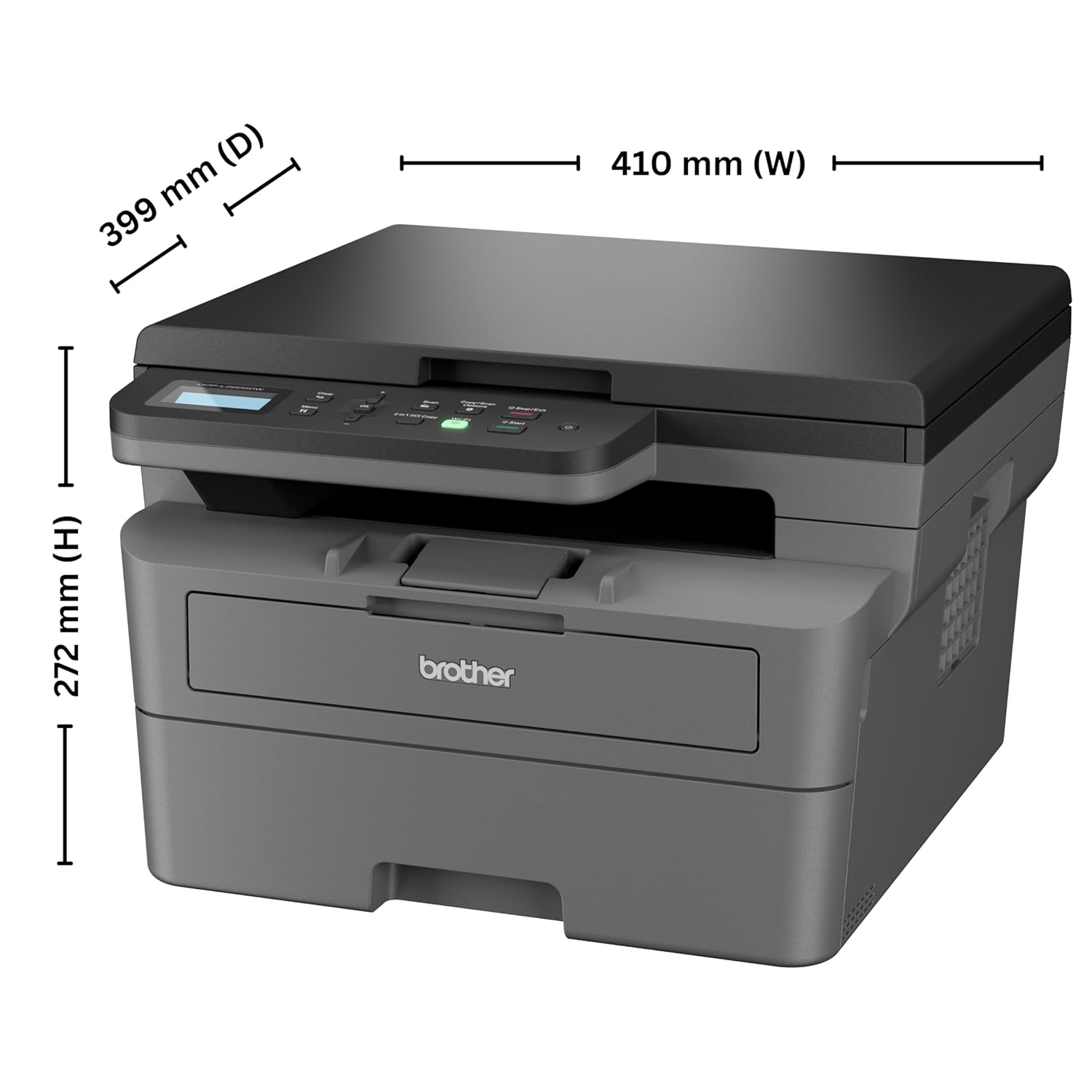
Image: Diagram showing the dimensions of the Brother DCP-L2605DW printer: 399 mm (D), 410 mm (W), 272 mm (H).
8. Informace o záruce
Your Brother DCP-L2605DW printer comes with a 1 roky záruka výrobce. Please retain your purchase receipt as proof of purchase for warranty claims. For detailed terms and conditions, refer to the warranty card included with your product or visit the official Brother webmísto.
9. Podpora a kontakt
For technical assistance, product inquiries, or service requests, please contact Brother support:
- Bezplatná čísla:
- 1-800-222-422 (For MTNL and BSNL users)
- 1-800-209-8904 (For Others and all Mobiles)
Operating Hours: Monday to Friday - 8:30 AM - 6:30 PM | Saturday - 9:00 AM - 6:00 PM
- E-mailová podpora: customercare@brother.in
- Podpora WhatsApp: 7045 450 450
- Oficiální Webmísto: www.brother.in

Image: Graphic displaying Brother's customer support contact details, including toll-free numbers, email, WhatsApp, and webmísto.