
Zavedení
This manual provides essential information for the HP Victus Gaming Laptop, model 15-fa. It covers initial setup, operational guidelines, maintenance procedures, troubleshooting tips, and detailed product specifications. Please read this manual thoroughly to ensure proper use and longevity of your device.
The HP Victus Gaming Laptop is designed for performance, featuring a 12th Gen Intel Core i5-12450H processor, NVIDIA GeForce RTX 3050 graphics, 16GB RAM, and a 2TB PCIe 4.0 SSD, all housed within a 15.6-inch FHD 144Hz display. It operates on Windows 11 Pro.

Image: The HP Victus Gaming Laptop with its lid open, showcasing the 15.6-inch display with the Windows 11 Pro operating system interface.
Video: Overview of the HP Victus Gaming Laptop, highlighting its design and key features. This video provides a visual introduction to the product.
Nastavení
1. Rozbalení a počáteční kontrola
Opatrně vyjměte všechny součásti z obalu. Krabice by měla obsahovat následující položky:
- HP Victus Gaming Laptop
- AC adaptér
- Battery (may be integrated)
- Dokumentace
- HDMI kabel
Inspect the laptop and accessories for any signs of damage. If any components are missing or damaged, contact your retailer or HP support immediately.
2. Zapnutí a nabíjení
- Připojte síťový adaptér k napájecímu portu notebooku a poté do elektrické zásuvky.
- Stisknutím tlačítka napájení zapněte notebook.
- Allow the battery to fully charge before initial use, or continue using it while charging.
3. Operating System Setup (Windows 11 Pro)
Follow the on-screen instructions to complete the Windows 11 Pro setup. This typically involves:
- Výběr regionu a rozložení klávesnice.
- Připojování k síti Wi-Fi.
- Přihlášení k účtu Microsoft nebo jeho vytvoření.
- Nastavení soukromí.
4. Připojení periferií
Your HP Victus laptop offers various ports for connecting external devices. Refer to the port diagram below for identification.

Image: A detailed diagram illustrating the various ports available on the HP Victus Gaming Laptop, including USB-C, USB-A, HDMI, RJ45, SD Card Reader, and headphone/microphone combo jack.
- USB-C (5Gbps signaling rate, DisplayPort 1.4, HP Sleep and Charge): For data transfer, video output, and charging compatible devices.
- USB Type-A (5Gbps signaling rate, HP Sleep and Charge): For connecting USB devices like mice, keyboards, or external drives.
- HDMI 2.1: Pro připojení k externím displejům nebo televizorům.
- RJ-45: Pro kabelové připojení k síti Ethernet.
- Čtečka SD karet s více formáty: Pro čtení paměťových karet SD.
- Kombinace sluchátek/mikrofonu: Pro připojení sluchátek nebo headsetu.
Ovládání notebooku
1. Základní interakce
The laptop features a full-size backlit keyboard and a precision touchpad for navigation. Familiarize yourself with common Windows gestures for efficient use.
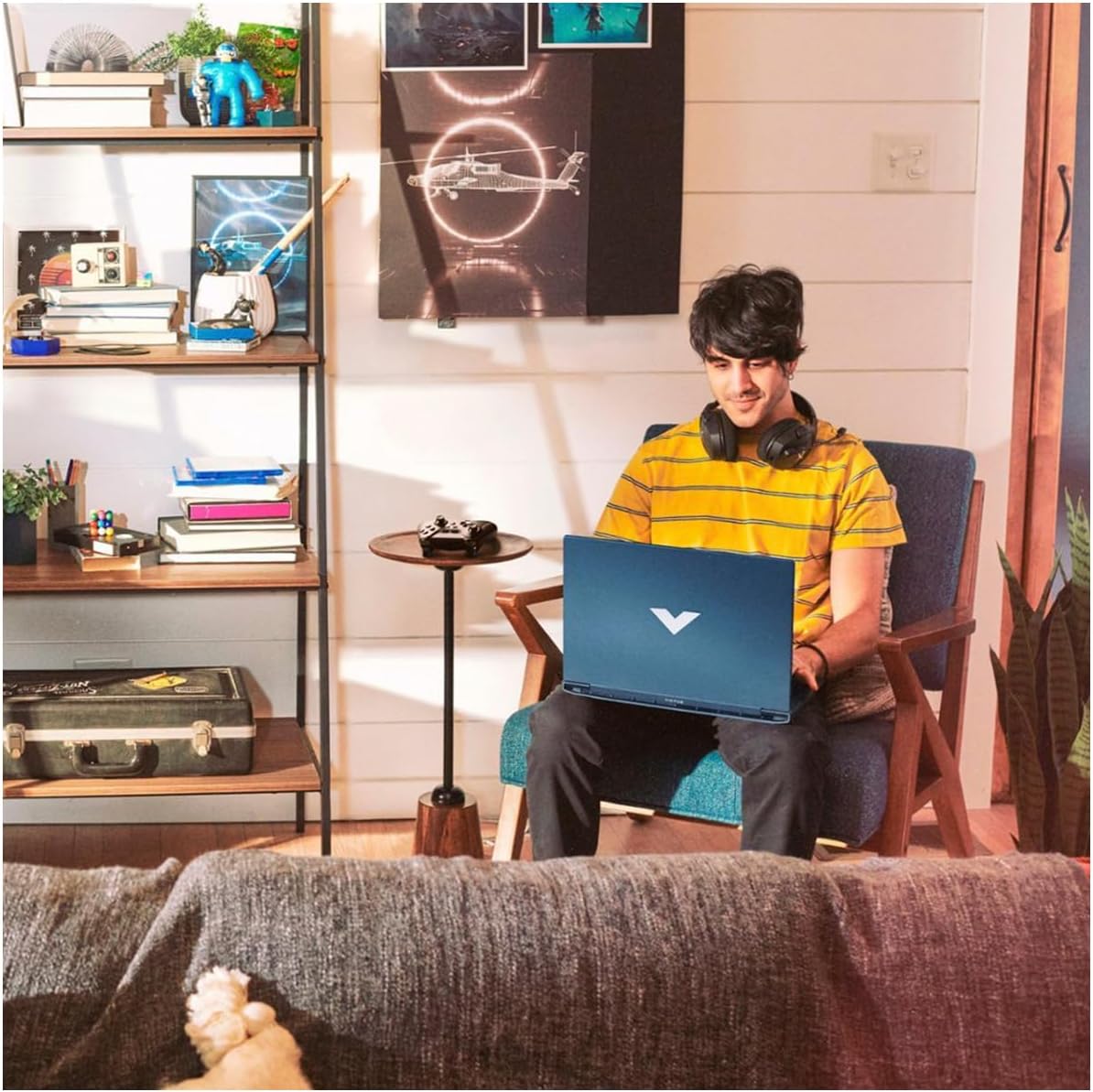
Image: A user comfortably operating the HP Victus Gaming Laptop in a home environment, demonstrating typical usage.

Obrázek: Detailní záběr view of hands interacting with an external gaming keyboard and mouse, with the HP Victus laptop visible nearby, illustrating its use with peripherals.
2. Zobrazení a grafika
Your laptop is equipped with a 15.6-inch FHD (1920 x 1080) 144Hz IPS anti-glare display, powered by an NVIDIA GeForce RTX 3050. This combination provides smooth visuals and high frame rates for gaming and multimedia. Adjust display settings via Windows Display Settings or NVIDIA Control Panel for optimal performance.
3. Zvukové funkce
Experience clear audio through HP Dual Speakers with HP Audio Boost, custom-tuned by B&O. Adjust volume and audio profiles through the Windows sound settings or dedicated HP audio software.
4. Síť a konektivita
- Wi-Fi 6: Connect to wireless networks for internet access. Manage connections through the Windows network settings.
- Bluetooth: Pair with Bluetooth-enabled devices such as headphones, speakers, or game controllers.
- RJ-45 (Ethernet): For a stable, high-speed wired internet connection.
Údržba
1. Čištění notebooku
- Použijte měkký hadřík, který nepouští vlákna dampvodou nebo čističem obrazovek.
- Na klávesnici a šasi použijte měkký hadřík. Nepoužívejte agresivní chemikálie.
- Pro optimální chlazení pravidelně odstraňujte prach z větracích otvorů stlačeným vzduchem.
2. Péče o baterie
- Vyhněte se extrémním teplotám.
- Nevybíjejte baterii často úplně.
- Pokud notebook skladujete delší dobu, ujistěte se, že je baterie nabitá na přibližně 50–70 %.
3. Aktualizace softwaru
Regularly update Windows 11 Pro and device drivers (especially graphics drivers) to ensure security, performance, and compatibility. You can check for updates via Windows Update and the HP Support Assistant application.
4. Správa úložiště
Your laptop comes with a 2TB PCIe 4.0 SSD. Regularly manage your storage by deleting unnecessary files, uninstalling unused applications, and utilizing cloud storage if needed, to maintain optimal system performance.
Odstraňování problémů
Tato část se zabývá běžnými problémy, se kterými se můžete setkat. V případě složitějších problémů se obraťte na podporu HP. webwebu nebo kontaktujte technickou podporu.
1. Notebook se nezapne
- Ujistěte se, že je síťový adaptér bezpečně připojen k notebooku i k funkční zásuvce.
- Ověřte funkčnost elektrické zásuvky zapojením jiného zařízení.
- Pokud je baterie zcela vybitá, nechte ji nabíjet alespoň 30 minut, než se ji pokusíte znovu zapnout.
2. Problémy se zobrazením
- Žádný obraz na obrazovce: Ensure the laptop is powered on. Try connecting an external monitor via HDMI to check if the issue is with the laptop's display or graphics output.
- Blikající nebo zkreslený obraz: Aktualizujte ovladače grafické karty. Upravte rozlišení displeje a obnovovací frekvenci v nastavení systému Windows.
3. Problémy s připojením (Wi-Fi/Bluetooth)
- Nelze se připojit k Wi-Fi: Check if Wi-Fi is enabled in Windows settings. Restart your router and modem. Ensure you are entering the correct Wi-Fi password.
- Zařízení Bluetooth se nespáruje: Ensure Bluetooth is enabled on both the laptop and the device. Place devices close to each other. Try removing and re-pairing the device.
4. Problémy s výkonem
- Pomalý výkon: Zavřete nepotřebné aplikace. Zkontrolujte Správce úloh, zda procesy nespotřebovávají mnoho CPU nebo RAM. Zajistěte dostatek volného místa na disku SSD.
- Přehřívání: Ensure vents are clear of obstructions. Use the laptop on a hard, flat surface. Consider using a cooling pad if persistent.
Specifikace
Below are the key technical specifications for the HP Victus Gaming Laptop 15-fa:
| Funkce | Detail |
|---|---|
| Název modelu | Victus 15-fa |
| Procesor | 12. generace Intel Core i5-12450H (8 jader, až 4.40 GHz) |
| Grafika | NVIDIA GeForce RTX 3050 (dedikovaná) |
| Zobrazit | 15.6-inch FHD (1920 x 1080), 144 Hz, IPS, micro-edge, anti-glare, 250 nits, 45% NTSC |
| BERAN | 16 GB SO-DIMM |
| Skladování | 2 TB PCIe 4.0 SSD |
| Operační systém | Windows 11 Pro |
| Porty | 1x USB-C (5Gbps, DisplayPort 1.4, HP Sleep and Charge), 2x USB-A (5Gbps, HP Sleep and Charge), 1x HDMI 2.1, 1x RJ45, 1x SD Card Reader, 1x Headphone/Microphone combo |
| Bezdrátové připojení | Wi-Fi 6, Bluetooth |
| Zvuk | HP Dual Speakers, HP Audio Boost, B&O Tuning |
| Klávesnice | Podsvícená klávesnice s numerickou klávesnicí |
| Rozměry (DxŠxV) | 14.09 x 10.04 x 0.93 palce |
| Hmotnost | 5.06 libry |
| Barva | Performance Blue |

Image: A diagram illustrating the physical dimensions (width, depth, height) of the HP Victus Gaming Laptop.
Záruka a podpora
1. Záruka na produkt
Your HP Victus Gaming Laptop comes with a Záruka 12 měsíců. This warranty covers manufacturing defects and hardware malfunctions under normal use. Please retain your proof of purchase for warranty claims. For detailed terms and conditions, refer to the warranty documentation included with your product or visit the official HP webmísto.
2. Technická podpora
For technical assistance, troubleshooting beyond this manual, or warranty service, please contact HP Support. You can find support resources, drivers, and contact information on the official HP webmísto:
When contacting support, have your laptop's serial number and model number (15-fa) ready. These can usually be found on a sticker on the bottom of the laptop or within the system information in Windows.