
1. Úvod
This manual provides detailed instructions for the installation, operation, and maintenance of the Novastar TU15PRO LED Vision Controller. Please read this manual thoroughly before using the device to ensure proper and safe operation. The TU15PRO is designed for controlling LED displays, offering robust performance and versatile connectivity.
2. Bezpečnostní informace
- Napájení: Use only the specified power adapter (AC100-240V 50/60Hz). Ensure the power source is stable and matches the device's requirements.
- Prostředí: Operate the device in a dry, well-ventilated area. Avoid exposure to extreme temperatures, humidity, dust, or direct sunlight.
- Zacházení: Do not drop, disassemble, or modify the device. Refer all servicing to qualified personnel.
- Kabely: Ensure all cables are securely connected. Avoid placing heavy objects on cables or bending them sharply.
- Čištění: Před čištěním odpojte napájení. Použijte měkký, suchý hadřík. Nepoužívejte tekuté ani aerosolové čisticí prostředky.
3. Obsah balení
Po vybalení zkontrolujte obsah balení. Pokud některé položky chybí nebo jsou poškozené, ihned kontaktujte prodejce.
- Novastar TU15PRO LED Vision Controller
- Napájecí adaptér
- USB kabel
- Uživatelská příručka (tento dokument)
4. Konec produktuview
The Novastar TU15PRO is a compact and powerful LED vision controller designed for various display applications. It features multiple input and output ports for flexible connectivity.
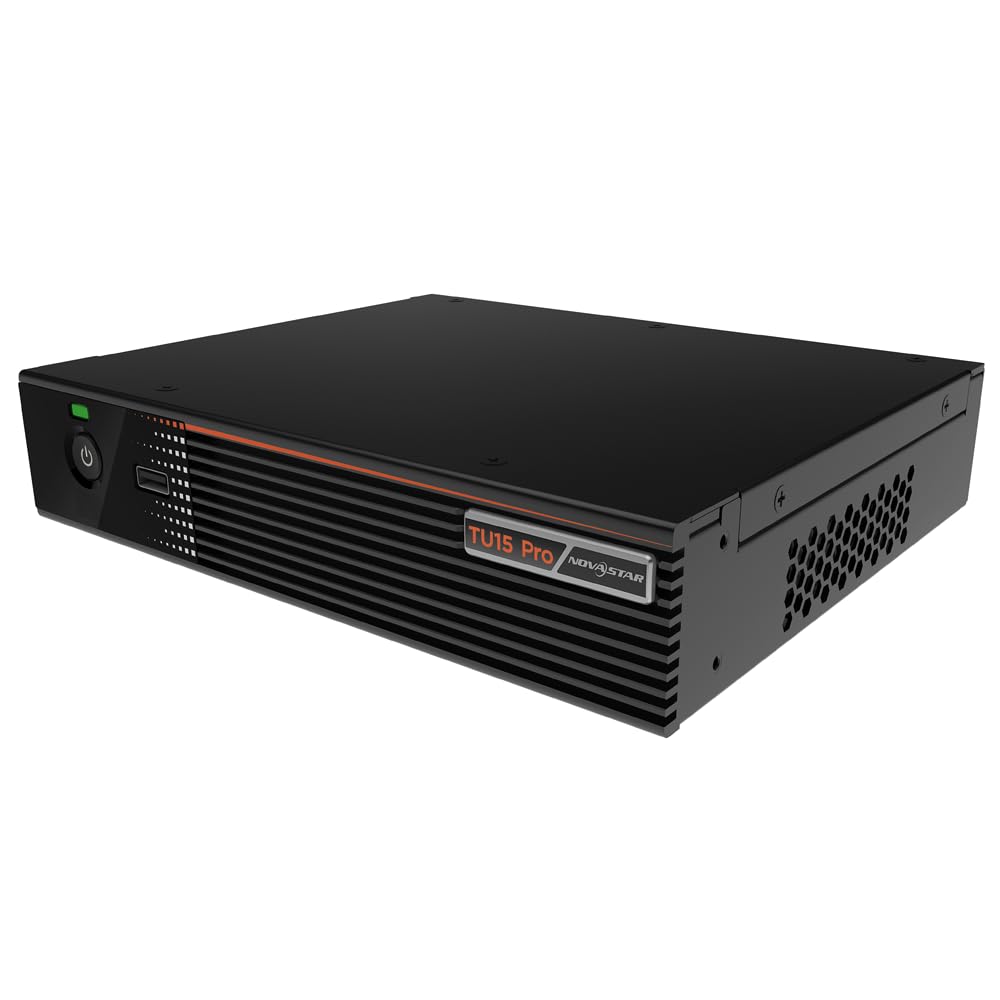
Obrázek 4.1: Úhlové view of the Novastar TU15PRO LED Vision Controller, highlighting the rear panel with various input and output ports.

Obrázek 4.2: Shora dolů view of the Novastar TU15PRO, showing the front panel with power button and USB port, and a detailed view konektorů na zadním panelu.
4.1. Přední panel
- Vypínač: Slouží k zapnutí nebo vypnutí zařízení.
- Port USB 2.0: For connecting USB devices, such as a mouse or keyboard for control, or for firmware updates.
4.2. Zadní panel
- WIFI-AP (1, 2): Wi-Fi Access Point antennas for wireless control or network extension.
- WIFI-STA: Wi-Fi Station antenna for connecting the device to an existing Wi-Fi network.
- SENZOR: Port for connecting an external sensor.
- IR / I/O G RELAY: Input/Output General Purpose Relay terminal block for external control signals.
- ETHERNET: Ethernet port for network connection and control.
- USB 2.0 (x2): Additional USB ports for peripherals or data transfer.
- HDMI IN (x2): HDMI input ports for video sources.
- HDMI VÝSTUP: HDMI output port for monitoring or cascading.
- SPDIF: Digitální audio výstup.
- AUDIO 12V === 3A: Power input port (DC 12V, 3A).
5. Nastavení
- Rozbalit: Carefully remove the TU15PRO controller from its packaging.
- Připojení antén: Attach the Wi-Fi antennas to the WIFI-AP and WIFI-STA ports on the rear panel.
- Připojit zdroj videa: Connect your video source (e.g., computer, media player) to one of the HDMI-IN ports using an HDMI cable.
- Připojení k LED displeji: Connect the controller's Network Ports (1-4) to your LED display receiving cards using Ethernet cables.
- Připojte napájení: Připojte dodaný napájecí adaptér k AUDIO 12V === 3A port and then plug it into a power outlet.
- Zapnutí: Stisknutím tlačítka napájení na předním panelu zapněte zařízení.
- Network Configuration (Optional): For network control, connect an Ethernet cable to the ETHERNET port or configure Wi-Fi settings.
6. Návod k obsluze
Once the device is set up, you can begin operating it. Detailed operation typically involves using dedicated software on a connected computer or through a web rozhraní.
- Instalace softwaru: Install the Novastar control software on your computer. Refer to the software's documentation for installation and usage.
- Rozpoznávání zařízení: Ensure the software recognizes the TU15PRO controller. This may require network configuration or direct USB connection.
- Konfigurace obrazovky: Configure your LED screen parameters within the software, including resolution, cabinet layout, and connection method.
- Výběr zdroje vstupu: Select the desired HDMI input source within the control software.
- Obsah zobrazení: Use the software to manage and display content on your LED screen.
7. Údržba
- Pravidelný úklid: Keep the device free from dust. Use a soft, dry cloth to wipe the exterior. Do not use harsh chemicals or abrasive materials.
- Větrání: Ujistěte se, že ventilační otvory nejsou zablokovány, aby nedošlo k přehřátí.
- Aktualizace firmwaru: Periodically check the Novastar official website for firmware updates to ensure optimal performance and access to new features. Follow the update instructions carefully.
- Správa kabelů: Keep cables organized and free from kinks or damage to prevent signal loss or power issues.
8. Řešení problémů
- Bez napájení:
- Zkontrolujte, zda je napájecí adaptér bezpečně připojen k zařízení i k elektrické zásuvce.
- Zkontrolujte, zda je elektrická zásuvka funkční.
- Žádný výstup na displej:
- Ensure HDMI input source is active and correctly connected.
- Verify Ethernet cables to the LED display are properly connected.
- Check screen configuration in the control software.
- Zařízení nebylo softwarem rozpoznáno:
- Confirm network settings (IP address, subnet mask) are correct if using Ethernet.
- Ensure USB cable is connected if using direct USB control.
- Temporarily disable firewall or antivirus software to check for interference.
- Přerušovaný signál:
- Zkontrolujte všechna kabelová spojení, zda nejsou uvolněná nebo poškozená.
- Ensure cables are of appropriate quality and length for the signal type.
9. Specifikace
| Funkce | Popis |
|---|---|
| Značka | Novastar |
| Model | TU15PRO |
| Vstupní výkon | AC100-240V 50 / 60Hz |
| Body Size (L×W×H) | 211.7 mm × 185.0 mm × 50.6 mm |
| Control Dots | 2,600,000 |
| Output LAN | Network Port × 4 |
| Maximální šířka výstupu | 4096 pixelů |
| Maximální výstupní výška | 1920 pixelů |
| ASIN | B0D791C3C7 |
10. Záruka a podpora
For warranty information and technical support, please refer to the official Novastar webnebo se obraťte na autorizovaného prodejce. Uschovejte si účtenku jako doklad o koupi pro případ reklamace.
Online zdroje: For the latest drivers, software, and additional documentation, please visit the official Novastar support page.