
Zavedení
This manual provides essential information for setting up, operating, maintaining, and troubleshooting your HP 727pk 27-inch 4K UHD Monitor. This monitor features a 27-inch 4K UHD (3840 x 2160) display with IPS Black Technology, offering a 2,000:1 contrast ratio and wide viewing angles. It includes Thunderbolt 4 connectivity for high-resolution video, high-speed data, and up to 100W charging, along with factory-calibrated color accuracy (98% Display P3, 100% sRGB, VESA DisplayHDR 400).

Přední view of the HP 727pk 27-inch 4K UHD Monitor, showcasinjeho tenké rámečky a stojan.
Co je v krabici
Před zahájením instalace ověřte, zda jsou přítomny všechny komponenty.
- HP 727pk 27-inch 4K Thunderbolt 4 Monitor (8J9G2AA)
- Thunderbolt kabel
- Kabel DisplayPort
- HDMI kabel
- 1 x USB Type-C to Type-A Cable
- AC napájecí kabel
- VESA Mount Adapter
- Plakát s rychlým nastavením
- Zpráva o kalibraci barev
- Záruční list
Nastavení
1. Vybalení a montáž stojanu
- Opatrně vyjměte monitor a všechny součásti z obalu.
- Attach the stand base to the stand column, ensuring it clicks securely into place.
- Align the stand assembly with the mounting slot on the back of the monitor and push until it locks.
2. Propojovací kabely
Connect the necessary cables to the monitor and your computer. Ensure all connections are firm.

Zadní view of the HP 727pk monitor, highlighting the power input, DisplayPort, HDMI, Thunderbolt, and USB ports.
- Napájecí kabel: Připojte napájecí kabel střídavého proudu k napájení monitoru a poté do elektrické zásuvky.
- Video kabel: Vyberte jednu z následujících možností:
- Thunderbolt Cable: For 4K video, data, and power delivery (up to 100W) via a single cable. Connect to a compatible Thunderbolt port on your computer.
- DisplayPort kabel: Connect to the DisplayPort input on the monitor and the DisplayPort output on your computer.
- Kabel HDMI: Connect to the HDMI input on the monitor and the HDMI output on your computer.
- USB kabely: Connect the USB Type-C to Type-A cable from your computer to the monitor's upstream USB-C port to enable the monitor's USB hub functionality.
3. Zapnout
Press the power button on the monitor. The power indicator light will illuminate. Turn on your computer.
Návod k obsluze
1. Power Button and OSD Navigation
The power button is typically located on the bottom right bezel of the monitor. The On-Screen Display (OSD) menu is accessed via buttons or a joystick, usually located near the power button. Use these controls to navigate through the menu options.
2. Výběr vstupu
To switch between connected video sources (Thunderbolt, DisplayPort, HDMI), access the OSD menu and navigate to the 'Input' or 'Source' section. Select the desired input.
3. Nastavení displeje
The OSD menu allows adjustment of various display settings:
- Jas/kontrast: Upravte celkový jas a rozdíl mezi světlými a tmavými oblastmi.
- Nastavení barev: Modify color temperature, gamma, and color space (e.g., sRGB, Display P3).
- Režim obrazu: Select predefined modes optimized for different content (e.g., Standard, Photo, Movie).
- Rezoluce: Ensure your computer's display settings are set to the monitor's native resolution of 3840 x 2160 for optimal clarity.
- Senzor okolního světla: The monitor features an ambient light sensor that can automatically adjust brightness. This can be enabled or disabled in the OSD.
4. Ergonomické úpravy
Stojan monitoru umožňuje různá nastavení pro optimalizaci viewpohodlí:
- Nastavení výšky: Jemně zatlačte nebo vytáhněte monitor nahoru nebo dolů do požadované výšky.
- Nastavení sklonu: Tilt the screen forward or backward to find the best viewúhel.
- Nastavení otáčení: Otočte monitor doleva nebo doprava na jeho základně.
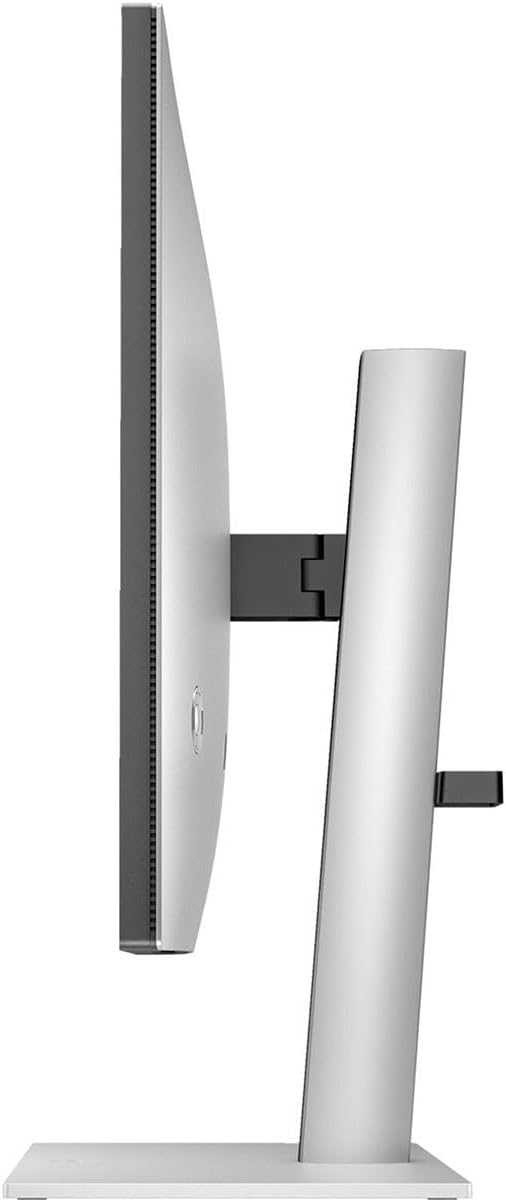
Strana view of the HP 727pk monitor, illustrating its height adjustment capability.
5. Thunderbolt 4 Functionality
The Thunderbolt 4 port provides a versatile single-cable solution for:
- Přenos videa: Displaying 4K UHD content.
- Přenos dat: Connecting peripherals via the monitor's integrated USB hub.
- Dodávka energie: Charging compatible laptops or devices up to 100W.
- Daisy Chaining: Connecting multiple compatible monitors in a series.
Údržba
1. Čištění obrazovky
To clean the screen, power off the monitor and unplug the power cord. Use a soft, lint-free cloth lightly dampvodou nebo neabrazivním čističem obrazovek. Nestříkejte tekutinu přímo na obrazovku.
2. Čištění Casing
K otření monitoru použijte měkký, suchý hadřík casing. Nepoužívejte agresivní chemikálie nebo abrazivní materiály.
Odstraňování problémů
Pokud narazíte na problémy s monitorem, podívejte se na následující běžná řešení:
- Žádný obraz na obrazovce:
- Ujistěte se, že je napájecí kabel bezpečně připojen k monitoru i k elektrické zásuvce.
- Verify that the video cable (Thunderbolt, DisplayPort, or HDMI) is properly connected to both the monitor and your computer.
- Check the input source selection in the OSD menu to ensure it matches the connected cable.
- Ujistěte se, že je počítač zapnutý a není v režimu spánku.
- Blikající nebo zkreslený obraz:
- Ujistěte se, že je video kabel bezpečně připojen.
- Zkuste jiný video kabel nebo port.
- Adjust the display resolution and refresh rate on your computer to match the monitor's specifications (3840x2160 at 60Hz).
- No USB Device Functionality:
- Ensure the USB Type-C to Type-A upstream cable is connected from your computer to the monitor.
- If using Thunderbolt, ensure the Thunderbolt cable is properly connected and your computer supports Thunderbolt data transfer.
- Monitor se nezapíná:
- Zkontrolujte připojení napájecího kabelu.
- Otestujte zásuvku pomocí jiného zařízení.
Specifikace
| Značka | HP |
| Číslo modelu | 8J9G2AA |
| Velikost obrazovky | 27 palce |
| Rezoluce | 4K UHD (3840 x 2160) |
| Technologie displeje | IPS Black Technology |
| Obnovovací frekvence | 60 Hz |
| Doba odezvy | 5 milisekund |
| Kontrastní poměr | 2,000:1 (statický) |
| Jas | 400 Nit (Typical) |
| Barevný gamut | 98% Display P3, 100% sRGB |
| Konektivita | 1x Thunderbolt 4, 1x HDMI, 1x DisplayPort, USB Hub (6x USB ports), Ethernet |
| Spotřeba energie | 215 wattů (max.) |
| Ergonomie | Nastavení výšky, náklonu a natočení |
| Speciální funkce | Ambient Light Sensor, Auto Brightness Control, Color Calibration, HDR400, Low Blue Light |
Informace o záruce
This HP 727pk 27-inch 4K UHD Monitor is covered by a 3-letá záruka výrobce. Please refer to the included Warranty Card for detailed terms and conditions, including coverage specifics and how to make a claim.
Podpora
Pro další pomoc, technickou podporu nebo stažení nejnovějších ovladačů a softwaru navštivte oficiální stránky podpory HP. webmísto:
Have your monitor's model number (8J9G2AA) and serial number ready when contacting support.