
1. Úvod
This manual provides comprehensive instructions for the setup, operation, maintenance, and troubleshooting of your Logitech Ergo M575S Wireless Trackball Mouse. Designed for comfort and precision, the ERGO M575S minimizes movement and maximizes comfort with its sculpted ergonomic shape and thumb control. It offers smooth, precise tracking and is compatible with both PC and Mac systems.
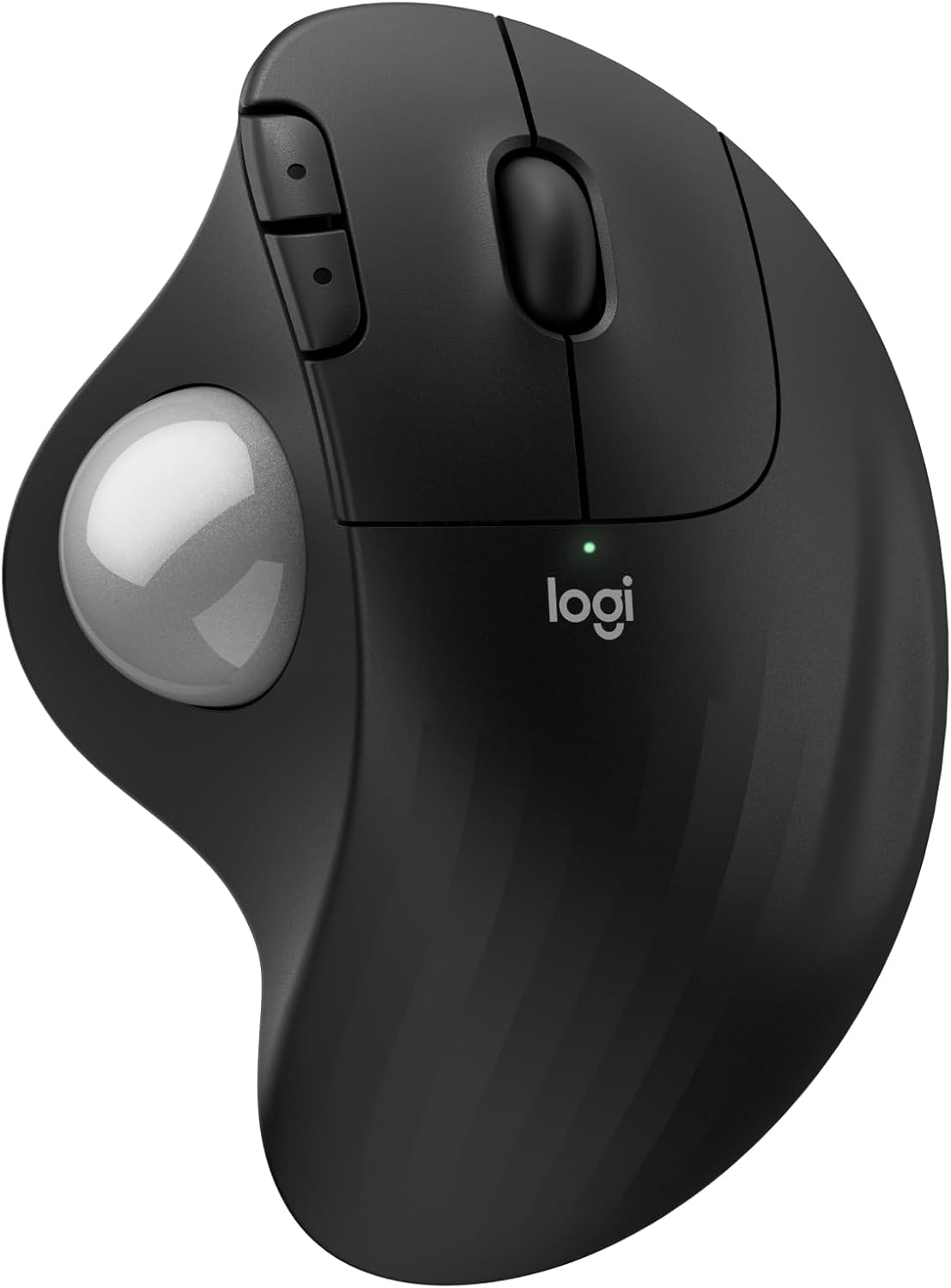
Obrázek: Nahoře view of the Logitech Ergo M575S Wireless Trackball Mouse, highlighting its ergonomic design and trackball.
Key features include 25% less muscle strain in the forearm compared to traditional mice, an improved forearm posture, customizable buttons via the Logi Options+ App, and long battery life. The mouse is also made with certified post-consumer recycled plastic, contributing to a lighter environmental footprint.
2. Nastavení
2.1. Instalace baterie
The Logitech Ergo M575S uses one AA battery. To install or replace the battery:
- Najděte přihrádku na baterie na spodní straně myši.
- Otevřete kryt baterie.
- Vložte baterii AA a dbejte na správnou polaritu (+/-).
- Pevně zavřete kryt baterie.

Obrázek: Spodní strana view of the mouse, illustrating the battery compartment and the slot for the Logi Bolt USB receiver.
2.2. Možnosti připojení
The ERGO M575S offers two ways to connect to your computer:
- Logi Bolt USB přijímač: Plug the included Logi Bolt USB receiver into an available USB port on your computer. The mouse should connect automatically.
- Bluetooth:
- Zapněte myš pomocí vypínače na spodní straně.
- Press and hold the Easy-Switch button (usually on the underside or side) until the LED indicator starts blinking rapidly, indicating pairing mode.
- On your computer, go to Bluetooth settings and select "Logitech ERGO M575S" from the list of available devices to pair.
For optimal performance and customization, download and install the Logi Options+ App from the official Logitech website. This software allows you to personalize button functions, adjust cursor speed, and create application-specific settings.
3. Ovládání myši
3.1. Základní funkce
- Levé kliknutí: Hlavní tlačítko pro výběr položek a interakci se softwarem.
- Klikněte pravým tlačítkem myši: Sekundární tlačítko pro kontextové nabídky a další možnosti.
- Rolovací kolečko: Scroll up and down through documents and web stránky. Rolovací kolečko funguje také jako prostřední tlačítko.
- Trackball: Use your thumb to control the cursor movement on the screen. This eliminates the need to move the entire mouse, reducing arm and wrist strain.

Image: A hand demonstrating the smooth, effortless thumb control of the trackball for precise tracking.
3.2. Přizpůsobitelná tlačítka
The ERGO M575S features additional buttons that can be customized using the Logi Options+ App. These typically include forward and back buttons located near the thumb trackball.
- Tlačítka vpřed/zpět: By default, these navigate forward and backward in web prohlížeče popř file průzkumníci.
- Přizpůsobení: Through the Logi Options+ App, you can reassign these buttons to perform various functions, such as media controls, application switching, or custom keystrokes, enhancing your workflow efficiency.

Image: A laptop displaying the Logi Options+ App interface, demonstrating how to customize the mouse buttons for personalized use.
4. Údržba
4.1. Čištění trackballu
Postupem času se kolem trackballu může hromadit prach a nečistoty, které ovlivňují jeho plynulý chod. Doporučuje se pravidelné čištění.
- Gently push the trackball from the underside of the mouse to pop it out.
- K otření trackballu použijte měkký hadřík, který nepouští vlákna.
- Use a cotton swab or compressed air to clean the three small support bearings inside the trackball cavity. Ensure no debris remains.
- Place the trackball back into its socket, ensuring it clicks into place.
Poznámka: Avoid using harsh chemicals or abrasive materials, as these can damage the trackball or the mouse surface.
4.2. Generální úklid
Wipe the exterior of the mouse with a soft, damp hadříkem podle potřeby, aby byl čistý.
5. Řešení problémů
5.1. Problémy s připojením
- Myš nereaguje:
- Zkontrolujte, zda je myš zapnutá.
- Ujistěte se, že je baterie správně nainstalována a dostatečně nabitá. V případě potřeby ji vyměňte.
- If using the USB receiver, try plugging it into a different USB port.
- If using Bluetooth, ensure Bluetooth is enabled on your computer and the mouse is paired. Try re-pairing the device.
- Přerušované připojení:
- Move the mouse closer to the USB receiver or your computer (for Bluetooth) to reduce interference.
- Avoid placing the receiver near other electrical devices that might cause interference.
5.2. Problémy se sledováním
- Kurzor se pohybuje nepravidelně nebo vůbec:
- Clean the trackball and its internal support bearings as described in the Maintenance section.
- Ensure the trackball is properly seated in its socket.
- Check the surface the mouse is on; while trackballs are less sensitive to surfaces, extreme conditions might affect performance.
5.3. Button/Scroll Wheel Issues
- Tlačítka nereagují:
- Verify that the Logi Options+ App is not causing conflicts with custom settings. Try resetting button assignments to default.
- Reinstall the Logi Options+ App if issues persist.
- Scroll wheel not working:
- Ensure no debris is lodged around the scroll wheel.
6. Specifikace
| Funkce | Detail |
|---|---|
| Značka | Logitech |
| Číslo modelu | 910-007392 |
| Technologie připojení | Bluetooth, USB (Logi Bolt Receiver) |
| Technologie detekce pohybu | Optický |
| Rozsah DPI | 400-2000 DPI (Adjustable via Logi Options+ App) |
| Životnost baterie | Up to 18 months (with AA battery) |
| Kompatibilita operačního systému | Windows, macOS |
| Hmotnost položky | 7.4 unce |
| Rozměry | 5.51 x 4.17 x 1.93 palce (rozměry balení) |
| Materiál | Plastic parts made with certified post-consumer recycled plastic (Graphite: 52%, Off-White: 21%) |
7. Záruka a podpora
For detailed warranty information regarding your Logitech Ergo M575S Wireless Trackball Mouse, please refer to the warranty card included with your product or visit the official Logitech support webmísto.
Logitech provides customer support for product inquiries, technical assistance, and warranty claims.
- Online podpora: Návštěva support.logi.com for FAQs, troubleshooting guides, and driver downloads.
- Kontaktujte podporu: Information on contacting Logitech customer service via phone or chat can be found on their support webmísto.