
1. Úvod
This manual provides detailed instructions for the setup, operation, and maintenance of your ASprink PM-247-WF WiFi Thermal Label Printer. This printer is designed for efficient label printing for small businesses and packages, featuring 300DPI resolution and versatile connectivity options including Wi-Fi and USB.
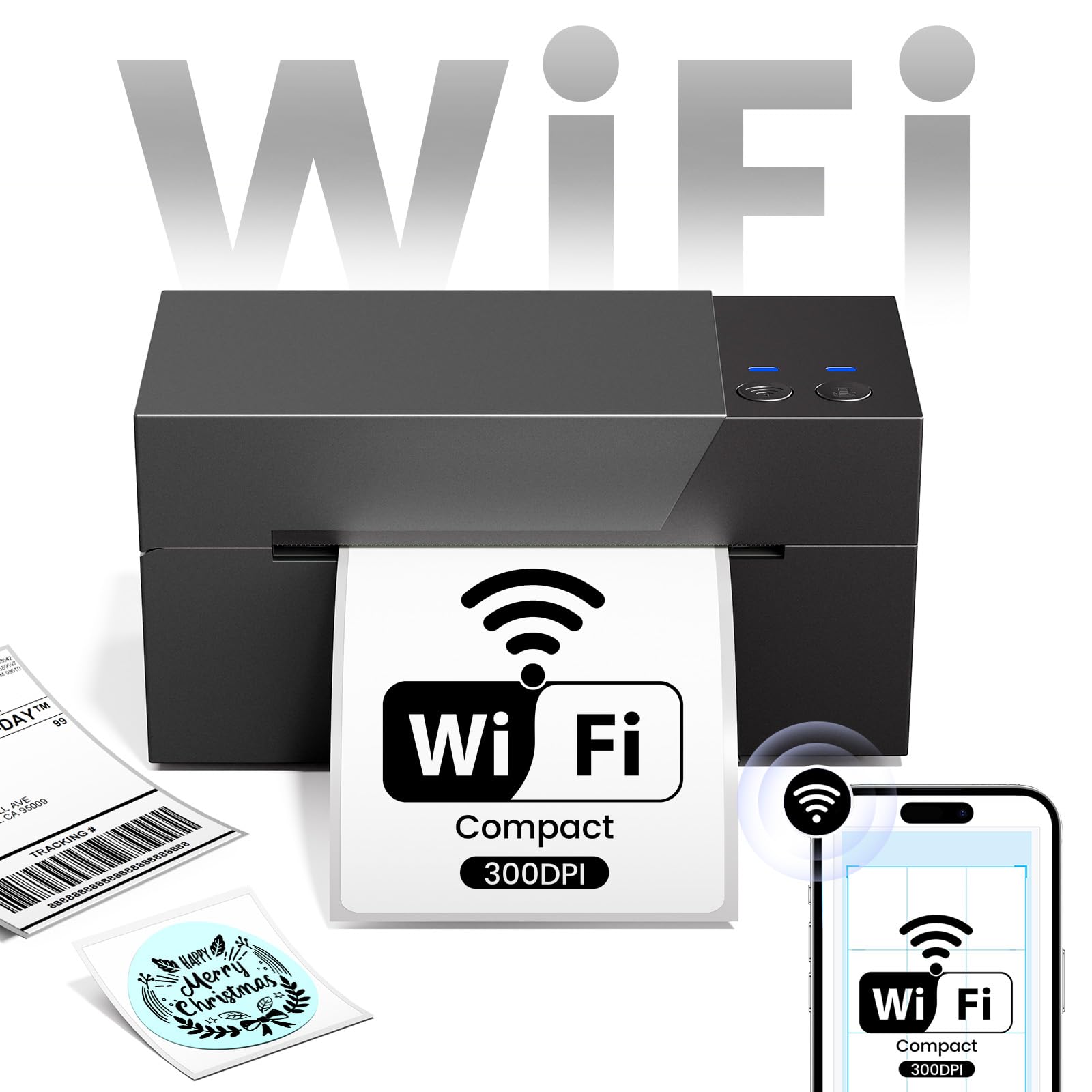
Image 1.1: ASprink PM-247-WF WiFi Thermal Label Printer.
2. Obsah balení
Prosím, ověřte, zda jsou v balení přítomny všechny položky:
- ASprink PM-247-WF Thermal Label Printer
- Napájecí adaptér
- USB kabel
- Rychlý průvodce (tento návod)
- Sample Thermal Labels (may vary)
3. Konec produktuview
The ASprink PM-247-WF printer is designed for ease of use and compact integration into your workspace. It supports label widths from 1 to 4.6 inches, accommodating various label types including 4x6 inch shipping labels.

Image 3.1: The ASprink PM-247-WF printer supports various label widths from 1 to 4.6 inches.
4. Nastavení
4.1 Fyzické připojení
- Umístěte tiskárnu na stabilní, rovný povrch.
- Připojte napájecí adaptér k tiskárně a poté do elektrické zásuvky.
- If using a USB connection, connect the USB cable from the printer to your computer.
4.2 Načítání štítků
- Otevřete horní kryt tiskárny.
- Vložte termoštítky do přihrádky na štítky a ujistěte se, že potištěná strana směřuje nahoru.
- Upravte vodítka štítků tak, aby těsně odpovídala šířce štítků.
- Close the top cover. The printer will automatically detect and calibrate the label size.
4.3 Instalace ovladačů a softwaru
For optimal performance, install the necessary drivers and software:
- For Computers (Windows, Mac, Linux, Chrome OS): Download and install the latest printer drivers from the official ASprink support webmísto.
- For Mobile Devices (Android, iOS): Download the "Labelife" application from your device's app store.
4.4 Wi-Fi připojení
The PM-247-WF supports Wi-Fi connectivity for wireless printing from multiple devices.
- Ujistěte se, že je tiskárna zapnutá.
- Follow the Wi-Fi setup instructions provided in the "Labelife" app or the printer driver software to connect the printer to your local Wi-Fi network.
- Once connected, the Wi-Fi indicator light on the printer will illuminate steadily.

Image 4.1: The ASprink PM-247-WF supports Wi-Fi connectivity with Android, iOS, iPad, Windows, Mac OS, and Chrome OS.
5. Návod k obsluze
5.1 Printing via Wi-Fi
The Wi-Fi feature allows printing from anywhere within your Wi-Fi range, supporting up to 5 devices simultaneously.
- Ensure your device (computer, smartphone, tablet) is connected to the same Wi-Fi network as the printer.
- Otevřete dokument nebo štítek, který chcete vytisknout.
- Select the ASprink PM-247-WF from your list of available printers.
- Adjust print settings (e.g., label size, orientation) as needed and initiate printing.

Image 5.1: Wi-Fi connectivity enables convenient printing from various locations within your network.

Image 5.2: Wi-Fi printing allows greater flexibility compared to proximity-limited Bluetooth printing.

Image 5.3: The printer supports simultaneous connections and printing from up to 5 devices.
5.2 Tisk přes USB
For direct connection, you can use the USB cable.
- Připojte tiskárnu k počítači pomocí dodaného kabelu USB.
- Ujistěte se, že jsou v počítači nainstalovány ovladače tiskárny.
- Open the document or label, select the ASprink PM-247-WF printer, and print.
5.3 Supported Platforms and Print Quality
The ASprink PM-247-WF is compatible with major shipping partners and marketplaces, including eBay, Amazon, Etsy, Shopify, ShipStation, USPS, UPS, FedEx, and more. It delivers a print resolution of 300DPI, ensuring clear and crisp labels. The printing speed is approximately 100mm/s, capable of producing up to 72 sheets of 4"x 6" labels per minute.

Image 5.4: The printer is widely compatible with various e-commerce and shipping platforms.
6. Údržba
Pravidelná údržba zajišťuje dlouhou životnost a optimální výkon vaší tiskárny.
- Čištění tiskové hlavy: Use a lint-free cloth lightly damptiskovou hlavu jemně otřete isopropylalkoholem. Před čištěním se ujistěte, že je tiskárna vypnutá a vychladlá.
- Čištění válečků: Periodically clean the rubber rollers with a damp cloth to prevent dust and label residue buildup.
- Obecná péče: Keep the printer free from dust and debris. Avoid exposing it to extreme temperatures or direct sunlight.
7. Řešení problémů
If you encounter issues with your ASprink PM-247-WF printer, refer to the following common solutions:
- Tiskárna nereaguje: Check power connections and ensure the printer is turned on. Verify USB or Wi-Fi connection status.
- Špatná kvalita tisku: Ensure you are using high-quality thermal labels. Clean the print head as described in the Maintenance section. Verify print settings (e.g., darkness, resolution) in your software.
- Štítky se nepodávají správně: Ensure labels are loaded properly and the label guides are adjusted. Recalibrate the printer if necessary (refer to software instructions).
- Problémy s připojením: For Wi-Fi, ensure the printer and your device are on the same network. For USB, try a different USB port or cable. Reinstall drivers if issues persist.
For further assistance, please contact ASprink support.
8. Specifikace
| Funkce | Specifikace |
|---|---|
| Číslo modelu | PM-247-WF |
| Rozměry (D x Š x V) | 18 H x 19.3 Š x 11.2 V centimetrů |
| Hmotnost položky | 1360 gramů |
| Konektivita | USB, Wi-Fi |
| Technologie tisku | Tepelný |
| Rozlišení tisku | 300 DPI |
| Maximální rychlost tisku | 100mm/s (approx. 72 sheets of 4"x6" labels/minute) |
| Maximální velikost média | 4 x 6 palce |
| Supported Label Widths | 1 - 4.6 palce |
| Kompatibilní operační systémy | Android, iOS, Mac, Windows, Linux, Chrome OS |
9. Záruka a podpora
ASprink provides free, lifetime technical support for your PM-247-WF printer. If you require assistance, please contact the ASprink support team via phone, online chat, or email. Support inquiries are typically answered within 24 hours.
For the most up-to-date contact information, please visit the official ASprink webmísto.