
1. Úvod
This manual provides instructions for the installation, operation, and maintenance of your Unitek DiskGuard Raiden 2.5" USB-C to SATA III Hard Disk Enclosure. This enclosure is designed to convert a 2.5-inch SATA I/II/III HDD or SSD into an external USB-C storage device, offering convenient data transfer and portability.
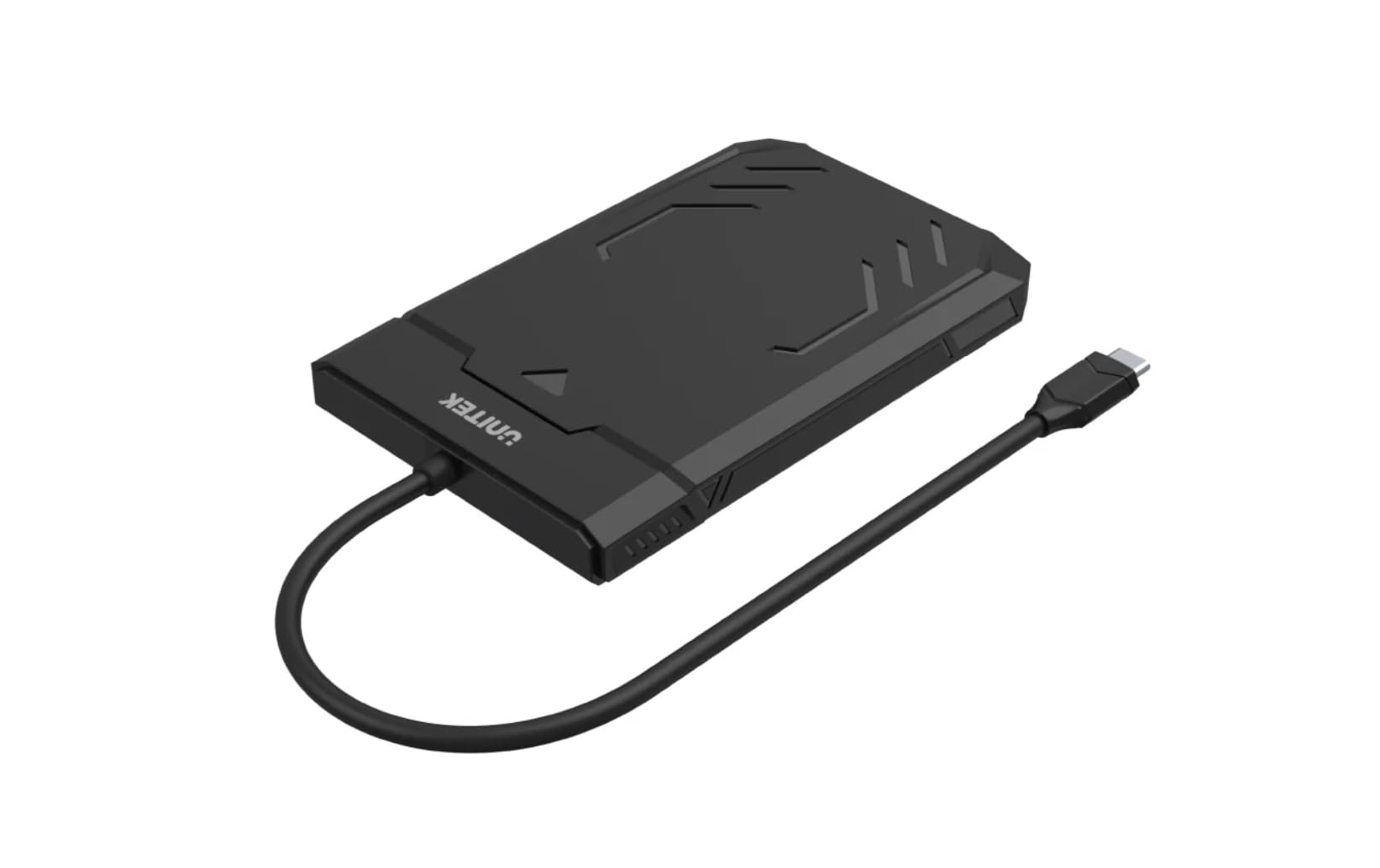
Figure 1: Unitek DiskGuard Raiden 2.5" USB-C to SATA III Hard Disk Enclosure. This image shows the compact, black enclosure with its integrated USB-C cable.
2. Obsah balení
Prosím, ověřte, zda jsou v balení přítomny všechny položky:
- 1 x Unitek DiskGuard Raiden 2.5" USB-C to SATA III Hard Disk Enclosure
- 1 x Uživatelská příručka
3. Vlastnosti produktu
- Supports most 7mm/9.5mm 2.5-inch SATA I/II/III HDDs and SSDs.
- USB 3.0 specification for data transfer rates up to 5Gbps.
- Zpětně kompatibilní s USB 2.0.
- Features a sleep mode function for energy saving during idle periods.
- Instalace bez použití nářadí pro rychlé a snadné nastavení.
- Supports hot-swap functionality.
- Plug and Play operation, requiring no driver installation.
- Durable ABS housing.
4. Pokyny k nastavení
Follow these steps to install your 2.5-inch SATA HDD or SSD into the enclosure:
4.1 Otevření krytu
- Gently slide the top cover of the enclosure to open it. The enclosure is designed for tool-free access.

Figure 2: The enclosure features a tool-free design, allowing the top cover to slide open for drive installation.
4.2 Installing the HDD/SSD
- Zarovnejte 2.5palcový SATA HDD nebo SSD s konektorem SATA uvnitř skříně.
- Gently push the drive into the connector until it is firmly seated. Ensure the drive is flush with the enclosure's internal tray.
4.3 Uzavření krytu
- Slide the top cover back into place until it clicks securely.
4.4 Připojení k počítači
- Connect the integrated USB-C cable from the enclosure to an available USB-C port on your computer.
- The enclosure is plug-and-play; your operating system should automatically detect the new storage device.
- If this is a new HDD/SSD, it may need to be initialized and formatted before use. Refer to your operating system's documentation for instructions on disk management.
5. Návod k obsluze
5.1 Přenos dat
Once connected, the enclosure will appear as an external drive on your computer. You can drag and drop files, copy, paste, and perform other standard file operations as you would with any other storage device. The USB 3.0 interface supports data transfer speeds up to 5Gbps.

Figure 3: The enclosure supports fast data transfer speeds up to 5Gbps, significantly faster than USB 2.0.
5.2 LED indikátory
The enclosure features two LED indicators:
- Zelené LED světlo: Indicates power status. It will turn on when the enclosure is connected to a power source (via USB-C).
- Modré LED světlo: Indicates read and write status. It will flash when data is being transferred to or from the drive.

Figure 4: The enclosure's LED lights provide visual feedback on power and data activity. The green light indicates power, and the blue light flashes during data transfer.
5.3 Režim spánku
The enclosure is equipped with a sleep mode function. If the drive is idle for a period (typically 10-15 minutes, depending on the operating system and drive settings), it will enter sleep mode to conserve energy and extend the life of the drive. The drive will automatically wake up when accessed.
6. Údržba
- Udržujte kryt čistý a bez prachu. K čištění používejte měkký, suchý hadřík.
- Nevystavujte kryt extrémním teplotám, vlhkosti nebo přímému slunečnímu záření.
- Do not drop or subject the enclosure to strong impacts.
- Ensure proper ventilation around the enclosure during operation.
- Always safely eject the drive from your operating system before disconnecting the USB-C cable to prevent data corruption.
7. Řešení problémů
7.1 Disk nebyl detekován
- Zkontrolujte připojení: Ujistěte se, že je kabel USB-C bezpečně připojen k pouzdru i k počítači.
- Zkuste jiný port USB: Connect the enclosure to a different USB-C port on your computer.
- Verify Drive Installation: Open the enclosure and ensure the HDD/SSD is correctly seated in the SATA connector.
- Check Drive Status: For new drives, ensure they are initialized and formatted in your operating system's Disk Management (Windows) or Disk Utility (macOS).
- Test with Another Drive/Computer: If possible, test the enclosure with a different 2.5-inch SATA drive or connect it to another computer to isolate the issue.
7.2 Pomalé rychlosti přenosu dat
- Port USB 3.0: Ensure the enclosure is connected to a USB 3.0 (or higher) port on your computer. Connecting to a USB 2.0 port will limit speeds to USB 2.0 performance.
- Drive Performance: The actual transfer speed is also limited by the speed of the installed HDD/SSD.
- Kvalita kabelu: While the enclosure has an integrated cable, ensure no other factors are affecting USB performance.
7.3 Enclosure Gets Warm
It is normal for the enclosure to become warm during extended use, especially during heavy data transfer. This is due to heat generated by the internal HDD/SSD. Ensure adequate airflow around the enclosure.
8. Specifikace
| Název modelu | DiskGuard Raiden 2.5" USB-C to SATA III Hard Disk Enclosure |
| Značka | Unitek |
| Hardwarové rozhraní | USB4 Type C (Note: Product description states USB3.0, please refer to product packaging for exact USB version.) |
| Kompatibilní disky | 2.5-inch SATA I/II/III HDD & SSD (7mm/9.5mm thickness) |
| Maximální kapacita paměti | 20 TB |
| Rychlost přenosu dat | Až 5 gigabitů za sekundu (USB 3.0) |
| Materiál pouzdra | Pouzdro ABS |
| Barva | Černý |
| Množství podporovaných zařízení | 1 |
| ASIN | B0D4XQVFDM |
| GTIN | 04894160044570 |
Poznámka: Specifikace se mohou změnit bez předchozího upozornění.
9. Záruka a podpora
Unitek products are covered by a limited warranty. For detailed warranty information, technical support, or customer service, please refer to the official Unitek webnebo se obraťte na místního prodejce. Uschovejte si doklad o koupi pro případ reklamace.
Další pomoc naleznete na adrese: Unitek Official Store on Amazon