
1. Úvod
The EZVIZ H9C Dual-Lens Pan & Tilt Wi-Fi Camera is an advanced outdoor security solution designed to provide comprehensive surveillance with its innovative dual-lens technology. This manual provides detailed instructions for setting up, operating, and maintaining your camera to ensure optimal performance and security.

Figure 1: EZVIZ H9C Dual-Lens Pan & Tilt Wi-Fi Camera Overview
2. Co je v krabici
Carefully unpack the contents and ensure all items are present and in good condition. If any items are missing or damaged, please contact EZVIZ customer support.
- H9c Camera
- Šablona cvičení
- Sada šroubů
- Vodotěsná sada
- Napájecí adaptér
- Rychlý průvodce
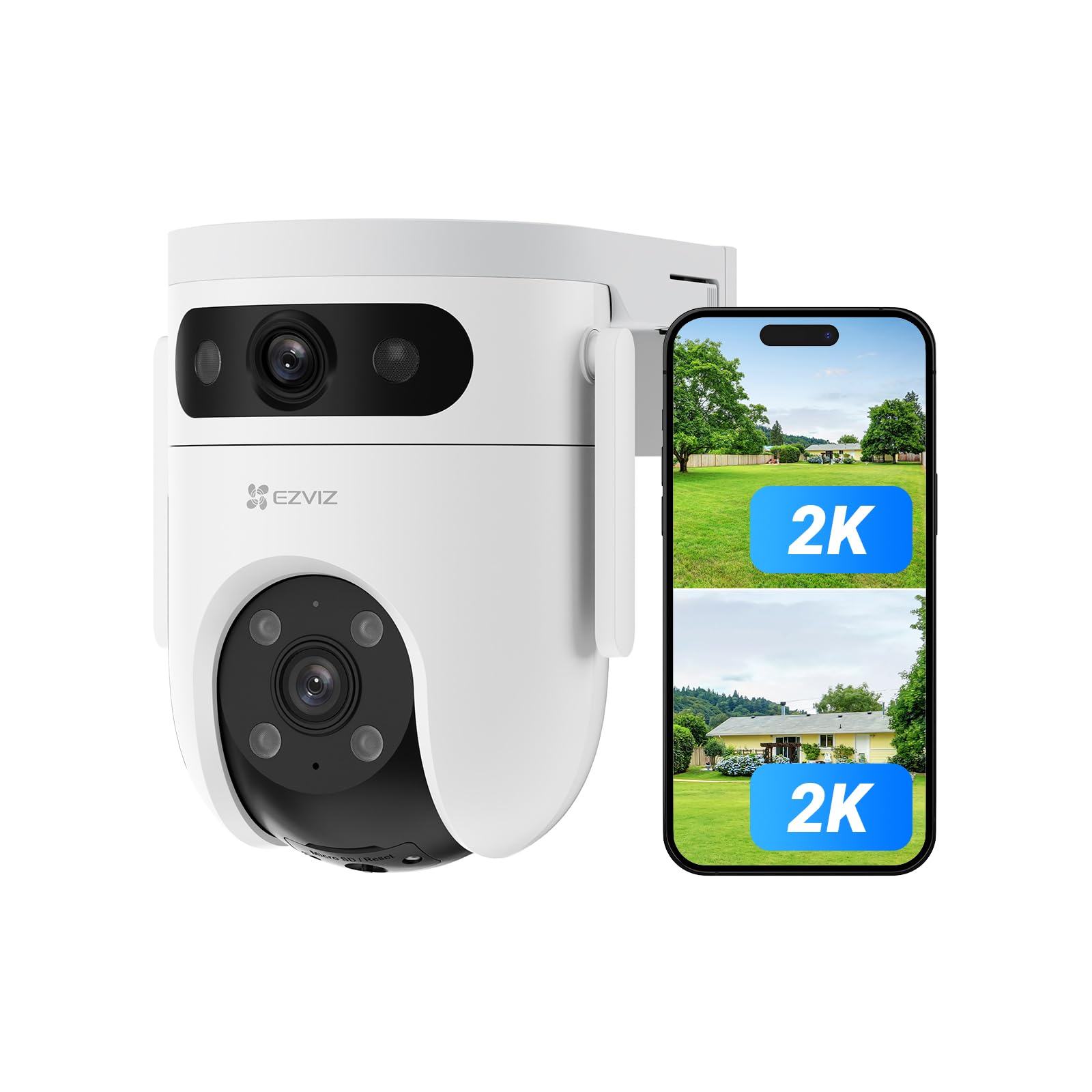
Figure 2: H9c Camera Unit

Figure 3: Weatherproof Kit

Obrázek 4: Napájecí adaptér

Obrázek 5: Stručný průvodce
3. Nastavení
3.1 Initial Power-On and App Download
- Připojte napájecí adaptér k fotoaparátu a zapojte jej do elektrické zásuvky.
- Wait for the camera's indicator light to flash blue, indicating it's ready for setup.
- Download the EZVIZ app from the App Store (iOS) or Google Play (Android).
3.2 Adding the Camera to the EZVIZ App
- Open the EZVIZ app and create an account or log in.
- Tap the '+' icon on the home screen to add a device.
- Scan the QR code located on the camera or on the Quick Start Guide.
- Follow the in-app instructions to connect the camera to your Wi-Fi network. Ensure your Wi-Fi signal is strong at the camera's installation location.

Figure 6: Ensuring stable Wi-Fi connection
3.3 Instalace karty MicroSD (volitelné)
The H9C supports a microSD card up to 512GB for local storage.
- Rotate the camera lens upwards to reveal the microSD card slot and reset button.
- Insert the microSD card into the slot with the gold contacts facing down until it clicks into place.
- In the EZVIZ app, navigate to the camera settings and format the microSD card.

Figure 7: MicroSD card slot and reset button location
4. Návod k obsluze
4.1 Dual-Lens Operation and Linked View
The H9C features a wide-angle lens and a pan-and-tilt (PT) lens. These can operate independently or in a linked view.
- Širokoúhlý objektiv: Provides a broad overview sledované oblasti.
- PT objektiv: Podrobné nabídky views and can pan and tilt to track movement.
- Propojeno View: When the wide-angle lens detects movement, the PT lens can automatically zoom in and track the subject. You can switch between views with a single tap in the app.

Figure 8: Dual-Lens Linked View in action

Figure 9: Switching between wide and close-up views
4.2 AI-Powered Human/Vehicle Detection
The camera utilizes AI to distinguish between human and vehicle shapes, reducing false alarms from environmental factors like falling leaves or insects.
- Receive smarter alerts directly to your mobile device.
- Customize detection zones and sensitivity settings within the EZVIZ app.

Figure 10: AI detection differentiating humans and vehicles
4.3 Režimy nočního vidění
The H9C offers three night vision modes for clear visibility in low-light conditions:
- Barevný režim: Provides full-color night vision up to 40 meters using built-in spotlights.
- Inteligentní režim: Automatically switches from black and white to color vision upon detection of human movement.
- Black & White Mode: Standardní infračervené noční vidění pro diskrétní monitorování.

Figure 11: Night vision capabilities and modes
4.4 Obousměrná komunikace
Communicate with visitors or deter intruders using the built-in microphone and speaker. Access this feature through the live view in the EZVIZ app.

Figure 12: Interacting via two-way talk
4.5 Aktivní obrana
Upon detection of suspicious activity, the H9C can activate a loud siren and strobe lights to actively deter intruders. This feature can be configured in the app.

Figure 13: Active defense mechanism
5. Možnosti montáže
The EZVIZ H9C camera offers versatile mounting options to suit various outdoor environments.
- Montáž na stěnu: Securely attach the camera to a vertical wall surface.
- Držák na strop: Install the camera on a horizontal ceiling or overhang.
- Pole Mount: Utilize a separate pole mount accessory for installation on poles.
Always use the provided drill template and screw kit for secure installation. Ensure the camera is positioned to cover the desired area and has a clear line of sight to your Wi-Fi router.

Figure 14: Flexible mounting for different locations
6. Specifikace
| Funkce | Specifikace |
|---|---|
| Název modelu | CS-H9c |
| Rezoluce | Dual 3MP (1296P) |
| Konektivita | Bezdrátové (Wi-Fi) |
| Vnitřní/venkovní použití | Venkovní |
| Speciální funkce | Built-in Light, HD Resolution, Motion Sensor, Night Vision, PTZ Technology, Weatherproof |
| Rozsah nočního vidění | Až 40 metrů (barevné noční vidění) |
| Skladování | MicroSD Card (up to 512GB), CloudPlay Storage |
| Oboustranný rozhovor | Ano |
| Detekce AI | Human/Vehicle Shape Detection |
| Odolnost vůči povětrnostním vlivům | Třída vodotěsnosti IP65 |
| Zdroj napájení | Elektrický s kabelem (6 wattů) |
| Rozměry | 14.5 x 11.6 x 14.2 centimetrů |
| Hmotnost | 668 gramů |
| Viewúhel | 360 stupňů (otáčení a naklápění) |
| Optický zoom | 8x |
7. Řešení problémů
7.1 Kamera offline
- Zkontrolujte, zda je fotoaparát zapnutý a zda je napájecí adaptér bezpečně připojen.
- Verify your Wi-Fi network is active and the signal strength at the camera's location is adequate.
- Restartujte Wi-Fi router a kameru.
- If the issue persists, try resetting the camera using the reset button and re-adding it to the EZVIZ app.
7.2 Špatná kvalita videa
- Ensure your internet connection speed meets the requirements for streaming HD video.
- Clean the camera lenses with a soft, dry cloth.
- Adjust the video quality settings in the EZVIZ app if your network bandwidth is limited.
7.3 Detekce pohybu nefunguje
- Check the motion detection settings in the EZVIZ app to ensure it's enabled and configured correctly.
- Verify that detection zones are properly set and sensitivity levels are appropriate for your environment.
- Ujistěte se, že v záběru kamery nejsou žádné překážky. view.
7.4 Pan/Tilt Functionality Issues
- Ensure the camera is securely mounted and there are no physical obstructions preventing movement.
- Check for any firmware updates for the camera in the EZVIZ app.
- If the camera makes unusual sounds during rotation, contact customer support.
8. Záruka a podpora
Your EZVIZ H9C camera comes with a standard manufacturer's warranty. For specific warranty terms and conditions, please refer to the warranty card included with your product or visit the official EZVIZ webmísto.
8.1 Zákaznická podpora
For technical assistance, troubleshooting, or warranty claims, please contact EZVIZ customer support:
- Výrobce: EZVIZ, Hangzhou Ezviz Network Co. Ltd., Hangzhou, Zhejiang, China
- Importer/Service Contact (India): Prama Hikvision India Pvt. Ltd.; rma@pramahikvision.com
- Navštivte oficiální stránky EZVIZ webweb s častými dotazy a dalšími zdroji.