
1. Úvod
Děkuji za nákupasing the Pisichen 8-inch Touch Panel Mobile HD Mini Monitor. This compact and versatile display is designed to enhance your productivity and entertainment experience across various devices. Featuring a responsive 5-point capacitive touch screen and multiple connectivity options, it offers a seamless and immersive visual interface.

Figure 1.1: Pisichen 8-inch Touch Panel Mobile HD Mini Monitor
This monitor is equipped with:
- 5-Point Capacitive Touch: For intuitive and precise interaction.
- HD 800x480 Resolution: Delivering clear and vivid visuals.
- Různá konektivita: Two HDMI ports and one USB-C port for broad compatibility.
- Více režimů zobrazení: Supports duplicate, extended, and second screen modes.
- HDR Mode & Built-in Speakers: Enhances visual depth and provides integrated audio.
2. Obsah balení
Zkontrolujte prosím balení, zda neobsahuje následující položky:
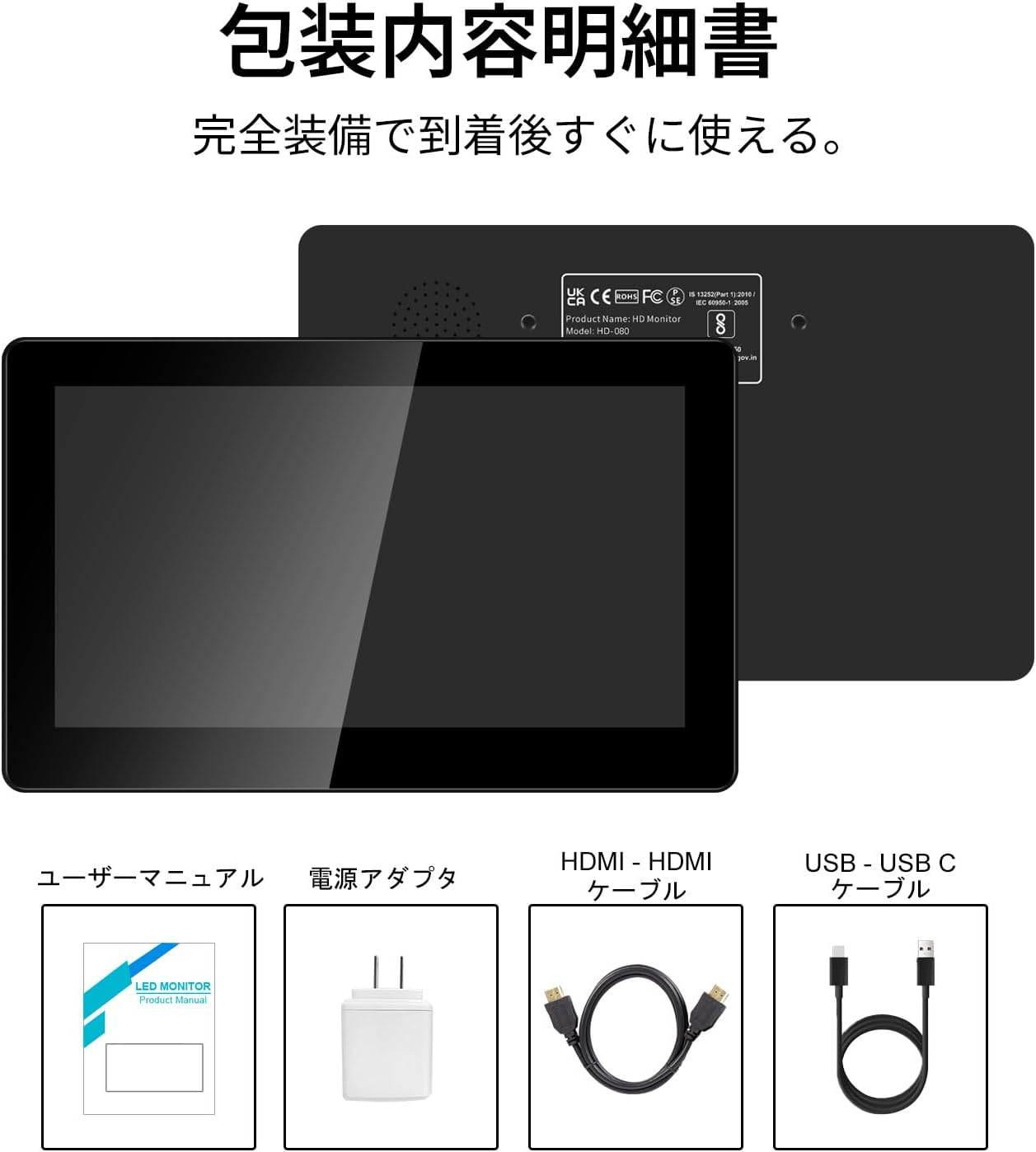
Obrázek 2.1: Obsah balení
- Pisichen 8-inch Touch Panel Mobile HD Mini Monitor
- Uživatelská příručka
- Napájecí adaptér
- Kabel HDMI na HDMI
- USB-A to USB-C Cable (for power and touch functionality)
3. Pokyny k nastavení
Follow these steps to set up your Pisichen mini monitor:
3.1 Připojení monitoru
- Připojení napájení: Connect the provided power adapter to the monitor's power port and plug it into a power outlet. Alternatively, use the USB-C port for power by connecting it to a compatible USB power source.
- Video vstup:
- For HDMI devices (PC, laptop, game console): Use the HDMI to HDMI cable to connect your device's HDMI output to one of the monitor's HDMI ports (HDMI 1 or HDMI 2).
- For USB-C devices (with DisplayPort Alternate Mode support): Connect a USB-C to USB-C cable (not included) from your device to the monitor's USB-C port. This single cable can provide both video and power/touch.
- Touch Functionality (for HDMI connections): If using an HDMI connection and requiring touch functionality, connect the provided USB-A to USB-C cable from your source device's USB-A port to the monitor's USB-C port. This enables touch input.
- Zvukový výstup: If you prefer external audio, connect headphones or external speakers to the 3.5mm audio jack on the monitor.

Figure 3.1: Monitor Ports and Connections
3.2 Počáteční zapnutí
Once connected, press the ON/OFF button on the side of the monitor to power it on. The monitor should automatically detect the input signal. If not, use the menu buttons to select the correct input source.
4. Návod k obsluze
4.1 Základní ovládací prvky
Monitor má na boku několik tlačítek pro ovládání:
- Tlačítko ON/OFF: Zapíná nebo vypíná monitor.
- Volume Down / Brightness Up: Adjusts volume or increases brightness.
- Volume Up / Brightness Down: Adjusts volume or decreases brightness.
- Signal Switch / Return: Switches between input signals or acts as a 'back' button in menus.
- Menu / OK: Opens the OSD (On-Screen Display) menu or confirms a selection.
4.2 Ovládání dotykového panelu
The 5-point capacitive touch panel allows for intuitive interaction:
- Klepněte na: Vyberte položky nebo aktivujte funkce.
- Výpad: Scroll through content or navigate interfaces.
- Přiblížení/zvětšení prsty: Enlarge or reduce content (e.g., images, maps).
- Gesta s více prsty: Supported for specific operating systems and applications.

Figure 4.1: 5-Point Touch Panel Gestures
Note: Touch functionality may require specific driver installation on some operating systems or devices. Ensure your device supports touch input over the chosen connection method.
4.3 Režimy zobrazení
Monitor podporuje různé režimy zobrazení při připojení k počítači:
- Duplicitní režim: Displays the same content on both your primary screen and the mini monitor.
- Rozšířený režim: Rozšíří pracovní plochu na obě obrazovky a umožní tak více pracovního prostoru.
- Režim druhé obrazovky: Uses only the mini monitor as the display.
- Režim Portrét: The monitor can be rotated for vertical display, useful for specific applications.
These modes can typically be configured through your operating system's display settings.

Obrázek 4.2: Více režimů zobrazení
4.4 Režim HDR
The monitor supports HDR (High Dynamic Range) mode, which can be enabled via the OSD menu or your connected device's display settings. HDR provides a wider range of colors and contrasts, resulting in a more vibrant and realistic image.
5. Údržba
To ensure the longevity and optimal performance of your Pisichen mini monitor, follow these maintenance guidelines:
- Čištění obrazovky: Použijte měkký hadřík, který nepouští vlákna dampened with water or a screen-cleaning solution. Avoid harsh chemicals, abrasive materials, or excessive moisture.
- Čištění Casing: Otřete c monitoruasinměkkým, suchým hadříkem.
- Skladování: Pokud monitor delší dobu nepoužíváte, skladujte jej na chladném a suchém místě mimo dosah přímého slunečního záření a extrémních teplot.
- Zacházení: Zabraňte pádu monitoru ani jeho vystavování silným nárazům. Nepokládejte na něj těžké předměty.
- Větrání: Ujistěte se, že ventilační otvory monitoru nejsou zablokované, aby nedošlo k jeho přehřátí.
6. Řešení problémů
Pokud se s monitorem setkáte s problémy, podívejte se na následující běžné problémy a jejich řešení:
- Žádný displej / Černá obrazovka:
- Ujistěte se, že je napájecí adaptér bezpečně připojen a monitor je zapnutý.
- Verify that the video cable (HDMI or USB-C) is properly connected to both the monitor and the source device.
- Check if the correct input source is selected using the monitor's menu buttons.
- Pokud je to možné, vyzkoušejte s jiným video kabelem nebo zdrojovým zařízením.
- Bezdotyková funkce:
- If using HDMI, ensure the USB-A to USB-C cable is connected from your source device to the monitor's USB-C port.
- For USB-C connections, ensure your device supports touch input over USB-C.
- Check your operating system's settings for touch screen calibration or driver status.
- Žádný zvuk:
- Increase the monitor's volume using the side buttons.
- Check your source device's audio output settings to ensure audio is being sent to the monitor.
- If using external speakers/headphones, ensure they are properly connected to the 3.5mm audio jack.
- Image Quality Issues (e.g., lines on screen, distorted colors):
- Zkontrolujte video kabel, zda není poškozený nebo zda nejsou uvolněné spoje.
- Adjust the monitor's display settings (brightness, contrast, color temperature) via the OSD menu.
- Ensure your source device's display resolution and refresh rate are compatible with the monitor's specifications.
- If persistent, try connecting to a different source device or using a different cable.
7. Specifikace
| Značka | Pisichen |
| Číslo modelu | HD-8TS-800P |
| Velikost obrazovky | 8 palců |
| Rezoluce | 800 x 480 pixelů |
| Poměr stran | 16:9 |
| Dotykový panel | 5bodový kapacitní dotyk |
| Konektivita | 2x HDMI, 1x USB-C (Power/Touch), 1x 3.5mm Audio Jack |
| Barva | Černý |
| Rozměry produktu (Š x V x H) | 206 x 130 x 20 mm (přibližně) |
| Hmotnost produktu | 910 g |
| Vlastnosti | HDR Mode, Built-in Dual Stereo Speakers |
8. Záruka a podpora
Pisichen is committed to providing reliable and high-quality products. While specific warranty details are not provided in this manual, please retain your proof of purchase for any warranty claims. For technical support, troubleshooting assistance, or inquiries regarding your product, please contact Pisichen customer service through the retailer where you purchased the product or visit the official Pisichen brand store online.
We strive for continuous innovation, product content updates, and ongoing improvement in product quality. Our goal is to be a company loved and trusted by our customers.