
Fanvil CA400
Fanvil CA400 All-in-One Video Conference Solution User Manual
Model: CA400
1. Úvod
This user manual provides detailed instructions for the setup, operation, and maintenance of your Fanvil CA400 All-in-One Video Conference Solution. Please read this manual thoroughly before using the device to ensure proper functionality and to prevent damage.
2. Bezpečnostní informace
Dodržujte prosím následující bezpečnostní opatření, abyste předešli poškození zařízení nebo zranění sebe sama:
- Nevystavujte zařízení vodě nebo vlhkosti.
- Nerozebírejte ani neupravujte zařízení. Veškerý servis svěřte kvalifikovanému personálu.
- Používejte pouze napájecí adaptér dodaný se zařízením.
- Udržujte zařízení mimo dosah zdrojů tepla a přímého slunečního záření.
- Během provozu zajistěte dostatečné větrání v okolí zařízení.
3. Obsah balení
Ověřte, zda jsou v balení přítomny všechny položky:
- Fanvil CA400 All-in-One Video Conference Solution (CM70 Camera, MS10 Speakerphone, RC10 Receiver Hub)
- USB kabel
- Napájecí adaptér
- Rychlý průvodce
4. Konec produktuview
Familiarize yourself with the components of the Fanvil CA400 system.

Obrázek 4.1: Přesview of the Fanvil CA400 system, showing the CM70 4K UHD camera, MS10 screen-sharing speakerphone, and RC10 receiver hub.
4.1 CM70 4K UHD Camera

Figure 4.2: The CM70 4K UHD camera, featuring a 1/2.8-inch 4K Sony sensor for high-resolution video capture.
- Čočka: High-quality optical lens for clear video.
- Montážní klip: Adjustable clip for secure placement on monitors or flat surfaces.
- Indikátor stavu: LED light indicating camera activity.
4.2 MS10 Screen-Sharing Speakerphone

Figure 4.3: The MS10 screen-sharing speakerphone, equipped with 8 array microphones and a 3W vocal enhanced speaker.
- Pole mikrofonu: 8 array mics for 360-degree voice pickup.
- Reproduktor: Integrated 3W vocal enhanced speaker for clear audio output.
- Ovládací tlačítka: Buttons for volume, mute, and screen sharing.
- USB port: For connection to the RC10 Receiver Hub or a computer.
4.3 RC10 Receiver Hub
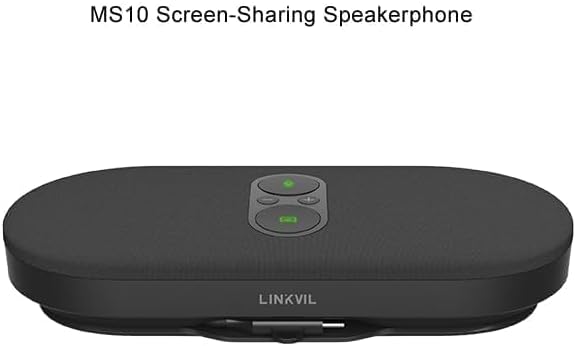
Figure 4.4: The RC10 receiver hub, facilitating wireless 4K UHD screen sharing and BYOD device connectivity.
- USB porty: For connecting the CM70 camera and MS10 speakerphone.
- HDMI výstup: For connecting to a display.
- Napájecí port: Pro připojení napájecího adaptéru.
- Indikátor stavu: LED light indicating connection status.
5. Nastavení
Follow these steps to set up your Fanvil CA400 system:
- Connect the RC10 Receiver Hub:
- Connect the power adapter to the RC10 Receiver Hub and plug it into a power outlet.
- Connect the RC10 Receiver Hub to your display (monitor, TV, or projector) using an HDMI cable (not included).
- Connect the CM70 Camera:
- Mount the CM70 camera on top of your display or a stable surface.
- Connect the CM70 camera to one of the USB ports on the RC10 Receiver Hub using the provided USB cable.
- Connect the MS10 Speakerphone:
- Place the MS10 speakerphone on a flat surface in the center of your meeting area.
- Connect the MS10 speakerphone to another USB port on the RC10 Receiver Hub using the provided USB cable.
- Zapnutí:
- Ensure all connections are secure. The system will power on automatically.
- The status indicators on the devices will light up, indicating they are ready for use.
6. Návod k obsluze
6.1 Základní obsluha
- Zapnutí/vypnutí: The system powers on automatically when connected to power. Disconnect power to turn off.
- Ovládání hlasitosti: Use the volume buttons on the MS10 speakerphone to adjust audio output.
- Ztlumit mikrofon: Press the mute button on the MS10 speakerphone to mute/unmute the microphones.
6.2 Wireless Screen Sharing (4K UHD)
The Fanvil CA400 supports wireless 4K UHD screen sharing via the RC10 Receiver Hub.
- Ensure your device (laptop, tablet) is connected to the same network as the Fanvil CA400 system.
- On your device, select the screen sharing option (e.g., Miracast, AirPlay, or a dedicated application if provided by Fanvil).
- Select the Fanvil CA400 system from the list of available devices.
- Your screen will now be mirrored on the connected display.
6.3 Video Conferencing (BYOD)
The Fanvil CA400 acts as a BYOD (Bring Your Own Device) solution, allowing you to use your preferred video conferencing software.
- Connect your laptop or computer to the RC10 Receiver Hub via a USB cable (if not already connected for screen sharing). The system will be recognized as a USB camera and speakerphone.
- Open your desired video conferencing application (e.g., Zoom, Microsoft Teams, Google Meet).
- In the application's audio and video settings, select the "Fanvil CA400 Camera" or "UVC Camera" as your video input.
- Select the "Fanvil CA400 Speakerphone" or "USB Audio Device" as your microphone and speaker.
- Start or join your video conference.
7. Údržba
To ensure the longevity and optimal performance of your Fanvil CA400 system, follow these maintenance guidelines:
- Čištění: Use a soft, dry cloth to clean the surfaces of the devices. Do not use liquid cleaners or aerosols.
- Skladování: Pokud zařízení delší dobu nepoužíváte, skladujte jej na chladném a suchém místě mimo dosah přímého slunečního záření.
- Správa kabelů: Abyste předešli poškození, ujistěte se, že kabely nejsou zalomené ani skřípnuté.
8. Řešení problémů
If you encounter issues with your Fanvil CA400, refer to the following common problems and solutions:
| Problém | Možná příčina | Řešení |
|---|---|---|
| Na displeji není žádný video výstup. | Loose HDMI cable, incorrect input source on display, camera not connected. | Check HDMI connection. Select correct HDMI input on your display. Ensure CM70 camera is securely connected to RC10. |
| No audio from speakerphone. | Volume too low, speakerphone muted, incorrect audio output selected in software. | Increase volume on MS10. Unmute speakerphone. In your conferencing software, select "Fanvil CA400 Speakerphone" as audio output. |
| Mikrofon nesnímá zvuk. | Microphone muted, incorrect audio input selected in software. | Unmute microphone on MS10. In your conferencing software, select "Fanvil CA400 Speakerphone" as audio input. |
| Wireless screen sharing not working. | Device not on same network, network interference, software issue. | Ensure both devices are on the same Wi-Fi network. Restart RC10 and your sharing device. Check for software updates. |
9. Specifikace
Technical specifications for the Fanvil CA400 All-in-One Video Conference Solution:
- Značka: Fanvil
- Model: CA400
- Senzor kamery: 1/2.8-inch 4K Sony sensor (IMX 415)
- Rozlišení záznamu videa: 4K, 1080p, 720p
- Maximální ohnisková vzdálenost: 118.5 milimetrů
- Maximální velikost clony: 2.5 f
- Typ flash paměti: Interní flash paměť
- Formát záznamu videa: MJPEG
- Podporovaný formát zvuku: MP3
- Screen Size (Speakerphone): 1 Inches (referring to a small display or indicator, not main screen)
- Technologie připojení: USB
- Mikrofony: 8 array mics (on MS10 Speakerphone)
- Reproduktor: 3W vocal enhanced speaker (on MS10 Speakerphone)
- Sdílení obrazovky: Wireless 4K UHD
- Typ zařízení: BYOD (Přineste si vlastní zařízení)
10. Záruka a podpora
For warranty information and technical support, please refer to the warranty card included with your product or visit the official Fanvil webUschovejte si doklad o koupi pro případ reklamace.
Online zdroje: For the latest drivers, firmware updates, and additional support resources, please visit www.fanvil.com.
Ask a question about this manual
Ask about setup, troubleshooting, compatibility, parts, safety, or missing instructions. Manuals+ will review the question and use this page’s manual context to help answer it.