
EZVIZ H9c
EZVIZ H9c 3K Dual-Lens Camera User Manual
Model: H9c
1. Úvod
Thank you for choosing the EZVIZ H9c 3K Dual-Lens Camera. This advanced outdoor security camera features unique dual-lens technology, combining a wide-angle lens with a pan-tilt-zoom lens for comprehensive surveillance. Designed for robust outdoor use, the H9c provides intelligent tracking, 3K resolution, and enhanced night vision capabilities to ensure your property is protected.
This manual provides detailed instructions for the installation, operation, and maintenance of your H9c camera. Please read it carefully before use and retain it for future reference.
2. Obsah balení
Please check that all components are present and in good condition upon opening the package. If any items are missing or damaged, contact your retailer or EZVIZ customer support.
- EZVIZ H9c 3K Dual-Lens Camera
- Napájecí adaptér
- Montážní šablona
- Screw Kit (screws and wall plugs)
- Vodotěsná sada
- Rychlý průvodce
3. Konec produktuview
Familiarize yourself with the various parts of your EZVIZ H9c camera.
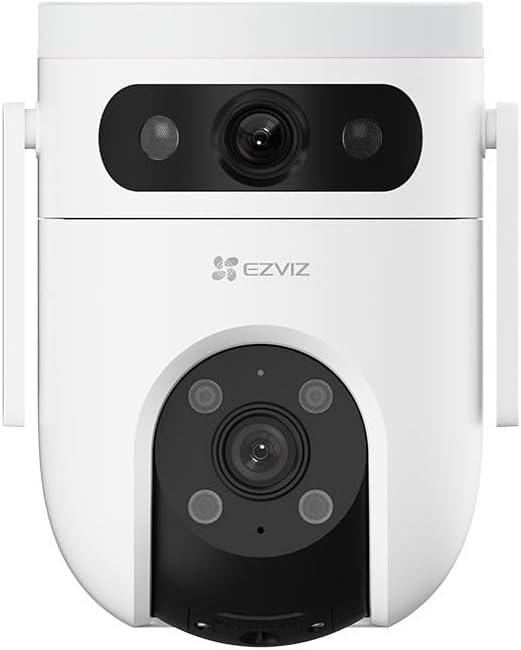
Obrázek 3.1: Přední strana View - Shows the upper wide-angle lens, lower pan-tilt-zoom lens, and EZVIZ logo. The upper lens includes IR lights for night vision, and the lower lens has additional IR/spotlights.

Obrázek 3.2: Strana View - Illustrates the mounting bracket and the sleek profile of the camera, highlighting its outdoor-ready design.
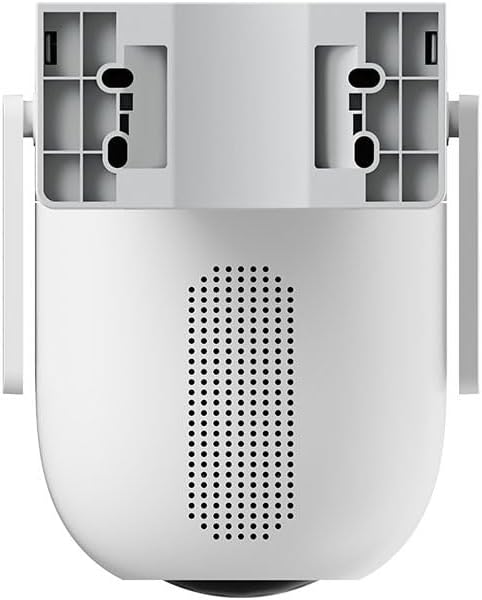
Obrázek 3.3: Zpět View - Displays the speaker grille for two-way audio and ventilation openings.

Obrázek 3.4: Spodní část View - Reveals the MicroSD card slot, protected by a cover, for local storage of recordings.
Klíčové komponenty:
- Upper Wide-Angle Lens: Provides a broad overview sledované oblasti.
- Lower Pan-Tilt-Zoom (PTZ) Lens: Podrobné nabídky views and can track subjects with 5x optical zoom and 360-degree field of view.
- Infračervené (IR) světlo: Pro jasné noční vidění.
- Mikrofon: Pro audio vstup.
- Reproduktor: Pro obousměrnou audio komunikaci a sirénu.
- Slot pro microSD kartu: Pro lokální ukládání videa (karta není součástí balení).
- Resetovací tlačítko: Used for factory reset (typically located near the SD card slot).
- Napájecí port: Pro připojení napájecího adaptéru.
4. Nastavení a instalace
4.1 Počáteční nastavení
- Stáhněte si aplikaci EZVIZ: Hledat "EZVIZ" in the App Store (iOS) or Google Play Store (Android) and download the official app.
- Vytvořte si účet EZVIZ: Otevřete aplikaci a postupujte podle pokynů na obrazovce k registraci nového účtu nebo se přihlaste, pokud již nějaký máte.
- Zapnutí fotoaparátu: Connect the power adapter to the camera's power port and plug it into a power outlet. Wait for the indicator light to flash blue, indicating it's ready for setup.
- Přidat fotoaparát do aplikace: In the EZVIZ app, tap the "+" icon on the home screen to add a new device. Scan the QR code located on the camera or its packaging. Follow the in-app prompts to connect the camera to your Wi-Fi network. Ensure your Wi-Fi network is 2.4 GHz.
- Vložení karty MicroSD (volitelné): If you wish to store recordings locally, gently insert a MicroSD card (Class 10 or higher, up to 512GB) into the designated slot on the camera (refer to Figure 3.4). Ensure the camera is powered off before inserting or removing the card.
4.2 Montáž fotoaparátu
The H9c camera is designed for outdoor installation. Choose a location that provides the desired viewing angle, has a stable Wi-Fi signal, and is within reach of a power outlet.
- Vyberte umístění: Select a sturdy surface (wall or ceiling) that can support the camera's weight. Ensure there are no obstructions to the camera's field of view.
- Použijte montážní šablonu: Place the mounting template (included in the package) on the desired installation surface and mark the screw holes.
- Vrtací otvory: Drill pilot holes at the marked positions. Insert wall plugs if mounting on masonry or concrete.
- Zabezpečte kameru: Align the camera's mounting base with the drilled holes and secure it using the provided screws.
- Vodotěsné spoje: Use the waterproof kit to protect the power cable connection from moisture, especially for outdoor installations.
- Upravit úhel: Once mounted, adjust the camera's angle in the EZVIZ app to ensure optimal coverage.
5. Ovládání fotoaparátu
The EZVIZ H9c camera offers a range of features accessible through the EZVIZ mobile application.
5.1 Dual-Lens Functionality
The H9c utilizes two lenses for enhanced surveillance:
- Širokoúhlý objektiv: Provides a static, broad view of the area, ideal for general monitoring.
- Pan-Tilt-Zoom (PTZ) Lens: This lens can be remotely controlled via the app to pan horizontally (360 degrees), tilt vertically, and zoom in (5x optical zoom) for detailed inspection.
- Inteligentní sledování: If the wide-angle lens detects a person, the PTZ lens can automatically rotate to track the person's movement, ensuring continuous coverage of the activity. This allows for simultaneous monitoring of a wide area and detailed tracking of specific events.
5.2 Detekce pohybu a upozornění
- Přizpůsobitelné detekční zóny: Nastavte konkrétní oblasti v záběru fotoaparátu view where you want motion detection to be active.
- Human Shape Detection: The camera can intelligently distinguish human shapes from other moving objects, reducing false alarms.
- Okamžitá upozornění: Receive real-time alerts on your smartphone when motion is detected.
- Aktivní obrana: Upon detection, the camera can activate a siren and strobe lights to deter intruders.
5.3 Noční vidění
The H9c provides clear surveillance even in low-light conditions:
- Infračervené noční vidění: Automatically switches to black and white infrared mode in the dark.
- Barevné noční vidění: With built-in spotlights, the camera can provide full-color night vision when sufficient ambient light is available or when spotlights are activated.
5.4 Obousměrný zvuk
Communicate with visitors or deter intruders using the built-in microphone and speaker. Access this feature through the live view in the EZVIZ app.
5.5 Nahrávání a ukládání videa
- Místní úložiště: Supports MicroSD card storage (up to 512GB) for continuous or event-based recording.
- Cloudové úložiště: Optional EZVIZ CloudPlay subscription service for secure cloud storage.
- Přehrávání: View zaznamenané footage directly from the EZVIZ app.
6. Údržba
Pravidelná údržba zajistí optimální výkon a dlouhou životnost vašeho fotoaparátu.
- Čištění: Jemně otřete objektiv a tělo fotoaparátu měkkým hadříkemamp cloth. Do not use harsh chemicals or abrasive cleaners. Ensure the camera is powered off before cleaning.
- Aktualizace firmwaru: Regularly check for and install firmware updates via the EZVIZ app. Updates often include performance improvements, new features, and security enhancements.
- Správa microSD karet: If using a MicroSD card, periodically check its status in the app. Format the card regularly (e.g., monthly) to maintain optimal recording performance. Back up important footage před formátováním.
- Napájení: Ujistěte se, že napájecí adaptér a kabel nejsou poškozené. Pokud zjistíte jakékoli opotřebení nebo poškození, vyměňte je.
- Podmínky prostředí: While designed for outdoor use, avoid exposing the camera to extreme temperatures outside its operating range or direct, prolonged water submersion.
7. Řešení problémů
If you encounter issues with your EZVIZ H9c camera, refer to the following common problems and solutions.
7.1 Camera Offline / Cannot Connect
- Zkontrolujte napájení: Ensure the camera is properly connected to a power source and the adapter is working.
- Wi-Fi signál: Verify that your Wi-Fi router is working and the camera is within range. Try moving the camera closer to the router or using a Wi-Fi extender.
- Nastavení routeru: Confirm your Wi-Fi network is 2.4 GHz. Ensure there are no MAC address filters or other network restrictions preventing the camera from connecting.
- Restartujte zařízení: Power cycle both the camera and your Wi-Fi router.
- Resetovat kameru: If the issue persists, press and hold the reset button on the camera for 5-10 seconds until the indicator light flashes, then re-add the camera through the EZVIZ app.
7.2 Špatná kvalita obrazu
- Čistá čočka: Ensure the camera lens is clean and free from dust, dirt, or smudges.
- Šířka pásma sítě: A weak Wi-Fi signal can affect video quality. Check your network speed and camera's signal strength in the app.
- Světelné podmínky: Ensure adequate lighting for optimal color vision. In very low light, the camera will switch to black and white night vision.
7.3 Motion Detection Not Working / Too Many False Alarms
- Zkontrolujte nastavení: Verify that motion detection is enabled in the EZVIZ app and detection sensitivity is appropriately set.
- Detekční zóny: Adjust detection zones to focus on critical areas and exclude irrelevant ones (e.g., moving trees, busy roads).
- Human Shape Detection: Ensure human shape detection is enabled to filter out non-human movements.
8. Specifikace
| Název modelu | H9c |
| Značka | EZVIZ |
| Rezoluce | 3K (50 MP Photosensor Resolution) |
| Technologie připojení | Bezdrátové (Wi-Fi) |
| Speciální funkce | Night Vision, Dual-Lens, Pan-Tilt-Zoom, Intelligent Tracking, Two-Way Audio |
| Prostředí použití | Venkovní |
| Optický zoom | 5x |
| Pole View | 360 Degrees (PTZ lens) |
| Úroveň odolnosti proti vodě | Vodě odolný |
| Materiál | Plast |
| Hmotnost | 200 gramů |
| Zahrnuté komponenty | Camera and two 3K-lenses |
| Upper Temperature Range | 100 stupňů Celsia |
| Formát záznamu videa | AVI |
9. Záruka a podpora
Podrobné informace o záruce naleznete v záruční kartě dodané s vaším produktem nebo navštivte oficiální webové stránky EZVIZ. website. EZVIZ provides technical support and customer service to assist with any questions or issues you may encounter.
Official EZVIZ Webmísto: www.ezviz.com
You can find FAQs, troubleshooting guides, and contact information for customer support on their webmísto.
Ask a question about this manual
Ask about setup, troubleshooting, compatibility, parts, safety, or missing instructions. Manuals+ will review the question and use this page’s manual context to help answer it.