
1. Konec produktuview
The waveshare 8-inch HDMI Display Monitor is a versatile IPS panel touchscreen designed for various applications, including Raspberry Pi, Windows, and Jetson Nano systems. It features a 768x1024 resolution, 10-point capacitive touch, and a wide 178-degree viewing angle. This manual provides instructions for its setup, operation, and maintenance.
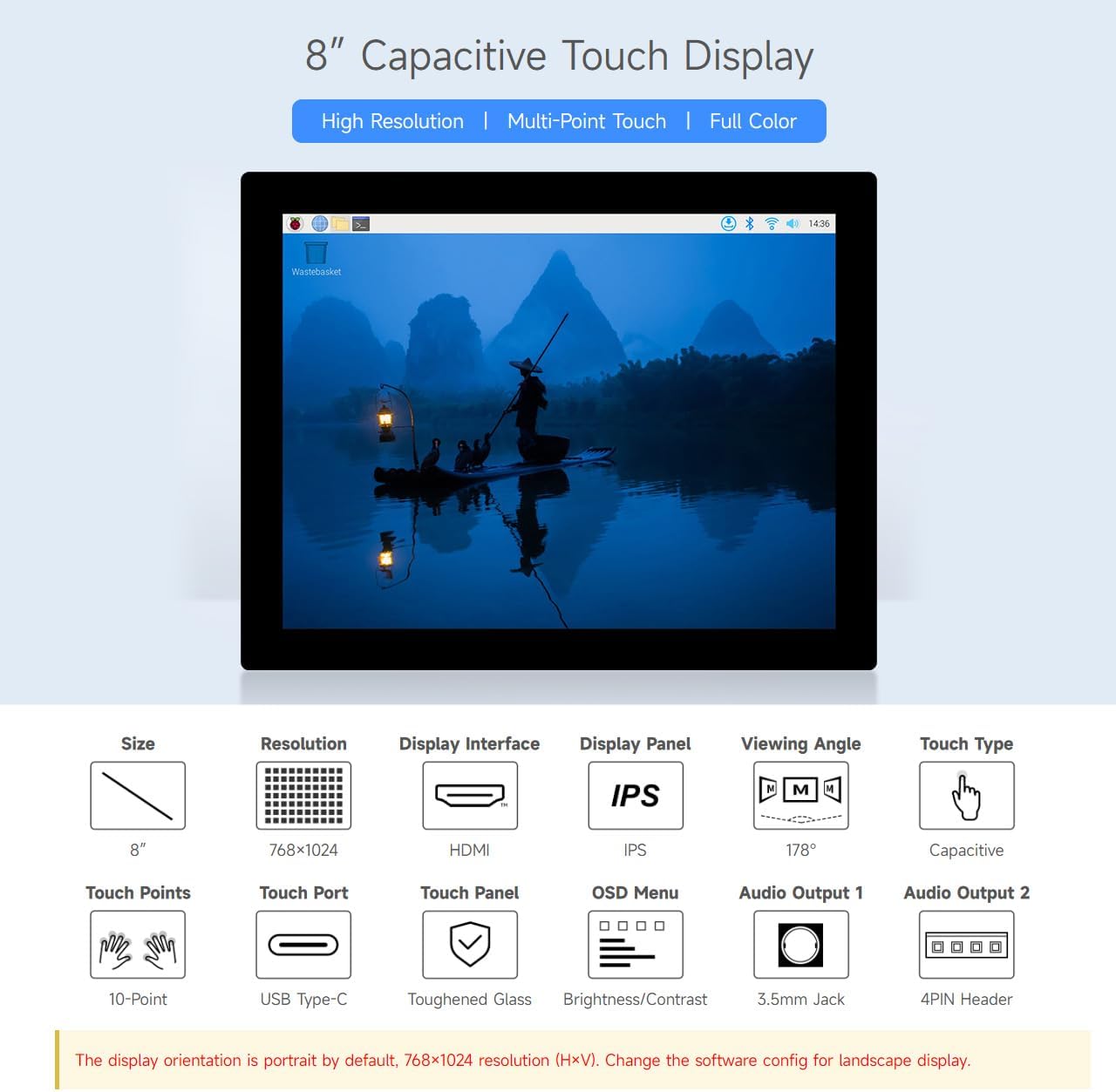
Obrázek 1.1: Nadview of the 8-inch Capacitive Touch Display highlighting its high resolution, multi-point touch, and full-color IPS panel.
2. Obsah balení
Ověřte, zda jsou všechny níže uvedené položky součástí balení. Pokud některé položky chybí nebo jsou poškozené, kontaktujte zákaznickou podporu.

Obrázek 2.1: Všechny komponenty jsou součástí balení produktu.
- 8-inch 768x1024 LCD (x1)
- HDMI flat cable ~1m (x1)
- USB-A to Type-C cable ~1m (x1)
- HDMI adapter (x1)
- USB to Type-C adapter (B) (x1)
- HDMI to Micro HDMI adapter (x1)
- USB to Type-C adapter (C) (x1)
- Screws pack (x1)
3. Pokyny k nastavení
3.1. Úvod do rozhraní
Familiarize yourself with the display's interfaces before connecting.

Obrázek 3.1: Labeled interfaces including Power ON/OFF & Brightness Adjustment, Touch Rotation Button, Audio Jack, HDMI Port, Power Supply, Touch Port, and Speaker Header.
- Power ON/OFF & Brightness Adjustment: Controls power and display brightness.
- Touch Rotation Button: For adjusting touch orientation.
- Audio jack: 3.5mm audio výstup.
- Port HDMI: Video vstup.
- Napájení: USB Type-C port for power input.
- Touch Port: USB Type-C port for touch data.
- Speaker Header: 4PIN header for external speakers.
3.2. Kompatibilita systému
The display supports a wide range of devices and operating systems:

Obrázek 3.2: Device and system support for Raspberry Pi, Jetson series boards, and Windows PCs.
- Raspberry Pi: Supports all versions of Raspberry Pi. Compatible with Raspberry Pi OS (10-point touch, driver-free), Ubuntu / Kali / WIN10 IoT (single-point touch, driver-free), and Retropie (driver-free).
- Jetson Series Board: Supports Ubuntu (single-point touch, driver-free).
- PC: Supports Windows 11 / 10 / 8.1 / 8 / 7 (10-point touch, driver-free).
3.3. Připojení Přamples
Postupujte podle těchto examples for connecting the display to various host devices.

Obrázek 3.3: Illustrative connection setups for Raspberry Pi 5, Raspberry Pi 4B, Raspberry Pi 3B+, Raspberry Pi Zero 2 W, Jetson Series Board, and a standard PC. Note that additional mini HDMI adapters and USB cables may be required for some setups, and controller boards/hosts are not included.
- Připojení videa: Use the provided HDMI cable to connect the display's HDMI port to your host device's HDMI output. Use appropriate adapters (e.g., HDMI to Micro HDMI) if necessary.
- Connect Touch (USB): Connect the display's Touch Port (USB Type-C) to a USB port on your host device using the provided USB-A to Type-C cable. This enables touch functionality.
- Připojte napájení: Connect the display's Power Supply port (USB Type-C) to a 5V power source (e.g., a USB power adapter or a powered USB port on your host device) using a USB cable. Ensure the power supply meets the display's requirements (e.g., 5V/5A for Raspberry Pi 5, 5V/3A for Raspberry Pi 4B/3B+, 5V/2.5A for Raspberry Pi Zero 2 W).
Note on Display Orientation: The display orientation is portrait by default (768x1024 resolution, HxV). To achieve a landscape display, you will need to change the software configuration on your host device. Refer to your operating system's documentation for display rotation settings.
4. Návod k obsluze
4.1. Dotyková funkce
The display features a 10-point capacitive touch panel with a toughened glass surface for durability.

Obrázek 4.1: The display supports up to 10-point capacitive touch, depending on the operating system, and features a 6H hardness toughened glass panel.
Ensure the USB touch cable is connected to your host device for touch input to function. The touch functionality is driver-free for supported operating systems.
4.2. Nastavení podsvícení
The display's backlight can be adjusted via software on your connected host device.

Obrázek 4.2: Example of adjusting backlight brightness through a software interface on the display.
Access your operating system's display settings or use specific utilities provided by your system to control the backlight intensity.
4.3. Zvukový výstup
The display supports audio output via HDMI. Additionally, it features an onboard 3.5mm headphone jack and a 4PIN speaker header for connecting external audio devices.
- 3.5mm konektor pro sluchátka: Connect standard headphones or external speakers.
- 4PIN Speaker Header: For direct connection of small speakers.
5. Údržba
To ensure the longevity and optimal performance of your display, follow these maintenance guidelines:
- Čištění: K jemnému otření obrazovky použijte měkký hadřík, který nepouští vlákna. V případě odolných šmouh lehceampen the cloth with water or a screen-safe cleaning solution. Avoid harsh chemicals, abrasive materials, or direct spraying onto the screen.
- Zacházení: Handle the display by its edges. Avoid applying excessive pressure to the screen surface.
- Prostředí: Operate and store the display in a clean, dry environment, away from extreme temperatures, direct sunlight, and high humidity.
- Moc: Always use the recommended 5V power supply. Disconnect power when the display is not in use for extended periods.
6. Řešení problémů
Pokud narazíte na problémy s displejem, postupujte podle následujících běžných kroků pro řešení problémů:
- Žádný displej/černá obrazovka:
- Ensure the HDMI cable is securely connected to both the display and the host device.
- Verify that the display is receiving adequate power (5V). Check the power cable and adapter.
- Confirm the host device's video output is enabled and configured correctly. Try connecting the host device to another monitor to rule out host issues.
- Restartujte displej i hostitelské zařízení.
- Dotyk nereaguje:
- Ensure the USB Type-C touch cable is securely connected from the display to the host device.
- For Raspberry Pi, ensure the operating system is configured for touch input.
- For Windows, check Device Manager to see if the touch screen device is recognized and drivers are installed (though it's typically driver-free).
- Try connecting the USB touch cable to a different USB port on your host device.
- Incorrect Display Orientation:
- As the display is portrait by default, adjust the display rotation settings within your operating system.
- Use the Touch Rotation Button on the display's circuit board if applicable for touch orientation.
- Žádný zvuk:
- Verify that the audio output is selected correctly on your host device (e.g., HDMI audio).
- Ensure speakers or headphones are properly connected to the 3.5mm jack or 4PIN header.
- Check volume levels on both the host device and any connected audio accessories.
Pokud tyto kroky problém nevyřeší, podívejte se prosím do sekce podpory, kde vám pomohou.
7. Specifikace
| Funkce | Specifikace |
|---|---|
| Značka | sdílení vln |
| Číslo modelu | 8inch 768x1024 LCD |
| Velikost obrazovky | 8 palce |
| Rezoluce | 768x1024 Pixels (Portrait by default) |
| Typ zobrazení | IPS LCD |
| Viewúhel | 178 stupňů |
| Klepněte na Typ | 10bodový kapacitní dotyk |
| Povrch obrazovky | Glossy, Toughened Glass (6H hardness) |
| Konektivita | HDMI (Video), USB Type-C (Touch & Power) |
| Zvukový výstup | HDMI Audio, 3.5mm Headphone Jack, 4PIN Speaker Header |
| Obnovovací frekvence | 60 Hz |
| svtage | 5 voltů |
| Hmotnost položky | 0.43 kg |
| Rozměry položky (D x Š x V) | 0.43"H x 7.4"Š x 5.79"V (přibližně 11 mmH x 188 mmŠ x 147.3 mmV) |
| Kompatibilní zařízení | Raspberry Pi (all versions), Windows 11/10/8.1/8/7, Jetson Nano, Desktop, Laptop |
Obrázek 7.1: Detailed dimensions of the display unit in millimeters.
8. Informace o záruce
This waveshare 8-inch HDMI Display Monitor comes with a 1 roky záruka výrobce. Please retain your proof of purchase for warranty claims. The warranty covers defects in materials and workmanship under normal use. It does not cover damage caused by misuse, accidents, unauthorized modifications, or improper installation.
9. Podpora
For technical support, product inquiries, or warranty claims, please contact waveshare customer service through their official website or the platform where the product was purchased. Have your product model number (8inch 768x1024 LCD) and purchase details ready when contacting support.
You can often find additional resources, drivers, and detailed guides on the waveshare official webmísto: www.waveshare.com