
1. Úvod
Thank you for choosing the FMOUSE Transparent Wireless Mouse. This innovative mouse combines a unique transparent design with advanced functionality to enhance your daily computing experience. Featuring dual Bluetooth and 2.4GHz connectivity, a rechargeable battery with cool LED lighting, and a portable design, it is suitable for various devices and environments.
This manual provides detailed instructions for setting up, operating, and maintaining your FMOUSE Transparent Wireless Mouse. Please read it thoroughly to ensure optimal performance and longevity of your device.
2. Co je v krabici
- 1 x Wireless Bluetooth Tri-mode Mouse
- 1 x přijímač USB
- 1x přijímač typu C
- 1 x USB nabíjecí kabel
- 1 x Uživatelská příručka
3. Konec produktuview
Familiarize yourself with the components and features of your FMOUSE Transparent Wireless Mouse.

Obrázek 3.1: The FMOUSE Transparent Wireless Mouse with its magnetic cover detached, revealing the internal circuitry, switches, and the Type-C charging port. This image highlights the unique transparent design and the convenient magnetic attachment for the cover.

Obrázek 3.2: A detailed diagram illustrating the various parts of the FMOUSE Transparent Wireless Mouse, including buttons, scroll wheel, magnetic cover, USB and Type-C receivers, power display, non-slip mat, tri-mode switching button, Type-C charging port, DPI/LED mode adjustment button, On/Off switch, and transparent housing.
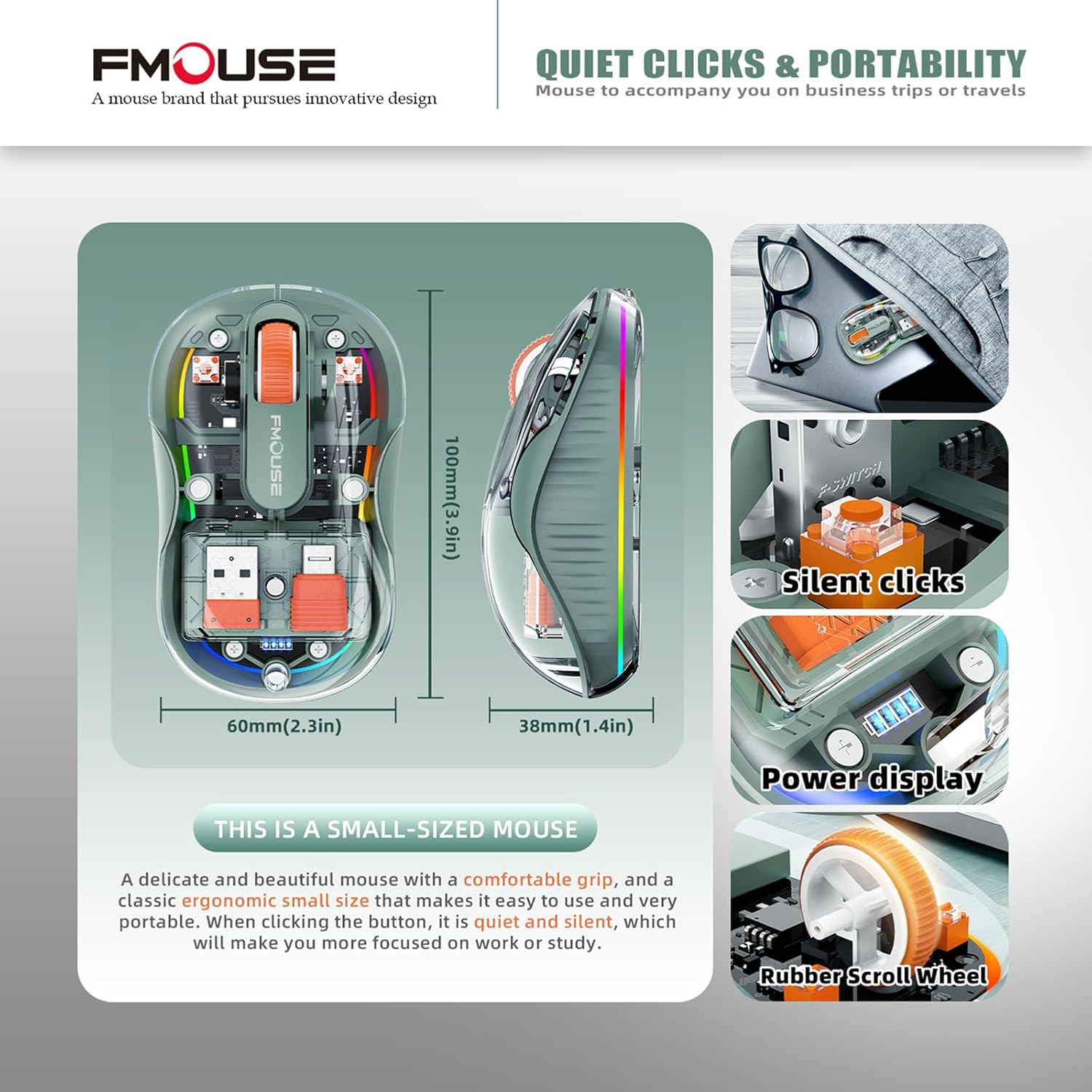
Obrázek 3.3: This image displays the compact dimensions of the FMOUSE Transparent Wireless Mouse, measuring 3.9 inches in length, 2.3 inches in width, and 1.4 inches in height. It also highlights key features such as silent clicks, a power display, and a durable rubber scroll wheel, emphasizing its portability and ergonomic design.
4. Nastavení
4.1 Nabíjení myši
The mouse is equipped with a Type-C port for quick charging. An indicator light will show the remaining battery level. Connect the provided USB charging cable to the Type-C port on the mouse and a power source (e.g., computer USB port, USB wall adapter).
4.2 Připojení přes 2.4GHz USB přijímač
- Locate the USB receiver and Type-C receiver stored magnetically inside the mouse under the transparent cover.
- Remove the appropriate receiver (USB or Type-C) for your device.
- Zapojte 2.4GHz USB přijímač do volného USB portu na vašem počítači.
- Zapněte myš pomocí vypínače ON/OFF, který se nachází na spodní straně.
- Press the tri-mode switching button on the bottom of the mouse until the indicator light shows '2.4G'. The mouse should connect automatically.
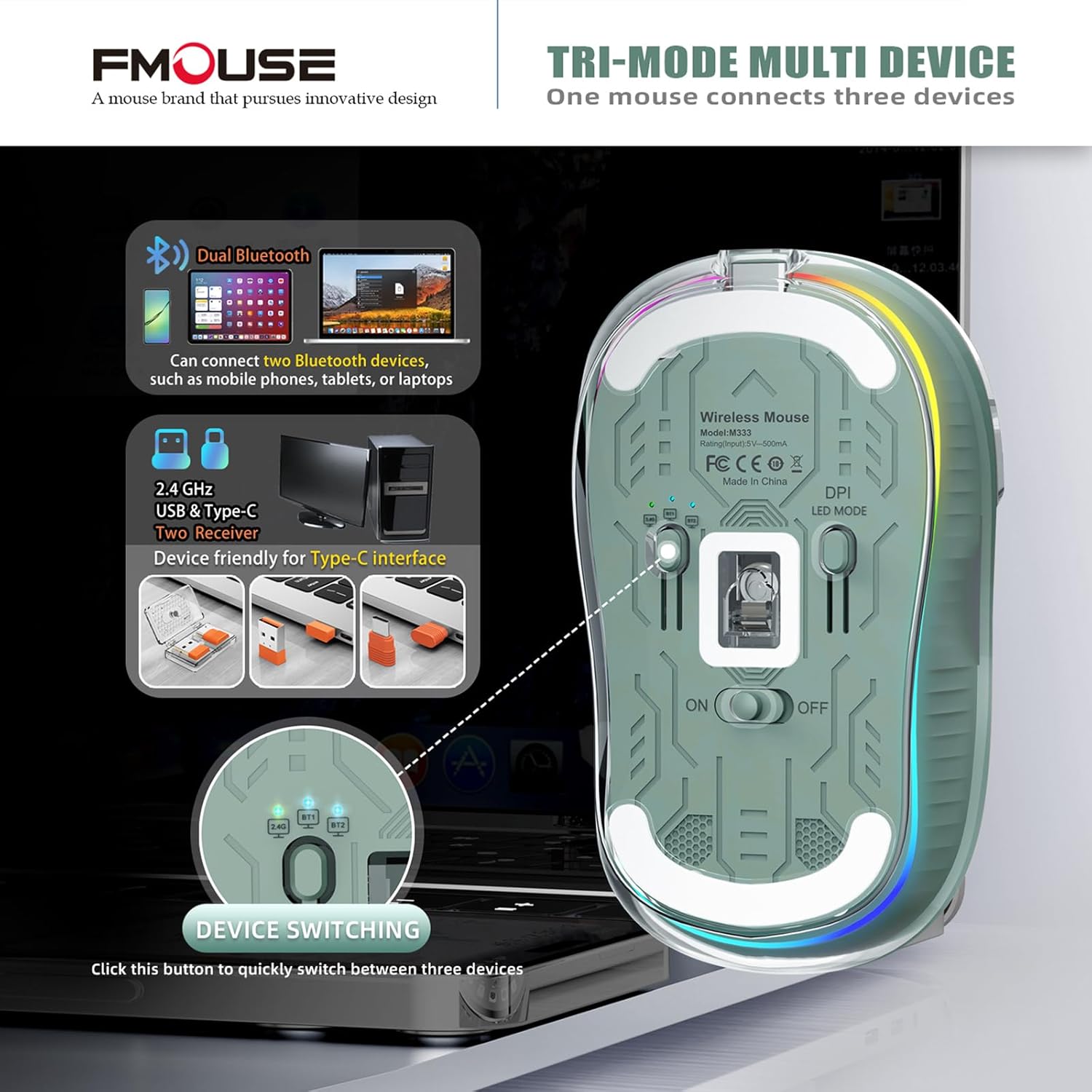
Obrázek 4.1: The underside of the FMOUSE Transparent Wireless Mouse, illustrating the tri-mode switching button (2.4G, BT1, BT2) and the compartment where the USB and Type-C receivers are stored. This view also shows the DPI/LED mode button and the On/Off switch.
4.3 Připojení přes Bluetooth (BT1 / BT2)
- Zapněte myš pomocí vypínače ON/OFF, který se nachází na spodní straně.
- Press the tri-mode switching button on the bottom of the mouse to select either 'BT1' or 'BT2'. The corresponding indicator light will flash.
- On your device (e.g., MacBook, laptop, tablet, smartphone), go to Bluetooth settings.
- Hledat new devices and select 'BT5.1 Mouse' (or similar name) from the list.
- Po spárování kontrolka na myši přestane blikat a zůstane svítit nepřetržitě.
- To connect to a second Bluetooth device, repeat steps 2-5, selecting the other Bluetooth channel (BT2).
4.1 video: This video demonstrates the tri-mode connectivity of the FMOUSE Transparent Wireless Mouse, showing how to switch between 2.4GHz and dual Bluetooth modes (BT1, BT2) using the button on the mouse's underside. It also highlights the convenient storage of USB and Type-C dongles within the mouse itself, making it easy to connect to various devices like laptops and tablets.
5. Návod k obsluze
5.1 Nastavení DPI
The mouse features 4 adjustable DPI levels (800/1200/1600/2400) for precise cursor control. To switch DPI levels, press the 'DPI/LED MODE' button located on the bottom of the mouse once. Each press will cycle through the available DPI settings.
5.2 Ovládání LED světel
The transparent shell features a cool LED light ring. The RGB lights are designed to turn on when the mouse is stationary and turn off when it is in motion. To switch lighting effects or turn off the lights to conserve battery life, press and hold the 'DPI/LED MODE' button for approximately 2 seconds.

Obrázek 5.1: This image highlights the bottom of the FMOUSE Transparent Wireless Mouse, specifically pointing out the 'DPI and LED Mode Adjustment Button'. It also illustrates the vibrant LED color lights that illuminate the mouse, emphasizing the ability to adjust DPI settings and control the lighting effects.

Obrázek 5.2: A visual comparison of the FMOUSE Transparent Wireless Mouse's LED lighting effects during both daytime and nighttime. The image demonstrates how the cool LED lights enhance the mouse's aesthetic appeal, creating a stunning visual experience in different lighting conditions.
5.3 Device Switching
To switch between connected devices (2.4G, BT1, BT2), simply press the tri-mode switching button on the bottom of the mouse. The indicator light will show the currently active connection mode.
5.4 Kompatibilita s povrchem
The optical motion detection technology allows the FMOUSE Transparent Wireless Mouse to be used on a variety of smooth surfaces without the need for a mouse pad. This includes wood, metal, leather, and fabric surfaces.

Obrázek 5.3: This image showcases the versatility of the FMOUSE Transparent Wireless Mouse, demonstrating its ability to function smoothly on various surfaces such as wood, metal, leather, and fabric. This highlights the advanced optical motion detection technology that eliminates the need for a mouse pad.
5.5 Silent Clicks
The mouse is designed with silent and quiet clicks, minimizing noise during use for a more focused and undisturbed work or study environment.
6. Údržba
6.1 Čištění
To clean your mouse, gently wipe the exterior with a soft, dry cloth. Avoid using harsh chemicals or abrasive materials that could damage the transparent shell or internal components.
6.2 Péče o baterii
To prolong battery life, turn off the LED lights when not needed by pressing and holding the 'DPI/LED MODE' button for 2 seconds. When the battery indicator shows low power, recharge the mouse promptly using the provided Type-C charging cable.
6.3 Storing Receivers
The USB and Type-C receivers can be conveniently stored magnetically inside the mouse under the transparent cover when not in use. This prevents loss and keeps them secure during travel.
7. Řešení problémů
- Myš nereaguje: Ensure the mouse is turned on and fully charged. Check that the correct connection mode (2.4G, BT1, or BT2) is selected. For 2.4G, ensure the receiver is properly plugged in. For Bluetooth, verify it's paired correctly in your device's settings.
- Zpoždění nebo odpojení: Ensure the mouse is within the 10m (33ft) Bluetooth working distance. Avoid obstructions between the mouse and your device. Try re-pairing the Bluetooth connection or re-inserting the 2.4GHz receiver.
- LED světla nefungují: Check if the LED lights have been turned off to save battery. Press and hold the 'DPI/LED MODE' button for 2 seconds to cycle through lighting effects or turn them back on.
- Pohyb kurzoru je nepravidelný: Adjust the DPI settings using the 'DPI/LED MODE' button to find a suitable sensitivity. Ensure the mouse is used on a clean, smooth surface.
8. Specifikace
| Funkce | Detail |
|---|---|
| Rozměry produktu | 3.8 x 2.2 x 0.1 palce |
| Hmotnost položky | 4.2 unce |
| Baterie | 1 lithium-iontová baterie (součástí balení) |
| Technologie připojení | Dual Bluetooth 5.1 & 2.4GHz |
| Technologie detekce pohybu | Optický |
| Úrovně DPI | 4-Level Adjustable (800/1200/1600/2400) |
| Speciální funkce | Cool LED Lights, Silent and Quiet Clicks, Type-C Receiver and Charging, Unique transparent magnetic shell |
| Kompatibilita | Windows XP, Vista, 7, 8, 10, 11, Windows ME, Mac OS, etc. |
| Pracovní vzdálenost Bluetooth | Až 10 m (33 stop) |
9. Záruka a podpora
For warranty information and customer support, please refer to the documentation included with your purchase or visit the official FMOUSE website. If you encounter any issues not covered in this manual, please contact FMOUSE customer service for assistance.