
LTC GM022
Uživatelská příručka k ultralehké bezdrátové herní myši se 3 režimy LTC GM022
Model: GM022
1. Úvod
The LTC GM022 is an ultralight 3-mode wireless gaming mouse designed for precision and versatility. It features a high-performance PAW3395 sensor, multiple connectivity options, and a convenient RGB charging dock. This manual provides instructions for setting up, operating, maintaining, and troubleshooting your GM022 mouse.
Obsah balení
- LTC GM022 Gaming Mouse
- Nabíjecí dok RGB
- USB-C kabel
- 2.4G USB Receiver (stored in mouse)

LTC GM022 Wireless Gaming Mouse with RGB Charging Dock and 2.4G USB Receiver.
2. Nastavení a připojení
The LTC GM022 mouse offers three connectivity modes: 2.4GHz wireless, Bluetooth 5.0, and wired USB-C. Select the mode that best suits your needs.

Diagram illustrating the three connectivity modes: 2.4GHz wireless, Bluetooth 5.1, and USB-C wired connection.
2.1. Bezdrátový režim 2.4 GHz
- Vyhledejte 2.4G USB přijímač uložený v přihrádce na spodní straně myši.
- Zapojte USB přijímač do volného USB portu na vašem počítači.
- Slide the mode switch on the bottom of the mouse to the "2.4G" position.
- Myš by se měla automaticky připojit k počítači.
2.2. Režim Bluetooth 5.0
- Slide the mode switch on the bottom of the mouse to the "BT" position.
- V počítači nebo zařízení otevřete nastavení Bluetooth a vyhledejte nová zařízení.
- Select "LTC GM022" from the list of available devices to pair.
2.3. Drátový režim USB-C
- Connect the provided USB-C cable to the front port of the mouse.
- Připojte druhý konec kabelu USB-C k volnému portu USB v počítači.
- Myš bude fungovat v kabelovém režimu a zároveň se bude nabíjet.

Underside of the LTC GM022 mouse with labels for mode switch, dongle storage, PTFE feet, and DPI loop button.
3. Návod k obsluze
3.1. Funkce tlačítek
The LTC GM022 mouse features 5 programmable buttons:
- Levé kliknutí: Primární akce.
- Klikněte pravým tlačítkem myši: Sekundární akce/kontextová nabídka.
- Prostřední kliknutí (rolovací kolečko): Scroll up/down, click for universal scroll or other assigned function.
- Tlačítko vpřed: Naviguje vpřed web prohlížeče popř file průzkumníci.
- Tlačítko zpět: Naviguje zpět web prohlížeče popř file průzkumníci.

Illustration of the LTC GM022 mouse highlighting its five programmable buttons and their default assignments.
3.2. Nastavení DPI
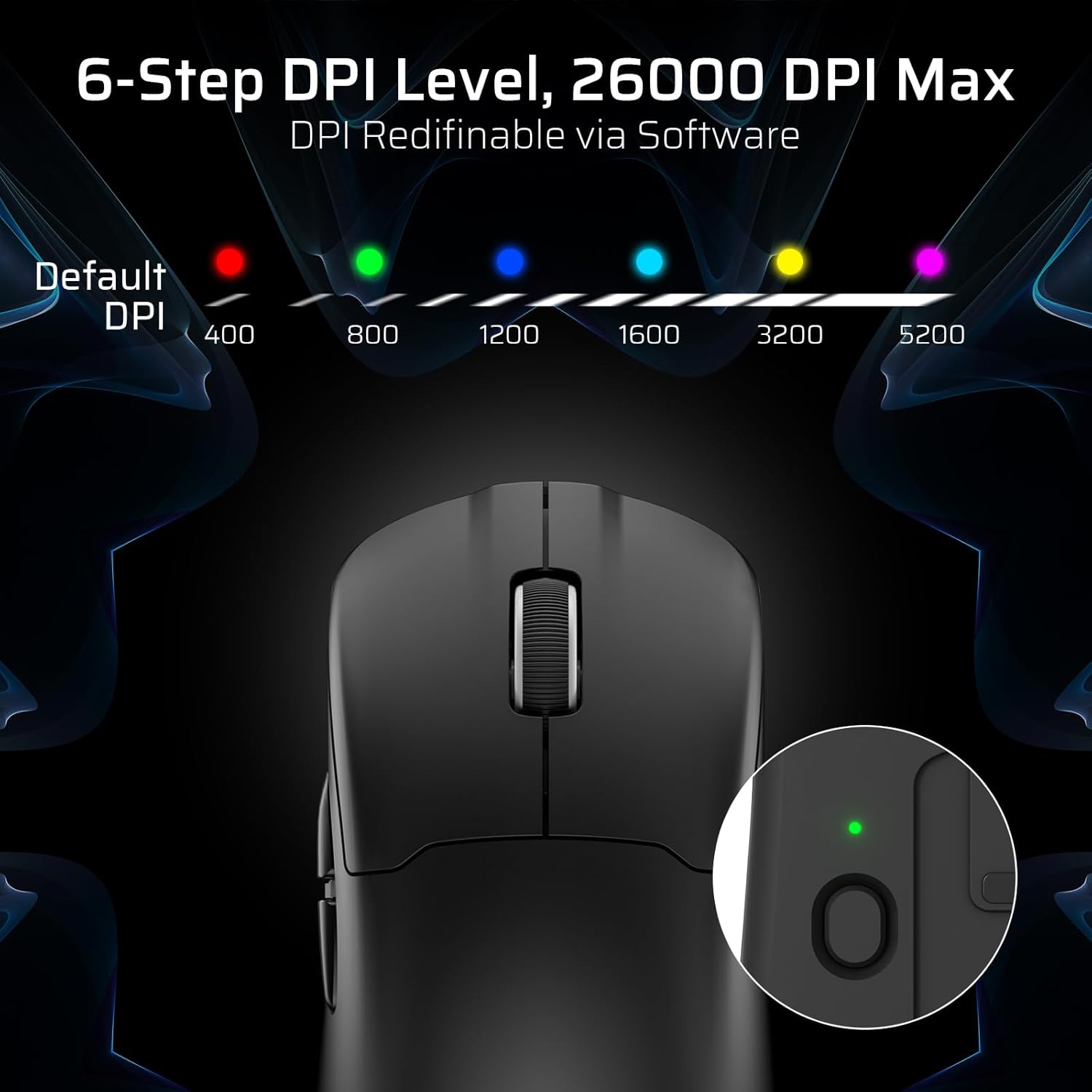
The mouse has a dedicated DPI button on its underside, allowing you to cycle through 6 preset DPI levels. Each level is indicated by a different LED color:
- 400 DPI (červená)
- 800 DPI (zelená)
- 1200 DPI (modrá)
- 1600 DPI (azurová)
- 3200 DPI (žlutá)
- 5200 DPI (Magenta)
These DPI levels can be further customized and redefined up to 26000 DPI using the LTC software.

Visual representation of the 6-step DPI levels (400, 800, 1200, 1600, 3200, 5200) and the corresponding LED indicator colors.
3.3. Přizpůsobení softwaru
Download and install the official LTC software from the manufacturer's website to unlock full customization options. The software allows you to:
- Assign macros to buttons.
- Přemapovat funkce kláves.
- Redefine 6-step DPI levels up to 26000 DPI.
- Adjust polling rate (up to 1000Hz).
- Modify click and scroll speed.
- Sledujte stav baterie.

Screenshot of the LTC software interface for customizing mouse settings, including key assignments, DPI, polling rate, and battery monitoring.
4. Nabíjení myši
The LTC GM022 mouse is equipped with a 400mAh battery and can be charged using the included magnetic RGB charging dock or directly via the USB-C cable.
4.1. Using the Magnetic Charging Dock
- Připojte kabel USB-C k nabíjecí stanici a poté ke zdroji napájení (např. USB port počítače, USB adaptér do zásuvky).
- Place the mouse onto the charging dock. The magnetic connection will secure it in place, and charging will begin automatically.
- The RGB lighting on the dock will indicate charging status.
4.2. Direct USB-C Charging
- Connect the USB-C cable directly to the mouse's front port.
- Připojte druhý konec kabelu USB-C ke zdroji napájení.
- Myš lze během nabíjení používat v kabelovém režimu.

The LTC GM022 mouse magnetically charging on its RGB illuminated dock, indicating a 400mAh battery.
5. Údržba a péče
To ensure the longevity and optimal performance of your LTC GM022 mouse, follow these maintenance guidelines:
- Čištění: K otření povrchu myši použijte měkký, suchý hadřík. V případě odolných nečistot lehceampOtřete hadřík vodou nebo jemným čisticím roztokem. Vyhněte se agresivním chemikáliím nebo abrazivním materiálům.
- Péče o senzor: Pro zachování přesnosti snímání udržujte optický senzor na spodní straně myši čistý a bez prachu a nečistot.
- PTFE patky: The mouse comes with durable PTFE feet for smooth gliding. If they show significant wear, replacement feet may be available from the manufacturer.
- Skladování: Pokud myš delší dobu nepoužíváte, skladujte ji v čistém a suchém prostředí.
Close-up of the mouse's underside, detailing the PTFE feet for smooth gliding and the inclusion of backup feet.
6. Řešení problémů
If you encounter issues with your LTC GM022 mouse, refer to the following common problems and solutions:
| Problém | Možné řešení |
|---|---|
| Mouse not responding in 2.4G wireless mode | Ensure the USB receiver is securely plugged in. Check if the mouse mode switch is set to "2.4G". Try a different USB port. Ensure the mouse battery is charged. |
| Mouse not connecting via Bluetooth | Ensure the mouse mode switch is set to "BT". Make sure Bluetooth is enabled on your device. Remove previous pairings and re-pair the mouse. Ensure the mouse battery is charged. |
| Myš se nenabíjí | Ensure the USB-C cable is properly connected to both the dock/mouse and the power source. Verify the power source is active. Clean the charging contacts on the mouse and dock. |
| Nepřesné sledování nebo zpoždění kurzoru | Clean the optical sensor on the underside of the mouse. Ensure you are using the mouse on a suitable surface (e.g., a mouse pad). Check for interference in wireless modes. Adjust DPI settings. |
| Tlačítka nereagují | Ensure the mouse is powered on and connected. If using software, check button assignments. Try restarting your computer. |
If the issue persists after trying these solutions, please contact LTC customer support for further assistance.
7. Specifikace
Key technical specifications for the LTC GM022 Ultralight 3-Mode Wireless Gaming Mouse:
- Model: GM022
- Konektivita: Bezdrátové připojení 2.4 GHz, Bluetooth 5.0, kabelové USB-C
- Senzor: Optický senzor PixArt PAW3395
- Max DPI: 26000 DPI (6-step re-definable via software)
- Míra hlasování: 1000 Hz
- Rychlost sledování: 650 IPS
- Akcelerace: 50G
- tlačítka: 5 programovatelná tlačítka
- Životnost přepínače: 80 milionů kliknutí
- Baterie: Lithium-polymer 400 mAh
- Hmotnost: Přibližně 55 gramů (2.01 unce)
- Rozměry: 4.7 x 2.44 x 0.04 palce
- Speciální vlastnosti: RGB Charging Dock, Ultralight Design, PTFE Feet

Detailní view of the PixArt PAW3395 sensor specifications including 26K DPI Max, 1000Hz Polling Rate, 650 IPS Tracking Speed, and 50G Acceleration.

Illustration highlighting the durable switches with an 80 million click lifespan.
8. Záruka a podpora
LTC products are designed and manufactured to the highest quality standards. For information regarding warranty coverage, technical support, or to download the latest software and drivers, please visit the official LTC webnebo kontaktujte jejich oddělení zákaznických služeb.
Uschovejte si účtenku jako doklad o koupi pro případ reklamace.
Ask a question about this manual
Ask about setup, troubleshooting, compatibility, parts, safety, or missing instructions. Manuals+ will review the question and use this page’s manual context to help answer it.