
Z CAM Z CAM E2-F8
Z CAM E2-F8 Professional Full-Frame 8K Cinema Camera
Uživatelská příručka
1. Úvod
The Z CAM E2-F8 is a professional-grade full-frame 8K cinema camera designed for high-definition video production. It features a full-frame sensor, 10-bit 4:2:2 color support, and 14 stops of dynamic range. This camera is capable of recording up to 8K resolution at 30 frames per second, with data rates up to 300 Mb/s to CFast 2.0 media. It supports various recording formats including ZRAW, MOV, and MP4, utilizing H.265 for 10-bit and H.264 for 8-bit recording. The E2-F8 offers versatile connectivity and control options for professional videographers.

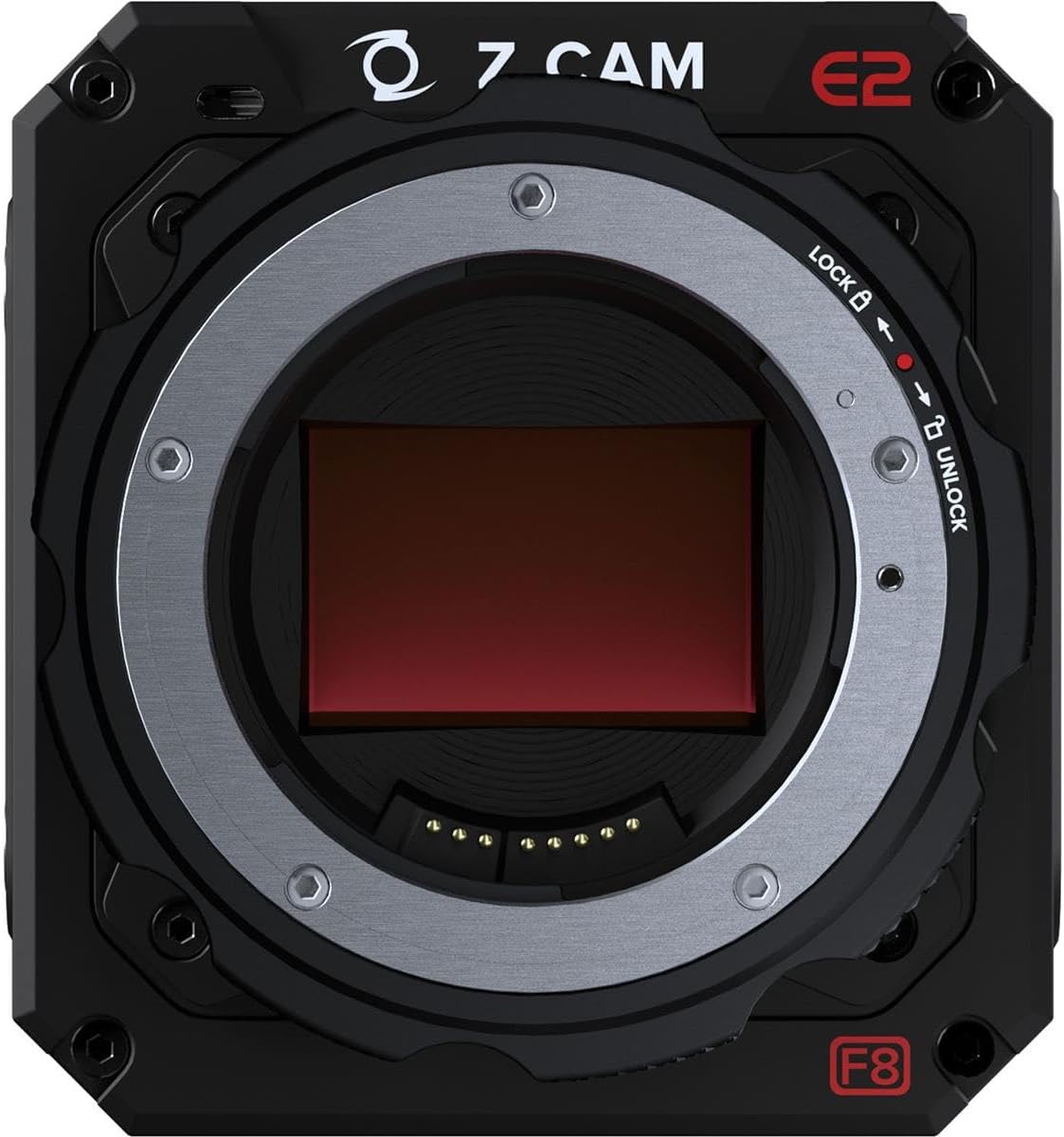
Obrázek 1.1: Přední strana view of the Z CAM E2-F8 camera, showcasing its compact design and PL mount.
2. Bezpečnostní informace
- Napájení: Use only the specified power adapter and cables. Incorrect power sources can damage the device or cause fire.
- Provozní prostředí: Avoid exposing the camera to extreme temperatures, humidity, dust, or direct sunlight. Operate within the recommended temperature range.
- Zacházení: Handle the camera with care. Do not drop or subject it to strong impacts. Avoid touching the sensor directly.
- Čištění: Disconnect power before cleaning. Use a soft, dry cloth. Do not use liquid cleaners or solvents.
- Demontáž: Nepokoušejte se kameru rozebírat ani upravovat. Veškerý servis svěřte kvalifikovanému personálu.
3. Obsah balení
Ověřte, zda jsou v balení přítomny všechny položky:
- Z CAM E2-F8 Camera Body
- PL Mount Cap
- Napájecí adaptér
- Rychlý průvodce
- Záruční list
4. Nastavení
4.1 Nasazení objektivu
- Remove the PL mount cap from the camera body.
- Align the red dot on the lens with the red dot on the camera's PL mount.
- Insert the lens into the mount and rotate it clockwise until it clicks into place, securing the lens.

Obrázek 4.1: Detail view of the Z CAM E2-F8's PL mount, showing the lock/unlock mechanism and sensor.
4.2 Inserting CFast 2.0 Media
- Locate the CFast 2.0 slot on the side of the camera.
- Insert the CFast 2.0 card with the label facing the correct direction until it clicks into place.
- To eject, press the card gently inward until it springs out.

Obrázek 4.2: Strana view of the Z CAM E2-F8, highlighting the CFast 2.0 media slot and programmable function buttons (F1-F4).
4.3 Zapnutí fotoaparátu
- Connect the power adapter to the camera's DC input port.
- Připojte napájecí adaptér do vhodné elektrické zásuvky.
- Press and hold the power button (usually red) until the camera powers on and the display illuminates.
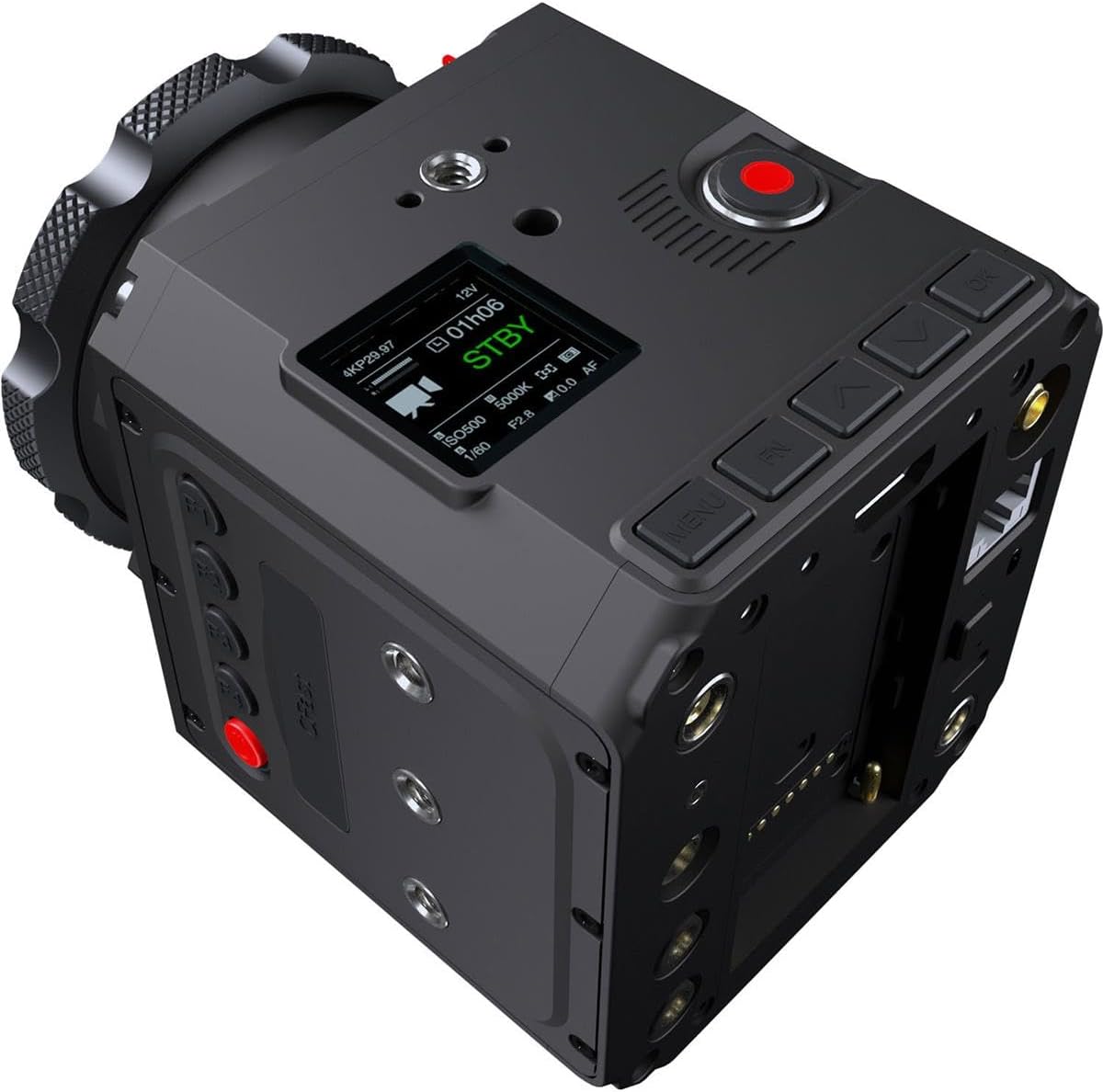
Obrázek 4.3: Horní zadní část view of the Z CAM E2-F8, showing the small display screen and various control buttons for menu navigation and settings.
5. Ovládání fotoaparátu
5.1 Základní nahrávání
- Spustit/ukončit nahrávání: Press the dedicated record button (often red) to start and stop recording.
- Sledování: Connect an external monitor via the HDMI 2.0 port for real-time video output (up to 4K60, 10-bit 4:2:2).
5.2 Navigace v menu a nastavení
Use the navigation buttons (MENU, UP, DOWN, LEFT, RIGHT, OK) located on the camera body to access and adjust settings on the integrated display or an external monitor.
- Rozlišení a snímková frekvence: Navigate to the 'Video' settings to select resolutions up to 8K (8192x3456 DCI 2.4:1 or 7680x4320 UHD) and frame rates up to 30fps.
- Dynamic Range and ISO: Adjust dynamic range settings and utilize the dual native ISO (400/1250) for optimal low-light performance.
- Formáty nahrávání: Select desired recording formats (ZRAW, MOV, MP4) and compression (H.265 for 10-bit, H.264 for 8-bit).
- Nastavení zvuku: Configure audio input (3.5mm stereo jack or 5-pin LEMO for XLR) and format (24-bit 48 kHz AAC or PCM for MOV).
5.3 Konektivita
- Gigabitový Ethernet: Connect an Ethernet cable for live streaming or remote control.
- Wi-Fi: Use the built-in Wi-Fi to connect to the Z Camera iOS app for remote control and monitoring.
- USB-C: Pro přenos dat a aktualizace firmwaru.
Obrázek 5.1: Zadní view of the Z CAM E2-F8, displaying the HDMI, Ethernet, USB-C, and audio ports.

Obrázek 5.2: Druhá strana view of the Z CAM E2-F8, showing additional mounting points and various input/output ports for accessories and connectivity.
6. Údržba
- Čištění těla fotoaparátu: K otření těla fotoaparátu použijte měkký hadřík, který nepouští vlákna. V případě odolných nečistot lehceampOpláchněte hadřík vodou. Nepoužívejte agresivní chemikálie.
- Čištění senzoru: Sensor cleaning should only be performed by experienced users or professional service centers. Improper cleaning can cause permanent damage.
- Aktualizace firmwaru: Regularly check the Z CAM official website for the latest firmware updates to ensure optimal performance and access to new features. Follow the provided instructions carefully for firmware installation.
- Skladování: When not in use, store the camera in a dry, cool place, away from direct sunlight and extreme temperatures. Use a desiccant pack if storing in humid environments.
7. Řešení problémů
| Problém | Možná příčina | Řešení |
|---|---|---|
| Fotoaparát se nezapne. | No power, faulty power adapter, or battery (if applicable) is drained. | Ensure power adapter is securely connected and outlet is functional. If using a battery, ensure it is charged. |
| Nahrávání se neočekávaně zastaví. | CFast card full, card speed too slow, or overheating. | Check available space on CFast card. Use a high-speed CFast 2.0 card. Allow camera to cool down if it feels hot. |
| No video output via HDMI. | Incorrect cable, monitor settings, or camera output settings. | Verify HDMI cable connection. Check monitor input source. Ensure camera's HDMI output settings match monitor capabilities. |
| Problémy s připojením k Wi-Fi. | Incorrect Wi-Fi settings, interference, or app issues. | Restart camera and mobile device. Reconfigure Wi-Fi settings on camera. Ensure Z Camera iOS app is updated. |
8. Specifikace
| Funkce | Detail |
|---|---|
| Číslo modelu | Z CAM E2-F8 |
| Typ snímače | Full-Frame CMOS (35.97 x 23.98 mm) |
| Efektivní pixely | 61 mil |
| Dynamický rozsah | 14 Zastávky |
| Native ISO | 400/1250 |
| Maximální rozlišení | 8192x3456 (DCI 8K 2.4:1) @ 30fps, 7680x4320 (8K UHD) @ 30fps |
| Záznamová média | CFast 2.0 |
| Maximální přenosová rychlost | 300 Mb/s |
| Video formáty | ZRAW, MOV, MP4 (H.265 10-bit, H.264 8-bit) |
| Formát zvuku | 24-bit 48 kHz (AAC, PCM for MOV) |
| Video výstup | HDMI 2.0 (4K60, 10-bit 4:2:2) |
| Konektivita | Gigabit Ethernet, Wi-Fi, USB-C, 3.5mm Stereo Jack, 5-pin LEMO |
| Rozměry | 10.7 x 8.9 x 5.2 palce |
| Hmotnost | 4.85 libry |
9. Záruka a podpora
9.1 Informace o záruce
The Z CAM E2-F8 Professional Full-Frame 8K Cinema Camera typically comes with a manufacturer's limited warranty covering defects in materials and workmanship for a specified period from the date of purchase. Please refer to the warranty card included in your product package for specific terms, conditions, and duration. Keep your proof of purchase for warranty claims.
9.2 Zákaznická podpora
For technical assistance, troubleshooting beyond this manual, or warranty service, please contact Z CAM customer support through their official website. You may need to provide your product's serial number and proof of purchase.
Online zdroje: Visit the official Z CAM webweb pro:
- Nejnovější aktualizace firmwaru
- Detailed product documentation
- FAQs and knowledge base
- Kontaktní informace pro podporu
Ask a question about this manual
Ask about setup, troubleshooting, compatibility, parts, safety, or missing instructions. Manuals+ will review the question and use this page’s manual context to help answer it.