
1. Úvod
Welcome to the YQSAVIOR Kids Tablet user manual. This guide provides essential information to help you set up, operate, and maintain your new tablet. Designed specifically for children, this tablet offers a safe and engaging platform for learning and entertainment, featuring robust parental controls and a durable design.
Před použitím zařízení si prosím pečlivě přečtěte tento návod k obsluze, abyste zajistili jeho správnou funkčnost a bezpečnost.
2. Co je v krabici
- YQSAVIOR Kids Tablet (Model YQQ1K)
- Nabíjecí kabel
3. Konec produktuview
The YQSAVIOR Kids Tablet is equipped with features designed for young users, including a durable shockproof case and an adjustable stand for comfortable viewIng.
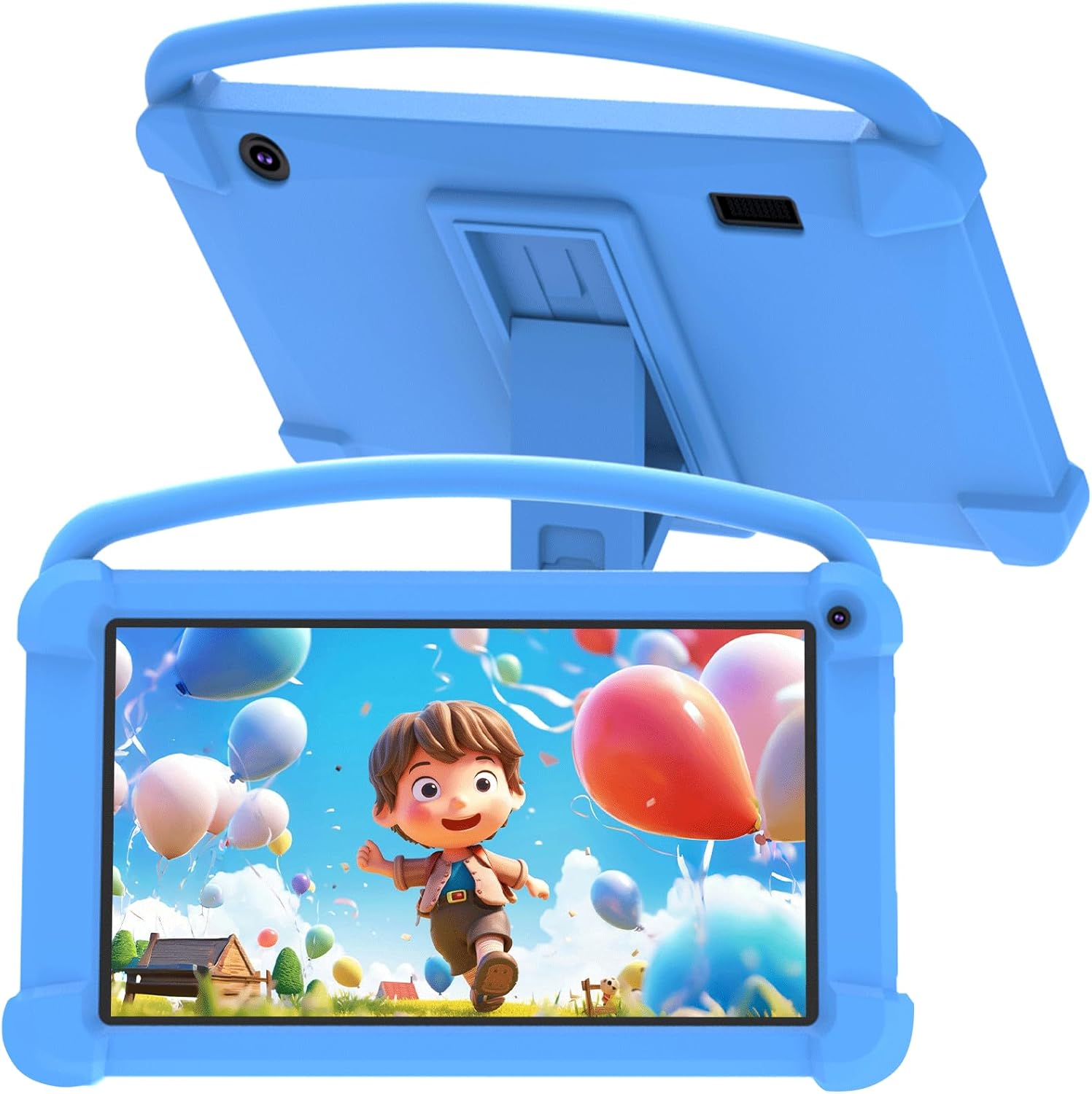
Obrázek 3.1: Přední strana view of the YQSAVIOR Kids Tablet with its protective case.

Figure 3.2: The tablet's adjustable stand for hands-free viewIng.
Klíčové komponenty:
- 7palcový IPS HD displej: Provides clear and bright visuals (1024x600 resolution).
- Protective Silicone Case: Designed to absorb shocks and prevent damage from drops.
- Nastavitelný stojan: Integrated into the case for convenient viewing úhly.
- Duální fotoaparáty: Front 2.0MP and Rear 5.0MP for photos and video calls.
- 3.5mm konektor pro sluchátka: Pro soukromý poslech.
- Slot pro kartu Micro SD: Expandable storage up to 512GB.
4. Nastavení
4.1 Počáteční nabíjení
Before first use, fully charge the tablet using the provided charging cable and a compatible power adapter (not included). The charging indicator will show progress.
4.2 Zapnutí/vypnutí
- Zapnutí: Stiskněte a podržte tlačítko Napájení, dokud se nerozsvítí obrazovka.
- Vypnutí: Stiskněte a podržte tlačítko napájení a poté z možností zobrazených na obrazovce vyberte možnost „Vypnout“.
4.3 Průvodce počátečním nastavením
Upon first power-on, the tablet will guide you through an initial setup process. This includes selecting your language, connecting to a Wi-Fi network, and setting up a Google account. A Google account is required to access the Google Play Store and other Google services.
4.4 Vložení Micro SD karty
To expand storage, locate the Micro SD card slot on the side of the tablet. Gently insert a Micro SD card (up to 512GB) until it clicks into place. The tablet will recognize the new storage.
5. Návod k obsluze
5.1 Rodičovská kontrola
The YQSAVIOR Kids Tablet features robust parental control options to ensure a safe digital environment for children. These controls allow you to manage screen time, filter content, and control app access.

Obrázek 5.1: Přesview of parental control features.
Access the parental control settings through the dedicated app or system settings to:
- Stanovte si denní časové limity pro používání tabletu.
- Approve or block specific applications.
- Filtr webstránky a online obsah.
- Monitor activity logs.
5.2 Správa aplikací
The tablet comes with pre-installed educational and entertainment apps. You can download additional applications from the Google Play Store, thanks to its GMS certification.

Figure 5.2: The tablet's 'All Apps' screen.
5.3 Přehrávání médií
The tablet supports various media formats and is compatible with streaming services like Netflix due to Widevine L1 support. The 1024x600 IPS HD display ensures a clear visual experience for videos and games.
Video 5.3: Animovaná videoprezentaceasing the YQSAVIOR Kids Tablet's design, features like the protective case, adjustable stand, and dual cameras, along with its quad-core processor and various color options.
6. Údržba
6.1 Čištění
Use a soft, lint-free cloth to clean the screen and the tablet's body. For stubborn smudges, slightly damphadřík vodou. Nepoužívejte agresivní chemikálie ani abrazivní materiály.
6.2 Péče o baterii
- Nevystavujte tablet extrémním teplotám (horkým ani nízkým).
- Nenechávejte tablet nabíjet delší dobu po úplném nabití.
- Pro dlouhodobé skladování nabijte baterii přibližně na 50 % a zařízení vypněte.
6.3 Aktualizace softwaru
Periodically check for system updates in the tablet's settings to ensure optimal performance and access to the latest features and security patches.
7. Řešení problémů
Běžné problémy a řešení:
- Tablet se nezapíná: Ensure the tablet is charged. Connect it to a power source and try again.
- Pomalý výkon: Close unused applications, clear app caches, or restart the tablet.
- Problémy s připojením Wi-Fi: Check if Wi-Fi is enabled, restart your router, or forget and reconnect to the network.
- Pády aplikací: Ensure apps are updated. Try clearing the app's cache or reinstalling it.
- Baterie se rychle vybíjí: Reduce screen brightness, close background apps, or disable unnecessary features like Bluetooth/GPS when not in use.
If issues persist, consider performing a factory reset (this will erase all data, so back up important files first) or contact customer support.
8. Specifikace
| Funkce | Specifikace |
|---|---|
| Název modelu | YQQ1K |
| Operační systém | Android 12 |
| Velikost obrazovky | 7 palce |
| Rozlišení obrazovky | 1024x600 Pixels (IPS HD) |
| BERAN | 4 GB (2 GB + 2 GB) |
| Interní úložiště (ROM) | 32 GB |
| Rozšiřitelné úložiště | Micro SD až 512 GB |
| Zadní kamera | 5 MP |
| Přední kamera | 2 MP |
| Bezdrátový typ | 802.11n (Wi-Fi) |
| Konektivita | Bluetooth |
| Baterie | 1 Lithium Ion (součástí balení) |
| Hmotnost položky | 1.21 libry |
| Rozměry produktu | 7 x 0.3 x 3 palce |
9. Záruka a podpora
For warranty information and customer support, please refer to the documentation included with your purchase or visit the official YQSAVIOR store on Amazon. You can find more information and contact details at: YQSAVIOR Amazon Store.