
1. Úvod
This manual provides essential information for setting up, operating, maintaining, and troubleshooting your Acer Aspire Lite AL15-41 laptop. Please read this guide thoroughly to ensure proper use and to maximize the lifespan of your device.
2. Nastavení
2.1 Vybalení a úvodní kontrola
Opatrně vyjměte všechny součásti z obalu. Zkontrolujte, zda jsou všechny níže uvedené položky přítomny a nepoškozené.
- Acer Aspire Lite AL15-41 Laptop
- Napájecí kabel
- Adaptér
- Uživatelská příručka (tento dokument)

Obrázek 2.1: Přední strana view of the Acer Aspire Lite AL15-41 laptop.
2.2 Připojení napájecího adaptéru
Connect the power adapter to the laptop's power input port and then plug the power cord into a wall outlet. The laptop can be used while charging.
2.3 Počáteční zapnutí a nastavení systému Windows
Press the power button to turn on the laptop. Follow the on-screen instructions to complete the Windows 11 Home setup process. This includes selecting your region, language, connecting to a Wi-Fi network, and creating a user account.
3. Návod k obsluze
3.1 Klávesnice a touchpad
The laptop features a 100-/101-/104-key keyboard with an independent numeric keypad for efficient data entry. The touchpad supports multi-touch gestures for navigation.

Obrázek 3.1: Detailní view klávesnice a touchpadu.
3.2 Porty a konektivita
The Acer Aspire Lite AL15-41 offers various ports for connecting external devices:
- 2 x USB 2.0 (Type A)
- 1 x USB 3.2 Gen 1 (Type A)
- 1 x USB 3.2 Gen 2 (Type C)
- 1 x HDMI port for video output
- Audio jack
For wireless connectivity, the laptop supports Wi-Fi 5 and Bluetooth 5.1.

Obrázek 3.2: Strana view illustrating the available ports.
3.3 Funkce displeje
The laptop features a 15.6-inch Full HD (1920 x 1080) TN display with a 16:9 aspect ratio. The ultra-slim design enhances the viewzkušenosti.

Figure 3.3: The 15.6-inch Full HD display.
3.4 180-Degree Hinge Mechanism
The screen can be rotated 180 degrees, facilitating collaboration and flexible viewing angles. To activate this feature, press the Function + R key combination.

Figure 3.4: Laptop demonstrating the 180-degree hinge.
3.5 Správa baterie
The laptop is equipped with a 3-cell Lithium Ion battery with 36 Watt Hours of energy content, providing up to 7 hours of battery life under normal usage conditions. For optimal battery health, avoid frequent full discharges and keep the laptop in a cool environment.
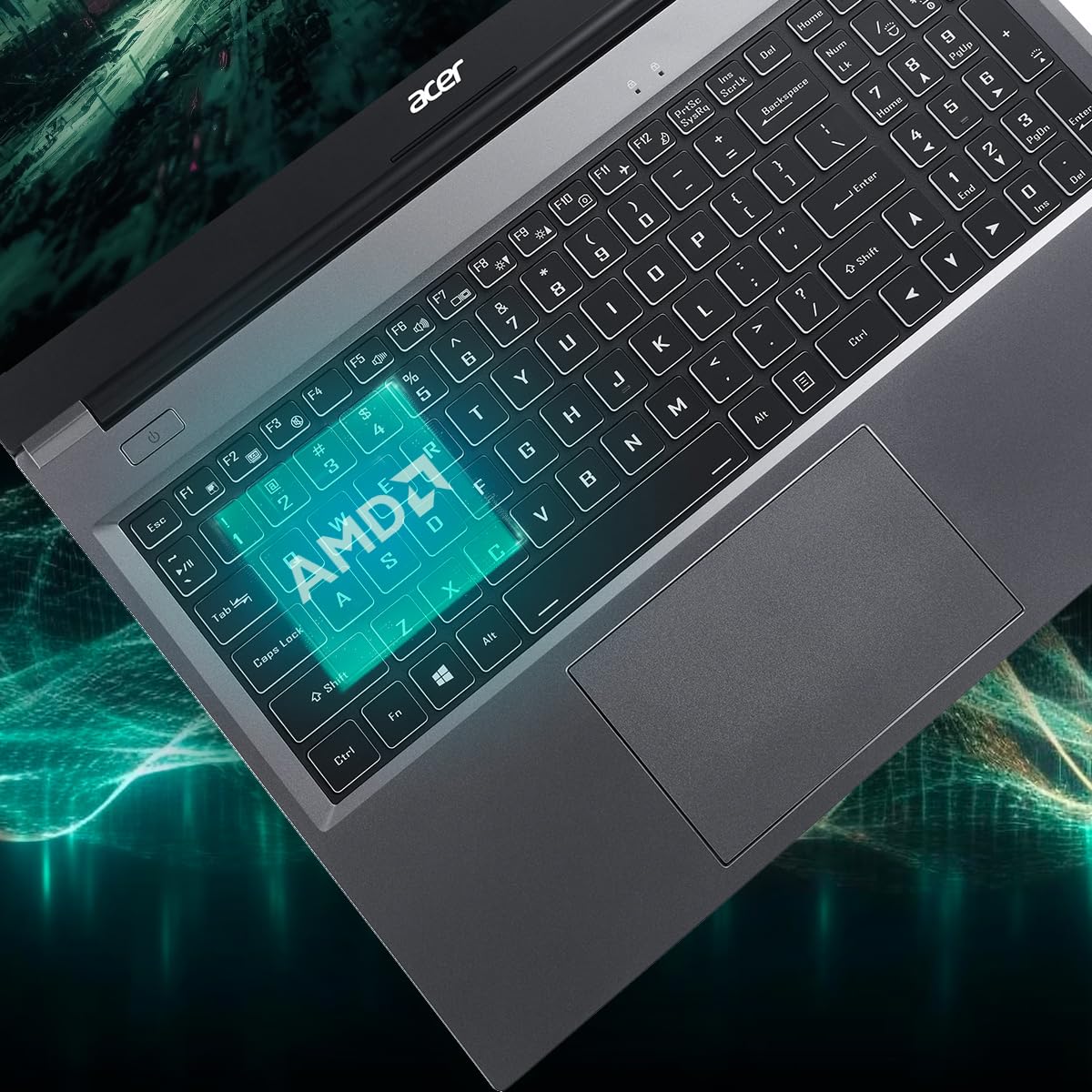
Figure 3.5: Laptop design emphasizing portability and battery life.
4. Údržba
4.1 Čištění notebooku
Použijte měkký hadřík, který nepouští vlákna dampened with water or a specialized screen cleaner to clean the display. For the keyboard and chassis, use a soft brush or compressed air to remove dust. Avoid harsh chemicals or abrasive materials.
4.2 Aktualizace softwaru
Regularly update your operating system (Windows 11 Home) and drivers to ensure optimal performance and security. Check the Acer support website for the latest driver updates for your AL15-41 model.
4.3 Rozšíření úložiště a RAM
The laptop's 8 GB DDR4 RAM is upgradable up to 32GB across two SODIMM sockets. The 512 GB PCIe Gen3 NVMe SSD storage is upgradable up to 1 TB. For upgrades, it is recommended to consult a qualified technician or refer to Acer's official service guidelines to avoid voiding your warranty.
5. Řešení problémů
Pokud narazíte na problémy s notebookem, zvažte následující základní kroky pro řešení problémů:
- Bez napájení: Ujistěte se, že je napájecí adaptér bezpečně připojen k notebooku i k funkční zásuvce. Zkuste jinou zásuvku.
- Problémy se zobrazením: If the screen is blank, try connecting an external monitor to determine if the issue is with the laptop's display or graphics output.
- Pomalý výkon: Close unnecessary applications, check for malware, and ensure your operating system and drivers are up to date. Consider the recommended maintenance steps.
- Problémy s připojením: For Wi-Fi or Bluetooth issues, try restarting your laptop and your router/Bluetooth device. Check device manager for driver status.
For more complex issues, refer to the online support resources available on the official Acer website or contact Acer customer support.
6. Specifikace
Detailed technical specifications for the Acer Aspire Lite AL15-41 laptop:
| Funkce | Specifikace |
|---|---|
| Značka | Acer |
| Název modelu | Aspire Lite |
| Číslo modelu | AL15-41 |
| Procesor | AMD Ryzen 3 7330U Processor (2.3 GHz, up to 4.3 GHz) |
| Grafika | Integrovaná grafika AMD Radeon |
| BERAN | 8 GB DDR4 (Upgradable up to 32 GB) |
| Skladování | 512 GB NVMe SSD (Upgradable up to 1 TB) |
| Zobrazit | 15.6 Inches Full HD (1920 x 1080) TN LCD |
| Operační systém | Windows 11 Home |
| Barva | Ocelově šedá |
| Hmotnost | 1.6 kg |
| Dimensions (L x W x Thickness) | 23.9D x 36Š x 2 centimetrů |
| USB porty | 2 x USB 2.0 (Type A), 1 x USB 3.2 Gen 1 (Type A), 1 x USB 3.2 Gen 2 (Type C) |
| Port HDMI | 1 |
| Bezdrátové připojení | Wi-Fi 5, Bluetooth 5.1 |
| Životnost baterie | 7 Hours (36 Watt Hours Lithium Ion) |
| Klávesnice | Chiclet with numeric keypad |
| Touchpad | Clickpad, Multi-touch |
| Webvačka | Ano (přední) |
7. Záruka a podpora
7.1 Informace o záruce
Your Acer Aspire Lite AL15-41 laptop comes with a 1-Year Manufacturer Warranty. Please retain your proof of purchase for warranty claims. The warranty covers manufacturing defects under normal use conditions.
7.2 Manufacturer and Importer Contact
Výrobce: Acer
Dovozce: ACER INDIA PRIVATE LIMITED
Embassy Heights, 6th Floor, No. 13, Magrath Road, Next to HOSMAT Hospital, Bangalore, INDIA – 560025
Balicí stroj: ACER INDIA PRIVATE LIMITED
RS No.38/2, Sedarpet Village, Villanur Commune, Poducherry - 605111.
7.3 Zákaznická podpora
For technical assistance, driver downloads, or service requests, please visit the official Acer support website or contact their customer service directly. You can find contact details and support resources on the Acer India webmísto.