This manual provides comprehensive instructions for the YQSAVIOR Kids Tablet, model YQQ1K. It covers setup, operation, maintenance, and troubleshooting to ensure a safe and optimal user experience. Please read this manual thoroughly before using the device.
Obsah balení
Po otevření balení ověřte, zda jsou přítomny všechny položky:
YQSAVIOR Kids Tablet (Pink, Model YQQ1K)
Protective Silicone Case (pre-installed)
USB nabíjecí kabel
Uživatelská příručka (tento dokument)
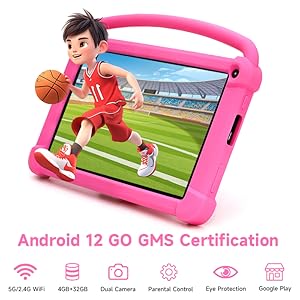
Image: The YQSAVIOR Kids Tablet, featuring its durable pink protective case and integrated kickstand. The screen displays vibrant educational content, highlighting its primary use for children.
Nastavení
1. Počáteční nabíjení
Before first use, fully charge the tablet. Connect the provided USB charging cable to the tablet's charging port and the other end to a compatible USB power adapter (not included) or a computer's USB port.
Plné nabití obvykle trvá 3-4 hodiny.
Indikátor baterie na obrazovce bude zobrazovat stav nabíjení.
2. Zapnutí/vypnutí
Zapnutí: Press and hold the Power button located on the side of the tablet until the YQSAVIOR logo appears.
Vypnutí: Press and hold the Power button until the power options menu appears. Select "Power Off" and confirm.
3. Průvodce počátečním nastavením
Po prvním zapnutí vás tablet provede procesem počátečního nastavení:
Vyberte preferovaný jazyk.
Connect to a Wi-Fi network. This is essential for downloading apps and updates.
Sign in with your Google account or create a new one. This is required for accessing the Google Play Store and other Google services.
Postupujte podle pokynů na obrazovce a dokončete nastavení.
Návod k obsluze
1. Navigace v rozhraní
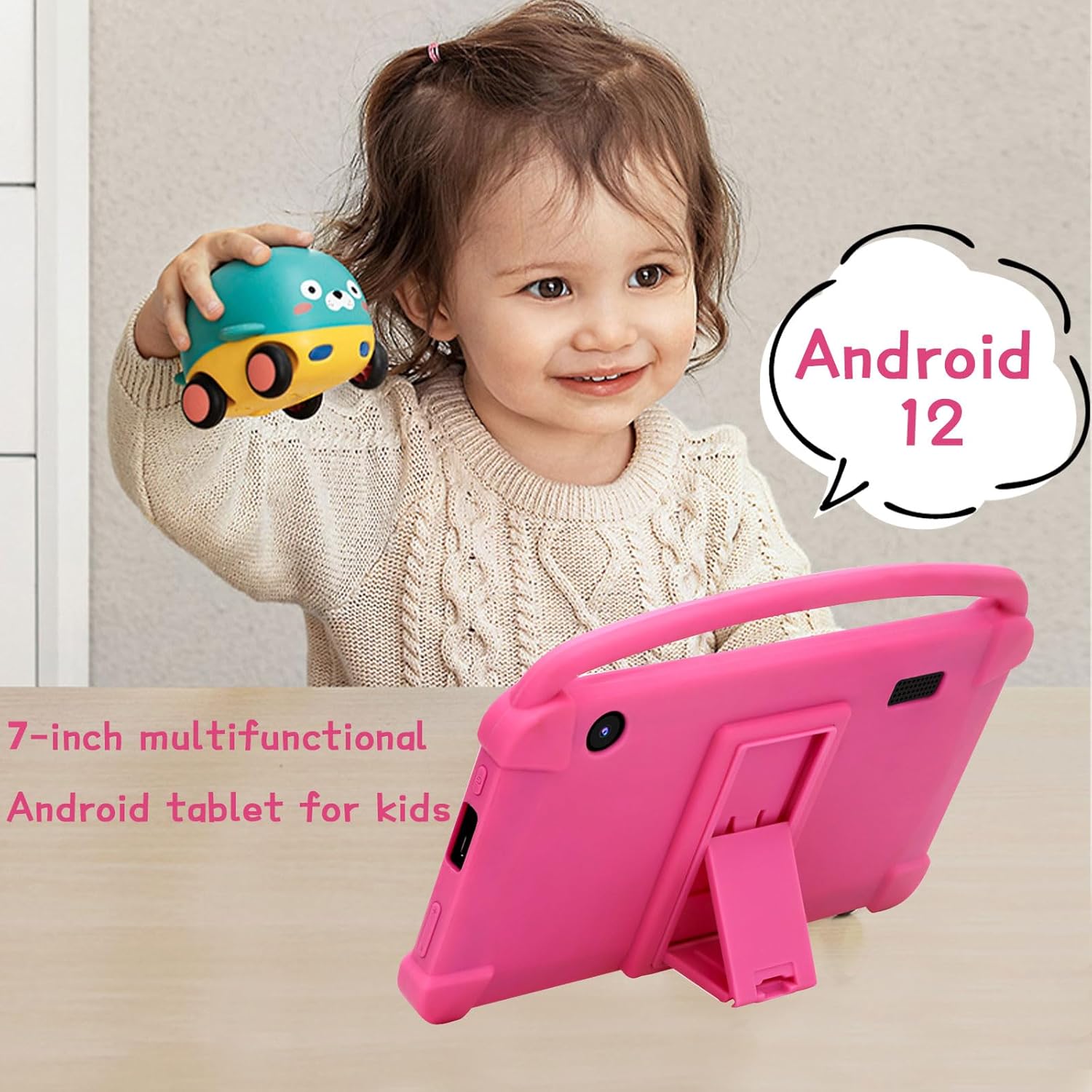
The YQSAVIOR Kids Tablet runs on Android 12. Navigation is primarily touch-based:
Klepněte na: Vyberte položku nebo otevřete aplikaci.
Výpad: Procházení stránek nebo seznamů.
Přiblížení/zvětšení prsty: Přiblížení nebo oddálení obrázků nebo web stránky.
Tlačítko Domů: Návrat na hlavní domovskou obrazovku.
Image: The tablet's screen showing a grid of colorful application icons, including "Learning Fruits," "Photo," "Calculator," and "Camera," demonstrating its pre-installed educational and utility apps.
2. Rodičovská kontrola
The tablet includes robust parental control features to manage content and screen time:
Access the parental control settings through the dedicated "Kids Space" or "Family Link" app (if pre-installed) or via Android's system settings.
Set daily screen time limits.
Filtr web content and block inappropriate applications.
Monitor app usage and activity.
Vytvořte více dětských profesionálůfiles with customized settings for each.
Image: A family interacting with the YQSAVIOR Kids Tablet, emphasizing the ease of use for both children and parents, and the importance of parental controls for a safe digital environment.
3. Instalace a správa aplikací
Apps can be downloaded from the Google Play Store. Ensure the tablet is connected to Wi-Fi.
Open the "Play Store" app.
Hledat desired apps or browse categories.
Tap "Install" to download and install an app.
To uninstall an app, go to Settings > Apps & notifications, select the app, and tap "Uninstall."
Image: The YQSAVIOR Kids Tablet showing an interactive learning game, with a child's hand reaching towards the screen, demonstrating the tablet's touch responsiveness and suitability for educational play.
4. Funkce kamery
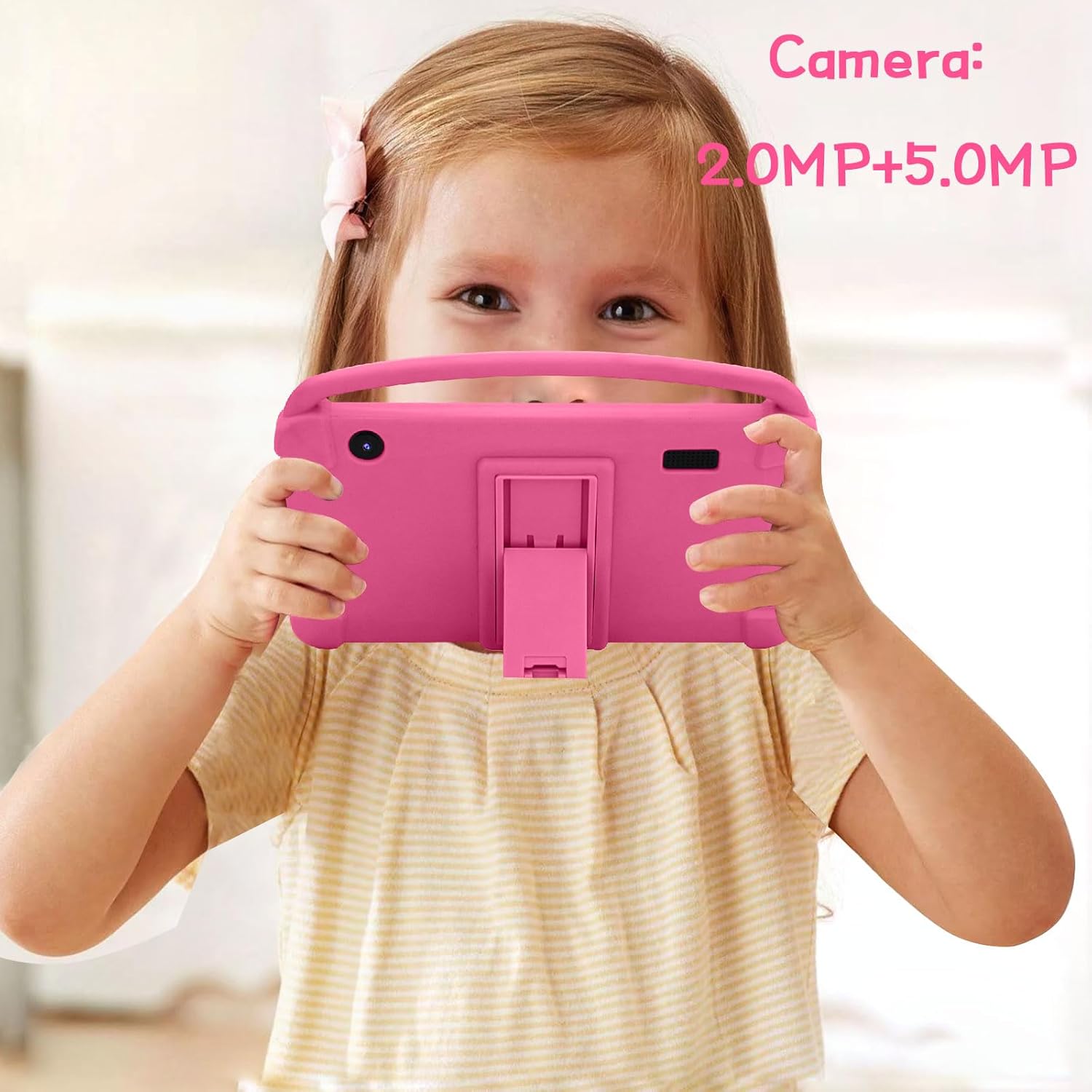
Tablet je vybaven 2.0MP předním fotoaparátem a 5.0MP zadním fotoaparátem.
Otevřete aplikaci „Fotoaparát“ z domovské obrazovky nebo ze zásuvky aplikací.
Klepnutím na tlačítko spouště pořídíte fotografie.
Přepínejte mezi předním a zadním fotoaparátem pomocí ikony přepínače fotoaparátu.
Photos and videos are saved to the "Gallery" app.
Image: A young girl holding the YQSAVIOR Kids Tablet, positioned as if taking a photo, highlighting the tablet's dual camera functionality and ease of use for children.
Údržba
1. Čištění tabletu
K čištění obrazovky a těla používejte měkký hadřík, který nepouští vlákna.
Na odolné šmouhy lehce otřeteamphadřík vodou nebo čističem obrazovek.
Vyhněte se používání agresivních chemikálií, abrazivních materiálů nebo nadměrné vlhkosti.
2. Péče o baterie
Vyhněte se častému úplnému vybíjení baterie.
Nevystavujte tablet extrémním teplotám.
Use only the provided charging cable or a certified compatible alternative.
3. Aktualizace softwaru
Pravidelně kontrolujte a instalujte aktualizace systému, abyste zajistili optimální výkon a zabezpečení. Přejděte do Nastavení > Systém > Aktualizace systému.
4. Správa úložiště
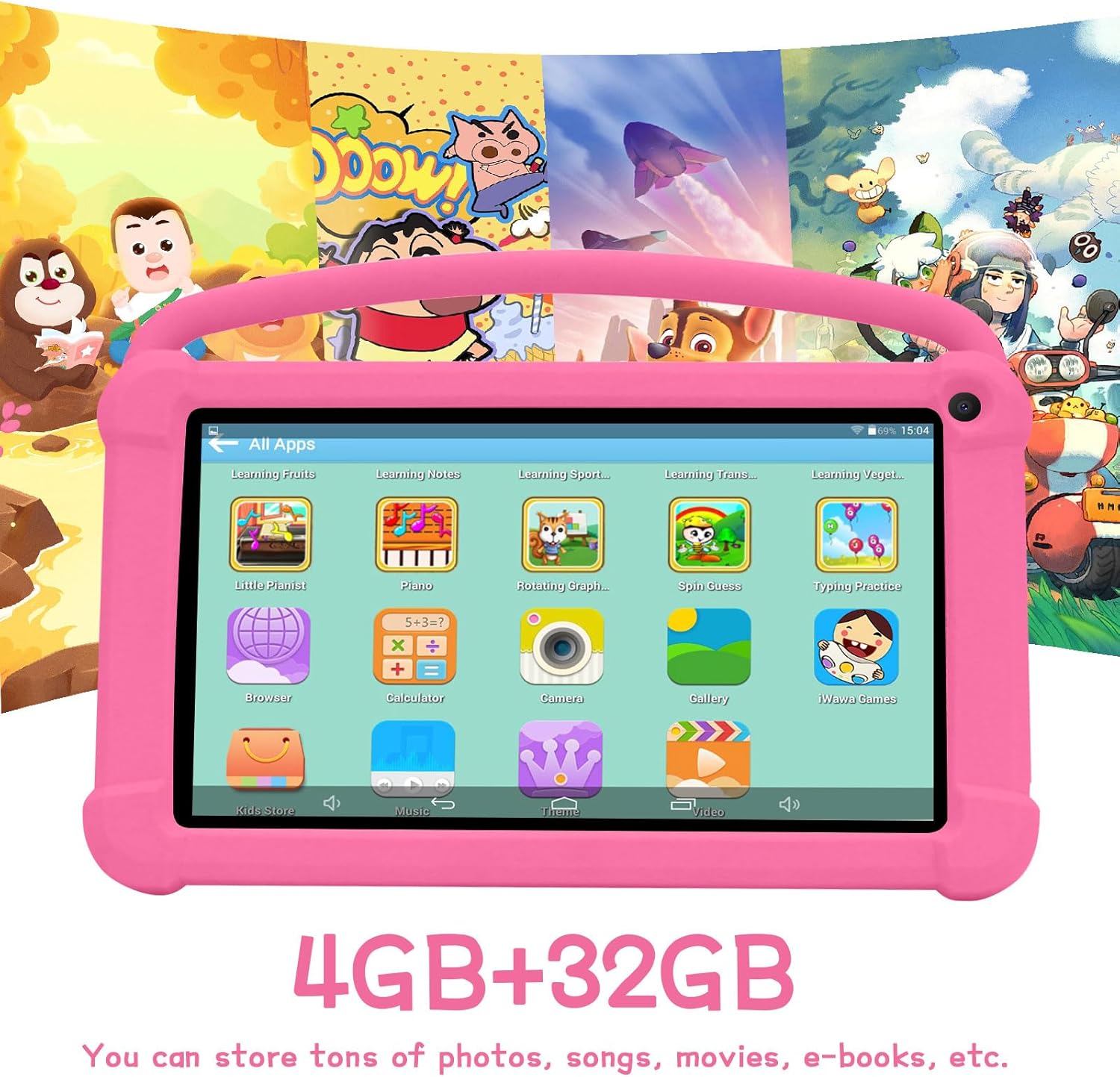
The tablet has 32GB of internal storage, expandable up to 512GB via a Micro SD card (not included).
Chcete-li vložit kartu Micro SD, vyhledejte slot pro kartu na boku tabletu a jemně kartu zatlačte, dokud nezaklapne.
Regularly clear cache and uninstall unused apps to free up space.
Image: The YQSAVIOR Kids Tablet displaying its app interface, with text overlays indicating "4GB+32GB," signifying its memory and storage capacity for various media and applications.
Odstraňování problémů
Problém
Možná příčina
Řešení
Tablet se nezapne.
Slabá baterie; Havárie systému.
Nabíjejte tablet alespoň 30 minut. Pokud stále nereaguje, stiskněte a podržte tlačítko napájení po dobu 10–15 sekund, abyste vynutili restart.
Problémy s připojením k Wi-Fi.
Nesprávné heslo; Problém s routerem; Mimo dosah.
Verify Wi-Fi password. Restart your router. Ensure tablet is within Wi-Fi range.
Aplikace jsou pomalé nebo padají.
Insufficient RAM; Too many apps open; Outdated app.
Close background apps. Clear app cache (Settings > Apps). Update apps from Play Store. Consider a factory reset if issues persist (backup data first).
Obrazovka nereaguje.
Dočasná softwarová závada.
Vynuťte restart tabletu podržením tlačítka napájení po dobu 10–15 sekund.
Baterie se rychle vybíjí.
High screen brightness; Background apps; Wi-Fi/Bluetooth always on.
Reduce screen brightness. Close unused apps. Turn off Wi-Fi/Bluetooth when not in use.
Specifikace
Funkce
Detail
Model
YQQ1K
Operační systém
Android 12
Velikost displeje
7palcový IPS
Rozlišení displeje
1024x600 pixelů
BERAN
4 GB (2 GB + 2 GB)
Interní úložiště
32GB ROM
Rozšiřitelné úložiště
Micro SD až 512 GB
Přední kamera
2.0 MP
Zadní kamera
5.0 MP
Konektivita
Wi-Fi (802.11n), Bluetooth
Zvuk
Dual Speaker, 3.5mm Headphone Jack
Baterie
Lithium Ion (součástí balení)
Rozměry (DxŠxV)
7 x 0.3 x 3 palce
Hmotnost položky
1.19 libry
Image: A detailed graphic of the 7-inch YQSAVIOR Kids Tablet, accompanied by key specifications such as Android 12 OS, 7-inch IPS display, 4GB RAM, 32GB ROM, 3000mAh battery, and built-in Google Play, summarizing its core features.
Záruka a podpora
YQSAVIOR products are designed for reliability and performance. For warranty information and technical support, please refer to the contact details provided on the product packaging or visit the official YQSAVIOR webmísto.
Běžné problémy naleznete v části Řešení problémů v této příručce.
Ask about setup, troubleshooting, compatibility, parts, safety, or missing instructions. Manuals+ will review the question and use this page’s manual context to help answer it.