
1. Úvod
Thank you for choosing the Mecer 23.8 Inch Full HD LED Monitor. This manual provides essential information for setting up, operating, and maintaining your monitor. Please read it thoroughly before use to ensure proper functionality and longevity of your device.
This monitor features a 23.8-inch Full HD (1920 x 1080) display, offering crisp and clear visuals. It incorporates TFT LED panel technology for energy efficiency and vibrant colors, with a 16:9 aspect ratio suitable for widescreen viewing. Connectivity options include VGA and HDMI, making it compatible with various devices. Built-in speakers provide basic audio, and wide 178° viewing angles ensure comfortable use. With a 2ms response time, it is suitable for general computing and multimedia consumption.
2. Bezpečnostní informace
- Zdroj napájení: Používejte pouze napájecí adaptér dodaný s monitorem. Ujistěte se, že je zásuvka správně uzemněna.
- Větrání: Neblokujte větrací otvory. Ponechte kolem monitoru dostatečný prostor pro správné proudění vzduchu, abyste zabránili přehřátí.
- Umístění: Place the monitor on a stable, flat surface. Avoid placing it in direct sunlight, near heat sources, or in environments with excessive dust or humidity.
- Čištění: Disconnect the power cord before cleaning. Use a soft, dry cloth for the screen and a slightly damp cloth for the casing. Nepoužívejte abrazivní čisticí prostředky nebo rozpouštědla.
- Expozice tekutin: Keep liquids away from the monitor. If liquid enters the monitor, disconnect power immediately and contact qualified service personnel.
- Demontáž: Nepokoušejte se monitor rozebírat ani opravovat sami. Veškerý servis svěřte kvalifikovanému servisnímu personálu.
3. Obsah balení
Zkontrolujte prosím obsah balení, abyste se ujistili, že jsou přítomny všechny položky:
- Mecer 23.8 Inch LED Monitor
- Stojan na monitor (základna a krk)
- Napájecí adaptér a kabel
- HDMI kabel
- VGA kabel
- Uživatelská příručka (tento dokument)
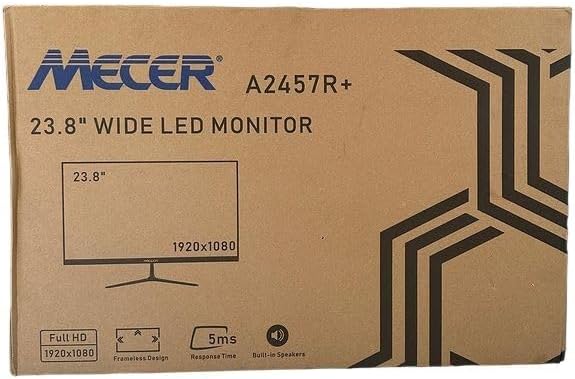
Obrázek 3.1: The monitor packaging box, indicating the model A2457R+ and key features like 23.8" display, Full HD 1920x1080 resolution, frameless design, 5ms response time, and built-in speakers.
4. Nastavení
4.1. Sestavení stojanu monitoru
- Opatrně vyjměte komponenty monitoru a stojanu z obalu.
- Připevněte krk stojanu k panelu monitoru zarovnáním západek a pevným zatlačením, dokud nezacvakne na místo.
- Attach the stand base to the stand neck, securing it with the provided screw (usually hand-tightened).
- Sestavený monitor umístěte na stabilní, rovný povrch.

Obrázek 4.1: Přední view of the Mecer 23.8 Inch LED Monitor with its stand assembled, ready for connection.
4.2. Připojení k počítači
The monitor supports both HDMI and VGA connections. Choose the appropriate cable for your computer.
- Připojení HDMI: Connect one end of the HDMI cable to the HDMI port on your computer's graphics card and the other end to the HDMI port on the monitor. HDMI transmits both video and audio signals.
- Připojení VGA: Connect one end of the VGA cable to the VGA port on your computer's graphics card and the other end to the VGA port on the monitor. VGA transmits only video signals.

Obrázek 4.2: Zadní view of the Mecer 23.8 Inch LED Monitor, showing the input ports including HDMI and VGA, as well as the power input.
4.3. Připojení napájení
- Connect the power adapter cable to the DC IN port on the back of the monitor.
- Zapojte napájecí adaptér do elektrické zásuvky.
5. Návod k obsluze
5.1. Zapnutí/vypnutí
Press the power button, typically located on the bottom right side or rear of the monitor, to turn the monitor on or off. The power indicator light will illuminate when the monitor is on.
5.2. Výběr zdroje vstupu
If you have multiple devices connected, you may need to manually select the input source. Use the monitor's control buttons (usually located near the power button) to navigate to the input selection menu and choose between HDMI or VGA.
5.3. Nabídka na obrazovce (OSD).
The OSD menu allows you to adjust various display settings. Use the monitor's control buttons to:
- Vstupte do nabídky OSD.
- Navigate through menu options (e.g., Brightness, Contrast, Color Settings, Input Source).
- Adjust values or select options.
- Ukončete nabídku OSD.
Mezi běžná nastavitelná nastavení patří:
- Jas/kontrast: Upravte celkový jas a rozdíl mezi světlými a tmavými oblastmi.
- Nastavení barev: Adjust color temperature, RGB values, or select preset color modes.
- Poměr stran: Change between 16:9, 4:3, or other available options.
- Zvuk: Adjust volume for the built-in speakers.
5.4. Vestavěné reproduktory
The monitor includes built-in speakers for basic audio output. If using an HDMI connection, audio will be transmitted automatically. For VGA connections, ensure your computer's audio output is configured correctly. Adjust the volume through the OSD menu or your computer's operating system.
6. Údržba
6.1. Čištění monitoru
- Před čištěním vždy odpojte monitor od elektrické zásuvky.
- Obrazovka: Jemně otřete obrazovku měkkým hadříkem, který nepouští vlákna. V případě odolných skvrn lehceampen the cloth with water or a specialized screen cleaner (ensure it's alcohol-free and ammonia-free) and wipe carefully. Do not spray liquid directly onto the screen.
- Casing: K otření monitoru použijte měkký, suchý hadřík casing. V případě potřeby mírně damp Lze použít hadřík a poté suchý hadřík.
6.2. Skladování
Pokud monitor skladujete delší dobu, odpojte všechny kabely, zabalte jej do originálního obalu (pokud je k dispozici) a skladujte jej na chladném a suchém místě mimo dosah přímého slunečního záření a extrémních teplot.
7. Řešení problémů
Pokud se s monitorem setkáte s problémy, podívejte se na následující běžné problémy a jejich řešení:
- Bez napájení:
- Ujistěte se, že je napájecí kabel bezpečně připojen k monitoru a k elektrické zásuvce.
- Ověřte funkčnost elektrické zásuvky zapojením jiného zařízení.
- Zkontrolujte, zda napájecí adaptér funguje správně.
- Bez signálu:
- Ensure the video cable (HDMI or VGA) is securely connected to both the monitor and the computer.
- Verify that the correct input source is selected on the monitor (via the OSD menu).
- Check if your computer is powered on and outputting a video signal.
- Pokud je k dispozici, zkuste jiný video kabel.
- Obraz je rozmazaný nebo zkreslený:
- Ensure the monitor's resolution is set to its native resolution (1920 x 1080) in your computer's display settings.
- Adjust the monitor's OSD settings for brightness, contrast, and sharpness.
- For VGA connections, use the 'Auto Adjust' function in the OSD menu if available.
- Žádný zvuk z vestavěných reproduktorů:
- Ensure the monitor's volume is not muted or set too low in the OSD menu.
- Check your computer's audio output settings to ensure the monitor is selected as the playback device.
- If using VGA, ensure your computer's audio is routed to an external speaker system, as VGA does not carry audio.
8. Specifikace
| Funkce | Specifikace |
|---|---|
| Značka | Mecer |
| Číslo modelu | A2457R+ |
| Velikost displeje | 23.8 palce |
| Rezoluce | 1920 x 1080 pixelů (Full HD) |
| Typ zobrazení | LED (TFT LED Panel) |
| Poměr stran | 16:9 |
| Doba odezvy | 2 milisekund |
| Obnovovací frekvence | 75 Hz |
| Viewúhly | 178° horizontálně / 178° vertikálně |
| Konektivita | 1x HDMI, 1x VGA |
| Vestavěné reproduktory | Ano |
| Barva | Černý |
| Rozměry produktu (D x Š x V) | 560 H x 42 Š x 410 V milimetrů |
| Speciální funkce | High performance intelligent multi-frequency scanning, Micro Computer digital technology control, no radiation, no glare, Comply with VESA DPMS international power saving regulation, Support DDC 1/2B and Windows PNP Plug and Play |
9. Záruka a podpora
This Mecer monitor comes with a 1 rok omezená záruka od data nákupu. Uschovejte si prosím doklad o koupi pro případné reklamace.
For technical support, service, or warranty inquiries, please contact your retailer or the authorized Mecer service center in your region. Do not attempt to repair the product yourself, as this may void your warranty.