
Zavedení
Thank you for choosing the NEWWAY A8BK Wireless Vertical Mouse. This manual provides detailed instructions to help you set up, operate, and maintain your new ergonomic mouse. Designed for comfort and efficiency, the A8BK offers dual connectivity options (2.4 GHz wireless and Bluetooth), adjustable DPI settings, and silent clicks for a seamless user experience across various operating systems.
Konec produktuview
Familiarize yourself with the components of your NEWWAY A8BK mouse.
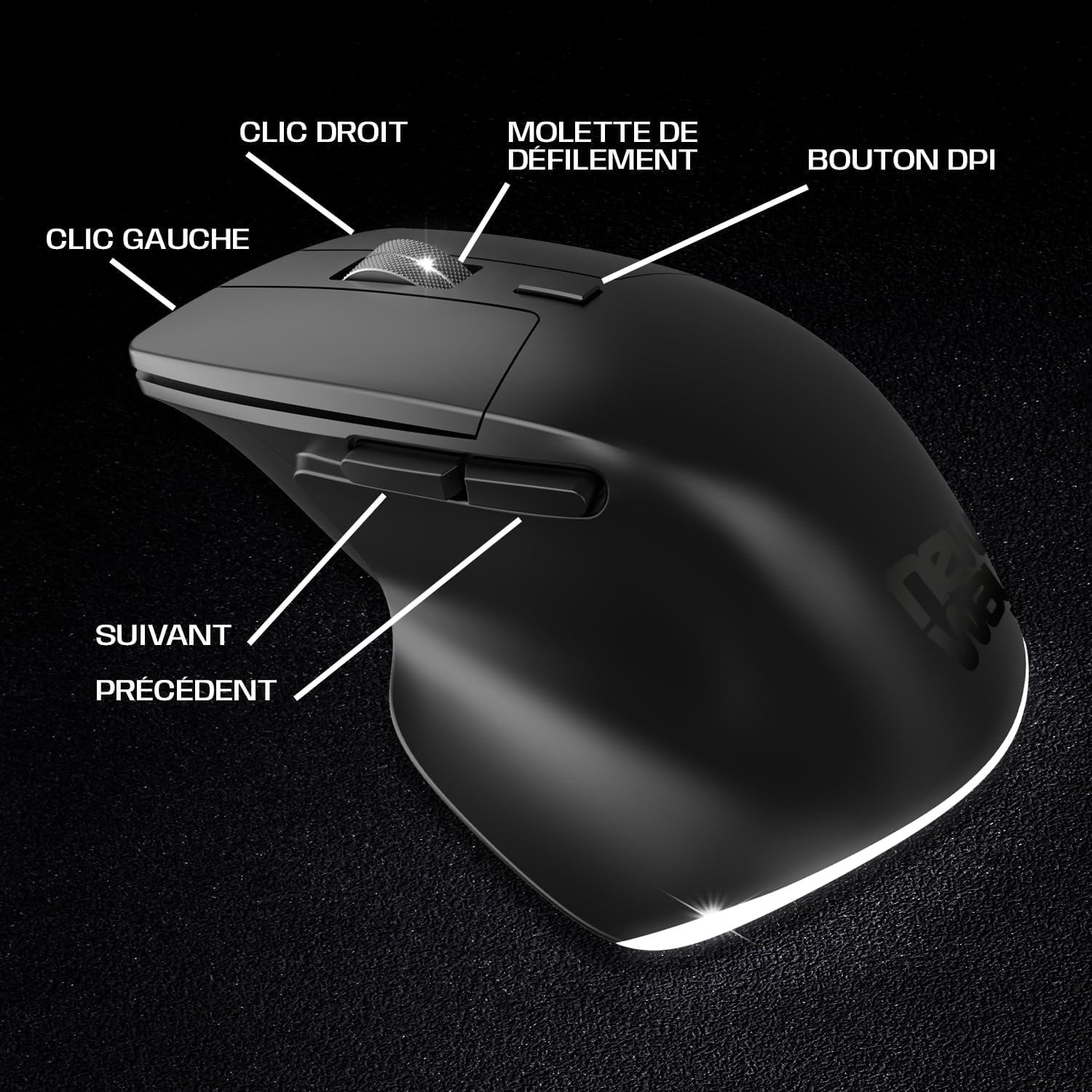
Image 1: Mouse Button Layout. This diagram illustrates the functions of each button on the NEWWAY A8BK vertical mouse, including left and right click, scroll wheel, DPI adjustment button, and side buttons for navigation.
- Levé tlačítko myši: Standardní funkce primárního kliknutí.
- Kliknutí pravým tlačítkem: Standardní funkce sekundárního kliknutí.
- Rolovací kolečko: For vertical scrolling. Also functions as a middle click button.
- Tlačítko DPI: Upravuje citlivost myši (DPI).
- Tlačítko vpřed: Naviguje vpřed web prohlížeče popř file průzkumníci.
- Tlačítko zpět: Naviguje zpět web prohlížeče popř file průzkumníci.

Image 2: Underside of the Mouse. The bottom of the NEWWAY A8BK vertical mouse, displaying the power switch, connectivity mode switch (Bluetooth/2.4GHz), and the magnetic storage slot for the USB receiver.
- Vypínač (ON/OFF): Zapne nebo vypne myš.
- Connectivity Mode Switch (2.4G/BT1/BT2): Selects between 2.4 GHz wireless mode and two Bluetooth channels.
- Úložiště USB přijímače: A magnetic compartment to store the 2.4 GHz USB receiver when not in use.
- Nabíjecí port USB-C: Located at the front of the mouse for charging.
Pokyny pro nastavení
1. Nabíjení myši
Before first use, it is recommended to fully charge the mouse. The NEWWAY A8BK mouse features a built-in rechargeable lithium-polymer battery.
- Locate the USB-C charging port at the front of the mouse.
- Connect the included USB-C cable to the mouse and the other end to a USB power source (e.g., computer USB port, USB wall adapter).
- The mouse's indicator light will show charging status (refer to LED indicator section for details).
- Po úplném nabití odpojte kabel.

Image 3: USB-C Charging Port. A close-up of the USB-C port on the front of the NEWWAY A8BK vertical mouse, used for charging the internal battery.
2. Připojení přes bezdrátové připojení 2.4 GHz
- Remove the USB receiver from its magnetic storage slot on the underside of the mouse.
- Zapojte USB přijímač do volného USB portu na vašem počítači.
- Slide the connectivity mode switch on the underside of the mouse to the "2.4G" position.
- Zapněte myš pomocí vypínače.
- Váš počítač by měl automaticky detekovat a nainstalovat potřebné ovladače. Myš je připravena k použití.

Image 4: 2.4 GHz Wireless Range. This diagram illustrates the wireless connection between the mouse and a computer via the 2.4 GHz USB receiver, indicating a range of up to 10 meters.
3. Připojení přes Bluetooth
The NEWWAY A8BK supports two Bluetooth channels (BT1 and BT2).
- Zapněte myš pomocí vypínače.
- Slide the connectivity mode switch on the underside of the mouse to either "BT1" or "BT2" position.
- Press and hold the connectivity mode switch button (usually a small button next to the switch) for 3-5 seconds until the indicator light starts flashing rapidly, indicating pairing mode.
- V počítači nebo zařízení otevřete nastavení Bluetooth.
- Hledat new devices and select "NEWWAY A8BK" (or similar name) from the list.
- Once paired, the indicator light will stop flashing. The mouse is ready for use.
- To connect to a second device, repeat steps 2-6 using the other Bluetooth channel (BT2).
Návod k obsluze
1. Nastavení citlivosti DPI
The DPI (Dots Per Inch) button allows you to adjust the mouse cursor speed and sensitivity. The NEWWAY A8BK offers three DPI settings: 1200, 2400, and 3200 DPI.
- Stiskněte tlačítko Tlačítko DPI (located behind the scroll wheel) to cycle through the available DPI settings.
- Each press will change the sensitivity, allowing you to find the optimal speed for your tasks.
2. Ergonomic Design and Silent Clicks
The vertical design of the NEWWAY A8BK mouse promotes a natural handshake position, reducing wrist strain and discomfort during prolonged use. The mouse also features silent click buttons, minimizing noise in quiet environments.

Image 5: Ergonomic Grip. A hand demonstrating the natural, comfortable grip on the NEWWAY A8BK ergonomic vertical mouse, designed to reduce wrist strain.
3. Podsvícení
The mouse features a subtle white LED backlight that enhances its aesthetic appeal. This backlighting is typically active when the mouse is in use and can be turned off via a switch on the underside if desired (refer to Image 2).

Image 6: White LED Backlighting. The NEWWAY A8BK vertical mouse illuminated by its subtle white LED backlighting, adding a stylish touch to the device.
Údržba
1. Čištění myši
- Před čištěním myš vypněte.
- Lehce používejte měkký hadřík, který nepouští vlákna dampvodou nebo jemným čisticím roztokem.
- Vyhněte se používání agresivních chemikálií, abraziv nebo rozpouštědel.
- Nedovolte, aby se do žádných otvorů dostala vlhkost.
2. Péče o baterie
- Chcete-li prodloužit životnost baterie, vyhněte se častému úplnému vybíjení myši.
- Charge the mouse when the low battery indicator appears.
- If storing the mouse for an extended period, charge it to about 50% and store in a cool, dry place.
Odstraňování problémů
| Problém | Možná příčina | Řešení |
|---|---|---|
| Myš neodpovídá | Low battery; Mouse is off; Incorrect connection mode; USB receiver not connected (2.4G); Bluetooth not paired. | Charge the mouse; Turn on the mouse; Ensure the connectivity switch is in the correct position (2.4G or BT); Re-insert USB receiver; Re-pair Bluetooth. |
| Pohyb kurzoru je nepravidelný nebo pomalý | Low DPI setting; Dirty optical sensor; Uneven surface; Interference. | Press the DPI button to increase sensitivity; Clean the optical sensor; Use on a smooth, opaque surface; Move closer to the receiver/device or reduce interference sources. |
| Časté výpadky Bluetooth připojení | Vzdálenost od zařízení; Rušení; Slabá baterie. | Move the mouse closer to the device; Reduce other wireless interference; Charge the mouse. |
| Myš se nenabíjí | Faulty cable; Faulty USB port; Mouse not properly connected. | Try a different USB-C cable; Use a different USB port; Ensure the cable is securely connected to both the mouse and the power source. |
Specifikace
| Funkce | Detail |
|---|---|
| Značka | NEWWAY |
| Číslo modelu | ON-MO-A8BK |
| Technologie připojení | Bezdrátové připojení 2.4 GHz, Bluetooth |
| Detekce pohybu | Optický |
| Nastavení DPI | 1200/2400/3200 DPI |
| Počet tlačítek | 6 (doleva, doprava, rolovací kolečko, DPI, vpřed, vzad) |
| Orientace rukou | Pravoruký |
| Speciální funkce | Ergonomic Design, Silent Clicks, Rechargeable, White LED Backlighting |
| Kompatibilní operační systémy | Windows, Mac, Linux |
| Typ baterie | Dobíjecí lithium-polymerová |
| Nabíjecí port | USB-C |
| Barva | Černý |
| UPC / EAN | 3701281111979 |
Záruka a podpora
Informace o záruce
The NEWWAY A8BK Wireless Vertical Mouse comes with a 2letá záruka výrobceTato záruka se vztahuje na vady materiálu a zpracování při běžném používání. Nevztahuje se na škody způsobené nesprávným použitím, nehodami, neoprávněnými úpravami nebo běžným opotřebením.
Uschovejte si prosím doklad o koupi pro uplatnění záruky.
Zákaznická podpora
For technical assistance, troubleshooting, or warranty inquiries, please contact NEWWAY customer support through the retailer where you purchased the product or visit the official NEWWAY webstránky pro kontaktní údaje.
Note: Availability of spare parts is currently unavailable. Software updates are not guaranteed.