
AUN AUN M98 Y9
AUN 4K Android TV Stick User Manual
Model: AUN M98 Y9
Značka: AUN
Zavedení
This user manual provides comprehensive instructions for the AUN 4K Android TV Stick (Model: M98 Y9). It covers product features, setup, operation, maintenance, and troubleshooting to ensure optimal performance and user experience. The AUN TV Stick transforms any compatible display into a smart TV, offering access to a vast array of streaming content and applications.
Co je v krabici
Po vybalení zkontrolujte, zda jsou součástí balení všechny následující položky:
- 1 x 4K Android TV Stick (AUN M98 Y9)
- 1 x Dálkové ovládání
- 1 x napájecí adaptér
- 1 x kabel typu C
- 1 x IR Cable
- 1 x HDMI Extender Cable
- 1 x Uživatelská příručka

Image: All components included in the AUN 4K Android TV Stick package, laid out for clear viewing. This includes the TV stick, its remote control, power adapter, Type-C cable, IR cable, HDMI extender cable, and the user manual.
Konec produktuview
The AUN M98 Y9 Android TV Stick is a compact device designed to provide smart TV functionalities to any display with an HDMI input. It features a sleek design and intuitive controls.
Součásti zařízení
- HDMI konektor: Plugs directly into your TV's HDMI port.
- USB rozhraní: Pro připojení externích úložných zařízení nebo periferií.
- Power Hole (Type-C): Pro připojení napájecího adaptéru.
- Pilot Lamp: Indikuje stav zařízení.

Image: The AUN 4K Android TV Stick and its accompanying remote control. The stick is a compact, black rectangular device, and the remote is an ergonomic black controller with various buttons for navigation and voice control.
Dálkové ovládání
The included remote control allows for easy navigation and interaction with the TV Stick. It supports voice search for quick content discovery.
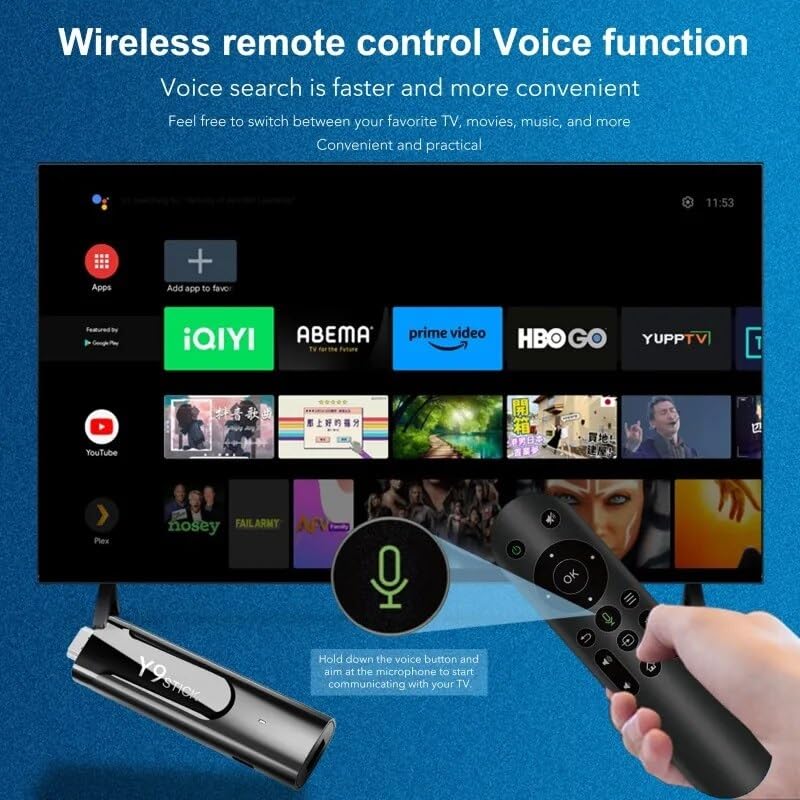
Image: A hand holding the AUN TV Stick remote control, with a visual overlay indicating the voice search button and microphone icon. The image illustrates the ease of using voice commands to interact with the TV stick's interface, which is displayed on a television screen in the background.
Průvodce nastavením
Follow these steps to set up your AUN 4K Android TV Stick:
- Připojení televizního adaptéru: Plug the AUN TV Stick directly into an available HDMI port on your television or projector. If space is limited, use the provided HDMI extender cable.
- Připojte napájení: Connect the Type-C cable to the "Power Hole" on the TV Stick and the other end to the provided power adapter. Plug the power adapter into a wall outlet.
- Connect IR Cable (Optional): If the TV Stick is hidden behind the TV or in a cabinet, connect the IR cable to the TV Stick and position the IR receiver in a location where it has a clear line of sight to your remote control.
- Vyberte vstup HDMI: Turn on your TV or projector and select the corresponding HDMI input source to which the TV Stick is connected.
- Počáteční nastavení: Postupujte podle pokynů na obrazovce a dokončete počáteční nastavení, včetně výběru jazyka, připojení k síti Wi-Fi a přihlášení k účtu Google.
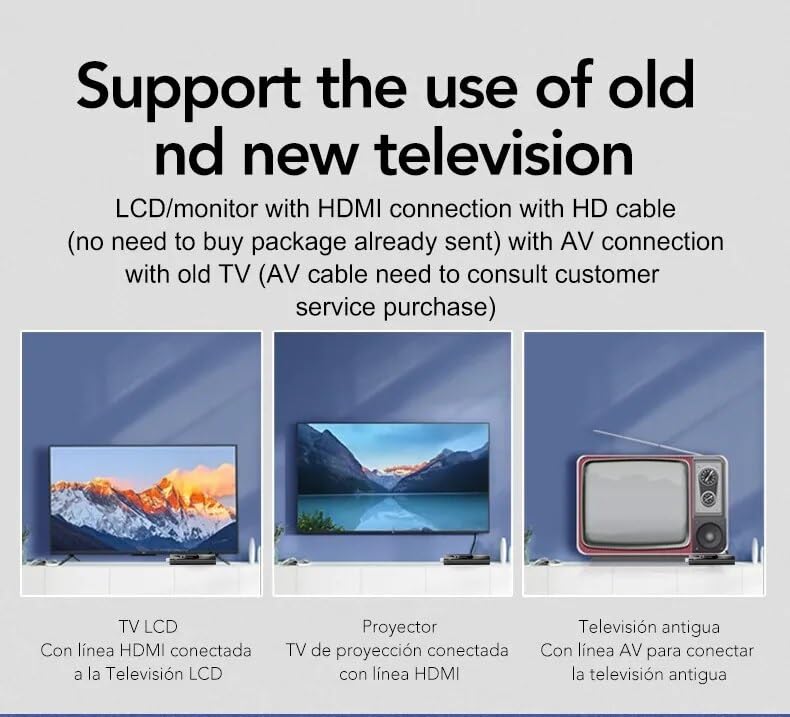
Image: This diagram illustrates the versatility of the AUN TV Stick, showing its compatibility with modern LCD TVs and projectors via HDMI, and older televisions using an AV connection (AV cable sold separately). It highlights the ease of connecting the device to various display types.
Návod k obsluze
Navigace v rozhraní
Use the directional pad and "OK" button on the remote control to navigate through the Android TV interface. The "Back" button returns to the previous screen, and the "Home" button takes you to the main home screen.
Připojování k Wi-Fi
- Z domovské obrazovky přejděte na Nastavení.
- Vybrat Síť a internet.
- Vyberte požadovanou síť Wi-Fi ze seznamu.
- Zadejte heslo k Wi-Fi pomocí klávesnice na obrazovce a vyberte Připojit.
The AUN TV Stick supports dual-band Wi-Fi (2.4G/5G) for stable and fast wireless connectivity.

Image: This visual demonstrates the AUN TV Stick's support for both 2.4G and 5G dual-band Wi-Fi, ensuring smooth high-speed graphics and streaming. It also shows the capability to mirror content from a mobile phone to the TV screen, enhancing the viewzkušenosti.
Instalace aplikací
Access the Google Play Store from the home screen to download and install your favorite streaming apps (e.g., Netflix, Prime Video, Disney+ Hotstar) and games. A Google account is required for Play Store access.
Using Voice Search
Press the dedicated voice button on your remote control and speak into the microphone to search for content, open apps, or get information. Voice search is faster and more convenient.
Klíčové vlastnosti
- Rozlišení 4K Ultra HD: Supports stunning 4K resolution for crisp, clear visuals and an immersive viewzkušenosti.
- Podpora HDR 10+: Enhanced dynamic range for vibrant colors and greater contrast.
- Widevine L1 Certified: Enables streaming of high-definition content from premium services like Netflix and Prime Video.
- Operační systém Android 13: Provides a smooth, user-friendly interface with access to a vast ecosystem of apps.
- Amlogic S905Y4 Quad A35 CPU: High-performance processor for seamless streaming and gaming.
- 2GB RAM & 16GB Storage: Sufficient memory for smooth operation and ampprostor pro aplikace a média.
- Dvoupásmové Wi-Fi (2.4G/5G): Ensures stable and fast internet connectivity.
- Bluetooth 5: For connecting wireless headphones, game controllers, and other Bluetooth accessories.
- Dolby Audio & DTS Digital Support: Poskytuje bohatý a pohlcující zvuk.
- USB & Memory Card Ports: Allows for external storage expansion and media playback.
- Podpora Miracast: Enables screen mirroring from compatible devices.

Image: This image highlights the superior image quality of the AUN TV Stick, emphasizing its 4K Ultra HD and HDR capabilities. The vibrant colors and sharp details demonstrate the immersive visual experience provided by the device.

Image: This image emphasizes the generous memory configuration of the AUN TV Stick, featuring 2GB of DDR3 RAM and 16GB of eMMC storage. This combination ensures smooth operation and ample space for applications and media content.
Odstraňování problémů
If you encounter issues with your AUN 4K Android TV Stick, refer to the following common problems and solutions:
- Žádné napájení/Zařízení se nezapíná:
- Ensure the power adapter is securely connected to the TV Stick and a working power outlet.
- Zkuste jinou zásuvku.
- Žádný signál na televizní obrazovce:
- Verify the TV Stick is firmly plugged into the HDMI port.
- Zkontrolujte, zda je váš televizor nastaven na správný vstupní zdroj HDMI.
- Zkuste na televizoru jiný port HDMI.
- If using the HDMI extender, ensure it is properly connected.
- Dálkové ovládání nereaguje:
- Ensure there are no obstructions between the remote and the TV Stick (or IR receiver).
- Zkontrolujte, zda je třeba vyměnit baterie v dálkovém ovladači.
- If using the IR cable, ensure it is properly connected and positioned.
- Problémy s připojením Wi-Fi:
- Restartujte Wi-Fi router.
- Ujistěte se, že je TV Stick v dosahu vašeho Wi-Fi routeru.
- Znovu zadejte heslo k Wi-Fi, abyste se ujistili, že je správné.
- Try connecting to the 2.4GHz band if you are on 5GHz, or vice-versa.
- Pády aplikace/pomalý výkon:
- Zavřete aplikace na pozadí.
- Clear the cache of the problematic app via Settings > Apps.
- Restart the TV Stick by unplugging and re-plugging the power.
- Ujistěte se, že máte dostatek volného úložného prostoru.
Specifikace
| Funkce | Detail |
|---|---|
| Značka | AUN |
| Model | AUN M98 Y9 |
| Operační systém | Android 13 |
| Procesor | Amlogic S905Y4 Quad A35 |
| BERAN | 2 GB |
| Skladování | 16 GB |
| Rezoluce | 4K |
| Speciální funkce | Widevine L1, HDR 10+, AV1, Dolby Audio, DTS Digital, Miracast |
| Konektivita | 2.4G/5G Dual WiFi, Bluetooth 5 |
| Porty | USB, Memory Card, HDMI, Type-C Power |
| Kompatibilní zařízení | Television, Projectors |
| Rozměry produktu | 8 x 3 x 2 cm |
| Hmotnost položky | 300 g |

Image: This graphic illustrates the core technical specifications of the AUN TV Stick, highlighting its Amlogic S905Y4 Quad A35 CPU, OpenGL ES 3.2 GPU, H.265 video decoder supporting up to 4K@60fps, and HDMI 2.0 output for 4K@60fps display.
Údržba
To ensure the longevity and optimal performance of your AUN 4K Android TV Stick, follow these maintenance guidelines:
- Čištění: K čištění zařízení používejte měkký, suchý hadřík. Nepoužívejte tekuté čisticí prostředky ani aerosoly.
- Větrání: Ujistěte se, že je zařízení umístěno v dobře větraném prostoru, aby se zabránilo přehřátí. Nezakrývejte větrací otvory.
- Skladování: Pokud zařízení delší dobu nepoužíváte, skladujte jej na chladném a suchém místě mimo dosah přímého slunečního záření a extrémních teplot.
- Aktualizace softwaru: Regularly check for and install system updates to ensure the device has the latest features and security patches.
Záruka a podpora
The AUN 4K Android TV Stick comes with a Záruka 6 měsíců from the date of purchase. This warranty covers manufacturing defects and malfunctions under normal use. Please retain your purchase receipt as proof of purchase.
For technical support, warranty claims, or any other inquiries, please contact Megaa Electronics using the following details:
- E-mail: support@megaaelectronics.com or megaaelectronics@gmail.com
- WhatsApp: 8328671337
Please provide your product model (AUN M98 Y9) and a detailed description of the issue when contacting support.
Ask a question about this manual
Ask about setup, troubleshooting, compatibility, parts, safety, or missing instructions. Manuals+ will review the question and use this page’s manual context to help answer it.