
1. Úvod
Thank you for choosing the Dexnor Keyboard Case. This manual provides essential information for setting up, operating, and maintaining your new keyboard case. Designed to enhance your Samsung Galaxy Tab experience, this case features a magnetic attachment, a precise multi-touch trackpad, a 7-color backlit QWERTZ keyboard, and convenient S Pen storage. Please read this manual thoroughly before use to ensure optimal performance and longevity of your device.
2. Kompatibilita
This keyboard case is exclusively designed for the following Samsung Galaxy Tab models:
- Samsung Galaxy Tab S10 Lite (Model SM-X400, SM-X406B)
- Samsung Galaxy Tab S10 FE 10.9" 2025 (Model SM-X520, SM-X526, SM-X526B)
- Samsung Galaxy Tab S9 FE 10.9" 2023 (Model SM-X510/SM-X516B/SM-X518U)
- Samsung Galaxy Tab S9 11" 2023 (Model SM-X710/SM-X716B/SM-X718U)
Note: This case is NOT compatible with Samsung Galaxy Tab S9+/S9 FE+ 12.4" or Samsung Galaxy Tab S11 (2025) 11". Please verify your tablet model before purchase.

Figure 2.1: Compatible and incompatible tablet models.
3. Obsah balení
Zkontrolujte prosím balení, zda neobsahuje následující položky:
- Dexnor Keyboard Case
- Nabíjecí kabel USB-C
- Rychlý průvodce
- Uživatelská příručka (tento dokument)
4. Nastavení
4.1 Připojení tabletu
The keyboard case features a strong magnetic hinge for secure attachment. Simply align your Samsung Galaxy Tab with the magnetic area on the case. The tablet will snap into place, transforming your device into a laptop-like setup.

Figure 4.1: Magnetic attachment and adjustable viewúhel.
4.2 Párování klávesnice přes Bluetooth
- Ujistěte se, že je klávesnice dostatečně nabitá.
- Turn on the keyboard by pressing the power button (usually located on the side or top edge of the keyboard). The indicator light will flash, indicating it's in pairing mode.
- Na tabletu Samsung Galaxy přejděte na Nastavení > Připojená zařízení > Bluetooth and turn Bluetooth ON.
- Your tablet will search for available devices. Select "Dexnor Keyboard" (or similar name) from the list.
- Follow any on-screen prompts to complete the pairing process. Once paired, the indicator light on the keyboard will stop flashing.
5. Návod k obsluze
5.1 Nastavení Viewúhly
The robust aluminum alloy hinge allows for flexible viewing angles, transforming your tablet into a versatile workstation. Adjust the tablet's position to your preferred angle for typing, reading, or viewobsahu.

Figure 5.1: Tablet in floating cantilever position for optimal viewIng.
5.2 Vícedotykový trackpad
The integrated high-precision multi-touch trackpad supports various gestures for seamless navigation. Use multi-finger gestures for actions such as scrolling, swiping, and zooming, enhancing your productivity.

Figure 5.2: Multi-touch trackpad for precise control.
5.3 Podsvícená klávesnice
The keyboard features 7 different backlight colors and 3 adjustable brightness levels for comfortable typing in any lighting condition. Use the dedicated backlight key (often a sun icon or Fn + light key combination) to cycle through colors and adjust brightness.

Figure 5.3: Backlit QWERTZ keyboard with adjustable colors.
Držák pera 5.4 S
The case provides two convenient locations for your S Pen: an integrated magnetic holder within the keyboard for secure storage and a cutout slot at the rear of the case for charging and additional storage. This design ensures quick access and prevents loss.
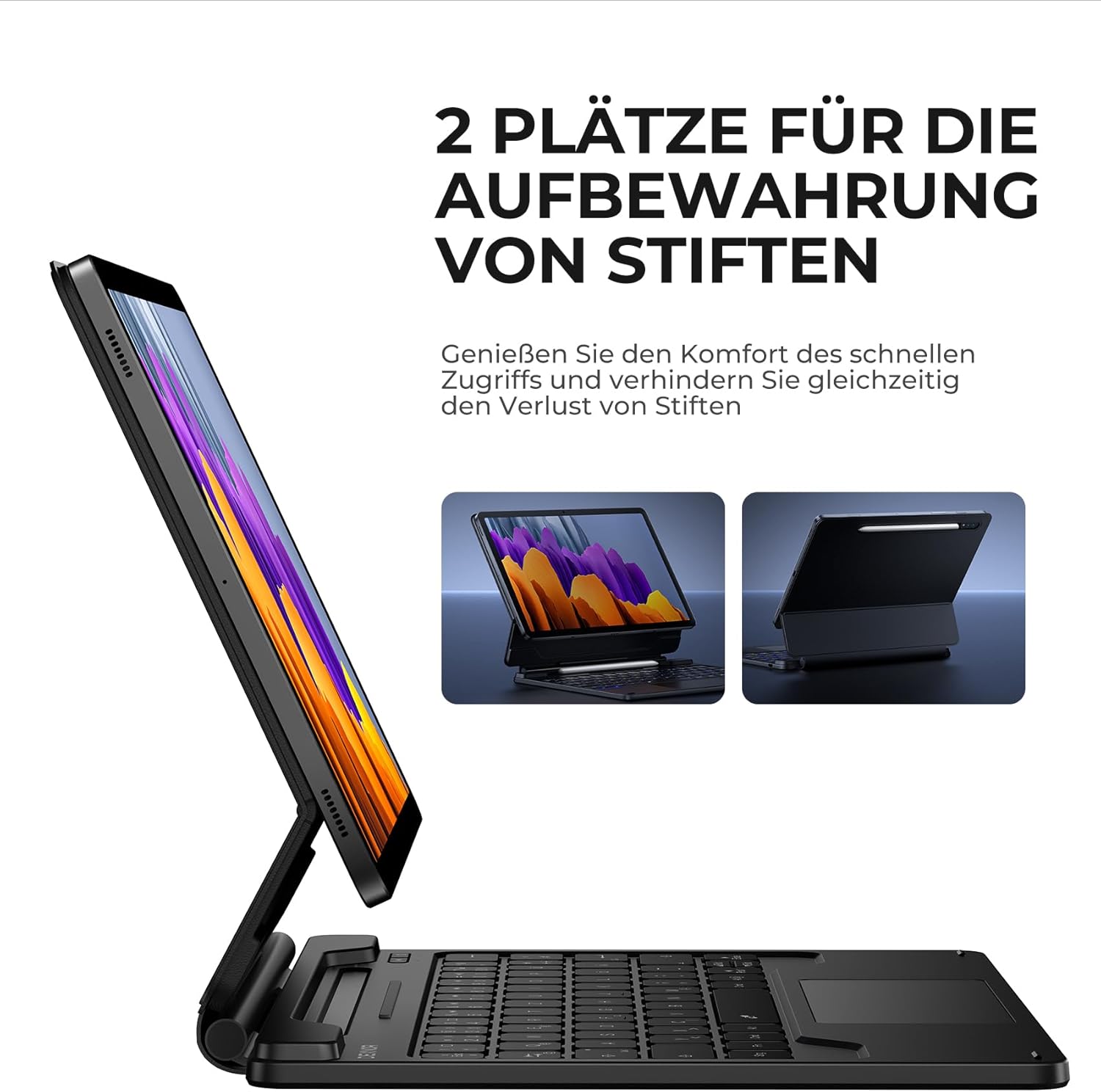
Figure 5.4: Dual S Pen storage options.
5.5 DEX Mode
Combine your tablet with the keyboard case and activate Samsung DEX mode to transform your tablet into a desktop-like experience. This allows for enhanced multitasking and productivity, similar to a traditional laptop setup.
5.6 Klávesové zkratky
The keyboard includes a series of convenient shortcut keys for quick control over media playback, volume, and other tablet functions. Refer to the keyboard layout for specific key functions.

Figure 5.5: Keyboard layout with shortcut keys.
5.7 Funkce automatického spánku/probuzení
The case supports automatic sleep/wake functionality. Closing the case will put your tablet to sleep, and opening it will wake it up, conserving battery life for both your tablet and the keyboard.
6. Nabíjení klávesnice
The keyboard is equipped with a long-lasting 650 mAh battery. To charge the keyboard:
- Connect the provided USB-C charging cable to the charging port on the keyboard.
- Druhý konec kabelu připojte k napájecímu adaptéru USB (není součástí balení) nebo k portu USB počítače.
- The charging indicator light will illuminate during charging and turn off once fully charged. A full charge takes approximately 3.5 hours.
A single charge provides up to 200 hours of working time and 1200 hours of standby time.

Figure 6.1: USB-C charging port.
7. Údržba
To ensure the longevity and optimal performance of your Dexnor Keyboard Case:
- Čištění: Použijte měkký, damp cloth to wipe the exterior of the case. For the keyboard keys, use a soft, dry cloth or a specialized keyboard cleaner. Avoid harsh chemicals or abrasive materials.
- Skladování: When not in use for extended periods, store the keyboard case in a cool, dry place. Ensure the case is closed to protect the tablet and keyboard.
- Vyhněte se tekutinám: Keep the keyboard away from liquids to prevent damage to internal components.
- Zacházejte opatrně: While durable, avoid dropping the case or subjecting it to excessive force.
8. Řešení problémů
8.1 Klávesnice se nepřipojuje
- Zkontrolujte baterii: Ujistěte se, že je klávesnice nabitá.
- Opravit: Delete the keyboard from your tablet's Bluetooth device list and attempt to pair it again (refer to Section 4.2).
- Restartujte zařízení: Restartujte tablet i klávesnici.
- Rušení: Přesuňte se dále od jiných bezdrátových zařízení, která mohou způsobovat rušení.
8.2 Trackpad nereaguje
- Zkontrolujte připojení: Ujistěte se, že je klávesnice správně připojena přes Bluetooth.
- Čistý trackpad: Ujistěte se, že povrch trackpadu je čistý a bez nečistot.
- Restartovat: Restartujte klávesnici a tablet.
8.3 Podsvícení nefunguje
- Zkontrolujte baterii: Nízký stav baterie může ovlivnit funkci podsvícení. Nabijte klávesnici.
- Přepnout podsvícení: Press the backlight key (or Fn + backlight key) to ensure it's not turned off or at the lowest brightness setting.
8.4 Problémy s nabíjením
- Zkontrolujte kabel: Ensure the USB-C cable is securely connected to both the keyboard and the power source. Try a different USB-C cable if available.
- Zdroj napájení: Zkuste jiný napájecí adaptér nebo port USB.
9. Specifikace
| Značka | Dexnor |
| Číslo modelu | DK005 |
| Technologie připojení | Bluetooth |
| Speciální funkce | Multi-Touch Trackpad, Backlit Keyboard, S Pen Holder |
| Kompatibilní zařízení | Samsung Galaxy Tab S10 Lite 10.9", Samsung Galaxy Tab S9 11", Samsung Galaxy Tab S9 FE/S10 FE 10.9" |
| Složení baterie | Lithium-iontová |
| Kapacita baterie | 650 XNUMX mAh |
| Doba nabíjení | Přibl. 3.5 hodin |
| Pracovní doba | Až 200 hodin |
| Pohotovostní doba | Až 1200 hodin |
| Rozložení klávesnice | QWERTZ (německy) |
| Rozměry produktu | 25.9L x 20.5W x 1.9H cm |
10. Záruka a podpora
Dexnor provides a 1-year manufacturer's warranty for this product. Additionally, lifetime technical support is available.
For warranty claims, technical assistance, or any product-related inquiries, please contact Dexnor customer support through the retailer's platform or visit the official Dexnor webstránky pro kontaktní informace.