
FMOUSE B0CSPT61TF
Uživatelská příručka k průhledné bezdrátové myši FMOUSE
Model: B0CSPT61TF
1. Úvod
This user manual provides detailed instructions for the FMOUSE Transparent Wireless Mouse (Model: B0CSPT61TF). This device features a unique transparent design, multi-mode connectivity, and customizable settings for enhanced user experience.
Klíčové vlastnosti:
- Třírežimové připojení: Supports Dual Bluetooth 5.1 and 2.4GHz wireless connections, allowing connection to up to three devices.
- Transparent Magnetic Shell: Unique design with a removable magnetic cover for easy access to receivers.
- Rechargeable with LED Lighting: Built-in rechargeable battery with Type-C charging port and cool LED light ring.
- Nastavitelné DPI: Four adjustable DPI levels (800/1200/1600/2400) for precise cursor control.
- Tiché kliknutí: Navrženo pro tichý provoz.
- Široká kompatibilita: Compatible with Windows XP, Vista, 7, 8, 10, 11, Windows ME, Mac OS, and more.
2. Nastavení
2.1 Co je v krabici
Po otevření balení zkontrolujte, zda jsou přítomny všechny komponenty:
- 1 x Wireless Bluetooth Tri-mode Mouse
- 1 x USB Receiver (USB-A)
- 1x přijímač typu C
- 1 x USB nabíjecí kabel (typ C)
- 1 x Uživatelská příručka
2.2 Nabíjení myši
The mouse is equipped with a built-in rechargeable battery. Before first use, or when the battery indicator shows low power, charge the mouse using the provided USB Type-C cable.
- Vyhledejte nabíjecí port typu C na přední straně myši.
- Connect one end of the USB charging cable to the mouse and the other end to a USB power source (e.g., computer USB port, USB wall adapter).
- The LED lights on the mouse will indicate charging status. A full charge typically takes approximately 2 hours and can provide 5-10 days of heavy use.

Image: The FMOUSE Transparent Wireless Mouse connected to a USB-C charging cable, illustrating the charging process.
Video: Demonstrates the charging process and various features of the FMOUSE Wireless Bluetooth transparent mouse.
2.3 Connecting the Mouse (Tri-mode)
The mouse supports three connection modes: 2.4GHz wireless (via USB-A or Type-C receiver) and two separate Bluetooth 5.1 connections (BT1 and BT2).
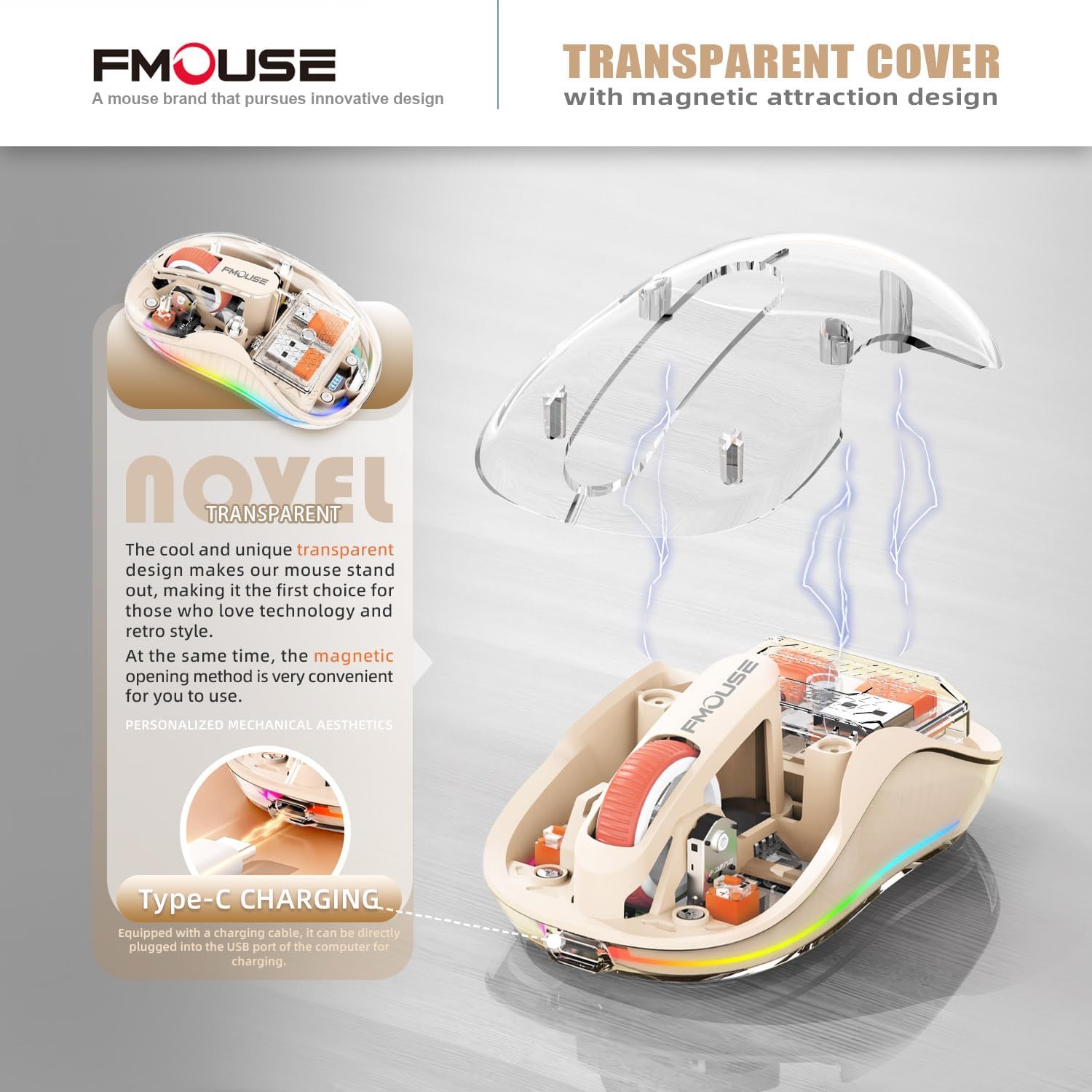
Image: A visual representation of the mouse's tri-mode connectivity, highlighting the USB-A, Type-C, and Bluetooth options for connecting to multiple devices.

Obrázek: Explodoval view of the mouse showing the internal storage for the USB-A and Type-C receivers, which are magnetically held under the transparent cover.
2.3.1 Bezdrátové připojení 2.4 GHz
- Open the magnetic transparent cover of the mouse to access the USB-A and Type-C receivers.
- Select the appropriate receiver (USB-A or Type-C) for your device and plug it into an available port on your computer or laptop.
- Zapněte myš pomocí vypínače umístěného na spodní straně.
- Switch the mode button on the bottom of the mouse to the "2.4G" position. The mouse should automatically connect to your device.
2.3.2 Připojení Bluetooth (BT1 / BT2)
- Zapněte myš pomocí vypínače umístěného na spodní straně.
- Switch the mode button on the bottom of the mouse to either "BT1" or "BT2" position.
- For first-time pairing, press and hold the mode button for approximately 3-5 seconds until the LED lights on the mouse start flashing rapidly, indicating pairing mode.
- Na svém zařízení (počítači, notebooku, tabletu nebo chytrém telefonu) přejděte do nastavení Bluetooth a vyhledejte nová zařízení.
- Select "FMOUSE" or a similar name from the list of available devices to pair.
- Once paired, the LED lights on the mouse will stop flashing and remain solid.
- To switch between paired Bluetooth devices or the 2.4G connection, simply press the mode button on the bottom of the mouse to cycle through BT1, BT2, and 2.4G.
3. Návod k obsluze
3.1 Funkční tlačítka nahořeview
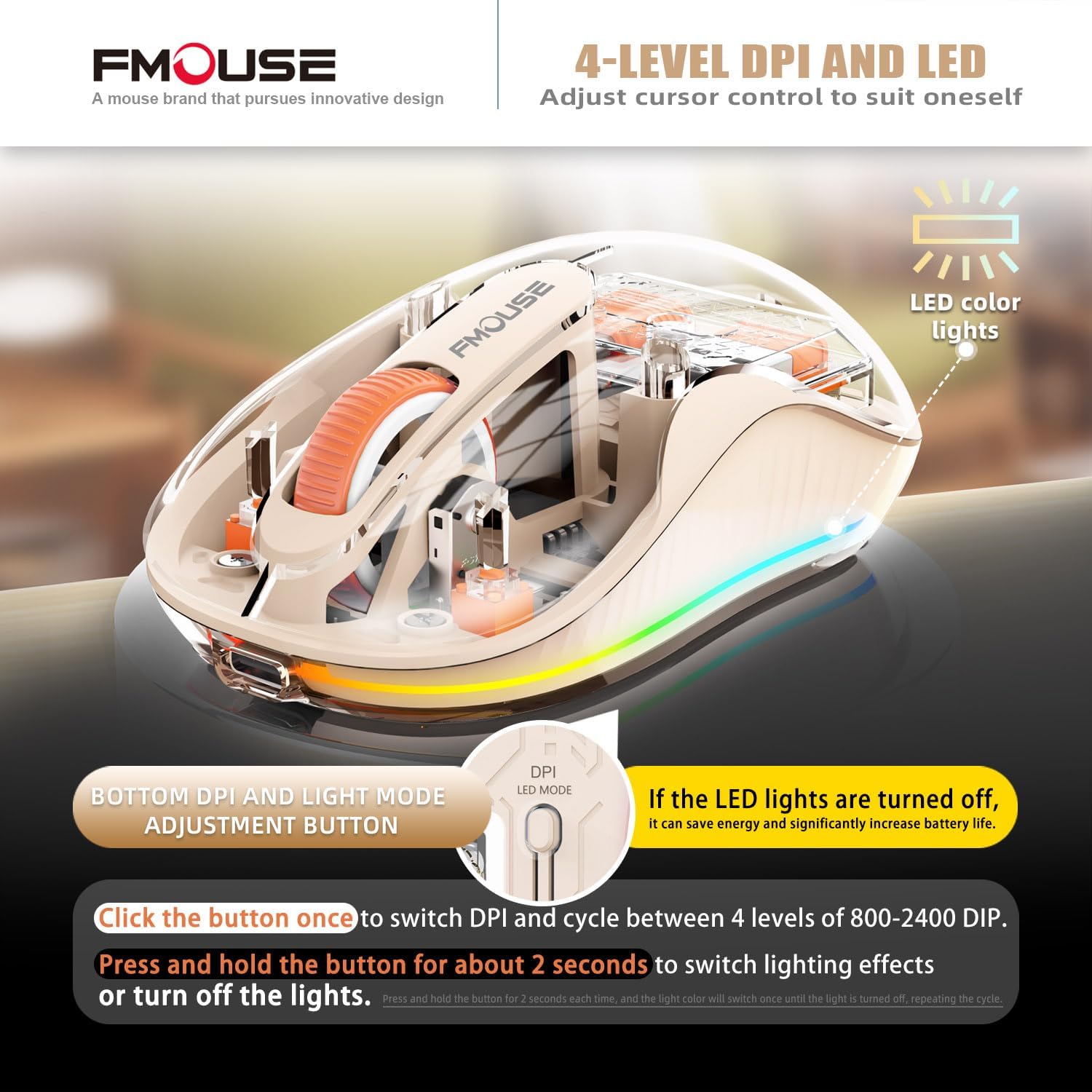
Image: The underside of the mouse, highlighting the power switch, the tri-mode connection switch, and the DPI/LED mode adjustment button.
- Vypínač: Located on the bottom, slides to ON/OFF.
- Tri-mode Switching Button: Located on the bottom, allows quick switching between 2.4G, BT1, and BT2 connections.
- DPI/LED Mode Adjustment Button: Located on the bottom, near the power indicator.
3.2 Nastavení DPI (citlivosti)
The mouse offers four adjustable DPI levels to suit different tasks and preferences.
- Press the DPI/LED Mode Adjustment button once to cycle through the DPI settings: 800, 1200, 1600, and 2400 DPI.
- Each press will change the cursor speed, allowing you to find your preferred sensitivity.
3.3 Controlling LED Lights
The mouse features a cool LED light ring that illuminates when the mouse is stationary and turns off when it moves to conserve battery.
- To turn off the LED lights completely and extend battery life, press and hold the DPI/LED Mode Adjustment button for approximately 2 seconds.
- Repeat the action to turn the LED lights back on.
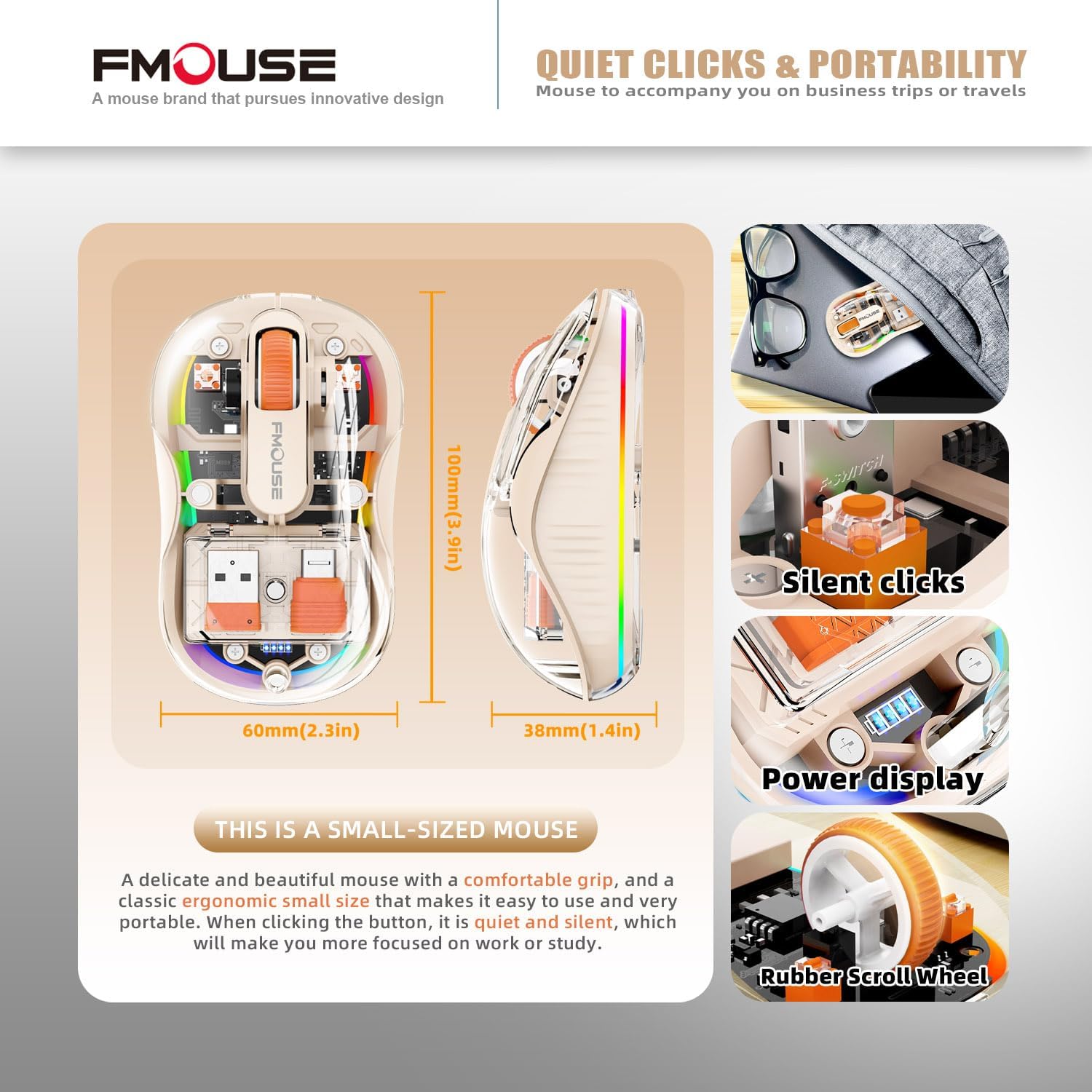
Image: The mouse demonstrating its LED lighting effects and the button used to control them, emphasizing the option to turn lights off for battery saving.
3.4 Silent Clicks
The mouse is designed with silent click technology, minimizing noise during use. This feature is integrated into the mouse's buttons and does not require specific activation.
3.5 Kompatibilita s povrchem
The optical sensor technology allows the mouse to operate effectively on a variety of surfaces without the need for a mouse pad.
- Compatible surfaces include wood, metal, leather, glass, and fabric.

Image: The mouse shown on different surfaces (wood, metal, leather, fabric) to illustrate its broad surface compatibility without a mouse pad.
4. Údržba
Proper maintenance ensures the longevity and optimal performance of your FMOUSE Transparent Wireless Mouse.
- Čištění: Use a soft, dry, lint-free cloth to wipe the exterior of the mouse. For stubborn dirt, slightly damphadřík opláchněte vodou. Nepoužívejte agresivní chemikálie, rozpouštědla ani abrazivní čisticí prostředky.
- Péče o senzor: Udržujte optický senzor na spodní straně myši čistý a bez prachu nebo nečistot, abyste zajistili přesné sledování.
- Skladování: When not in use for extended periods, store the mouse in a cool, dry place. The included cloth carrying bag is ideal for travel and protection.
- Péče o baterie: Avoid fully discharging the battery frequently. Charge the mouse when the power indicator shows low battery.
5. Řešení problémů
If you encounter issues with your mouse, refer to the following common troubleshooting steps:
| Problém | Možná příčina | Řešení |
|---|---|---|
| Myš neodpovídá | Low battery; Incorrect connection mode; Receiver not properly plugged in (2.4G); Bluetooth not paired. |
|
| Pohyb kurzoru je nepravidelný nebo pomalý | Dirty optical sensor; Unsuitable surface; Low battery; Incorrect DPI setting. |
|
| LED světla nefungují | LEDs turned off; Low battery. |
|
| Nelze se připojit přes Bluetooth | Mouse not in pairing mode; Device Bluetooth off; Interference. |
|
6. Specifikace
| Funkce | Detail |
|---|---|
| Rozměry produktu | 3.94 x 2.36 x 0.1 palce |
| Hmotnost položky | 2.68 unce |
| Technologie připojení | Bluetooth 5.1 (Dual), 2.4GHz Wireless |
| Technologie detekce pohybu | Optický |
| Úrovně DPI | 800/1200/1600/2400 |
| Typ baterie | 1 lithium-iontová baterie (součástí balení) |
| Nabíjecí port | Typ-C |
| Bezdrátové Dosah | Up to 10m (33ft) for Bluetooth |
| Kompatibilita | Windows XP/Vista/7/8/10/11, Windows ME, Mac OS, etc. |
| Speciální funkce | Transparent magnetic shell, Cool LED Lights, Silent Clicks, USB-A & Type-C Receivers |
7. Podpora a další informace
For additional support or detailed documentation, please refer to the official user guide or contact FMOUSE customer service.
- Oficiální uživatelská příručka (PDF): Stáhnout PDF
- FMOUSE Store: Visit FMOUSE Store on Amazon
Ask a question about this manual
Ask about setup, troubleshooting, compatibility, parts, safety, or missing instructions. Manuals+ will review the question and use this page’s manual context to help answer it.