
1. Úvod
This manual provides comprehensive instructions for the installation, operation, and maintenance of your TAFFIO 10.25-inch Touchscreen Android Navigation System. This system is designed to integrate seamlessly into Volvo S40, C30, C70, and V50 models from 2004-2013, offering advanced navigation, entertainment, and communication features.
Please read this manual thoroughly before installation and use to ensure proper function and to maximize your experience with the device. Keep this manual for future reference.
2. Bezpečnostní informace
- Always prioritize safe driving. Do not operate the system in a way that distracts you from the road.
- Ensure all connections are secure and correctly installed to prevent electrical hazards or damage to the vehicle's systems.
- Nepokoušejte se jednotku rozebírat ani upravovat. Mohlo by dojít ke zrušení záruky a poškození.
- Pokud si nejste jisti některým krokem instalace, poraďte se s odborníkem.
- Pro zachování dobré viditelnosti udržujte obrazovku čistou a bez překážek.
3. Nastavení
3.1 Obsah balení
Před zahájením instalace ověřte, zda jsou v balení přítomny všechny komponenty:
- 1x Android multimedia system
- 1x napájecí kabel
- 1x CAN-BUS Decoder
- 2x USB kabel
- 1x RCA Plugs & Sim Card Slot cable
- 1x Rear camera input cable
- 1x GPS anténa
- 1x 4G Antenna

Figure 3.1: Included components of the TAFFIO Android multimedia system.
3.2 Instalace
The TAFFIO Android multimedia system is designed for Plug & Play installation, minimizing the need for additional adapters or mounting frames. However, careful attention to connections is required.
- Příprava: Před zahájením instalace se ujistěte, že je vypnuté zapalování vozidla a odpojená baterie.
- Odstraňte původní jednotku: Carefully remove the existing car radio or display unit from your Volvo dashboard. Refer to your vehicle's service manual for specific instructions on removing dashboard components.
- Connect Main Unit: Connect the main power cable (B) from the TAFFIO system to the original main unit's wiring harness.
- Connect to TAFFIO Radio: Connect the appropriate cable (A) to the TAFFIO Android multimedia system.
- LCD Plug Connection: Connect the original LCD plug (C) to the designated port on the TAFFIO system.
- Slot pro SIM kartu: Insert your 4G LTE SIM card into the provided slot (D) if you intend to use mobile internet without Wi-Fi.
- Další připojení: Connect the GPS antenna, 4G antenna, USB cables, RCA plugs, and rear camera input cable to their respective ports on the TAFFIO system. Ensure the CAN-BUS decoder is correctly integrated into the wiring harness (E) to support steering wheel controls and vehicle settings.
- AUX Input Verification: It is crucial to determine if your original Volvo radio has an AUX (Auxiliary Audio Input). This information may be necessary for proper audio integration.
- Test funkčnosti: Before fully reassembling the dashboard, reconnect the battery and test the system's basic functions, including power on/off, audio, touchscreen response, and steering wheel controls.
- Konečná montáž: Once functionality is confirmed, carefully reassemble the dashboard components, ensuring no wires are pinched.
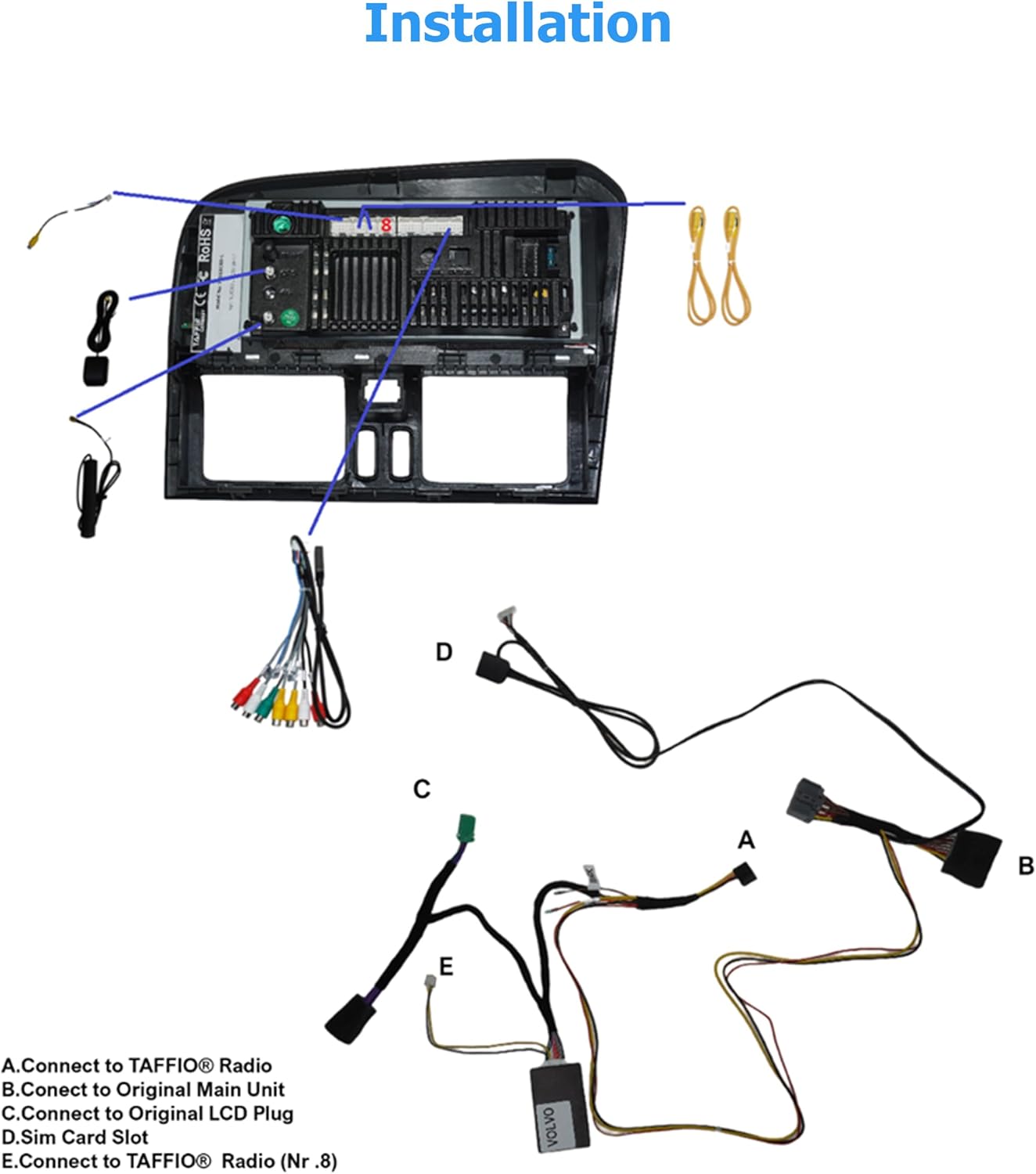
Figure 3.2: Installation diagram for the TAFFIO Android multimedia system.
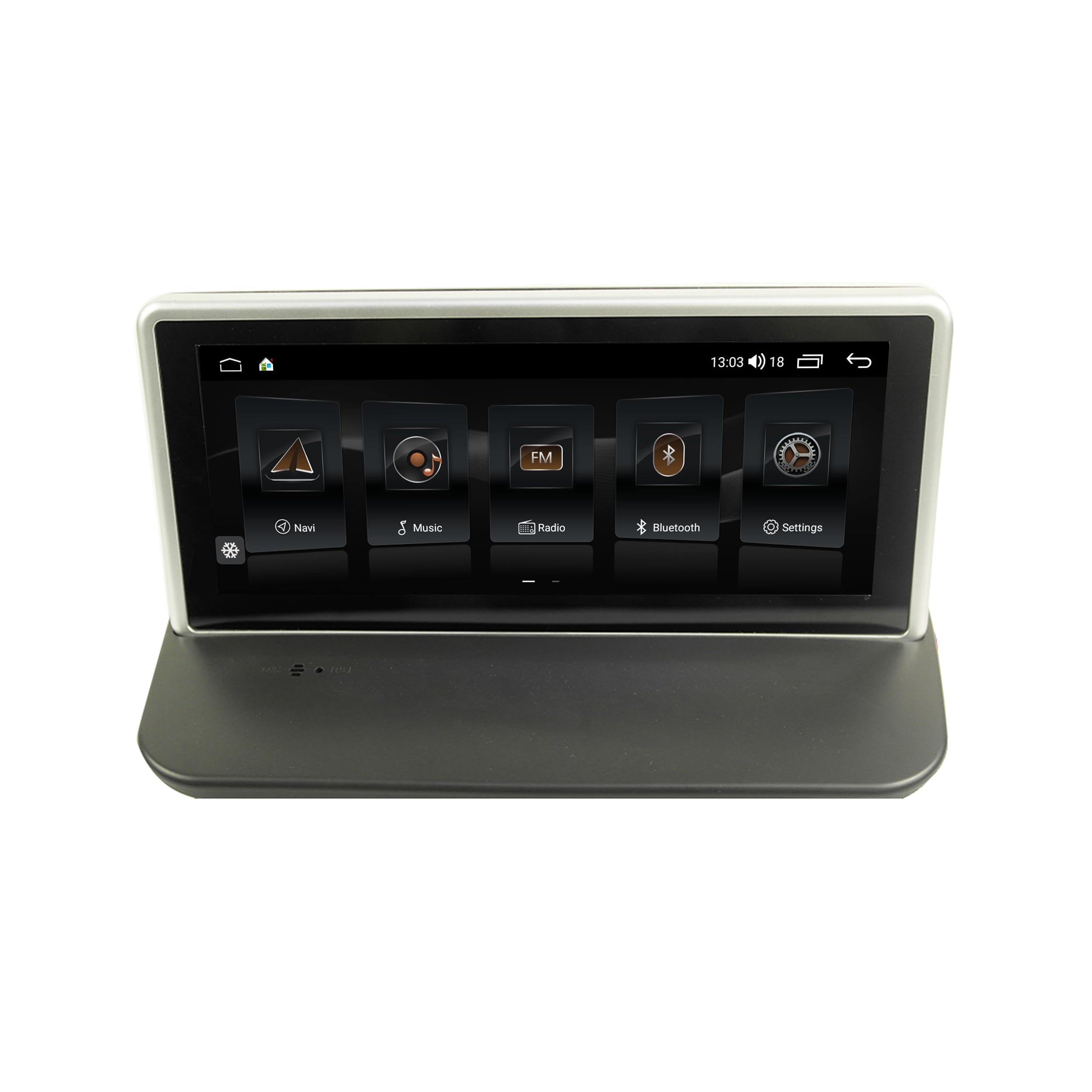
Figure 3.3: TAFFIO system installed in a Volvo dashboard, showing the main interface and rearview fotoaparát view.
4. Návod k obsluze
4.1 Zapnutí a počáteční nastavení
After installation, turn on your vehicle's ignition. The system will boot up, displaying the TAFFIO logo. The initial boot may take slightly longer. Follow any on-screen prompts for language selection and basic Android setup.
4.2 Uživatelské rozhraní a navigace
The system features an intuitive user interface with a 3D graphical display. Control is primarily via the capacitive multitouch screen. You can also use the vehicle's original steering wheel controls, which are supported by the system.

Figure 4.1: Main menu of the TAFFIO Android system.

Figure 4.2: Android applications screen.
4.3 Konektivita
- Wi-Fi: Connect to available WLAN hotspots or your smartphone's hotspot for internet access. Navigate to Settings > Network & Internet > Wi-Fi.
- 4G LTE: If a SIM card is installed, the system will automatically connect to the mobile network for internet access.
- Bluetooth: Pair your mobile phone for hands-free calling and A2DP music streaming. Go to Settings > Connected devices > Pair new device. The system supports synchronization of phone book contacts.
- USB: Use the provided USB cables to connect external storage devices for music, pictures, and videos.
4.4 Navigace
The system comes with pre-installed GPS navigation map material and offers free lifetime updates. Access navigation through the dedicated 'Maps' or 'Navigation' app icon. The system supports 2-Zone function, allowing you to listen to radio or music while navigating.

Figure 4.3: Wireless Carplay navigation interface.
4.5 CarPlay a Android Auto
The system features integrated CarPlay and Android Auto functionality without requiring an additional adapter. Connect your compatible smartphone via USB or wirelessly (if supported by your phone and the system) to access these features.

Obrázek 4.4: Rozhraní Android Auto.
4.6 Multimediální funkce
- Rádio: FM/AM tuner with RDS (Radio Data System) for displaying station names.
- Přehrávání médií: Přehrávejte hudbu, videa a view pictures from USB drives or internal storage.
- Ekvalizér: Customize audio settings with preset EQ modes (Pop, Classic, Rock, Jazz) or user-defined Bass/Treble/Balance controls.
- Back-Zone Function: Allows navigation on the front screen while passengers in the back can watch TV or video (requires additional rear displays).
4.7 Integrace vozidla
The system supports various vehicle-specific functions:
- Ovládání na volantu: Retains original steering wheel control functionality.
- Nastavení vozidla: Access and adjust certain vehicle settings through the system interface.
- Zadníview Fotoaparát: Automatic switching to the rearview camera display when reversing.
- Day and Night Display: Automatic or manual adjustment of screen brightness for optimal visibility.

Figure 4.5: Vehicle personalization settings.
5. Údržba
- Čištění obrazovky: K čištění dotykové obrazovky použijte měkký hadřík, který nepouští vlákna. V případě odolných skvrn lehceampOtřete hadřík vodou nebo čisticím prostředkem vhodným pro obrazovky. Vyhněte se abrazivním materiálům nebo agresivním chemikáliím.
- Aktualizace softwaru: Periodically check for software updates to ensure optimal performance and access to new features. Updates can typically be found through the system's settings or TAFFIO's official support channels.
- Obecná péče: Nevystavujte jednotku extrémním teplotám, delšímu přímému slunečnímu záření nebo nadměrné vlhkosti.
6. Řešení problémů
This section addresses common issues you might encounter with your TAFFIO Android Navigation System.
| Problém | Možná příčina | Řešení |
|---|---|---|
| Žádné napájení / Systém se nezapne | Nesprávné zapojení; Spálená pojistka; Problém s baterií vozidla | Check all power connections. Verify vehicle fuses. Ensure vehicle battery is charged. |
| Žádný zvuk | Volume too low; Mute activated; Incorrect audio output settings; Wiring issue | Increase volume. Check if mute is active. Verify audio settings. Inspect speaker wiring. Ensure AUX input is correctly configured if applicable. |
| Dotyková obrazovka nereaguje nebo je nepřesná | Software glitch; Screen dirty; Physical damage | Restart the system. Clean the screen. If issue persists, contact support. |
| Ztráta signálu GPS nebo jeho nepřesnost | GPS antenna obstructed or disconnected; Environmental interference | Ujistěte se, že je anténa GPS správně připojena a má jasný signál. view oblohy. Přejděte na otevřené prostranství. |
| Problémy s připojením Bluetooth | Device not in pairing mode; Interference; Software issue | Ensure both devices are in pairing mode. Restart both devices. Clear Bluetooth cache on phone. |
| CarPlay/Android Auto se nepřipojuje | Incorrect USB cable; Phone software issue; System software issue | Use a high-quality USB data cable. Ensure phone's CarPlay/Android Auto settings are correct. Restart phone and system. |
| Ovládání na volantu nefunguje | CAN-BUS decoder not connected; Incorrect settings | Verify CAN-BUS decoder connection. Check system settings for steering wheel control configuration. |
If you encounter an issue not listed here or if the suggested solutions do not resolve the problem, please contact TAFFIO customer support for further assistance.
7. Specifikace
| Funkce | Detail |
|---|---|
| Název modelu | TJ-S40 |
| Velikost displeje | 10.25 palce |
| Operační systém | Android 10 |
| Procesor | Octa-Core 1.8Ghz CPU |
| BERAN | 4 GB |
| Interní úložiště | 64GB Flash |
| Konektivita | Bluetooth, USB, Wi-Fi, 4G LTE (SIM card slot) |
| Speciální funkce | Touchscreen, Integrated CarPlay & Android Auto, GPS Navigation, RDS Radio, Rear Camera Input |
| Typ mapy | Worldwide (with free lifetime updates) |
| Režim zvukového výstupu | Stereo |
| Typ montáže | Držák na palubní desku |
| Kompatibilní vozidla | Volvo S40, C30, C70, V50 (2004-2013) |
8. Záruka a podpora
8.1 Informace o záruce
Your TAFFIO 10.25-inch Touchscreen Android Navigation System comes with a 2letá záruka výrobce. This warranty covers defects in materials and workmanship under normal use. Please retain your purchase invoice as proof of purchase for warranty claims.
The warranty does not cover damage caused by improper installation, misuse, accidents, unauthorized modifications, or normal wear and tear.
8.2 Zákaznická podpora
For technical assistance, warranty claims, or any questions regarding your TAFFIO product, please contact TAFFIO customer support through the retailer where you purchased the device or visit the official TAFFIO webstránky pro kontaktní informace.