
Zavedení
This manual provides detailed instructions for the setup, operation, and maintenance of your Prechen 10.1 inch Portable Touchscreen Monitor, Model HD-101. Please read this manual thoroughly before using the device to ensure proper functionality and to prevent damage.
Vlastnosti produktu
- Portable Touchscreen: This 10.1-inch monitor is compact and lightweight, designed for portability. The touchscreen functionality allows for intuitive navigation and interaction, enhancing productivity on the go.
- High-Resolution IPS Display: Features a 1920x1200 resolution with a 16:10 aspect ratio, delivering clear and vibrant visuals. IPS technology provides wide viewing angles and accurate color reproduction, suitable for various applications.
- Všestranná konektivita: Equipped with HDMI and USB-C ports, offering flexible connection options. It can be easily connected to Windows PCs, laptops, and gaming consoles like Xbox. Note: USB-C is for touch functionality and power.
- Integrované reproduktory: Built-in speakers provide clear and dynamic audio, eliminating the need for external speakers during media consumption, gaming, or virtual meetings.
- Kompatibilní s držákem VESA: The monitor supports VESA mounting standards, allowing for attachment to compatible stands or arms for customized workspace setups and comfortable viewing úhly.
Nastavení
Obsah balení
Ověřte, zda jsou v balení přítomny všechny položky:
- Prechen 10.1 inch Portable Touchscreen Monitor
- HDMI kabel
- Kabel USB-C na USB-C
- USB-A to USB-C Cable (for power/touch)
- Napájecí adaptér
- Uživatelská příručka (tento dokument)
Připojení monitoru
- Připojení napájení: Connect the provided power adapter to the DC Power Port on the monitor and plug it into a power outlet. Alternatively, if your device supports power delivery, connect a USB-C to USB-C cable to the USB-C (Power & Touch) port for both power and signal.
- Připojení videa:
- HDMI: Connect one end of the HDMI cable to the HDMI port on the monitor and the other end to the HDMI output of your computer or device.
- USB-C (DisplayPort Alternate Mode): If your device supports DisplayPort Alternate Mode over USB-C, connect a USB-C to USB-C cable to the USB-C (Power & Touch) port on the monitor and your device. This single cable can provide video, power, and touch functionality.
- Dotyková funkce: For touch functionality, ensure the USB-C (Power & Touch) port is connected to your device. If using HDMI for video, you will also need to connect a USB-A to USB-C cable from your device's USB-A port to the monitor's USB-C (Power & Touch) port.
- Zvukový výstup: If you wish to use external headphones or speakers, connect them to the 3.5mm Audio Port on the monitor.
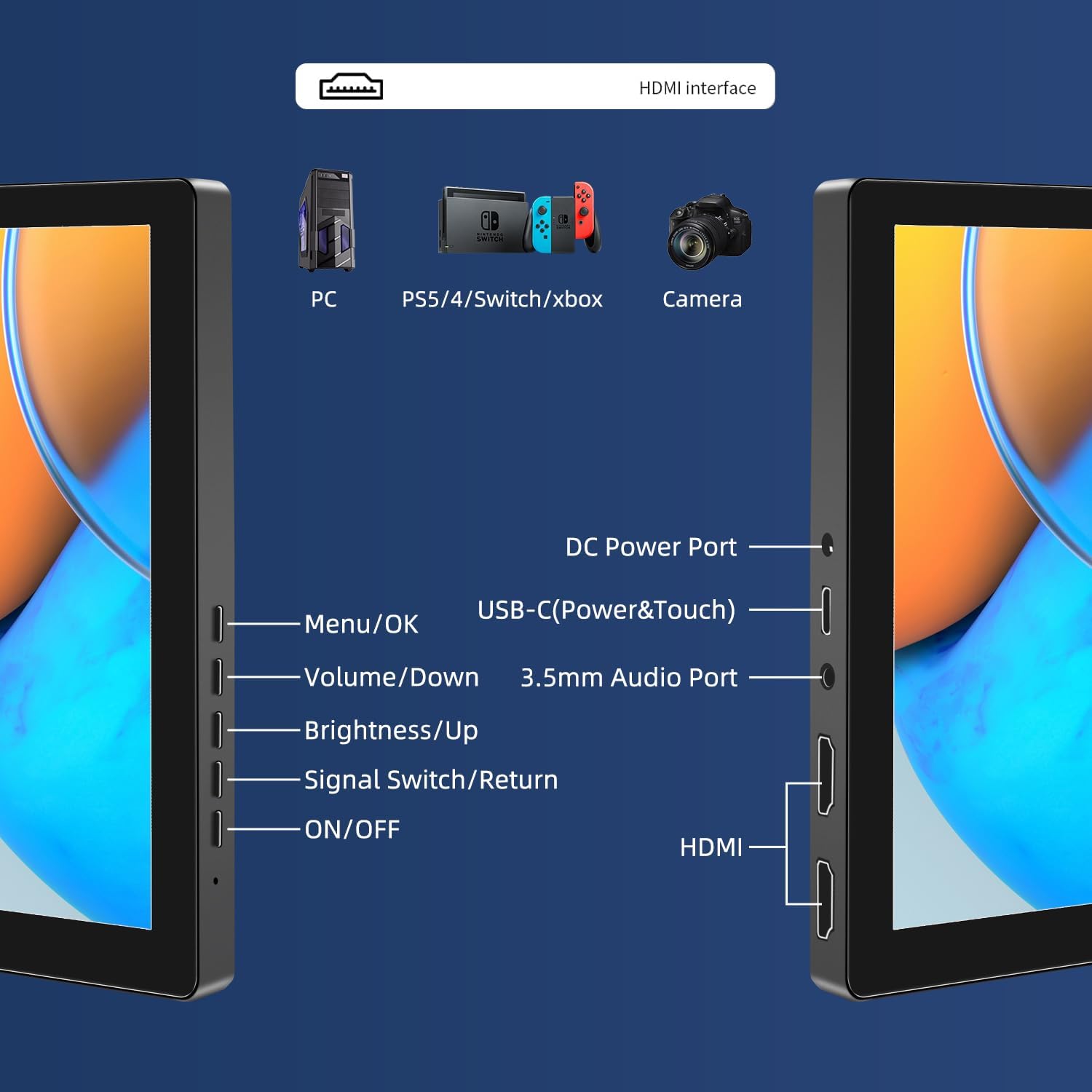
Obrázek: Overview of the monitor's ports including DC Power, USB-C (Power & Touch), 3.5mm Audio, HDMI, and control buttons.
Návod k obsluze
Zapnutí/vypnutí
- Chcete-li monitor zapnout, stiskněte tlačítko ON/OFF tlačítko.
- Chcete-li přístroj vypnout, stiskněte a podržte tlačítko ON/OFF button for a few seconds until the screen turns off.
Používání nabídky na obrazovce (OSD)
Nabídka OSD umožňuje upravit různá nastavení zobrazení.
- Stiskněte tlačítko Nabídka / OK tlačítko pro otevření nabídky OSD.
- Použijte Snížit hlasitost a Jas/Zvýšení tlačítka pro navigaci v možnostech nabídky.
- Stiskněte Nabídka / OK pro výběr možnosti nebo potvrzení nastavení.
- Stiskněte tlačítko Signal Switch/Return button to go back to the previous menu or exit the OSD.
Adjusting Display Modes
The monitor supports multiple display modes when connected to a computer:
- Duplicitní režim: Displays the same content on both your primary screen and the portable monitor.
- Rozšířený režim: Rozšíří pracovní plochu na obě obrazovky a poskytne vám tak více pracovního prostoru.
- Režim druhé obrazovky: Používá jako displej pouze přenosný monitor.
These modes are typically configured through your operating system's display settings (e.g., Windows Display Settings, macOS System Preferences).
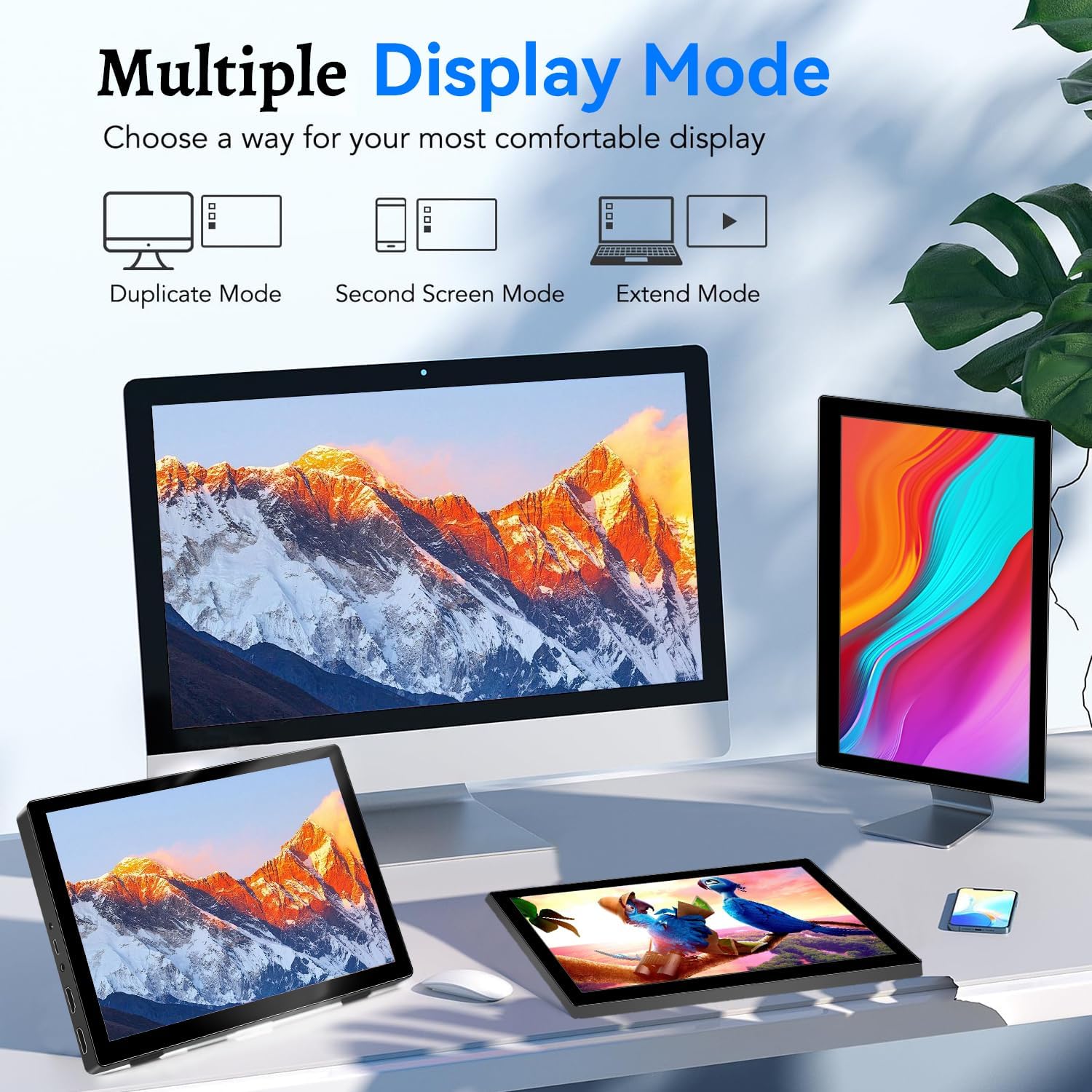
Image: Visual representation of Duplicate, Second Screen, and Extend display modes.
Using Touchscreen Functionality
The monitor supports 10-point touchscreen technology. Ensure the USB-C (Power & Touch) port is correctly connected to your device for touch input to function.

Obrázek: Přamples of 10-point touchscreen gestures for interaction.
Údržba
- Čištění obrazovky: Použijte měkký hadřík, který nepouští vlákna dampOmyjte vodou nebo neabrazivním čističem obrazovek. Nestříkejte čistič přímo na obrazovku.
- Čištění Casing: Otřete monitor casinměkkým, suchým hadříkem. Nepoužívejte silné čisticí prostředky nebo rozpouštědla.
- Skladování: Pokud monitor nepoužíváte, skladujte jej na chladném a suchém místě, mimo dosah přímého slunečního záření a extrémních teplot.
- Zacházení: Avoid dropping or subjecting the monitor to strong impacts. Do not place heavy objects on top of the monitor.
Odstraňování problémů
| Problém | Možná příčina | Řešení |
|---|---|---|
| Žádný displej/Černá obrazovka |
|
|
| Dotykový displej nereaguje |
|
|
| Žádný zvuk z reproduktorů |
|
|
| Problémy s kvalitou obrazu (rozmazaný, zkreslený) |
|
|
Specifikace
| Funkce | Detail |
|---|---|
| Značka | Prechen |
| Číslo modelu | HD-101 |
| Velikost obrazovky | 10.1 palců |
| Rezoluce | 1920 x 1200 (UXGA Wide) |
| Poměr stran | 16:10 |
| Typ panelu | IPS |
| Obnovovací frekvence | 60 Hz |
| Doba odezvy | 1 ms |
| Konektivita | 1x HDMI, 1x USB-C (Power & Touch), 1x 3.5mm Audio Jack, 1x DC Power Port |
| Rozměry (D x Š x V) | 21.8 x 15.8 x 1.4 cm |
| Hmotnost | 990 gramů |
| Výrobce | Shenzhen Kenowa Electronics Co., LTD |
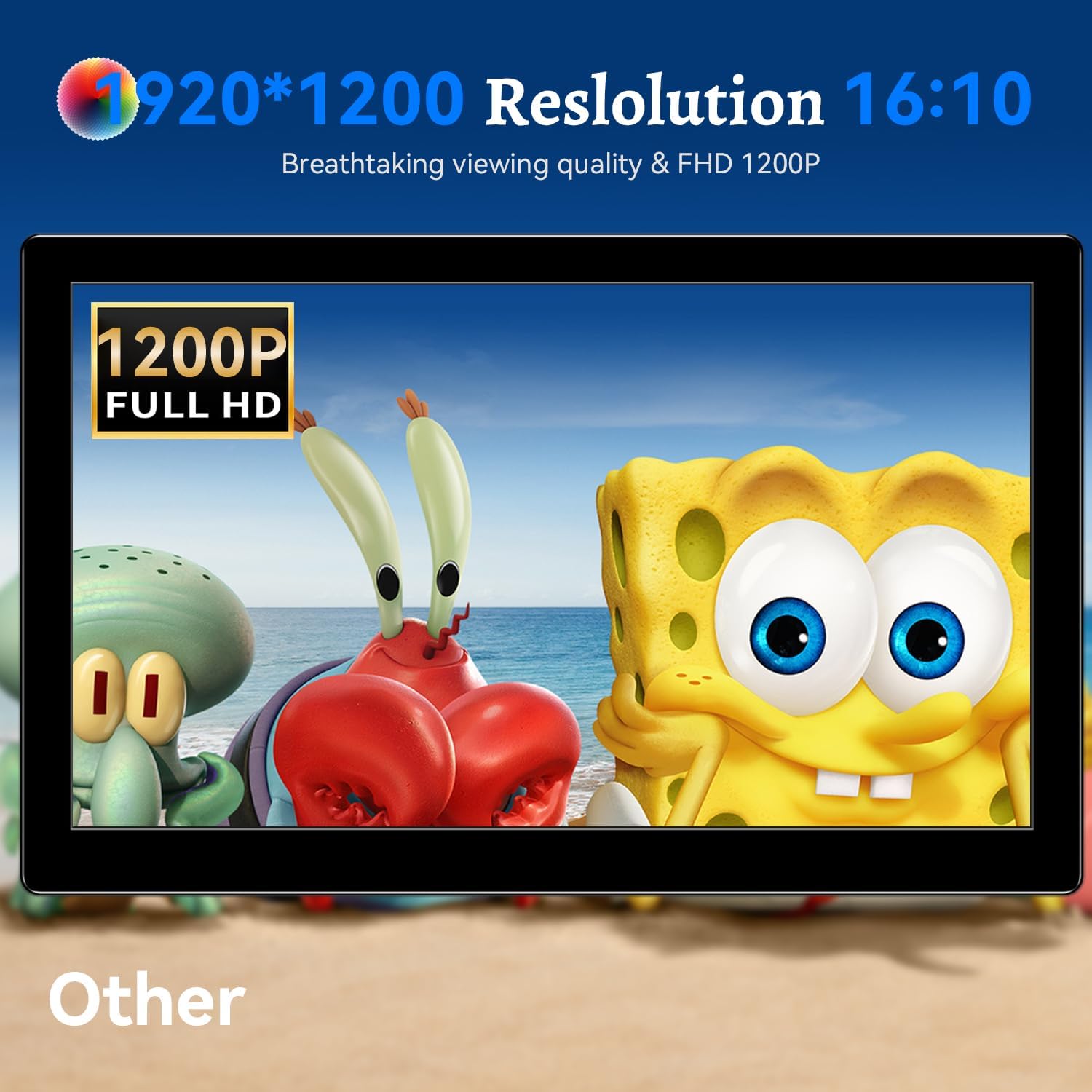
Obrázek: Monitorová showasing its 1920x1200 Full HD resolution.

Image: The monitor's IPS panel offering wide viewing angles and rich colors.
Záruka a podpora
For warranty information and technical support, please refer to the warranty card included with your product or contact Prechen customer service through their official webweb. Před kontaktováním podpory si prosím připravte číslo modelu (HD-101) a podrobnosti o nákupu.