
d5443bdc-81fa-41ee-a2aa-fe45a5b7f2ab
User Manual: Car Stereo Radio for Isuzu D-max 2020
Model: d5443bdc-81fa-41ee-a2aa-fe45a5b7f2ab
Zavedení
This manual provides comprehensive instructions for the installation, operation, and maintenance of your new Car Stereo Radio designed specifically for the Isuzu D-max 2020 model. Please read this manual thoroughly before using the product to ensure proper functionality and safety.
Bezpečnostní informace
- Před zahájením instalace se ujistěte, že je vozidlo vypnuté a baterie odpojená.
- Pokud si nejste jisti některým krokem instalace, poraďte se s odborníkem.
- Neovládejte zařízení způsobem, který by vás odváděl od řízení.
- Avoid exposing the unit to extreme temperatures, moisture, or direct sunlight for prolonged periods.
- Používejte pouze určené příslušenství a díly.
Konec produktuview
The Car Stereo Radio features an 8-Core CPU, 4GB RAM, and 64GB ROM, providing enhanced performance and storage. It comes with a 13.1-inch large display for intuitive control and includes built-in CarPlay and Android Auto functionality.

Obrázek: Overview of the car stereo radio highlighting its main features such as Android OS, 4GB RAM, 64GB ROM, 8-Core processor, 1280x720 IPS display, AV Output, DSP+RDS, and Carplay+Auto compatibility.
Zahrnuté příslušenství
The package includes the car stereo radio unit and various cables and connectors necessary for installation.
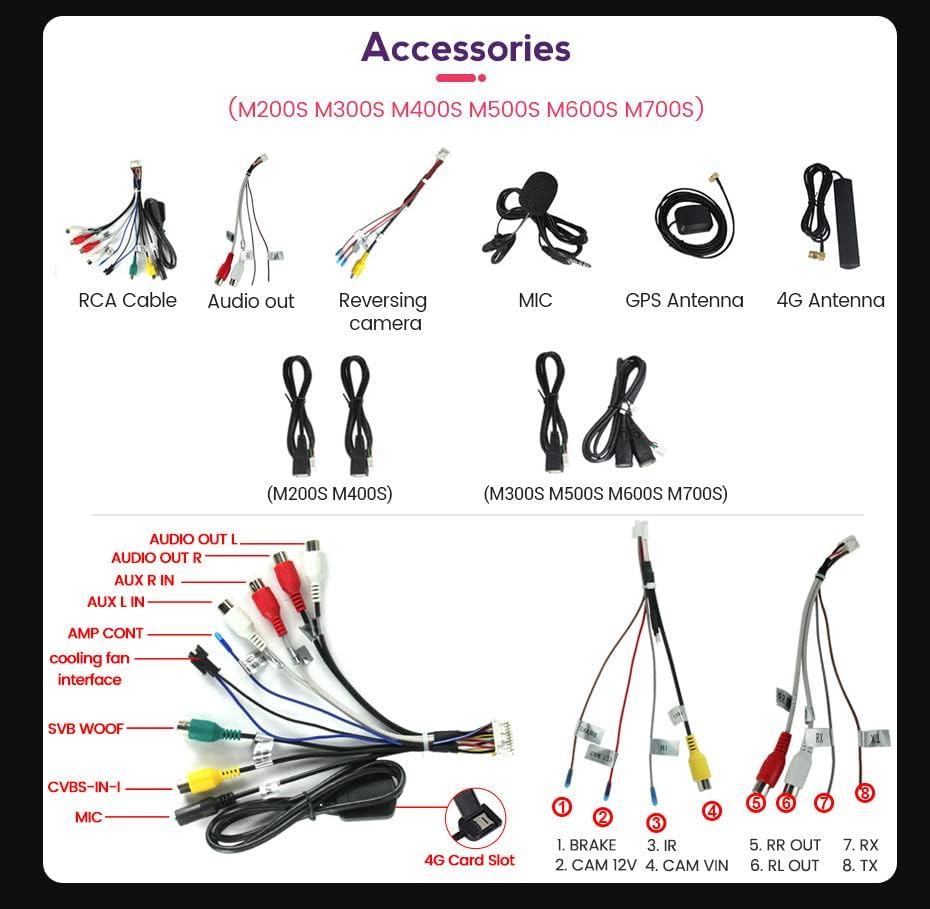
Image: A collection of accessories including RCA cables, audio output cables, reversing camera cable, microphone, GPS antenna, 4G antenna, and various wiring harnesses for different models (M200S, M300S, M400S, M500S, M600S, M700S).
- Car Stereo Radio Unit
- RCA kabel
- Audio Out kabel
- Kabel couvací kamery
- Mikrofon
- GPS anténa
- 4G anténa
- USB kabely (2x)
- Wiring Harnesses (model specific)
Nastavení a instalace
Follow these steps for proper installation of the car stereo radio in your Isuzu D-max 2020.
1. Připojení vodičů
Identify the correct ports on the back of the host device and connect the corresponding cables. Refer to the wiring diagram for detailed connections.

Image: Detailed diagram of the rear panel of the car stereo, illustrating connection points for GPS, 5G WiFi, Radio, 4G Antenna, USB ports, and various audio/video inputs and outputs. It also shows the cooling fan and main power harness connections.
Klíčová spojení:
- GPS: Connect the GPS antenna.
- Rádio: Připojte anténu rádia vozidla.
- 4G anténa: Connect the provided 4G antenna for network connectivity.
- USB: Connect USB devices via the USB ports.
- Napájecí kabeláž: Connect the main power harness to the vehicle's wiring. Ensure correct connections for ACC, Battery +12V, Battery GND, and speaker outputs (FL, FR, RL, RR).
- Chladicí ventilátor: Ensure the cooling fan is properly connected.
- CANBUS: If your car requires a CANBUS decoder, ensure it is connected correctly.
2. Fyzická instalace
Carefully integrate the stereo unit into the dashboard of your Isuzu D-max 2020. Ensure all cables are securely connected and routed to avoid interference.

Image: The car stereo unit seamlessly integrated into the center console of an Isuzu D-max 2020, demonstrating its fit and appearance after installation.
3. Initial Setup and Software Installation
After physical installation, power on the unit and proceed with initial software setup, such as installing the DVR application if applicable.

Image: A four-panel guide showing the steps for connecting a USB device, navigating to the File Manager, installing an application (e.g., uCarDvr.apk) from the USB drive, and confirming successful installation of the DVR software.
- Connection via USB Cable: Connect your USB device (e.g., USB drive with software) to the unit's USB port.
- File Manažer: On the unit's screen, navigate to the "FileManager" application.
- Instalace softwaru: Browse to the location of the software file (e.g., uCarDvr.apk) on your USB device and tap to install.
- Potvrzení: Once installed, a confirmation message will appear.

Image: A four-panel guide illustrating setup steps: 1. Connecting cables to the device. 2. Navigating to Settings > Device > Sound. 3. Activating the AMP (Amplifier) by setting "AMP ON/OFF" to ON. 4. Confirmation that the cooling fan starts working after AMP aktivace.
- Připojit: Ensure all necessary cables are connected to the device.
- Settings Navigation: Přejít na Nastavení > Zařízení > Zvuk.
- Aktivovat AMP: Within the Sound settings, locate and set AMP ON/OFF na ON.
- Chladicí ventilátor: The cooling fan will activate, indicating proper ampfunkce lifikátoru.
Návod k obsluze
This section covers the basic operation of your car stereo radio, including navigation, media playback, and smartphone integration.
Uživatelské rozhraní

Image: The car stereo display showing the Apple CarPlay interface with icons for Phone, Music, Maps, Messages, Now Playing, Settings, Podcasts, and Audiobooks, indicating smartphone integration capabilities.
The large 13.1-inch touchscreen provides an intuitive interface for accessing various functions. Navigate through applications by tapping their icons.
CarPlay a Android Auto
The unit supports both wireless CarPlay (for iOS devices) and wired Android Auto (for Android devices), allowing seamless integration of your smartphone's features.

Image: A multi-panel image demonstrating how to connect Wireless CarPlay (iOS system) via Bluetooth and then selecting "Car Link," and how to connect Wired Android Auto (Android system) by connecting the mobile phone via USB cable and then selecting "Car Link."
Wireless CarPlay (iOS System)
- Připojte BT: On your iPhone, go to Bluetooth settings and pair with the car stereo unit.
- Select Car Link: On the car stereo, tap the "Car Link" icon and wait for the connection to establish.
Wired Android Auto (Android System)
- Připojte USB: Connect your Android phone to the car stereo using a USB cable.
- Select Car Link: On the car stereo, tap the "Car Link" icon and wait for the connection to establish.
Údržba
To ensure the longevity and optimal performance of your car stereo radio, follow these maintenance guidelines:
- Čištění: K čištění obrazovky a vnějšího povrchu použijte měkký, suchý hadřík. V případě odolných šmouh lehceampOtřete hadřík vodou nebo čističem obrazovek. Nepoužívejte abrazivní čisticí prostředky ani rozpouštědla.
- Teplota: Do not expose the unit to extreme temperatures. While designed for automotive use, prolonged exposure to direct sunlight in a parked car can cause damage.
- Větrání: Ensure the cooling fan area is not obstructed to allow proper airflow and prevent overheating.
- Aktualizace softwaru: Periodically check for and install software updates to improve performance and add new features. Refer to the manufacturer's website or the unit's system settings for update procedures.
Odstraňování problémů
If you encounter issues with your car stereo radio, refer to the following common problems and solutions:
| Problém | Možná příčina | Řešení |
|---|---|---|
| Žádná síla | Uvolněné připojení napájení, spálená pojistka, problém s autobaterií. | Check power harness connections. Inspect vehicle fuses. Ensure vehicle battery is charged. |
| Žádný zvuk | Speaker wires disconnected, volume too low, AMP neaktivováno. | Verify speaker wire connections. Increase volume. Check if AMP is ON in settings (refer to Setup section). |
| CarPlay/Android Auto se nepřipojuje | Incorrect connection method, phone settings, incompatible cable. | For Wireless CarPlay, ensure Bluetooth is on and paired. For Wired Android Auto, use a high-quality USB cable. Check phone settings for projection mode. Restart both phone and stereo. |
| Slabý/ztracený signál GPS | GPS anténa není správně nainstalována nebo je zakrytá. | Ujistěte se, že je anténa GPS bezpečně připojena a umístěna v oblasti s jasnou oblohou. view. |
| Dotyková obrazovka nereaguje | Dočasná softwarová závada, extrémní teplota. | Restart the unit. Allow unit to return to normal operating temperature. |
Pokud problém přetrvává i po vyzkoušení těchto řešení, kontaktujte zákaznickou podporu.
Specifikace
| Funkce | Detail |
|---|---|
| Číslo modelu | d5443bdc-81fa-41ee-a2aa-fe45a5b7f2ab |
| CPU | 8 jádro |
| BERAN | 4 GB |
| ROM | 64 GB |
| Velikost obrazovky | 13.1-palcový |
| Rozlišení displeje | 1280 * 720 IPS |
| Technologie připojení | Bluetooth, Wi-Fi, USB |
| Speciální funkce | Bluetooth, Built-in CarPlay, Built-in Android Auto, DSP+RDS |
| Režim zvukového výstupu | Stereo |
| Konfigurace kanálů prostorového zvuku | 2.0 |
| Kódování videa | H.264, H.265/HEVC |
| Kompatibilní zařízení | Televize |
| Typ konektoru | USB typ A |
| Celkový počet portů HDMI | 1 |
| Výrobce | Obecný |
| Země původu | Čína |
Záruka a podpora
Informace o záruce a technickou podporu naleznete v dokumentaci dodané s vaším nákupem nebo se obraťte přímo na prodejce. Uschovejte si doklad o koupi pro případné reklamace.
prodejce: Custom DDT Car Lights
Zásady vrácení: 30denní lhůta pro vrácení/výměnu zboží od data nákupu.
Ask a question about this manual
Ask about setup, troubleshooting, compatibility, parts, safety, or missing instructions. Manuals+ will review the question and use this page’s manual context to help answer it.