
IYOUBOL MC2200/MC2700 Protective Case
User Manual for IYOUBOL Protective Case for Zebra MC2200/MC2700 Barcode Scanners
Rugged, Shockproof & Scratch-Resistant Boot Cover
1. Úvod
1.1 Konec produktuview
This manual provides comprehensive instructions for the IYOUBOL protective case designed specifically for Zebra MC2200 and MC2700 barcode scanners. This rugged and durable boot cover is engineered to provide enhanced protection against shocks, drops, and scratches, ensuring the longevity and reliability of your valuable scanning equipment in demanding work environments.
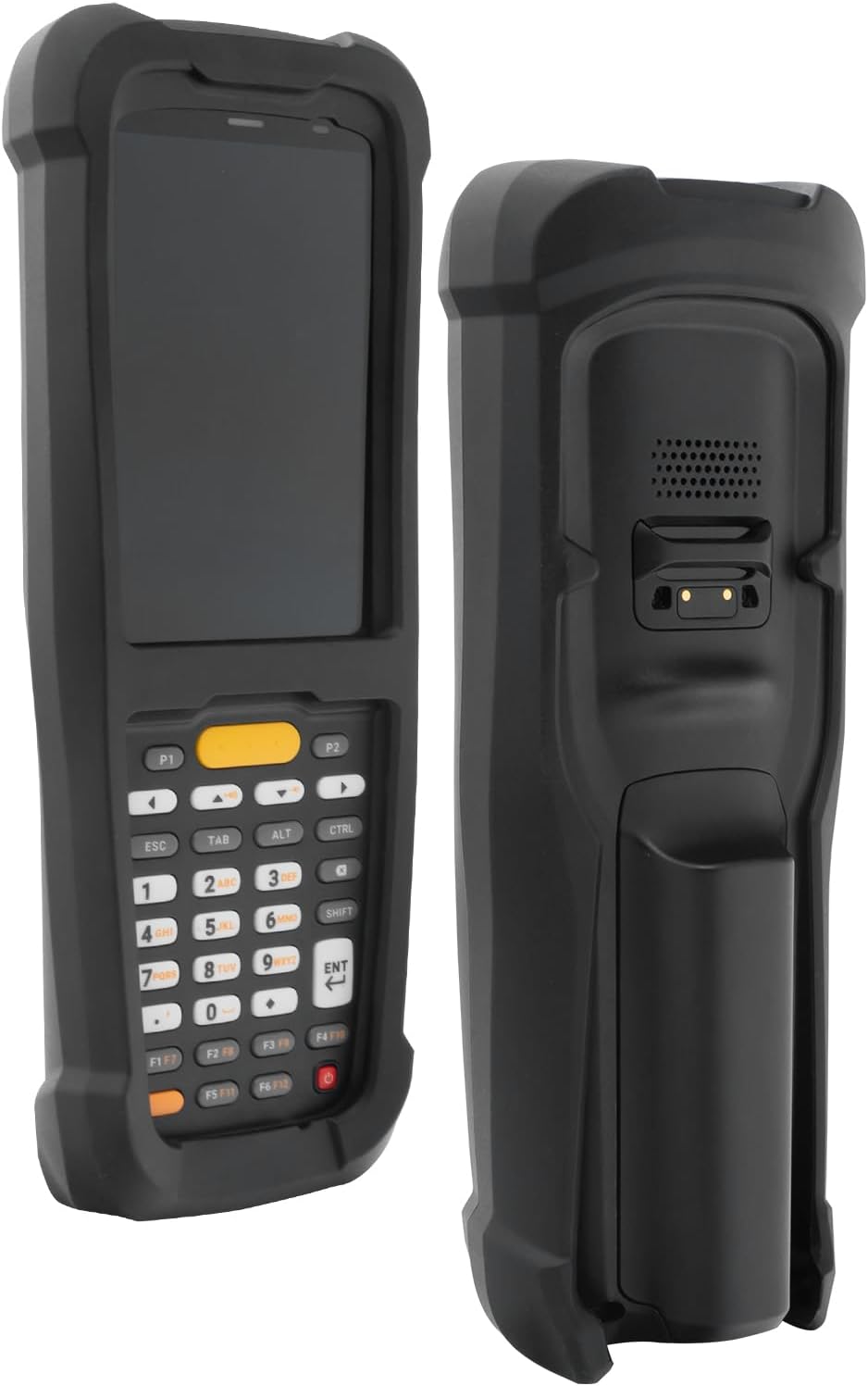
Obrázek 1.1: Přední a zadní strana view of the Zebra MC2200/MC2700 barcode scanner equipped with the IYOUBOL protective case. This image illustrates how the case encases the device, providing comprehensive coverage while maintaining access to essential features.
1.2 Klíčové vlastnosti
- Přizpůsobený střih: Precision-engineered for Zebra MC2200 and MC2700 models, ensuring a snug and secure fit without hindering functionality.
- Robust Shockproof Protection: High-grade materials absorb impacts, safeguarding your scanner from drops and bumps.
- Odolný design proti poškrábání: Protects the scanner's exterior from abrasions and wear in tough conditions.
- Zvýšená ochrana proti pádu: Built to offer superior defense against accidental drops, crucial for high-traffic and industrial settings.
- Easy Access & Functional: Designed with precise cutouts for all scanner functions, ports, and buttons, allowing seamless operation.
2. Průvodce nastavením
2.1 Vybalení
Carefully remove the protective case from its packaging. Inspect the case for any signs of damage. If any damage is observed, please contact customer support before proceeding with installation.
2.2 Installation of the Protective Case
To install the IYOUBOL protective case onto your Zebra MC2200 or MC2700 barcode scanner, follow these steps:
- Ensure your Zebra MC2200 or MC2700 scanner is clean and free of dust or debris.
- Identify the two halves of the protective case. One half typically covers the front (display and keypad) and the other covers the back (battery compartment and scanning engine).
- Carefully align the front half of the case with the front of your scanner, ensuring all cutouts for the display, keypad, and scanner window are correctly positioned. Gently press the scanner into this half.
- Once the front half is securely in place, align the back half of the case with the rear of the scanner. Ensure the cutouts for the charging contacts, speaker, and any other ports are correctly aligned.
- Press the two halves of the case together firmly around the scanner until they snap securely into place. Verify that there are no gaps and that the scanner is fully enclosed and protected.
- Confirm that all buttons, ports, and the scanning window remain fully accessible and functional.
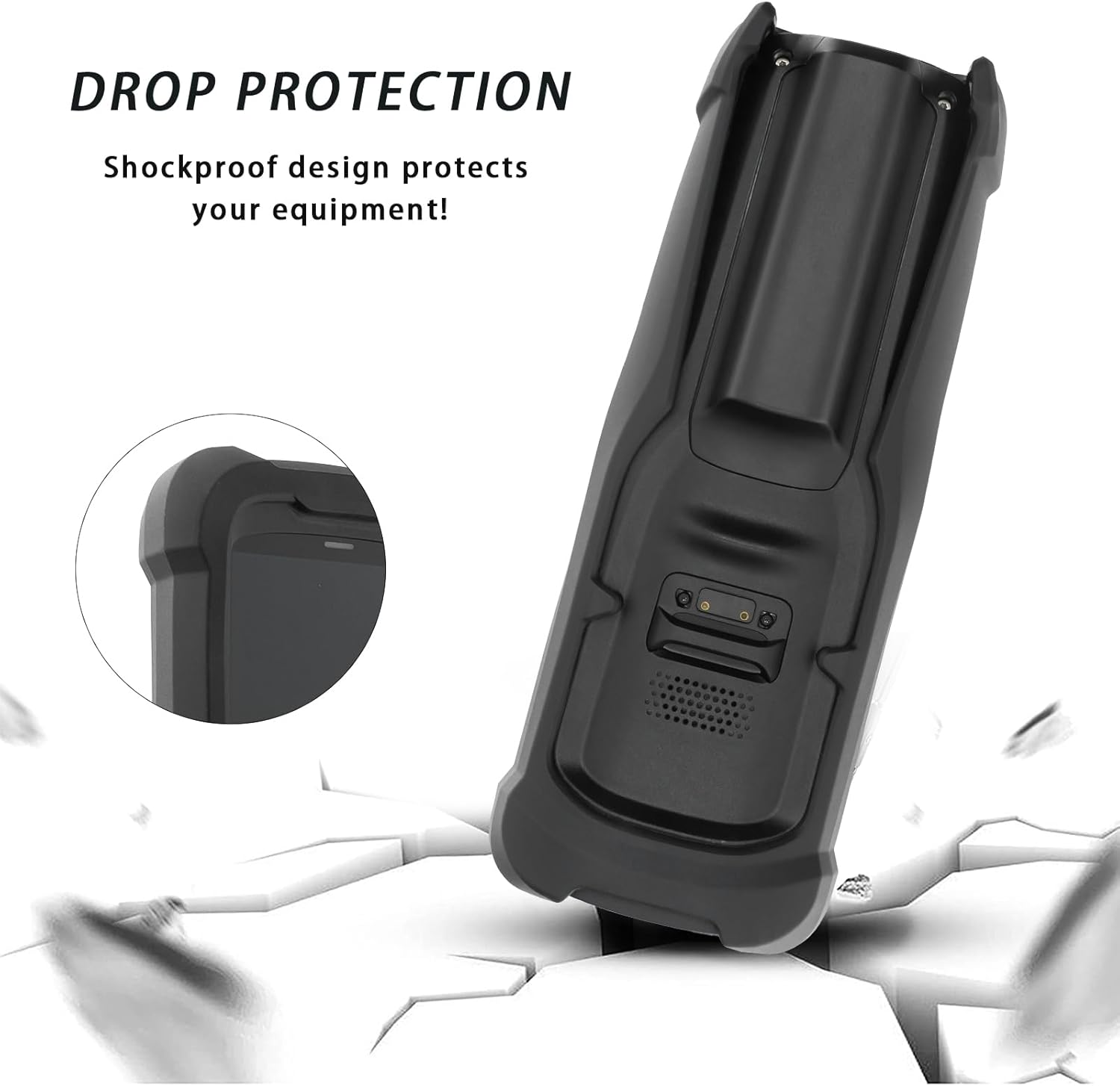
Figure 2.1: The two distinct halves of the IYOUBOL protective case, designed to encapsulate the Zebra MC2200/MC2700 scanner for complete protection.


Figure 2.2: Front (left) and back (right) views of the Zebra MC2200/MC2700 scanner after successful installation of the protective case, demonstrating the precise fit and coverage.
3. Provoz
3.1 Obecné použití
The IYOUBOL protective case is designed to be an integral part of your Zebra MC2200/MC2700 scanner, providing continuous protection during daily operations. Once installed, the case does not interfere with the scanner's normal functions, including barcode scanning, data entry via the keypad, and display visibility.
3.2 Přístupnost
The case features precision cutouts to ensure full accessibility to all critical components and functions of your scanner:
- Displej a klávesnice: The front of the case is designed to leave the display screen and physical keypad fully exposed and usable.
- Okno skenování: A dedicated opening ensures the barcode scanning window is unobstructed for accurate and efficient data capture.
- Charging Ports and Contacts: Cutouts provide direct access to the USB-C port (if applicable) and the pogo pin charging contacts on the back for seamless charging without removing the case.
- tlačítka: All side buttons (e.g., power, scan triggers) are accessible through precisely molded areas or dedicated cutouts.
- Reproduktor a mikrofon: Openings are provided for audio components to ensure clear sound transmission and reception.
The robust design of the case allows for confident handling of the scanner, reducing the risk of damage from accidental drops or impacts during use.

Figure 3.1: Various angles of the Zebra MC2200/MC2700 scanner within its protective case, highlighting the precise cutouts for the display, keypad, scanning window, and charging ports, ensuring full operational accessibility.
4. Péče a údržba
4.1 Pokyny pro čištění
To maintain the appearance and protective qualities of your IYOUBOL case, follow these cleaning guidelines:
- Použijte měkký hadřík, který nepouští vlákna dampvodou nebo jemným, neabrazivním čisticím roztokem.
- Wipe the exterior of the case gently to remove dust, dirt, or smudges.
- Avoid using harsh chemicals, solvents, or abrasive cleaners, as these can damage the case material.
- Ensure the case is completely dry before re-installing the scanner or placing it in a charging cradle.
4.2 Skladování
When not in use, store the protective case (with or without the scanner) in a cool, dry place away from direct sunlight and extreme temperatures. This will help preserve the material integrity and extend the lifespan of the case.
5. Řešení problémů
5.1 Běžné problémy
| Problém | Možná příčina | Řešení |
|---|---|---|
| Pouzdro nesedí správně. | Nesprávný model nebo nesprávné zarovnání během instalace. | Ensure you have the correct case for Zebra MC2200/MC2700. Remove the case and re-install, carefully aligning all edges and cutouts. |
| Difficulty accessing buttons/ports. | Case not fully snapped into place or debris obstructing access. | Press firmly around the edges of the case to ensure it is fully closed. Check for any foreign objects in the cutouts. |
| Case appears loose after installation. | Not fully snapped together or minor manufacturing variation. | Apply gentle pressure around the perimeter of the case to ensure all clips are engaged. If the issue persists, contact customer support. |
6. Specifikace produktu
| Atribut | Detail |
|---|---|
| Značka | IYOUBOL |
| Kompatibilní zařízení | Zebra MC2200, Zebra MC2700 Barcode Scanners |
| Materiál | High-grade, shock-absorbing, scratch-resistant material (specific composition not provided) |
| Barva | Černá (jak je znázorněno na obrázcích produktu) |
| Rozměry balení | 8.35 x 3.07 x 1.46 palce |
| Hmotnost položky | 2.08 unce |
| ASIN | B0CS3478W4 |
| Datum první dostupnosti | 11. ledna 2024 |

Obrázek 6.1: Rozměry nadview of the IYOUBOL protective case, indicating approximate length and width measurements.
7. Záruka a podpora
7.1 Informace o záruce
IYOUBOL products are manufactured to high-quality standards. For specific warranty terms and conditions applicable to this protective case, please refer to the warranty card included with your purchase or visit the official IYOUBOL website. Typically, manufacturing defects are covered for a specified period from the date of purchase.
7.2 Zákaznická podpora
If you encounter any issues with your IYOUBOL protective case, or have questions regarding its use, maintenance, or warranty, please contact our customer support team. You can usually find contact details (email, phone, or support portal) on the product packaging or the manufacturer's official webmísto.
When contacting support, please be prepared to provide your product model (Zebra MC2200/MC2700 Protective Case), ASIN (B0CS3478W4), and a detailed description of the issue.
Ask a question about this manual
Ask about setup, troubleshooting, compatibility, parts, safety, or missing instructions. Manuals+ will review the question and use this page’s manual context to help answer it.