
Zavedení
Thank you for choosing the Verilux Wireless Mouse M103. This manual provides detailed instructions for setting up, operating, and maintaining your new mouse. Please read this manual carefully before use to ensure optimal performance and longevity of your device.
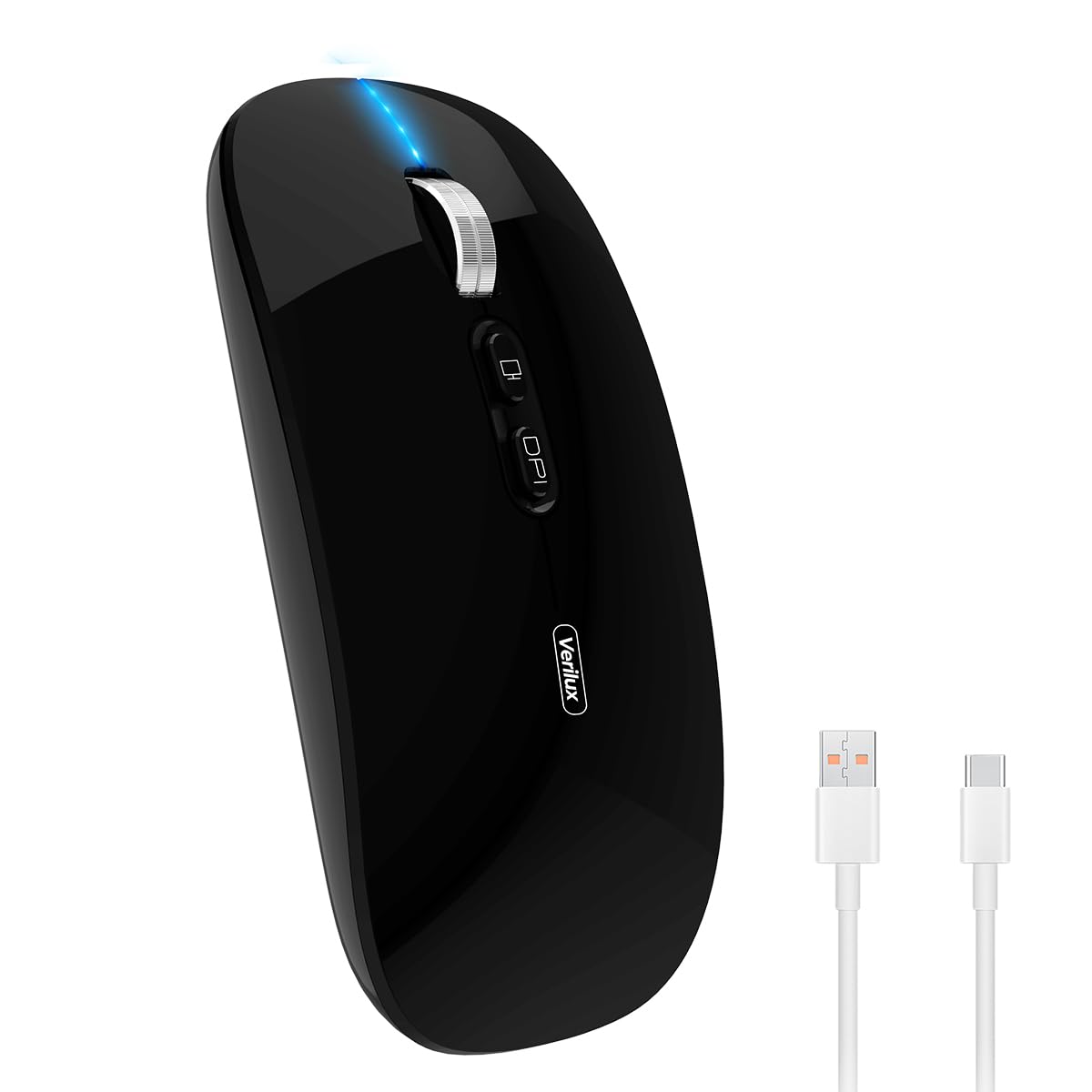
Image: Verilux Wireless Mouse M103 in black.
Konec produktuview
The Verilux M103 is a versatile wireless mouse offering dual-mode connectivity (2.4G USB and Bluetooth 5.1), a rechargeable battery, and an ergonomic, silent design. It is compatible with a wide range of devices and operating systems.

Image: The Verilux M103 mouse demonstrating its dual Bluetooth connectivity with a laptop and tablet.
Klíčové vlastnosti:
- Duální připojení: Seamlessly switch between 2.4G USB and Bluetooth 5.1.
- Dobíjecí baterie: Built-in 500mAh battery with 4-level power indicator.
- Ergonomic & Silent Design: Comfortable grip with silent clicks for a quiet working environment.
- Univerzální kompatibilita: Supports Android, Windows, MacOS, iOS 12 and above, PC, laptops, and tablets.
- Nastavitelné DPI: Customize mouse sensitivity for precise control.
Nastavení
1. 2.4G Mode Setup:
- Locate the USB receiver stored in the mouse's bottom compartment.
- Plug the USB receiver into an available USB port on your device (laptop, PC).
- Zapněte myš pomocí vypínače, který se nachází na spodní straně.
- Myš by se měla automaticky připojit k vašemu zařízení.
Video: Demonstrates unboxing, identifying the USB receiver, and connecting the mouse via 2.4G USB to a laptop.
2. Bluetooth Mode Setup:
The mouse supports two Bluetooth channels: Bluetooth 3.0 and Bluetooth 5.1.
- Zapněte myš pomocí vypínače na spodní straně.
- Switch the mode selector on the bottom of the mouse to either BT3.0 (center blue light) or BT5.1 (right blue light).
- Activate Bluetooth on your device (laptop, PC, iPad, phone).
- Hledat available Bluetooth devices and select 'BT5.1 Mouse' to connect.
- If the indicator light blinks and the connection is unsuccessful, restart both your device and the mouse, then try again.
Návod k obsluze
Tlačítka myši:
- Levé kliknutí: Standard selection.
- Klikněte pravým tlačítkem myši: Kontextová nabídka.
- Scroll Wheel (Middle Button/Roller): Scroll up/down, click for middle-click functions.
- Tlačítko DPI: Upravuje citlivost myši (DPI).
- One-Click Desktop Button: Rychle minimalizuje všechna otevřená okna a zobrazí plochu.

Image: Close-up of the Verilux M103 mouse, highlighting the scroll wheel, DPI button, and one-click desktop button.
Nastavení DPI:
Press the DPI button (located behind the scroll wheel) to cycle through different sensitivity levels (e.g., 800, 1200, 1600 DPI). Choose the setting that best suits your preference and task.
Nabíjení a baterie
The Verilux M103 mouse features a built-in 500mAh rechargeable battery. It is equipped with 4-level power indicator lights to show the remaining battery life.
Pokyny pro nabíjení:
- Connect the mouse to a power source using the provided USB-C charging cable. The charging port is located at the front of the mouse.
- A flashing light on the mouse indicates normal charging.
- Charge the mouse using a 5V 1A, 5V 2A, or an adapter with no more than 10W of power. It can also be charged by connecting it to a computer's USB port.
- The mouse can be used while charging.
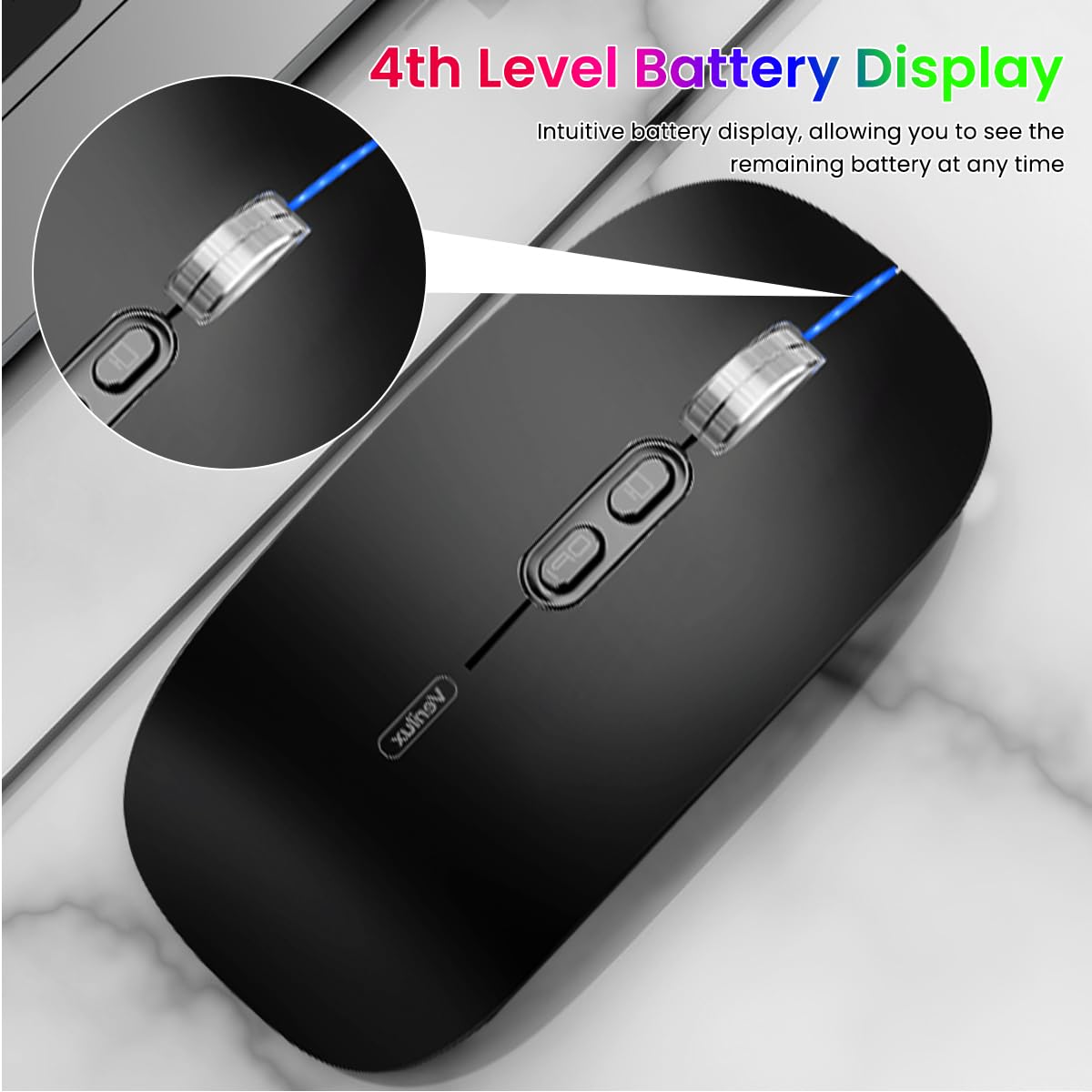
Image: The Verilux M103 mouse displaying its 4-level battery indicator lights.

Image: The Verilux M103 mouse connected to a laptop for charging via its USB-C port.
Kompatibilita
The Verilux M103 Wireless Mouse offers broad compatibility with various devices and operating systems:
- Operační systémy: Android, Windows (7, XP, 8, 10), MacOS, iOS 12 and above, Linux.
- Zařízení: Laptops, Personal Computers, Tablets, iPads, MacBooks.

Image: The Verilux M103 mouse shown with a laptop, desktop monitor, iPad, and smartphone, illustrating its wide compatibility.
Údržba
To ensure the longevity and optimal performance of your Verilux Wireless Mouse M103, follow these maintenance guidelines:
- Čištění: K čištění myši použijte měkký, suchý hadřík. V případě odolných nečistot lehceampOtřete hadřík vodou nebo jemným čisticím roztokem. Vyhněte se agresivním chemikáliím nebo abrazivním materiálům.
- Skladování: When not in use, especially during travel, store the USB receiver in its designated compartment at the bottom of the mouse to prevent loss.
- Péče o baterie: Avoid fully discharging the battery frequently. Charge the mouse when the power indicator shows low battery. Do not expose the mouse to extreme temperatures.
- Podmínky prostředí: Keep the mouse away from excessive dust, moisture, and direct sunlight.
Odstraňování problémů
If you encounter issues with your Verilux Wireless Mouse M103, please refer to the following common solutions:
| Problém | Řešení |
|---|---|
| Mouse not connecting (2.4G Mode) |
|
| Mouse not connecting (Bluetooth Mode) |
|
| Mouse cursor lagging or erratic movement |
|
| Myš se nenabíjí |
|
Specifikace
| Funkce | Detail |
|---|---|
| Značka | Verilux |
| Číslo modelu | M103 (AZEM4-0K5FZ5C) |
| Technologie připojení | Bluetooth (3.0 & 5.1), 2.4G Wireless |
| Technologie detekce pohybu | Optický |
| Nastavení DPI | Až 12 000 DPI (nastavitelné) |
| Baterie | Dobíjecí 500mAh |
| Zdroj napájení | Napájení z baterie (nabíjení přes USB-C) |
| Tlačítka | 4 (Left, Right, Scroll Wheel/Middle, DPI, One-Click Desktop) |
| Orientace rukou | Obouruký |
| Hmotnost položky | 119 gramů |
| Rozměry položky (D x Š) | 12D x 7Š centimetrů |
| Barva | Black (Standard Black variant) |
Záruka a podpora
For warranty information and customer support, please refer to the documentation included with your product packaging or visit the official Verilux webwebu. Můžete také kontaktovat přímo prodejce a požádat o pomoc.
Výrobce: Verilux, Yiwu Kaiming Industrial Co., Ltd.
Dovozce/Balicí firma: Verilux
Pro další informace můžete navštívit Verilux Store on Amazon.