
Zavedení
This manual provides essential information for the setup, operation, maintenance, and troubleshooting of your Blaupunkt CyberSound G2 Series 43-inch Full HD LED Smart Android TV. Please read this manual thoroughly before using your television to ensure proper and safe operation.
Co je v krabici
Opatrně vybalte krabici a ujistěte se, že jsou v ní přítomny všechny následující položky:
- 1N LED televizor
- Dálkové ovládání 1N
- Uživatelská příručka 1N (tento dokument)
- 2N AAA baterie (do dálkového ovladače)
- 1N Wall Mounting Bracket (Fixed)
- Base Stands (2 units)
- Stand Screws (4 units)
- Napájecí kabel
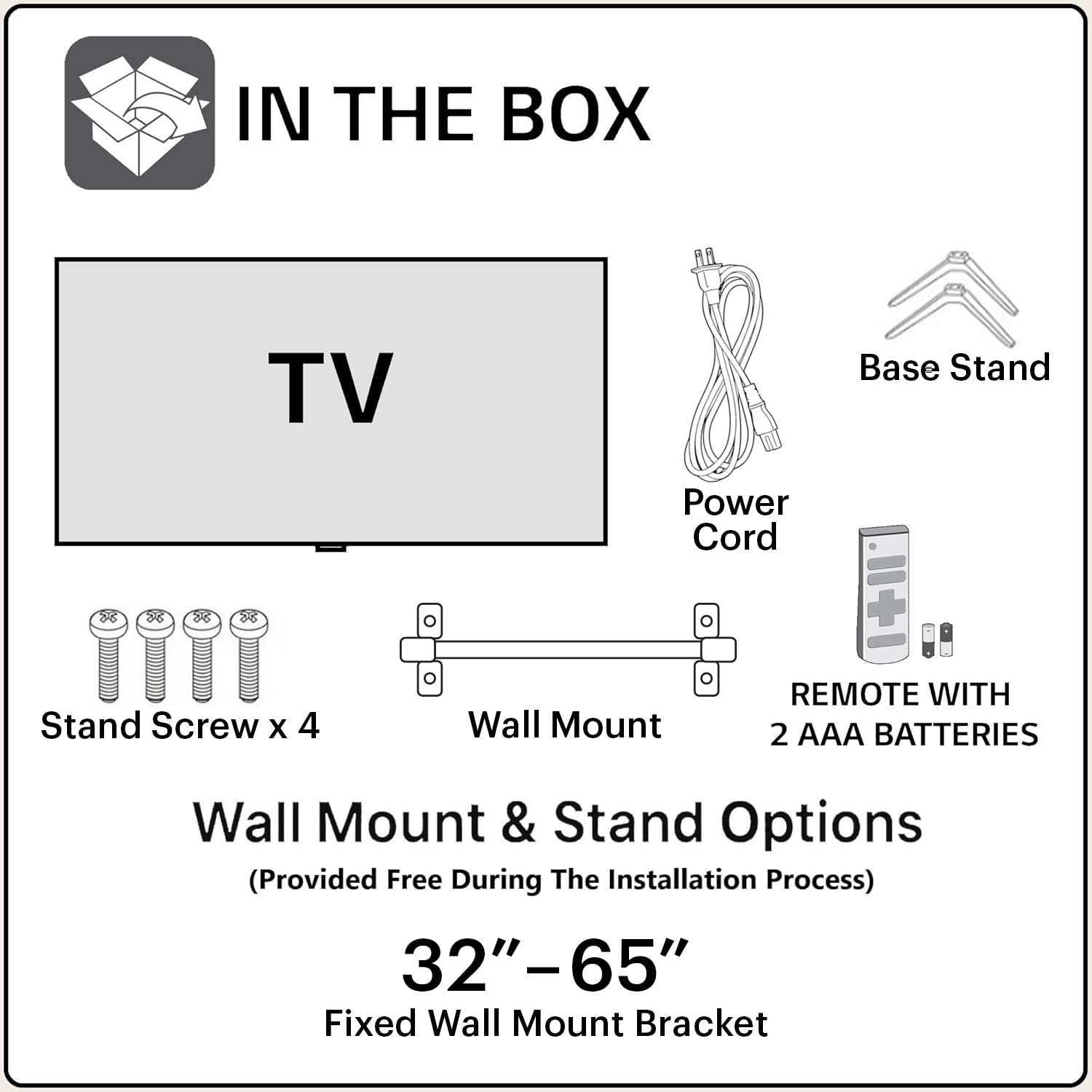
Image: Contents of the TV packaging, showing the television, remote control, power cord, base stands, stand screws, and wall mount bracket.
Nastavení
1. Připevnění stojanu nebo nástěnného držáku
You can either place the TV on a flat surface using the provided base stands or mount it on a wall. Ensure the TV is placed on a stable surface or securely mounted to prevent accidental falls.
- Pro instalaci stojanu:
- Televizor opatrně položte displejem dolů na měkký, čistý povrch, abyste zabránili poškození obrazovky.
- Align the base stands with the corresponding screw holes on the bottom of the TV.
- Každý stojan zajistěte dodanými šrouby.

Obrázek: Přední strana view of the Blaupunkt TV with its base stands installed.
- Pro montáž na stěnu:
- Refer to the instructions provided with the wall mounting bracket.
- Ujistěte se, že zeď unese hmotnost televizoru a držáku.
- The VESA mount standard for this TV is 200 x 200 mm.
2. Připojení periferií
Connect your external devices to the TV using the available ports.

Image: Back panel of the TV displaying HDMI, USB, and other connectivity ports.
- HDMI: Connect gaming consoles, set-top boxes, or Blu-ray players to the 3 HDMI ports.
- USB: Connect hard drives or other USB devices to the 2 USB ports.
- Ethernet: Pro kabelové připojení k internetu.
- Moc: Připojte napájecí kabel k televizoru a poté do elektrické zásuvky.
3. Počáteční zapnutí a nastavení
After connecting all necessary cables, plug the TV into a power source and press the power button on the remote control or TV. Follow the on-screen instructions for initial setup, including language selection, network connection, and Google account login.
Obsluha TV
Funkce dálkového ovládání
The provided remote control allows you to navigate the TV's features. Insert the two AAA batteries into the remote, ensuring correct polarity.

Image: The TV remote control, highlighting buttons for power, home, back, navigation, volume, Google Assistant, Netflix, Prime Video, YouTube, and Google Play.
- Vypínač: Zapíná nebo vypíná televizor.
- Navigační blok (tlačítko OK): Používá se k navigaci v nabídkách a potvrzování výběrů.
- Tlačítka hlasitosti (+/-): Nastavuje úroveň hlasitosti.
- Tlačítko Google Assistant: Aktivuje hlasové ovládání pro příkazy a vyhledávání.
- Vyhrazená tlačítka aplikací: Quick access to Netflix, Prime Video, YouTube, and Google Play.
- Tlačítko Domů: Návrat na hlavní domovskou obrazovku Android TV.
- Tlačítko Zpět: Vrátí se na předchozí obrazovku nebo nabídku.
Smart TV Features (Android 11 OS)
Your TV runs on Android 11 OS, providing access to a wide range of smart features:
- Vestavěná Wi-Fi: Připojte se k domácí bezdrátové síti pro přístup k internetu.
- Zrcadlení obrazovky: Přenášejte obsah z mobilních zařízení do televizoru.
- Podporované aplikace: Access popular streaming services like Netflix, Prime Video, YouTube, Disney+Hotstar, Apple TV, and more.
- Asistent Google: Use voice commands for hands-free control, search, and information.
- Vestavěný Chromecast: Stream content directly from compatible apps on your phone or tablet.

Image: An astronaut holding the TV remote, demonstrating voice command functionality with Google Assistant.

Image: A visual representation of the TV's seamless connectivity, showing content mirrored from a laptop and a smartphone to the television screen.
Nastavení displeje a zvuku
Vstupte do nabídky nastavení televizoru a upravte si viewzážitek z poslechu a poslechu.
- Obrazové režimy: Upravte jas, kontrast, barvy a ostrost.
- Zvukové režimy: Select from various audio presets or customize equalizer settings. The TV features 48 Watts output with Dolby Digital Plus and DTS TruSurround for enhanced audio.
Údržba
Čištění televizoru
- Před čištěním vždy odpojte televizor ze zásuvky.
- K jemnému otření obrazovky a skříně použijte měkký, suchý hadřík, který nepouští vlákna.
- Na odolné skvrny lehceampOmyjte hadřík vodou nebo jemným, neabrazivním čističem obrazovek. Nestříkejte čistič přímo na obrazovku.
- Avoid using harsh chemicals, abrasive pads, or solvents as they can damage the TV's surface.
Aktualizace softwaru
Your Android TV may receive software updates periodically. It is recommended to keep your TV connected to the internet to receive these updates, which can improve performance and add new features. You can usually check for updates in the TV's settings menu.
Odstraňování problémů
Pokud narazíte na problémy s televizorem, před kontaktováním podpory se podívejte na následující běžná řešení.
| Problém | Možné řešení |
|---|---|
| Žádná síla | Ujistěte se, že je napájecí kabel bezpečně zapojený do televizoru i do funkční elektrické zásuvky. Zkontrolujte, zda je elektrická zásuvka aktivní. |
| Žádný obraz, ale zvuk je přítomen | Check the input source. Ensure the connected device (e.g., set-top box) is powered on and functioning correctly. Try a different HDMI cable. |
| Žádný zvuk, ale obraz je přítomen | Check the volume level and ensure the TV is not muted. Verify audio settings and external audio device connections if applicable. |
| Dálkové ovládání nereaguje | Vyměňte baterie v dálkovém ovladači. Ujistěte se, že mezi dálkovým ovladačem a infračerveným senzorem televizoru nejsou žádné překážky. |
| Nelze se připojit k Wi-Fi | Ujistěte se, že je váš Wi-Fi router zapnutý a funkční. Znovu zadejte heslo k Wi-Fi. Zkuste restartovat televizor i router. |
| Picture Quality Issues (e.g., Mura, light bleeding) | Minor light bleeding and Mura issues on certain grey scales are considered acceptable as per industry standards and are not covered under warranty as panel defects. |
Specifikace
| Funkce | Detail |
|---|---|
| Název modelu | CyberSound G2 |
| Číslo modelu | 43CSG7105 |
| Velikost obrazovky | 43 palce (108 cm) |
| Technologie displeje | LED |
| Rezoluce | Full HD (1920 x 1080) |
| Obnovovací frekvence | 60 Hz |
| Zvukový výstup | 48 wattů |
| Audio technologie | Dolby Digital Plus, DTS TruSurround |
| Operační systém | OS Android 11 |
| Konektivita | Dual Band Wi-Fi, 3 HDMI ports, 2 USB ports, Ethernet, Bluetooth |
| Speciální funkce | Google Assistant, Chromecast built-in, Screen Mirroring, 10000+ Apps & Games |
| Kapacita paměti | 8 GB |
| Spotřeba energie | 150 wattů |
| Roční spotřeba energie | 65 kWh |
| Rozměry produktu (D x Š x V) | 12H x 97Š x 57V centimetrů |
| Standardní držák VESA | 200 x 200 mm |

Image: Dimensional drawing of the 43-inch TV, indicating width, height, and depth measurements.
Záruka a podpora
Informace o záruce
Tento produkt je dodáván s a 1-letá záruka na produktu a 6 months on remote accessories, provided by the manufacturer from the date of purchase. To avail warranty service, please retain your purchase invoice.
Výjimky ze záruky: Light bleeding and dot issues (Mura issues) occurring on a certain Grey scale are considered acceptable as per the Mura Inspection standard and are not considered a panel defect. As per ND (Neutral Density) Filter 2% guideline, these are not covered.
Zákaznická podpora
For assistance, technical support, or warranty claims, please contact Blaupunkt customer care:
- Bezplatné číslo: 1800-274-4342
- ID e-mailu: consumercare@blaupunkttv.in
- When contacting support, please provide the product's model name (43CSG7105) and seller's details mentioned on your invoice.
Manufacturer/Packer/Importer Address: B-29,30,31, Phase-II, Noida, Gautam Buddha Nagar, Uttar Pradesh, 201301, Indie.