
1. Úvod
Thank you for choosing the ieGeek 5MP Outdoor Wi-Fi Security Camera. This manual provides essential information for the proper installation, operation, and maintenance of your camera. Please read these instructions carefully before use and retain them for future reference. This camera is designed to provide reliable outdoor surveillance with advanced features for enhanced security.
2. Konec produktuview
The ieGeek 5MP Outdoor Wi-Fi Security Camera offers high-definition monitoring with flexible connectivity and smart detection capabilities.
Klíčové vlastnosti:
- Rozlišení 5 MP HD: Provides clear and vivid images and videos with 2880x1600 resolution and 4x digital zoom.
- Dual-Band Wi-Fi (2.4/5 GHz): Supports both 2.4 GHz and 5 GHz Wi-Fi for stable and faster network connection.
- 360° PTZ Monitoring: Pan (355° horizontal) and Tilt (120° vertical) functionality allows for comprehensive area coverage.
- Barevné noční vidění: Three night vision modes (color, infrared, smart) with a range of up to 15 meters (50 feet).
- Detekce humanoidů v PIR: Advanced human detection reduces false alarms caused by non-human movements.
- Zvukový a světelný alarm: Deters intruders with customizable sound and light alerts.
- Nepřetržité nahrávání 24/7: Supports continuous recording and event-based recording.
- Lokální a cloudové úložiště: Compatible with Micro SD cards (up to 128GB, not included) and cloud storage options.
- Sdílení s více uživateli: Share camera access with family members via the dedicated app.
- Odolnost proti povětrnostním vlivům IP65: Určeno pro venkovní použití, odolné vůči prachu a vodě.
Komponenty fotoaparátu:
The camera unit typically includes the main camera body, dual Wi-Fi antennas, a power input port, and a Micro SD card slot.
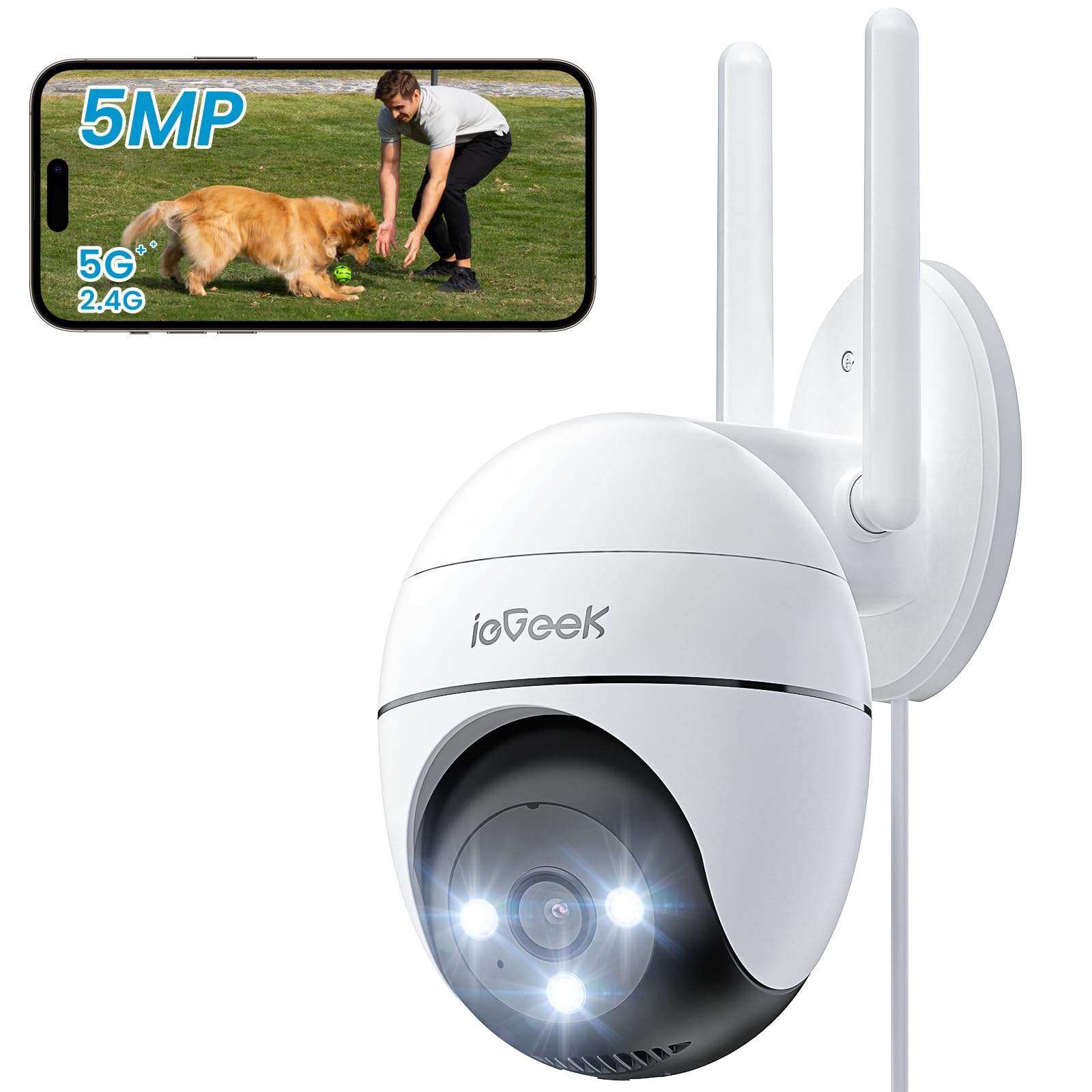
Figure 2.1: ieGeek 5MP Outdoor Wi-Fi Security Camera (Model ZS-GQ4)

Obrázek 2.2: Přesview of ieGeek 5MP Camera Features including PTZ, 24/7 recording, 2-way audio, humanoid tracking, Alexa compatibility, local and cloud storage, multi-user sharing, customizable alert areas, AI detection, and acoustic/light alarms.

Figure 2.3: The camera features a 5dBi antenna for improved Wi-Fi signal strength and stability.
3. Pokyny k nastavení
3.1 Obsah balení
- ieGeek 5MP Outdoor Wi-Fi Security Camera
- Napájecí adaptér
- Montážní šrouby a kotvy
- Uživatelská příručka
3.2 Stažení aplikace a registrace účtu
- Stáhněte si ieGeek kamera or CloudEdge app from your smartphone's app store (iOS/Android).
- Register for an account using your email address and create a secure password.
3.3 Připojení kamery
- Power on the camera by connecting it to a power outlet using the provided adapter.
- Open the ieGeek Cam/CloudEdge app and tap the "+" icon to add a new device.
- Follow the on-screen instructions to connect the camera to your 2.4 GHz or 5 GHz Wi-Fi network. Ensure your phone is connected to the same Wi-Fi network during setup.
- Po zobrazení výzvy naskenujte QR kód zobrazený na telefonu objektivem fotoaparátu.
- Po připojení můžete kameru pojmenovat a spustit živý přenos viewIng.

Figure 3.1: Connecting the power adapter to the camera.
3.4 Fyzická instalace
- Vyberte vhodné venkovní místo s jasným view a silný signál Wi-Fi.
- K označení otvorů pro vrtání použijte dodanou montážní šablonu.
- Drill holes, insert anchors, and secure the camera base with screws.
- Podle potřeby upravte úhel kamery.

Figure 3.2: Ensure optimal Wi-Fi signal strength at the chosen installation location for stable performance.
4. Návod k obsluze
4.1 Živě View a ovládání PTZ
- Open the ieGeek Cam/CloudEdge app and select your camera to view živé vysílání.
- Use the on-screen joystick or swipe gestures to control the camera's pan (horizontal 355°) and tilt (vertical 120°) movements.

Figure 4.1: Control the camera's 355° horizontal and 120° vertical rotation directly from your smartphone app.
4.2 Režimy nočního vidění
Kamera nabízí tři režimy nočního vidění:
- Barevné noční vidění: Utilizes built-in spotlights to provide full-color images in low-light conditions.
- Infračervené noční vidění: Používá infračervené LED diody pro černobílý obraz v naprosté tmě.
- Chytré noční vidění: Automatically switches between infrared and color night vision upon detection of motion.
4.3 Detekce pohybu a alarmy
- Detekce humanoidů v PIR: Configure sensitivity levels in the app to minimize false alarms.
- Přizpůsobitelné detekční zóny: Set specific areas for motion detection to focus on critical zones.
- Zvukový a světelný alarm: When motion is detected, the camera can activate a siren and/or spotlights to deter intruders. You can choose between silent, spotlight only, siren only, or both siren and spotlight modes.

Figure 4.2: Select from silent, spotlight only, siren only, or both siren and spotlight alarm modes to suit your security needs.

Figure 4.3: The camera's humanoid motion tracking follows detected human figures, reducing false alarms from other movements.

Figure 4.4: AI smart monitoring can differentiate between various detection types such as people, animals, packages, and vehicles (some features may require a subscription).
4.4 Nahrávání a ukládání
- Nepřetržité nahrávání: The camera supports 24/7 continuous recording to a Micro SD card (not included).
- Záznam události: Nahrává videoklipy při detekci pohybu.
- Micro SD karta: Vložte kartu Micro SD (až 128 GB) do určeného slotu pro lokální ukládání.
- Cloudové úložiště: Optional cloud storage plans are available through the app for secure off-site backup.

Figure 4.5: The camera supports 24/7 continuous recording, ensuring constant surveillance.
5. Údržba
5.1 Čištění fotoaparátu
- Před čištěním se ujistěte, že je fotoaparát vypnutý.
- Použijte měkký, damp hadřík k otření těla fotoaparátu.
- Na čočku používejte speciální hadřík na čištění čoček, abyste zabránili poškrábání. Nepoužívejte agresivní chemikálie ani abrazivní čisticí prostředky.
5.2 Environmentální hlediska
- The camera has an IP65 weather resistance rating, making it suitable for outdoor use in various weather conditions.
- Provozní teplotní rozsah: -20 °C až 50 °C (-4 °F až 122 °F).

Figure 5.1: The camera is designed with IP65 weather resistance to withstand outdoor elements like rain.

Figure 5.2: The camera operates effectively within a wide temperature range of -20°C to 50°C.
6. Řešení problémů
If you encounter issues with your ieGeek camera, please refer to the following common troubleshooting steps:
6.1 Problémy s připojením
- Fotoaparát offline: Ensure the camera is powered on and within range of your Wi-Fi router. Check your Wi-Fi signal strength in the app. Try restarting the camera and your router.
- Failed to Connect to Wi-Fi: Verify your Wi-Fi password is correct. Ensure you are connecting to a 2.4 GHz or 5 GHz network as supported. If using a dual-band router, ensure the camera is connecting to the correct band.
6.2 Problémy s detekcí pohybu
- Příliš mnoho falešných poplachů: Adjust the PIR detection sensitivity in the app. Define specific detection zones to exclude areas with frequent irrelevant movements (e.g., trees swaying).
- Bez detekce pohybu: Ensure motion detection is enabled in the app settings. Check the camera's field of view for obstructions. Increase detection sensitivity if necessary.
6.3 Problémy s kvalitou obrazu
- Rozmazaný obrázek: Clean the camera lens carefully. Ensure there is no condensation on the lens.
- Špatné noční vidění: Ensure the night vision mode is set correctly (color, infrared, or smart). Check for any obstructions blocking the infrared LEDs or spotlights.
6.4 Jiné záležitosti
- SD karta nenahrává: Ensure the Micro SD card is inserted correctly and is not full. Format the SD card via the app if it's a new card or if issues persist.
- Aplikace nereaguje: Close and restart the app. Ensure your smartphone's operating system is up to date.
If these steps do not resolve your issue, please contact ieGeek customer support for further assistance.
7. Specifikace
| Model | ZS-GQ4 |
| Rezoluce | 5MP (2880 x 1600) |
| Čočka | 3.6 mm |
| Digitální zoom | 4x |
| Vzdálenost nočního vidění | Až 15 metrů (50 stop) |
| Wi-Fi připojení | Dvoupásmové 2.4 GHz / 5 GHz |
| Rozsah otáčení/naklánění | Pan 355°, náklon 120° |
| Možnosti úložiště | Micro SD karta (až 128 GB, není součástí balení), cloudové úložiště |
| Odolnost vůči povětrnostním vlivům | IP65 |
| Provozní teplota | -20 °C až 50 °C (-4 °F až 122 °F) |
| Rozměry | 17 x 9 x 10 cm |
| Kontrolní metoda | Mobile App (ieGeek Cam / CloudEdge) |
| Typ alarmu | PIR Humanoid Motion Detection, Sound & Light Alarm |
8. Záruka a podpora
ieGeek se zavazuje poskytovat vysoce kvalitní produkty a vynikající zákaznický servis.
8.1 Informace o záruce
- 2-letá záruka: Your ieGeek camera is covered by a 2-year warranty from the date of purchase, protecting against manufacturing defects.
- 30denní záruka vrácení peněz: If you are not satisfied with your purchase, you may return the product for a full refund within 30 days.

Figure 8.1: ieGeek offers a 2-year warranty and a 30-day money-back guarantee, along with lifetime support.
8.2 Zákaznická podpora
For any questions, technical assistance, or warranty claims, please contact ieGeek customer support. Refer to the contact information provided with your product packaging or visit the official ieGeek webstránky pro podrobnosti o podpoře.
- Online podpora: Návštěva www.iegeek.com/support (napřample link, please refer to actual webweb)
- E-mailová podpora: support@iegeek.com (napřample email, please refer to actual contact)
- Doživotní technická podpora: ieGeek provides lifetime technical support for its products.