
SABLUTE KL3 PRO
SABLUTE Wireless Keyboard and Mouse Combo User Manual
Model: KL3 PRO
Zavedení
This manual provides comprehensive instructions for the setup, operation, maintenance, and troubleshooting of your SABLUTE Wireless Keyboard and Mouse Combo. Please read this manual carefully before using the product to ensure optimal performance and longevity.
The SABLUTE KL3 PRO Wireless Keyboard and 6-Button Mouse Combo is designed to enhance your computing experience with its ergonomic features, customizable backlighting, and efficient wireless connectivity.
Obsah balení
- Bezdrátová klávesnice SABLUTE
- SABLUTE Wireless Mouse
- USB přijímač (umístěný v přihrádce na baterie v klávesnici)
- Nabíjecí kabel
- Uživatelská příručka (tento dokument)
Nastavení
1. Locating the USB Receiver
The 2.4G USB wireless receiver for both the keyboard and mouse is conveniently stored in a dedicated slot on the underside of the keyboard. Gently remove it before initial use.
Video: Demonstrates how to locate and remove the USB receiver from the underside of the keyboard.
2. Připojení k vašemu zařízení
- Insert the USB receiver into an available USB-A port on your computer (Laptop, Personal Computer, Television).
- Ensure both the keyboard and mouse are powered on using their respective ON/OFF switches. The switches are typically located on the underside of each device.
- The devices should automatically connect to your computer. No additional drivers are usually required for Windows, Mac, or Linux systems.
Important Note: A USB-C dongle is not included. This keyboard and mouse combo cannot connect directly to tablets or phones without a compatible USB-A adapter (not supplied).

Image: The wireless keyboard and mouse in use, demonstrating the 2.4G wireless connection to a computer setup, highlighting the plug-and-play functionality and 33ft range.
Návod k obsluze
Funkce klávesnice
- Ergonomická opěrka zápěstí: The keyboard features an extra-large wrist rest (2.8'' widest edge) designed to provide ergonomic support and reduce wrist pain during prolonged use.
- Integrated Device Holder: A built-in holder accommodates phones and tablets under 11.9 inches, allowing for convenient multitasking.
- Ovládání podsvícení:
- Turn ON/OFF Backlight: Press Fn + PrtSc/SysRq.
- Switch Backlight Mode: Press Fn + Scroll Lock. The keyboard offers 3 backlight modes and 7+1 backlight colors.
- Adjust Light Brightness: Press Fn + šipka nahoru (zvýšení) nebo Fn + šipka dolů (decrease). There are 3 brightness levels.
- Klávesové zkratky: In addition to standard F1-F12 functions, the keyboard includes 6 one-touch hotkeys for improved efficiency.
- Tiché psaní: Soft membrane keys ensure consistent transmission force and significantly reduce typing noise by 95%.

Obrázek: Detail view of the keyboard's ergonomic palm rest, illustrating how it supports the user's wrists to reduce fatigue.
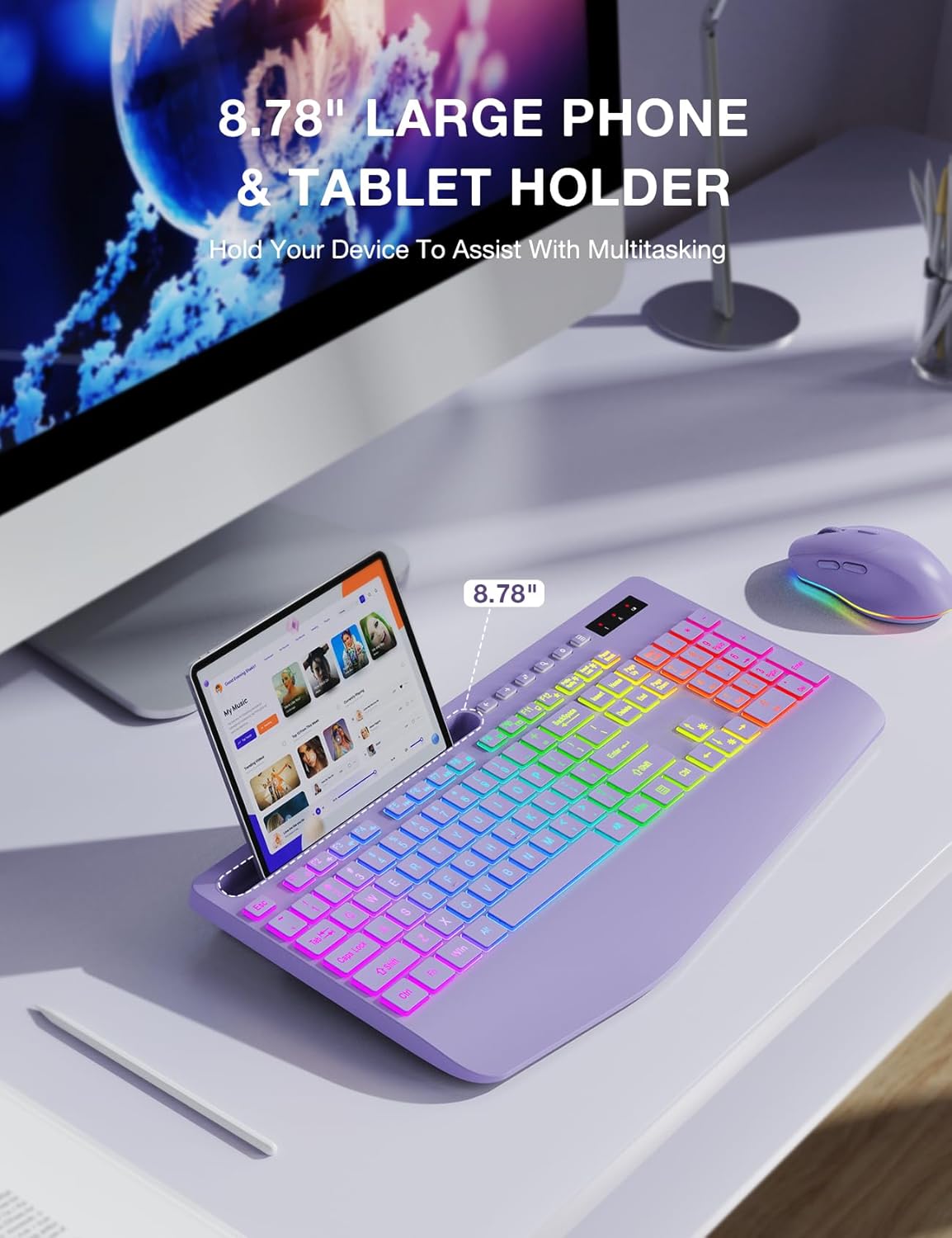
Image: The keyboard featuring its integrated phone and tablet holder, shown with a tablet in place, facilitating multitasking.

Image: Illustration of the keyboard's various colorful backlit modes, including rainbow wave, solid color, and ripple effects.
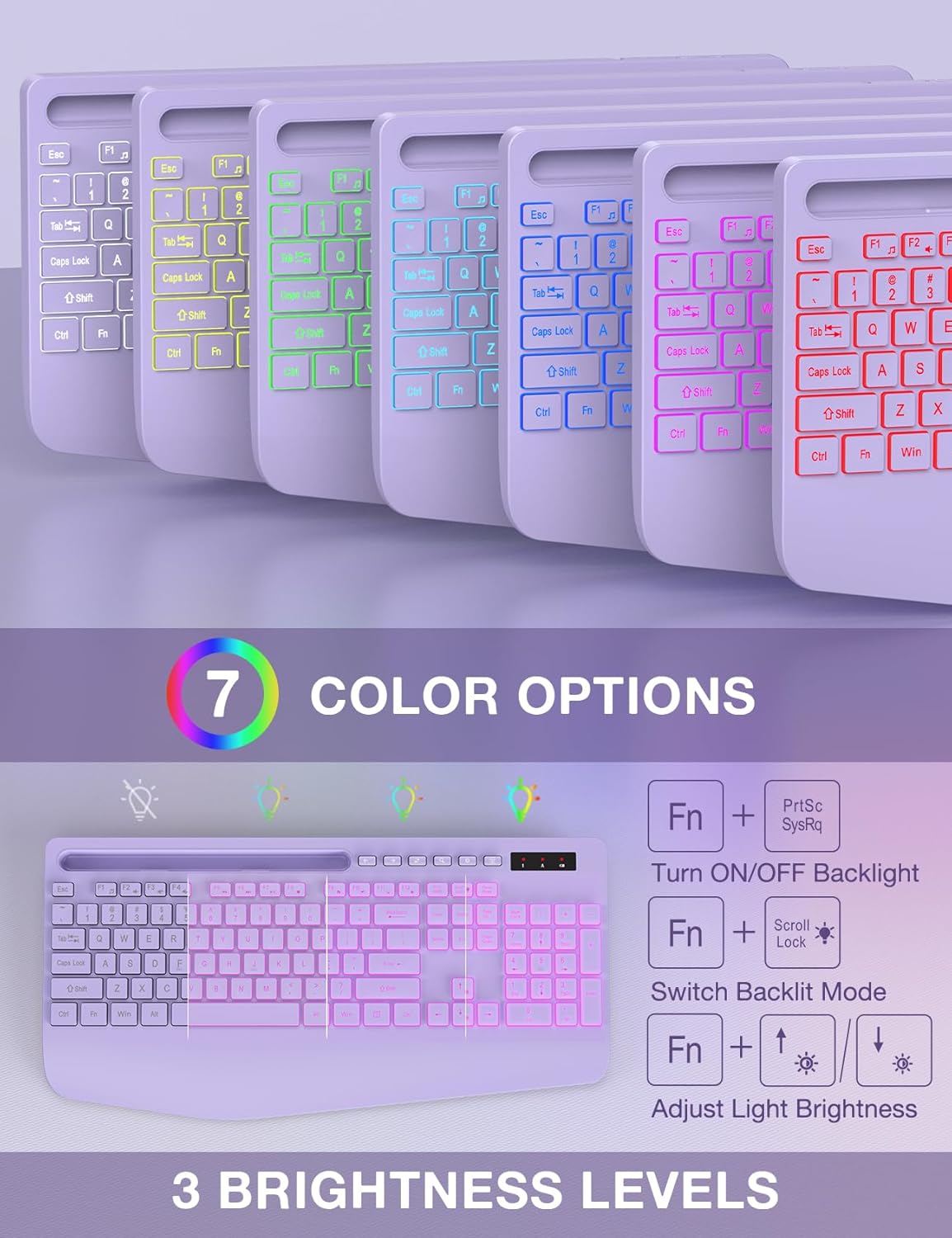
Image: Visual guide to the keyboard's 7 color options and the function key combinations used to control backlight on/off, mode switching, and brightness adjustment.
Funkce myši
- Design s 6 tlačítkem: Includes standard left/right click, scroll wheel, and dedicated forward/backward buttons for enhanced navigation.
- 3-Level Tracking Speed (DPI): Adjust the mouse sensitivity to your preference.
- Tiché kliknutí: Features silent micro motion technology for nearly silent operation.
- Podsvícení: The mouse also features color backlighting which can be quickly switched or turned off.

Obrázek: Podrobný view of the 6-button mouse, highlighting its ergonomic design, quiet click feature, and the location of its scroll wheel, left/right click, and forward/backward buttons. Also indicates 15 light effects.
Údržba
Nabíjení zařízení
Both the keyboard and mouse have built-in rechargeable batteries. Use the provided USB-C charging cable to recharge them when the battery is low.
- Connect the USB-C end of the charging cable to the charging port on the keyboard/mouse.
- Connect the USB-A end to a USB power source (e.g., computer USB port, USB wall adapter).
- An indicator light on the device will typically show charging status and turn off when fully charged.

Image: The keyboard and mouse illustrating their power-saving features, including Type-C charging, smart sleep mode, and long standby time. A charging cable is shown connected to the mouse.
Inteligentní režim spánku
To conserve energy, both the keyboard and mouse will enter a smart sleep mode after 90 seconds of inactivity. To wake them up, simply press any button or key.
Čištění
To clean your devices, gently wipe them with a soft, damp tkanina. Vyhněte se používání agresivních chemikálií nebo abrazivních materiálů, které by mohly poškodit povrch.
Odstraňování problémů
| Problém | Možná příčina | Řešení |
|---|---|---|
| Klávesnice/myš nereaguje |
|
|
| Backlight not working or turning off quickly |
|
|
| Zpožděná nebo zpožděná odezva |
|
|
| Cannot connect to tablet/phone |
|
|
Specifikace
| Funkce | Detail |
|---|---|
| Číslo modelu | KL3 PRO |
| Značka | SABLUTE |
| Technologie připojení | Bezdrátové 2.4G USB |
| Kompatibilní zařízení | Laptop, Personal Computer, Television |
| Rozměry klávesnice (D x Š x V) | 16.54 x 8.27 x 1.38 palce |
| Hmotnost položky | 2.27 liber (kombinované) |
| Typ baterie | 1 Lithium Metal battery (included, built-in rechargeable) |
| podsvícení klávesnice | 7+1 colors, 3 modes, 3 brightness levels |
| Tlačítka myši | 6 buttons (including forward/backward) |
| Mouse Tracking Speed | 3-level adjustable DPI |
| Speciální funkce | Backlit, Ergonomic Wrist Rest, Phone Holder, Shortcut Keys, Low-profile keycap, Silent Click Mouse, Smart Sleep Mode |

Image: Diagram illustrating the physical dimensions of the full-size keyboard and mouse, including length, width, and height measurements.
Záruka a podpora
For warranty information and technical support, please refer to the contact details provided by your retailer or visit the official SABLUTE webUschovejte si účtenku jako doklad o koupi pro případ reklamace.
If you have further questions or require assistance, please feel free to contact SABLUTE customer service.
Note: The provided product data does not include specific warranty terms or direct support contact information. Please consult the product packaging or manufacturer's website for the most up-to-date details.
Ask a question about this manual
Ask about setup, troubleshooting, compatibility, parts, safety, or missing instructions. Manuals+ will review the question and use this page’s manual context to help answer it.