
Zavedení
Thank you for choosing the MoKo Bluetooth AZERTY Keyboard. This manual provides detailed instructions to help you set up, operate, and maintain your keyboard, ensuring optimal performance with your Microsoft Surface Pro device. Please read this manual thoroughly before use.
Kompatibilita
Tato klávesnice je speciálně navržena pro následující modely Microsoft Surface Pro:
- Surface Pro 7 Plus (2021)
- Surface Pro 7 (2019)
- Surface Pro 6
- Surface Pro 5 (Pro 2017)
- Surface Pro 4
- Surface Pro 3
The keyboard dimensions are approximately 29.5 cm (11.6 inches) in length, 21.7 cm (8.54 inches) in width, and 0.6 cm (0.23 inches) in height, providing a similar typing experience to official Surface Pro keyboards.
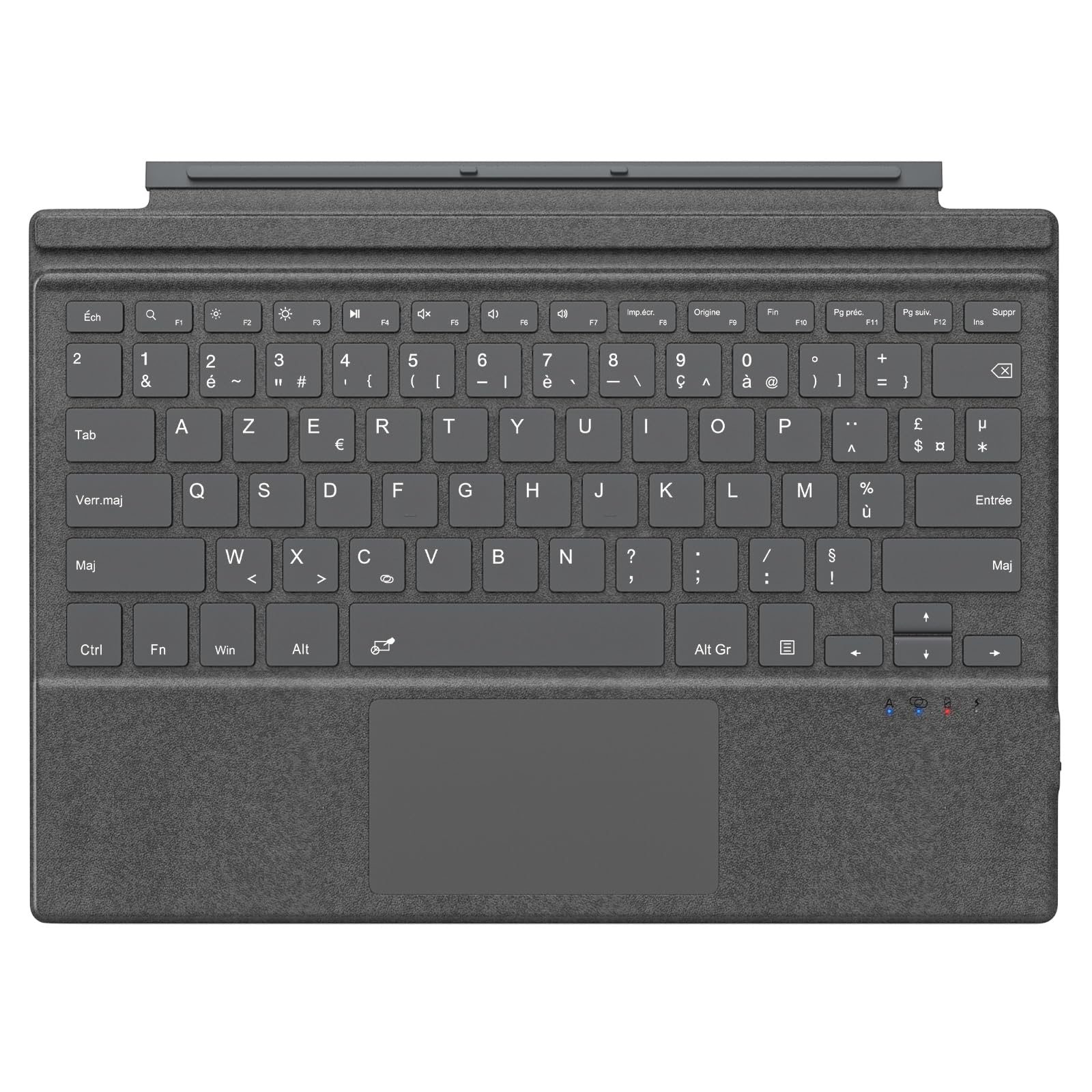
Image: The MoKo Bluetooth AZERTY Keyboard shown with several Microsoft Surface Pro models, illustrating compatibility.
Co je v krabici
Po vybalení se prosím ujistěte, že jsou přítomny všechny položky:
- MoKo Bluetooth AZERTY Keyboard
- USB nabíjecí kabel
Nastavení
1. Nabíjení klávesnice
The keyboard is equipped with a built-in 520mAh lithium battery. Before initial use, or when the battery is low, charge the keyboard using the provided USB cable.
- Connect the small end of the USB charging cable to the charging port on the keyboard.
- Připojte větší konec kabelu USB ke zdroji napájení USB (např. k počítači, síťovému adaptéru).
- Rozsvítí se kontrolka nabíjení. Po úplném nabití může kontrolka změnit barvu nebo zhasnout.
Plné nabití poskytuje přibližně 25 hodin nepřetržitého používání.

Obrázek: Detailní záběr view of the keyboard's charging port with a USB cable connected, indicating the charging process.
2. Párování Bluetooth
To connect your keyboard to your Surface Pro:
- Ujistěte se, že je klávesnice nabitá a zapnutá.
- Na zařízení Surface Pro přejděte na Nastavení > Zařízení > Bluetooth a další zařízení.
- Zapněte Bluetooth.
- Stiskněte tlačítko Fn klíč a C key simultaneously on the keyboard to enter pairing mode. The Bluetooth indicator light on the keyboard will flash.
- On your Surface Pro, click Přidejte Bluetooth nebo jiné zařízení > Bluetooth.
- Select "MoKo Keyboard" (or similar name) from the list of available devices.
- Follow any on-screen prompts to complete the pairing process. The Bluetooth indicator light on the keyboard will stop flashing once connected.
The keyboard can be used attached to your Surface Pro or detached for flexible positioning. The effective Bluetooth connection range is approximately 10 meters (33 feet).

Image: A Surface Pro tablet with the MoKo keyboard detached, illustrating the wireless Bluetooth connection capability.
Návod k obsluze
Keyboard Layout and Keys
This keyboard features an AZERTY layout with 105 keys, providing a full-size typing experience. The keys utilize a scissor-switch mechanism for comfortable and responsive typing.

Obrázek: Podrobný view of the keyboard's AZERTY layout, highlighting the scissor-switch keys and integrated trackpad.
Trackpad Functionality
The integrated trackpad allows for precise navigation and control of your Surface Pro. To activate or deactivate the trackpad, press the Fn klíč a mezerník zároveň.
Poznámka: Please remove any protective film from the trackpad surface before use to ensure proper functionality.
Nastavitelné úhly psaní
The keyboard's design allows for two different typing angles, providing an ergonomic and comfortable experience whether you are working on a desk, lap, or other surface.

Image: A Surface Pro with the keyboard attached, demonstrating the two possible ergonomic typing angles.
Správa napájení
Automatický režim spánku
To conserve battery life, the keyboard will automatically enter sleep mode after 10 minutes of inactivity. The Bluetooth connection will automatically disconnect during this period.
Reconnecting After Sleep
To wake the keyboard and re-establish the Bluetooth connection, simply press any key. The keyboard will automatically attempt to reconnect to the last paired device.

Image: An illustration of the keyboard's power management, including automatic sleep mode and USB-C charging.
Údržba
To ensure the longevity and optimal performance of your MoKo keyboard, follow these maintenance guidelines:
- Čištění: K čištění povrchu klávesnice použijte měkký, suchý hadřík, který nepouští vlákna. V případě odolných nečistot lehceamphadřík vodou nebo jemným čisticím roztokem. Zabraňte nadměrné vlhkosti.
- Skladování: Pokud klávesnici nepoužíváte, skladujte ji na chladném a suchém místě mimo dosah přímého slunečního záření a extrémních teplot.
- Vyhněte se tekutinám: Do not expose the keyboard to liquids. It is not waterproof.
- Zacházejte opatrně: Zabraňte pádu klávesnice na zem nebo jejímu vystavení silným nárazům.
Odstraňování problémů
Pokud narazíte na problémy s klávesnicí, podívejte se na následující běžná řešení:
| Problém | Řešení |
|---|---|
| Klávesnice se nezapne | Ensure the keyboard is charged. Connect it to a power source using the USB cable. |
| Nelze spárovat přes Bluetooth | 1. Ensure the keyboard is in pairing mode (Fn + C). 2. Make sure Bluetooth is enabled on your Surface Pro. 3. Delete any previous keyboard pairings on your Surface Pro and try again. 4. Ensure the keyboard is within the 10-meter range. |
| Klávesnice se často odpojuje | 1. Ujistěte se, že je klávesnice nabitá. 2. Avoid placing obstacles between the keyboard and your Surface Pro. 3. Reconnect the Bluetooth connection manually if needed. |
| Trackpad nereaguje | 1. Ensure the trackpad is activated (Fn + Spacebar). 2. Remove any protective film from the trackpad surface. 3. Restart the keyboard and try again. |
| Klávesy nereagují | 1. Ensure the keyboard is properly connected via Bluetooth. 2. Check battery level and charge if necessary. 3. Restart your Surface Pro and the keyboard. |
Specifikace
| Funkce | Detail |
|---|---|
| Značka | MoKo |
| Název modelu | Clavier Français |
| Číslo modelu | B0CPLZXMFK |
| Technologie připojení | Bluetooth |
| Popis klávesnice | Integrovaný |
| Speciální funkce | Ergonomický |
| Barva | Šedá |
| Rozložení klávesnice | AZERTY |
| Počet klíčů | 105 |
| Typ přepínače | Nůžkový spínač |
| Zdroj napájení | Napájení z baterie (520 mAh lithium) |
| Rozměry produktu (D x Š x V) | 29.5 cm x 21.7 cm x 0.6 cm (11.6 x 8.54 x 0.23 palce) |
| Hmotnost položky | 10.93 uncí |
| Materiál | ABS (akrylonitrilbutadienstyren) |
| Kompatibilní OS | Windows (Minimum Windows 10) |

Image: A technical diagram illustrating the precise dimensions of the MoKo Bluetooth AZERTY Keyboard.
Záruka a podpora
For warranty information or technical support, please refer to the documentation provided with your purchase or contact MoKo customer service directly through their official webna webu nebo u prodejce, kde byl produkt zakoupen.