
Dragon Touch Notepad K10
Uživatelská příručka k tabletu Dragon Touch Notepad K10
Model: Notepad K10
1. Úvod
Welcome to the user manual for your new Dragon Touch Notepad K10 Tablet. This guide provides essential information to help you set up, operate, maintain, and troubleshoot your device. Please read this manual thoroughly to ensure proper and safe use of your tablet.
1.1 Obsah balení
Než začnete, ověřte si prosím, zda jsou v balení všechny položky:
- Dragon Touch Notepad K10 Tablet
- USB kabel
- Nabíječka
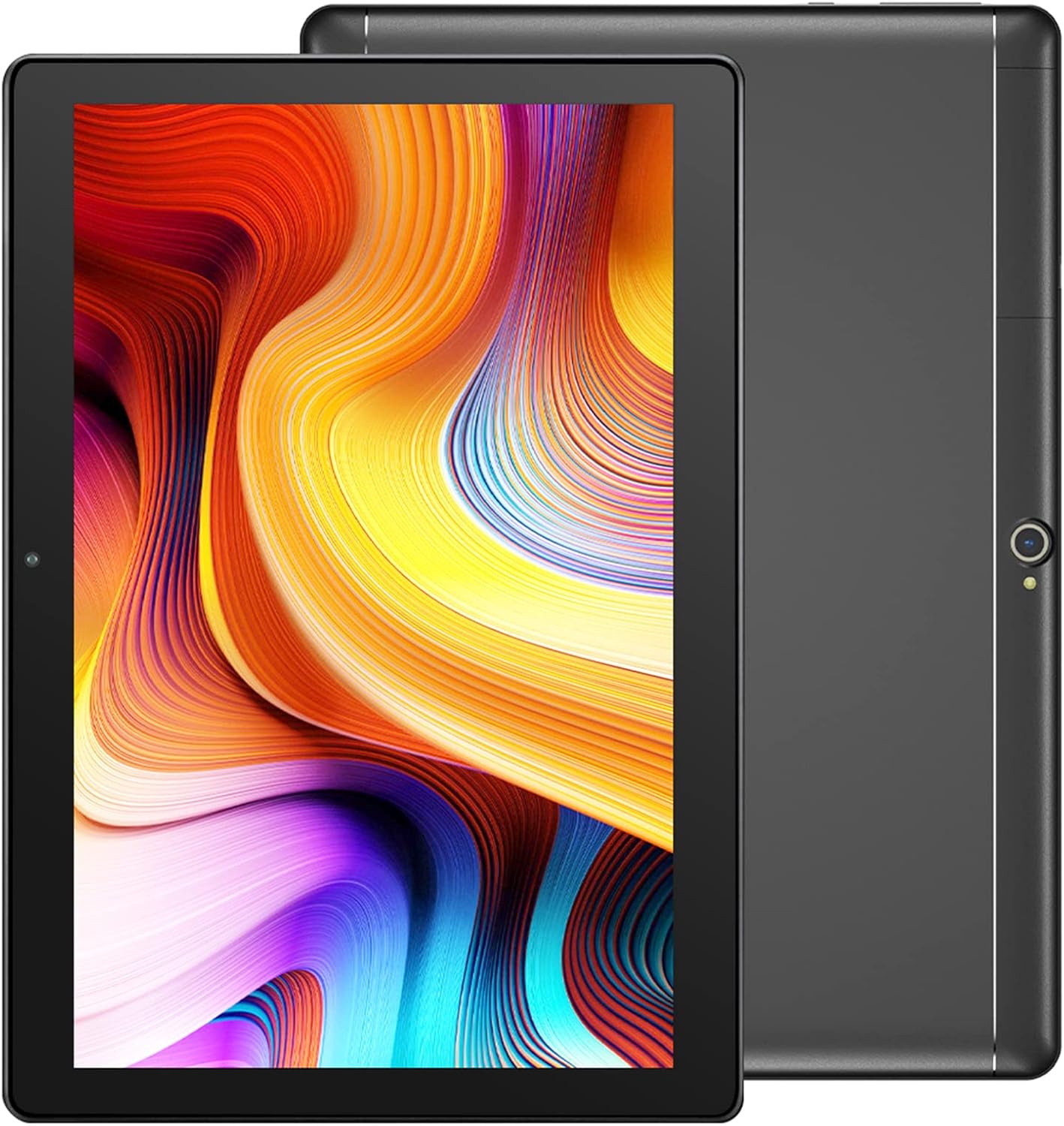
Image: The Dragon Touch Notepad K10 Tablet shown with its USB charging cable and power adapter.
2. Zařízení skončiloview
Familiarize yourself with the physical features and components of your Notepad K10 Tablet.
2.1 Přední a zadní View
The tablet features a 10.1-inch IPS HD display on the front, along with a front-facing camera for video calls and selfies. The rear of the tablet houses the 8MP main camera and dual speakers.

Obrázek: Podrobný view of the Notepad K10 tablet, illustrating its 10.1-inch display, Android 9.0 operating system, Quad-Core CPU, 2GB RAM, 32GB storage, dual cameras, and dual Wi-Fi capabilities.
2.2 Porty a tlačítka
Locate the following ports and buttons on your tablet:
- Vypínač: Slouží k zapnutí/vypnutí tabletu nebo k jeho uspání/probuzení.
- Tlačítka hlasitosti: Upravte hlasitost zvuku.
- Micro USB port: Pro nabíjení tabletu a připojení k počítači.
- Port Micro HDMI: Connects the tablet to an external display (e.g., TV, monitor).
- 3.5mm konektor pro sluchátka: Pro připojení sluchátek nebo externích reproduktorů.
- Slot pro kartu Micro SD: For expanding storage with a Micro SD card.
3. Nastavení
3.1 Počáteční nabíjení
Before first use, fully charge your tablet. Connect the included USB cable to the tablet's Micro USB port and the charger to a power outlet. The battery indicator will show charging status.
3.2 Zapnutí/vypnutí
- Zapnutí: Press and hold the Power button until the Dragon Touch logo appears.
- Vypnutí: Press and hold the Power button until a power-off menu appears, then select 'Power off'.
- Spánek/Probuzení: Krátkým stisknutím tlačítka napájení tablet uspíte nebo probudíte.
3.3 Průvodce počátečním nastavením
Po prvním zapnutí vás tablet provede průvodcem počátečním nastavením. Postupujte podle pokynů na obrazovce:
- Vyberte svůj jazyk.
- Připojte se k síti Wi-Fi.
- Set up your Google account (recommended for app downloads and services).
- Nakonfigurujte datum, čas a další základní nastavení.
3.4 Vložení Micro SD karty
The Notepad K10 supports Micro SD cards up to 128GB for expanded storage. Locate the Micro SD card slot, gently insert the card with the gold contacts facing down until it clicks into place. The tablet will recognize the new storage.
4. Návod k obsluze
4.1 Základní navigace
The tablet uses a capacitive touchscreen. Common gestures include:
- Klepněte na: Výběr položky nebo otevření aplikace.
- Klepnutí a podržení: Pro přístup k kontextovým nabídkám nebo přesun ikon.
- Výpad: Procházení stránek nebo seznamů.
- Štípání: Pro přiblížení nebo oddálení obrázků a web stránky.
4.2 Připojení k Wi-Fi
Pro připojení k internetu:
- Přejít na Nastavení > Síť a internet > Wi-Fi.
- Přepnout Wi-Fi On.
- Vyberte požadovanou síť ze seznamu.
- Pokud se zobrazí výzva, zadejte heslo a poté klepněte na Připojit.
The Notepad K10 supports dual-band Wi-Fi (2.4GHz and 5GHz) for faster and more stable connections.
4.3 Používání kamer
The tablet is equipped with an 8MP rear camera for capturing photos and videos, and a front camera for video calls and selfies. Open the Fotoaparát app from the home screen or app drawer to start. You can switch between front and rear cameras within the app.

Image: The tablet's 8MP rear camera is shown in use, capturing a family moment, highlighting its ability to record wonderful memories.

Image: The tablet's front camera facilitates video calls, allowing users to stay connected with friends and family.
4.4 Connecting to a TV via Micro HDMI
The Notepad K10 features a Micro HDMI port, allowing you to connect it to a larger display like a TV or monitor for an enhanced viewzkušenosti.
- Obtain a Micro HDMI to HDMI cable (not included).
- Connect the Micro HDMI end to your tablet and the HDMI end to your TV.
- Přepněte vstupní zdroj televizoru na odpovídající port HDMI.
- The tablet's screen content will be mirrored on the TV.

Image: The tablet connected to a television, demonstrating its capability to provide great entertainment enjoyment on a larger screen.
4.5 Správa úložiště
The tablet comes with 32GB of internal storage. You can expand this by inserting a Micro SD card (up to 128GB). To check storage usage or manage files, přejděte na Nastavení > Skladování.
4.6 Správa baterie
The Notepad K10 is equipped with a 5000mAh Lithium Polymer battery. Average battery life is approximately 5 hours for general use. To optimize battery life:
- Snižte jas obrazovky.
- Vypněte Wi-Fi a Bluetooth, když je nepoužíváte.
- Zavřete nepoužívané aplikace.
- Vyhněte se extrémním teplotám.

Image: An illustration of the tablet's 5000mAh battery, detailing its long-lasting performance for various activities like video playback, gaming, navigation, and music.
4.7 Eye-Care Mode
The tablet features an Eye-Care mode that automatically adjusts and optimizes the backlight to reduce eye strain, making it more comfortable for reading, especially at night. This setting can typically be found in the Display settings.
5. Údržba
5.1 Čištění tabletu
K čištění tabletu použijte měkký hadřík, který nepouští vlákna. V případě odolných šmouh lehceampen the cloth with water. Avoid using harsh chemicals, abrasive cleaners, or aerosol sprays directly on the tablet.
5.2 Aktualizace softwaru
Pravidelně kontrolujte aktualizace systému, abyste se ujistili, že váš tablet má nejnovější funkce a bezpečnostní záplaty. Přejděte na Nastavení > Systém > Aktualizace systému.
5.3 Péče o baterii
To prolong the life of your tablet's battery:
- Vyhněte se častému úplnému vybíjení baterie.
- Do not leave the tablet in direct sunlight or extremely hot environments.
- If storing the tablet for a long period, charge it to about 50% before turning it off.
6. Řešení problémů
Pokud se s tabletem setkáte s problémy, podívejte se na následující běžné problémy a jejich řešení:
6.1 Tablet Will Not Turn On
- Ujistěte se, že je baterie dostatečně nabitá. Připojte nabíječku a před zapnutím počkejte několik minut.
- Stiskněte a podržte tlačítko napájení po dobu 10–15 sekund pro provedení vynuceného restartu.
6.2 Problémy s připojením k Wi-Fi
- Check that Wi-Fi is enabled in Nastavení.
- Ensure you are within range of the Wi-Fi router.
- Restartujte Wi-Fi router.
- Zapomeňte na síť v nastavení tabletu a znovu se připojte.
6.3 Pomalý výkon
- Zavřete nepoužívané aplikace běžící na pozadí.
- Vymazat data mezipaměti aplikací v Nastavení > Aplikace a oznámení.
- Restartujte tablet.
- Zajistěte dostatek volného úložného prostoru.
6.4 Obrazovka nereaguje
- Perform a forced restart (press and hold Power button for 10-15 seconds).
- Ujistěte se, že obrazovka je čistá a bez vlhkosti nebo nečistot.
6.5 HDMI Output Issues
- Verify that the Micro HDMI cable is securely connected to both the tablet and the TV.
- Ensure the TV input source is set to the correct HDMI port.
- Try a different Micro HDMI cable if available.
- Restart both the tablet and the TV.
7. Specifikace
Detailed technical specifications for the Dragon Touch Notepad K10 Tablet:
| Funkce | Detail |
|---|---|
| Model | Notepad K10 |
| Operační systém | Android |
| Velikost displeje | 10.1 palce |
| Rozlišení displeje | 1280 x 800 pixelů IPS |
| Procesor | Quad-Core, 1.3GHz MediaTek |
| BERAN | 2 GB |
| Interní úložiště | 32 GB |
| Rozšiřitelné úložiště | Až 128 GB přes kartu Micro SD |
| Zadní kamera | 8 MP |
| Přední kamera | Yes (for video calls) |
| Wi-Fi | 2.4GHz & 5GHz Dual-Band |
| Bluetooth | Ano |
| Porty | Micro USB, Micro HDMI, 3.5mm Headphone Jack, Micro SD Card Slot |
| Baterie | Lithium-polymer 5000 mAh |
| Rozměry (DxŠxV) | 9.4 x 0.4 x 6.7 palce |
| Hmotnost | 1.88 libry |
8. Záruka a podpora
8.1 Informace o záruce
For detailed warranty information regarding your Dragon Touch Notepad K10 Tablet, please refer to the warranty card or documentation included with your original purchase. You may also find the most up-to-date warranty terms on the official Dragon Touch webmísto.
8.2 Zákaznická podpora
If you have any questions, require technical assistance, or encounter issues that cannot be resolved using this manual, please contact Dragon Touch customer support:
- Navštivte úředníka Obchod Dragon Touch na Amazonu pro informace o produktech a zdroje podpory.
- Refer to the Dragon Touch official website for contact details, FAQs, and additional support.
Ask a question about this manual
Ask about setup, troubleshooting, compatibility, parts, safety, or missing instructions. Manuals+ will review the question and use this page’s manual context to help answer it.