
MINIX SF16
MINIX Portable Monitor User Manual
Model: SF16 / SF16T
Zavedení
Thank you for choosing the MINIX Portable Monitor. This 16-inch Full HD 1200P IPS touch screen display is designed for enhanced productivity and entertainment on the go. Its ultra-slim design and versatile connectivity make it an ideal companion for laptops, PCs, gaming consoles, and mobile devices. This manual provides essential information for setting up, operating, maintaining, and troubleshooting your new portable monitor.
Bezpečnostní informace
- Do not expose the monitor to rain or moisture to prevent fire or electric shock hazards.
- Neumisťujte monitor na přímé sluneční světlo nebo do blízkosti zdrojů tepla.
- Use only the power adapter and cables provided or recommended by MINIX.
- Nepokoušejte se monitor rozebírat ani opravovat sami. Veškerý servis svěřte kvalifikovanému personálu.
- Chraňte monitor před silnými magnetickými poli.
- Clean the screen with a soft, lint-free cloth. Do not use liquid cleaners or aerosol sprays directly on the screen.
Co je v krabici
Ověřte, zda jsou v balení přítomny všechny položky:
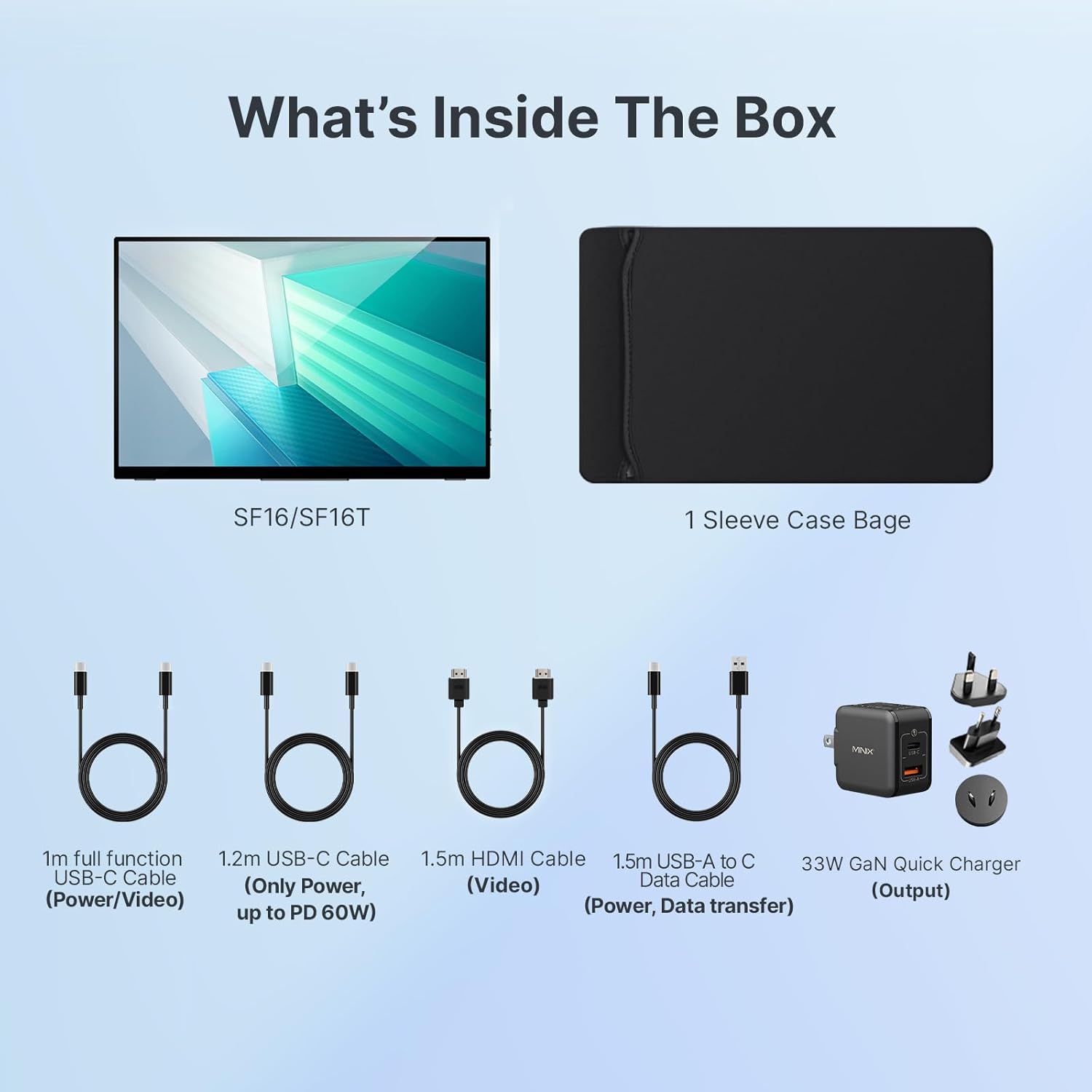
Obrázek 1: Obsah balení
- MINIX Portable Monitor (SF16/SF16T)
- Sleeve Case Bag
- 1m Full Function USB-C to USB-C Cable (Power/Video)
- 1.2m USB-C to USB-C Cable (Power, up to PD 60W)
- 1.5m HDMI to HDMI Cable (Video)
- 1.5m USB-A to C Data Cable (Power, Support Touch for SF16T)
- 33W GaN Quick Charger (Output)
Konec produktuview
Familiarize yourself with the ports and controls on your MINIX Portable Monitor.

Obrázek 2: Porty a ovládací prvky monitoru
- Port USB 2.0: Connects to a keyboard or mouse.
- Vypínač: Zapíná/vypíná monitor.
- Brightness/Up Key: Adjusts screen brightness or navigates menu up.
- Volume/Down Key: Adjusts volume or navigates menu down.
- Standard HDMI Port: Připojuje se k zařízením přes HDMI pro video vstup.
- 3.5mm audio jack: Pro připojení sluchátek nebo externích reproduktorů.
- Type-C (Full Function) Ports: Two full-featured USB-C ports for power, video, and touch data transfer.

Figure 3: Ultra-Slim Design
Nastavení
Počáteční připojení
The MINIX Portable Monitor offers flexible connectivity options. Ensure your device supports USB 3.1 Type C DP Alt-Mode for full functionality via a single USB-C cable.
- Napájení: Connect the provided 33W GaN Quick Charger to one of the monitor's USB-C ports (or use a power bank with sufficient output).
- Video & Data Connection:
- USB-C (Single Cable Solution): If your laptop or device has a full-featured USB-C port (supporting DisplayPort Alternate Mode and Power Delivery), connect it to one of the monitor's full-function USB-C ports using the 1m full function USB-C cable. This single cable can provide power, video, and touch functionality.
- HDMI + USB-C (for Power/Touch): If your device only has an HDMI output, connect the monitor via the HDMI port using the 1.5m HDMI cable for video. Then, connect a USB-C port on the monitor to a USB-A or USB-C port on your device using the 1.5m USB-A to C data cable for power and touch functionality (if applicable).
- Zapnutí: Press the Power Button on the monitor to turn it on.

Obrázek 4: Schéma připojení
Using the Built-in Stand
The monitor features a built-in kickstand for easy adjustment of viewing angles. Simply extend the stand from the back of the monitor and adjust it to your desired angle between -10° and -35°.
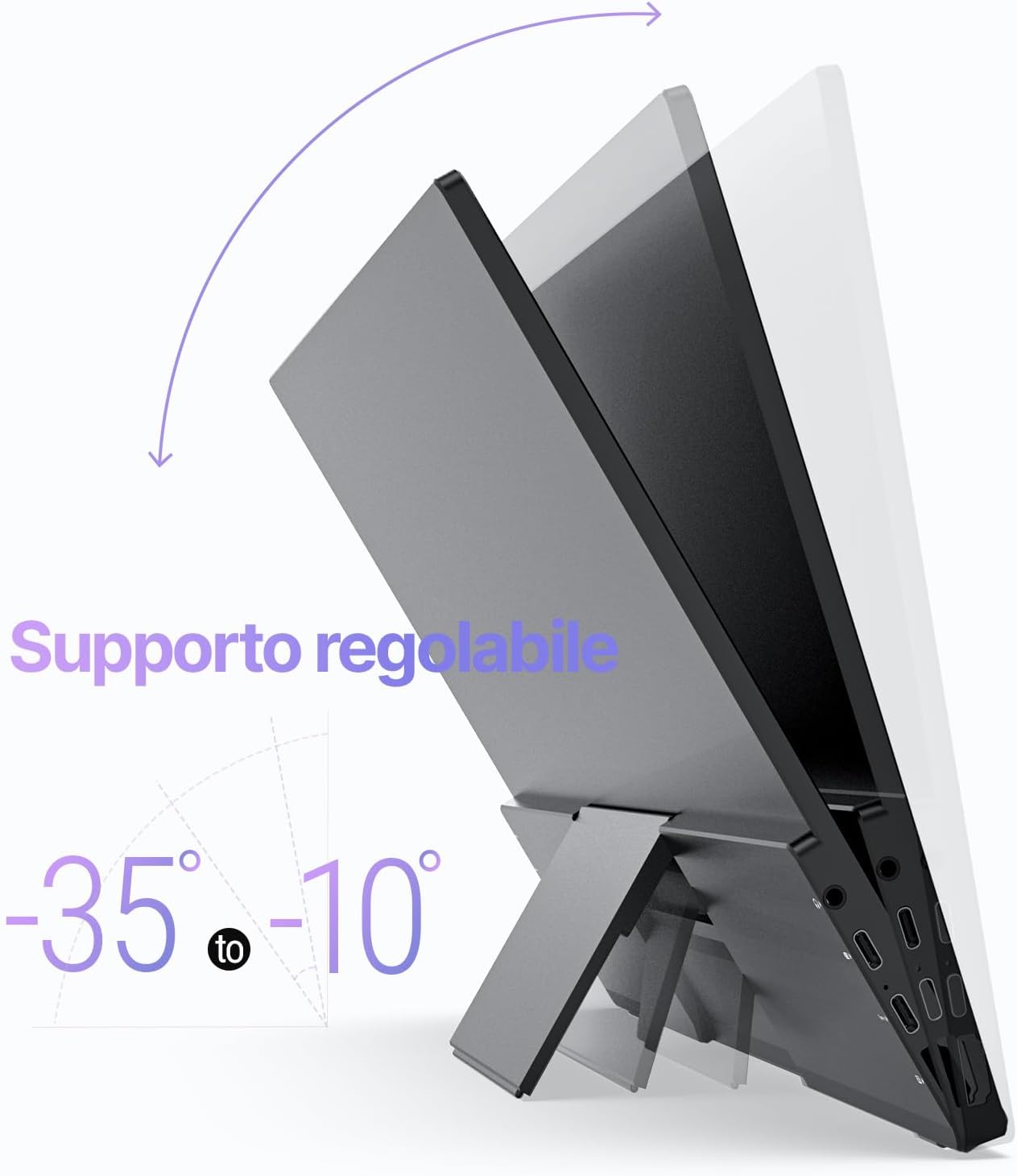
Figure 5: Adjustable Stand
Provozní
Nastavení zobrazení
Use the Brightness/Up and Volume/Down keys on the side of the monitor to access and navigate the On-Screen Display (OSD) menu. Here you can adjust various settings such as brightness, contrast, color temperature, and input source.
Touch Screen Functionality (SF16T Model)
The SF16T model supports ten-point multi-touch and gesture controls across various operating systems including macOS, Windows 10/11, Android, and Linux. Ensure the USB-C connection is properly established for touch functionality.

Figure 6: Multi-Touch Support
Video ukázka
Watch this official video from MINIX Technology Limited for a visual guide on setting up and using your portable monitor, highlighting its key features like the built-in stand, multi-touch support, and USB-C connectivity.
Video 1: MINIX 16" Portable Touch Monitor Overview
Údržba
- Čištění obrazovky: Jemně otřete obrazovku měkkým, suchým hadříkem, který nepouští vlákna. V případě odolných skvrn lehceampen the cloth with water or a screen-specific cleaning solution (apply to cloth, not directly to screen).
- Čištění Casing: Use a soft, dry cloth to wipe the exterior casing. Vyhněte se abrazivním čisticím prostředkům nebo rozpouštědlům.
- Skladování: When not in use, store the monitor in its provided sleeve case to protect it from dust and scratches. Keep it in a cool, dry place.
- Zacházení: Monitor vždy držte za okraje. Netlačte na obrazovku.
Odstraňování problémů
| Problém | Možná příčina | Řešení |
|---|---|---|
| Žádné zobrazení/zpráva „Žádný signál“ | Vybrán nesprávný vstupní zdroj; Uvolněné připojení kabelu; Nedostatečné napájení; Zařízení nevysílá signál. |
|
| Touch screen not responding (SF16T) | USB-C data cable not connected or not full-featured; Driver issue; OS incompatibility. |
|
| Blikající obrazovka | Cable issue; Interference; Refresh rate mismatch. |
|
| Z reproduktorů monitoru není žádný zvuk | Příliš nízká hlasitost; Zvukový výstup není nastaven na monitor; Problém s kabelem. |
|
Specifikace
| Funkce | Detail |
|---|---|
| Číslo modelu | SF16 |
| Velikost obrazovky | 16 palce |
| Rezoluce | 1920 x 1200 pixelů (FHD 1200P) |
| Poměr stran | 16:10 |
| Typ panelu | IPS |
| Jas | 300 kandel (nitů) |
| Dotyková obrazovka | Yes (SF16T model, 10-point touch) |
| Konektivita | 2x Full-featured USB-C, 1x Standard HDMI, 1x USB 2.0, 1x 3.5mm Audio Jack |
| Rozměry (D x Š x V) | 4.84 x 15.59 x 10.79 palce |
| Hmotnost položky | 4.16 libry |
| Povrch obrazovky | Lesklý |
| Funkce péče o zrak | Bez blikání, filtr modrého světla |
Záruka a podpora
MINIX Technology Limited provides a limited warranty for this product. Please refer to the warranty card included in your package for specific terms and conditions. For technical support, troubleshooting assistance, or warranty claims, please contact MINIX customer service through their official webwebu nebo prodejce, kde jste produkt zakoupili.
You can visit the official MINIX Store on Amazon for more information and support: MINIX Store
Ask a question about this manual
Ask about setup, troubleshooting, compatibility, parts, safety, or missing instructions. Manuals+ will review the question and use this page’s manual context to help answer it.