
1. Konec produktuview
The MEETION Wireless Keyboard and Mouse Combo provides a full-sized keyboard with a wrist rest and a 3-DPI adjustable mouse, offering a reliable 2.4G wireless connection for various computing needs.
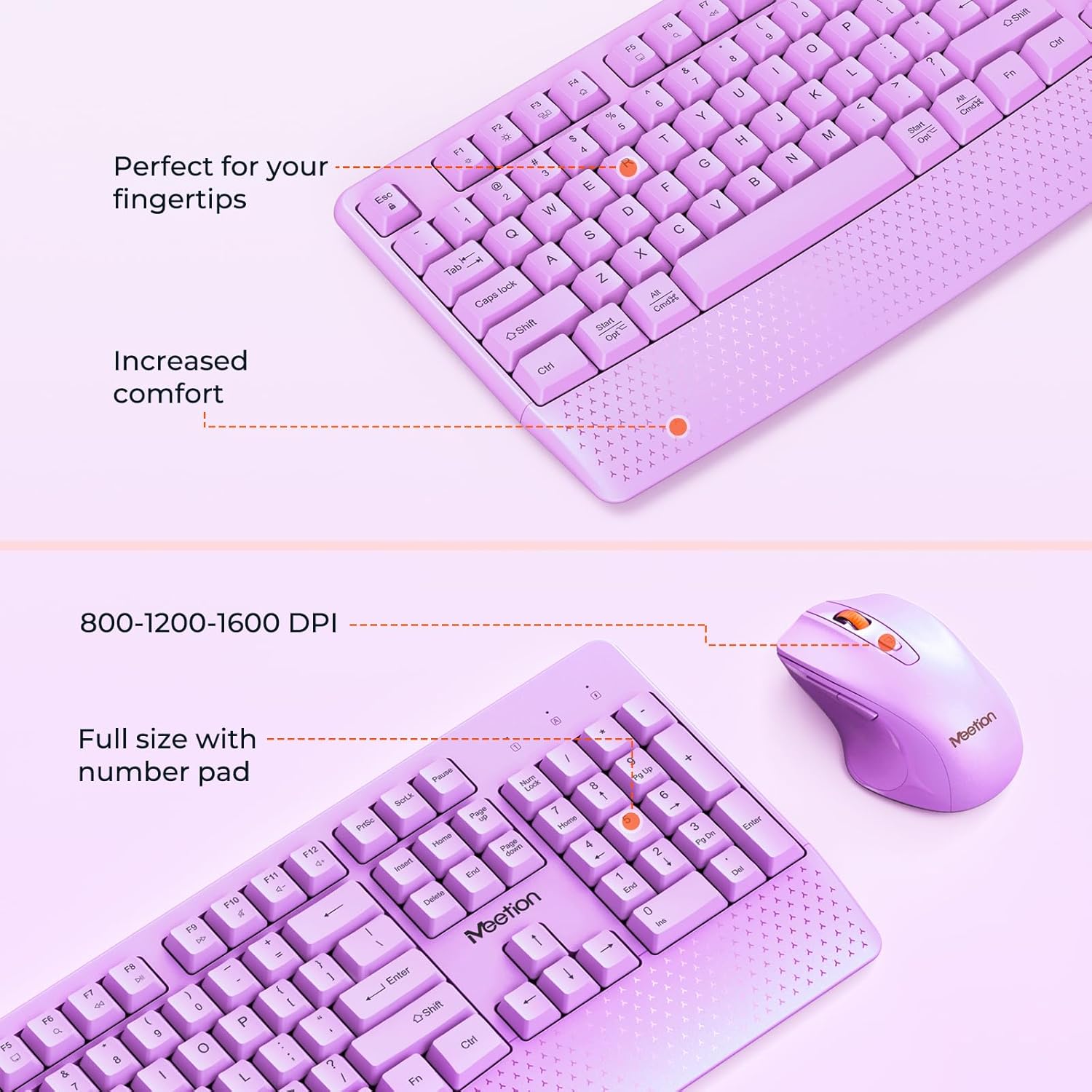
Image: The keyboard features a full-size layout with a number pad and an integrated wrist rest for comfort. The mouse offers adjustable DPI settings.

Obrázek: Overview of the keyboard and mouse, highlighting various function keys on the keyboard and the buttons and features of the mouse.
2. Pokyny k nastavení
2.1. Instalace baterie
The keyboard requires two AA batteries, and the mouse requires one AA battery. Batteries are not included.
- Vyhledejte přihrádku na baterie na spodní straně klávesnice a myši.
- Otevřete kryty baterií.
- Vložte baterie se správnou polaritou (+/-).
- Bezpečně zavřete kryty baterií.

Image: This image illustrates the battery compartments for both the keyboard (requiring 2 AA batteries) and the mouse (requiring 1 AA battery).
2.2. Připojení bezdrátového přijímače
The keyboard and mouse share a single 2.4G USB Nano Receiver.
- Locate the USB Nano Receiver, typically stored in the mouse's battery compartment or packaging.
- Plug the USB Nano Receiver into an available USB-A port on your computer.
- If your device only has USB-C ports, use the provided USB-C adapter. First, plug the USB Nano Receiver into the USB-C adapter, then plug the adapter into your device's USB-C port.
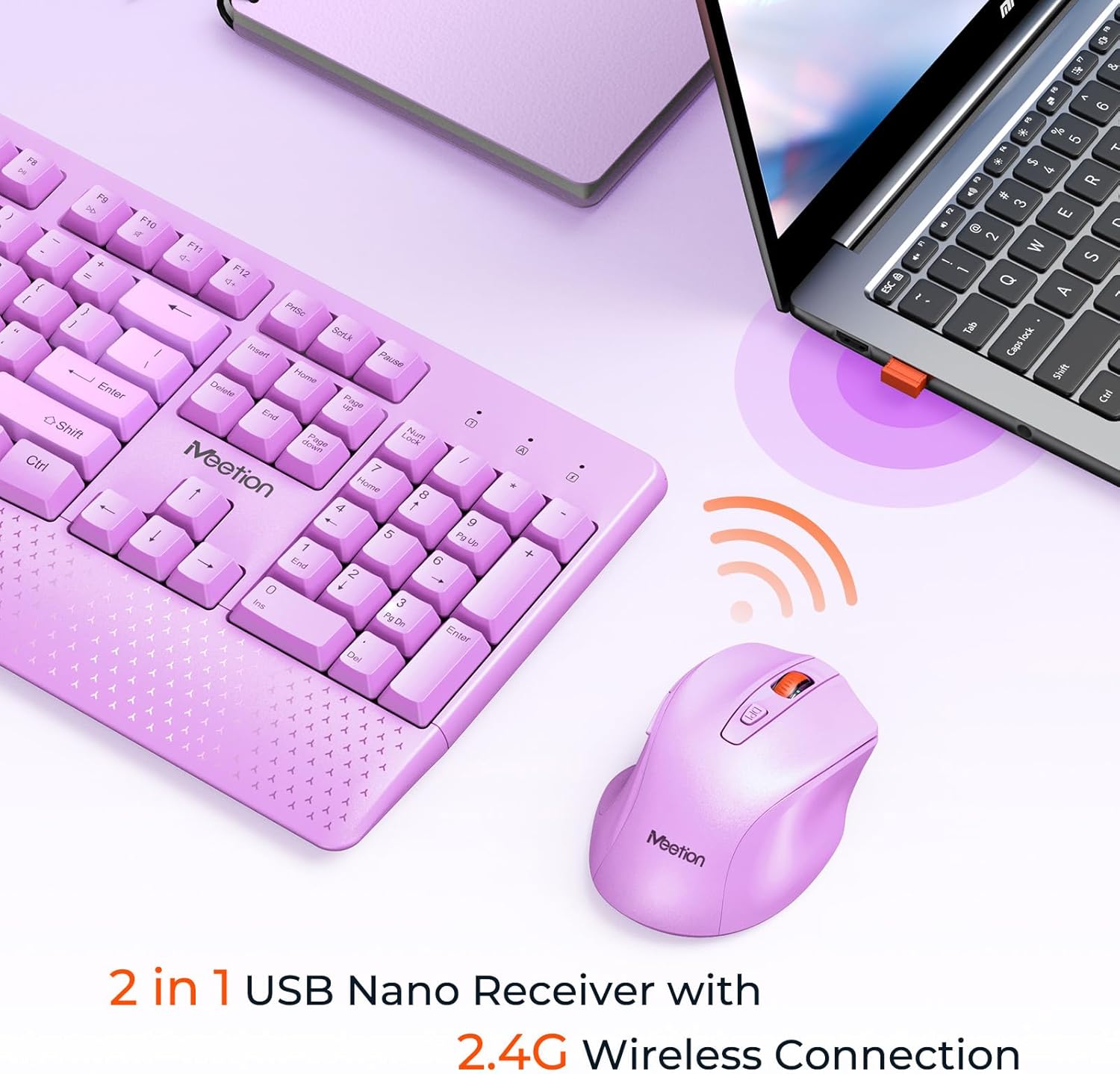
Image: The keyboard and mouse wirelessly connect to a laptop via a 2.4G USB Nano Receiver, shown plugged into a USB port.
Image: A diagram demonstrating how to use the USB-C adapter: the USB receiver plugs into the adapter, which then plugs into a Type-C port on a computer.
2.3. Zapnutí
- For the mouse, slide the ON/OFF switch located on its underside to the 'ON' position.
- The keyboard does not have a separate power switch; it activates automatically upon successful connection and battery insertion.
3. Návod k obsluze
3.1. Použití klávesnice
- Rozložení v plné velikosti: The keyboard features a standard full-size layout, including a numeric keypad for efficient data entry.
- Integrovaná opěrka zápěstí: The ergonomic wrist rest is designed to provide comfort and reduce strain during extended typing sessions.
- Nastavitelný sklon: Flip out the kickstands on the underside of the keyboard to adjust the typing angle for improved comfort.
- Funkční klávesy: Utilize the Fn (Function) key in combination with F1-F12 keys for multimedia controls and other shortcuts. Refer to the keyboard layout for specific functions.
Image: A close-up of the keyboard's side profile, illustrating the adjustable 8-degree tilt angle provided by the kickstands for ergonomic typing.
3.2. Použití myši
- Ergonomický design: The mouse is shaped to fit comfortably in your hand, promoting natural wrist and arm posture.
- Nastavitelné DPI: Cycle through DPI settings (800, 1200, 1600) by pressing the DPI button located behind the scroll wheel. This allows you to adjust cursor sensitivity to your preference.
- Tiché kliknutí: The mouse features silent click buttons for a quiet working environment.
- Boční tlačítka: Použijte boční tlačítka pro navigaci vpřed a vzad. web prohlížeče a další aplikace.

Image: A detailed diagram of the mouse, labeling its components including the Left Button, Right Button, Scroll Wheel, DPI Button, Forward/Backward buttons, ON/OFF switch, Optical sensor, Battery Cover, Anti-Slip Pads, and USB Nano Receiver storage slot.
Image: An illustration demonstrating the adjustable DPI settings of the mouse, showing options for 800, 1200, and 1600 DPI.
4. Údržba
4.1. Čištění
- To clean the keyboard and mouse, power them off and remove batteries if possible.
- Použijte měkký, damp cloth to wipe surfaces. Avoid harsh chemicals or abrasive materials.
- For keyboard keys, use compressed air to remove dust and debris.
4.2. Výměna baterie
Replace batteries when performance degrades or the low battery indicator (if present) illuminates. Follow the battery installation steps in Section 2.1.
5. Řešení problémů
- Žádné připojení: Ensure batteries are correctly installed and charged. Verify the USB Nano Receiver is securely plugged into a working USB port. If using a USB-C adapter, ensure it is properly connected.
- Myš nereaguje: Check the mouse's ON/OFF switch. If the mouse enters sleep mode after inactivity, click any button to wake it up.
- Zpoždění nebo přerušované připojení: Move the keyboard and mouse closer to the USB Nano Receiver. Avoid placing the receiver near other wireless devices or large metal objects that may cause interference.
- Nastavení DPI nefunguje: Press the DPI button on the mouse to cycle through the available sensitivity settings (800/1200/1600 DPI).
6. Specifikace
| Funkce | Detail |
|---|---|
| Značka | SETKÁNÍ |
| Model (klávesnice) | MT-CA330 |
| Model (Mouse) | MT-CA130 |
| Technologie připojení | 2.4G Wireless, USB |
| Speciální funkce klávesnice | Opěrka zápěstí |
| Nastavení DPI myši | 800-1200-1600 |
| Baterie do klávesnice | 2 AA baterie (nejsou součástí balení) |
| Baterie pro myši | 1 AA baterie (není součástí balení) |
| Kompatibilní zařízení | PC, Computer, Laptop, Windows, Mac, Gaming Console |
| Rozměry balení | 17.56 x 10.75 x 1.89 palce |
| Hmotnost položky | 1.98 libry |
7. Záruka a podpora
For warranty information and technical support, please refer to the documentation included with your product packaging or visit the official MEETION webmísto. Uschovejte si doklad o koupi pro případ záručních reklamací.