
TouchWo JPRZB65WB
TouchWo 65" 4K Interactive Smart Board Instruction Manual
Model: JPRZB65WB
Značka: TouchWo
1. Bezpečnostní informace
Please read all safety instructions carefully before using the TouchWo 65" 4K Interactive Smart Board. Retain this manual for future reference.
Obecná bezpečnost
- Nevystavujte zařízení dešti, vlhkosti ani extrémním teplotám.
- Neumisťujte zařízení do blízkosti zdrojů tepla nebo na přímé sluneční světlo.
- Zajistěte dostatečné větrání kolem zařízení, aby nedošlo k přehřátí.
- Nepokoušejte se zařízení otevírat ani opravovat sami. Veškerý servis svěřte kvalifikovanému personálu.
Elektrická bezpečnost
- Používejte pouze dodaný napájecí kabel.
- Ujistěte se, že je elektrická zásuvka řádně uzemněna.
- Odpojte zařízení během bouřky nebo když se delší dobu nepoužívá.
Manipulace a instalace
- Due to its size and weight, the smart board requires at least two people for safe handling and installation.
- When installing on a mobile stand or wall mount, ensure all components are securely fastened according to the assembly instructions.
2. Co je v krabici
Verify that all items are present and undamaged upon unboxing:
- 1 x Smart Whiteboard
- 1 x Elektrické vedení
- 1 x Presenter pen
- 1 x přenosný stojan
- 1 x Wifi anténa

Video: Unboxing and initial inspection of the TouchWo Smart Board and included accessories.
3. Nastavení
Mobile Stand Assembly
Follow these steps to assemble the portable stand for your TouchWo Smart Board:
- Unpack all stand components and hardware.
- Attach the caster wheels to the base of the stand using the provided wrench.
- Secure the vertical support columns to the base.
- Install the horizontal mounting bracket and shelf onto the vertical columns.
- Attach the VESA mounting arms to the back of the smart board.
- Carefully lift and mount the smart board onto the stand's bracket, ensuring it locks securely into place.
Video: Detailed tutorial on assembling the mobile stand for the TouchWo Smart Board.
Montáž na stěnu (volitelné)
If using a wall mount, ensure the wall can support the weight of the smart board. Use appropriate hardware for your wall type. The wall mount bracket is included.

Image: Two mounting options are available: a mobile stand and a wall mounting bracket. Essential accessories are also shown.
Počáteční zapnutí
Connect the power line to the smart board and a suitable power outlet. Press the power button located on the front panel to turn on the device.

Video: Demonstrates the location of the power button and various ports on the TouchWo Smart Board.
4. Návod k obsluze
Dual System Operation (Android & Windows)
The TouchWo Smart Board features a dual operating system (Android 13 and Windows 10). You can switch between systems as needed for different tasks. The Android configuration includes RAM 4GB + ROM 32GB, while the Windows system features Core i5, RAM 4GB + SSD 256GB.
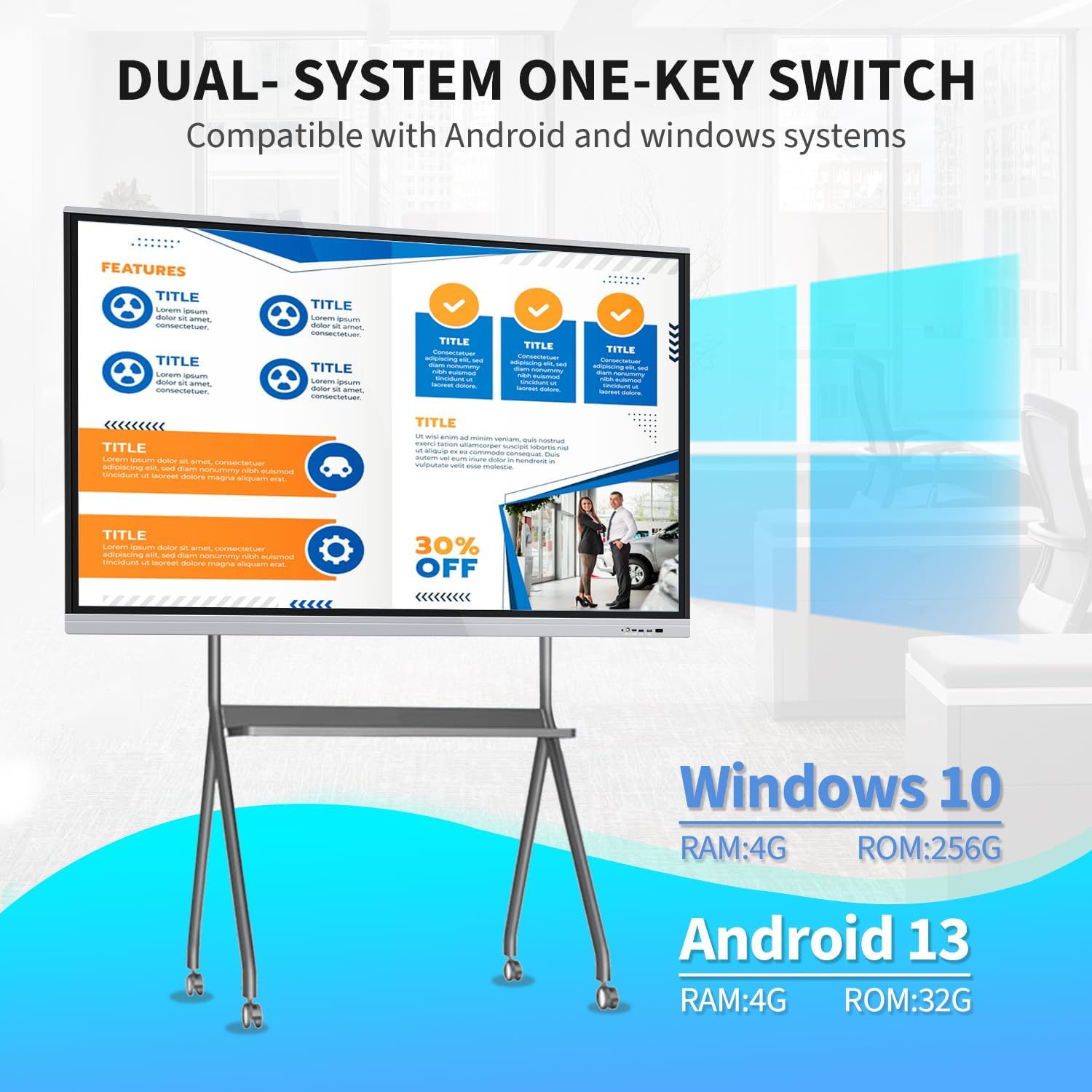
Image: Visual representation of the dual Android and Windows operating systems with their respective configurations.
20-Point Touch Screen Functionality
The 20-point touch screen allows for multiple users to interact simultaneously. Use the provided stylus or your fingers for precise input. Common gestures include single tap, double tap, press and hold, two-finger tap, and two-finger press.

Image: Visual guide to the 20-point touch technology and common touch gestures.
Video: Demonstration of the TouchWo 65-inch Smart Whiteboard's interactive functions, including writing and annotating.
Screen Mirroring & Digital Signage
The smart board supports screen mirroring from phones, laptops, or tablets. This allows for seamless content sharing during presentations or collaborative sessions. It can also function as a digital signage display, supporting both horizontal and vertical orientations for various content displays.

Image: Illustrates large screen presentation and casting from various devices.
Video: Demonstrates smartphone screen casting to the TouchWo Windows/Android AIO Smart Board.
Konektivita
The smart board integrates multiple interfaces including HDMI, USB, VGA, RJ45, Wi-Fi, and BT5.0. HDMI IN and USB OTG ports allow for screen casting and touch functionality with external devices.
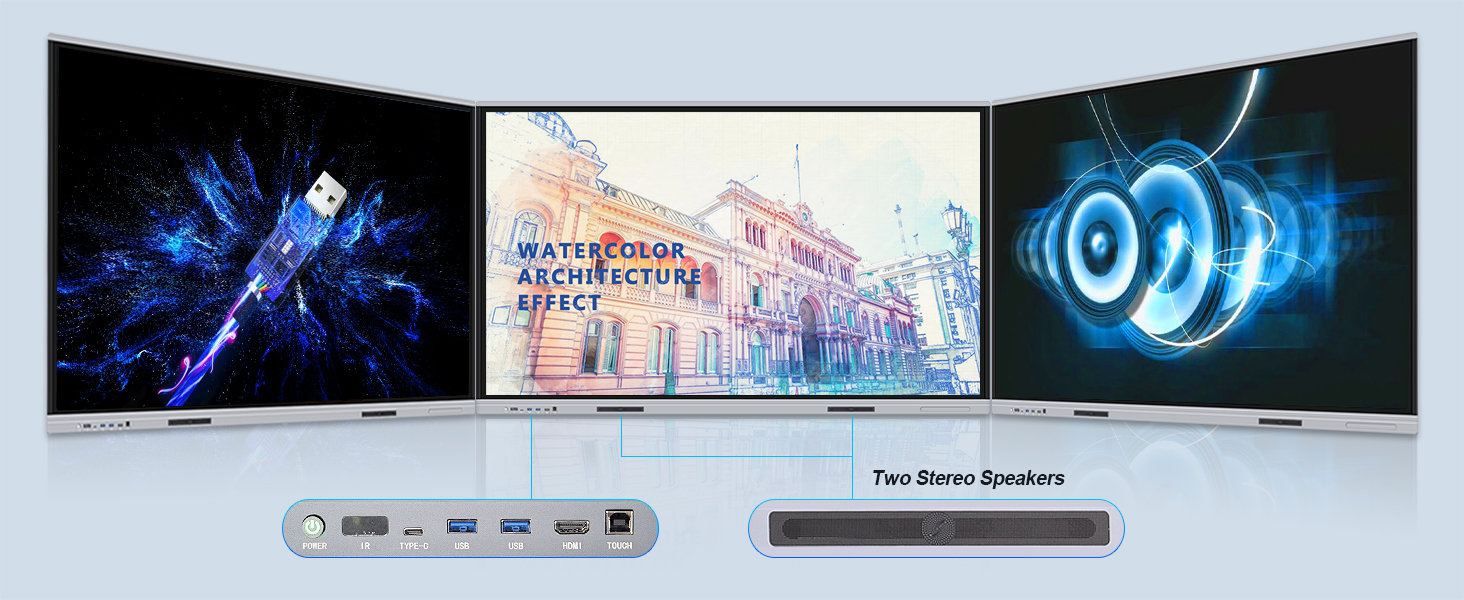
Obrázek: Podrobný view of the smart board's connectivity ports and built-in stereo speakers.
Scénáře použití
The TouchWo Smart Board is versatile for various environments:
- schůzky: Facilitate interactive presentations and collaborative brainstorming.
- Učebny: Enhance learning with interactive lessons and digital whiteboarding.
- Videokonference: Connect an external camera and microphone for integrated video calls.
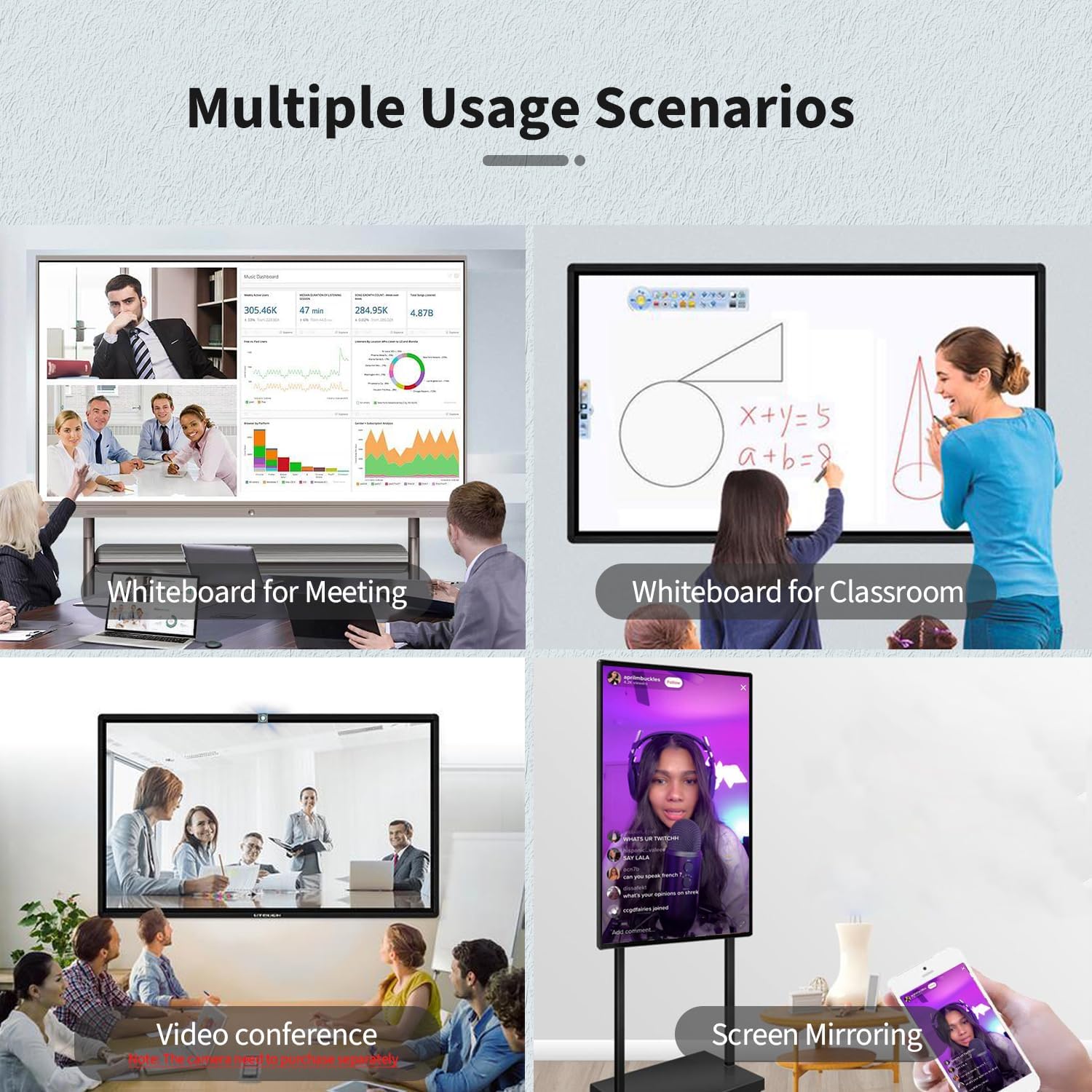
Image: Multiple usage scenarios for the smart board, including meetings, classrooms, video conferencing, and screen mirroring.
Video: Demonstrates the TouchWo Touchscreen Smart Whiteboard in a classroom setting, showing interactive learning.
5. Údržba
Čištění obrazovky
- Always power off and unplug the smart board before cleaning.
- Použijte měkký hadřík, který nepouští vlákna dampvodou nebo neabrazivním čističem obrazovek.
- Do not use harsh chemicals, alcohol, or ammonia-based cleaners, as these can damage the screen coating.
- Jemně otírejte, abyste nepoškrábali povrch.
Obecná péče
- Keep the smart board away from direct sunlight and extreme temperatures.
- Nepokládejte na zařízení těžké předměty.
- Ensure cables are neatly organized to prevent tripping hazards or damage.
6. Řešení problémů
If you encounter issues with your TouchWo Smart Board, refer to the following common solutions:
Žádná síla
- Check if the power cable is securely connected to both the smart board and the power outlet.
- Zkontrolujte, zda je zásuvka funkční, zapojením jiného zařízení.
- Verify that the power switch on the smart board is in the 'ON' position.
Žádný displej/černá obrazovka
- Confirm the smart board is powered on.
- If using an external source (e.g., laptop via HDMI), ensure the correct input source is selected on the smart board.
- Check the HDMI/VGA cable connection.
Dotyková funkce nereaguje
- Ensure the USB touch cable is connected between the smart board and the external device (if applicable).
- Restartujte chytrou desku.
- Clean the screen surface to remove any obstructions.
Screen Mirroring Issues
- Ensure both the smart board and the mirroring device are connected to the same Wi-Fi network.
- Check for any firewall settings on your device that might block mirroring.
- Restartujte obě zařízení.
7. Specifikace
| Funkce | Detail |
|---|---|
| Značka | TouchWo |
| Číslo modelu | JPRZB65WB |
| Velikost obrazovky | 65 palce |
| Rezoluce | 4K UHD (3840 x 2160) |
| Poměr stran | 16:9 |
| Jas obrázku | 350 lm |
| Operační systém | Dual OS: Android 13 & Windows 10 (Core i5, RAM 4GB, SSD 256GB) |
| Dotkněte se bodů | 20 bodů |
| Konektivita | HDMI, USB, VGA, RJ45, Wi-Fi, BT5.0 |
| Celkový počet portů USB | 6 |
| Vestavěné reproduktory | Ano |
| Rozměry produktu | 3.2 x 58.5 x 35 palce |
| Hmotnost položky | 70.4 libry |
| svtage | 110 voltů (AC) |
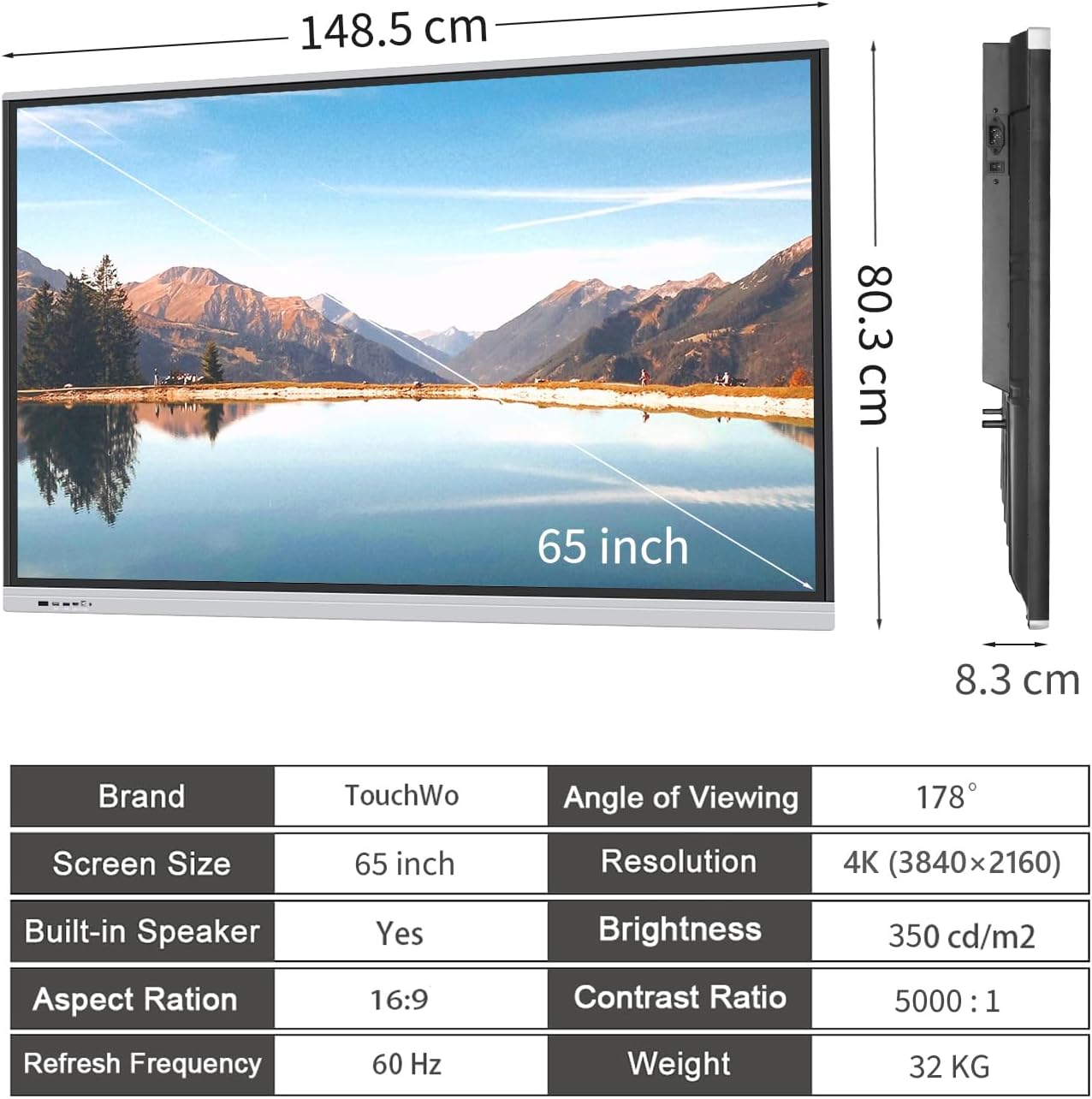
Image: Visual summary of product dimensions and technical specifications.
8. Záruka a podpora
Informace o záruce
For detailed warranty information, please refer to the documentation included with your product or contact TouchWo customer support.
Zákaznická podpora
If you require any assistance, have questions, or need to report an issue, please contact our customer support team:
- Oficiální email: touchwoamz@outlook.com
- Stránka prodejce na Amazonu: Visit TouchWo on Amazon
Na všechny dotazy se snažíme odpovědět do 24 hodin.

Image: TouchWo customer support contact details for assistance.
Ask a question about this manual
Ask about setup, troubleshooting, compatibility, parts, safety, or missing instructions. Manuals+ will review the question and use this page’s manual context to help answer it.