
1. Úvod
This manual provides essential information for the proper setup, operation, and maintenance of your Gavigain 4G USB WiFi Dongle. Please read this manual thoroughly before using the device to ensure optimal performance and safety.
2. Obsah balení
Ověřte, zda jsou v balení přítomny všechny položky:
- 1 x Gavigain 4G USB WiFi Dongle
- 1 x Návod k použití
3. Konec produktuview
The Gavigain 4G USB WiFi Dongle is a portable device designed to provide internet access by converting a 4G cellular signal into a Wi-Fi hotspot. It supports multiple 4G networks and allows up to 10 devices to connect simultaneously.

Figure 3.1: Gavigain 4G USB WiFi Dongle, front view.
Klíčové vlastnosti:
- Podpora více uživatelů: Allows up to 10 users to share the internet connection.
- Funkce Plug-and-Play: Simple setup by inserting a SIM card and connecting to a USB power source.
- Připojení více zařízení: Supports simultaneous internet access for various devices including mobile phones, laptops, computers, and smart TVs.
- Fast and Stable Internet: Provides high-speed 4G network access with stable signal indicators.
- Zabezpečené připojení: Features WPA and WPA2 WiFi encryption for enhanced wireless network security.

Figure 3.2: Device supporting multiple 4G networks and user sharing.
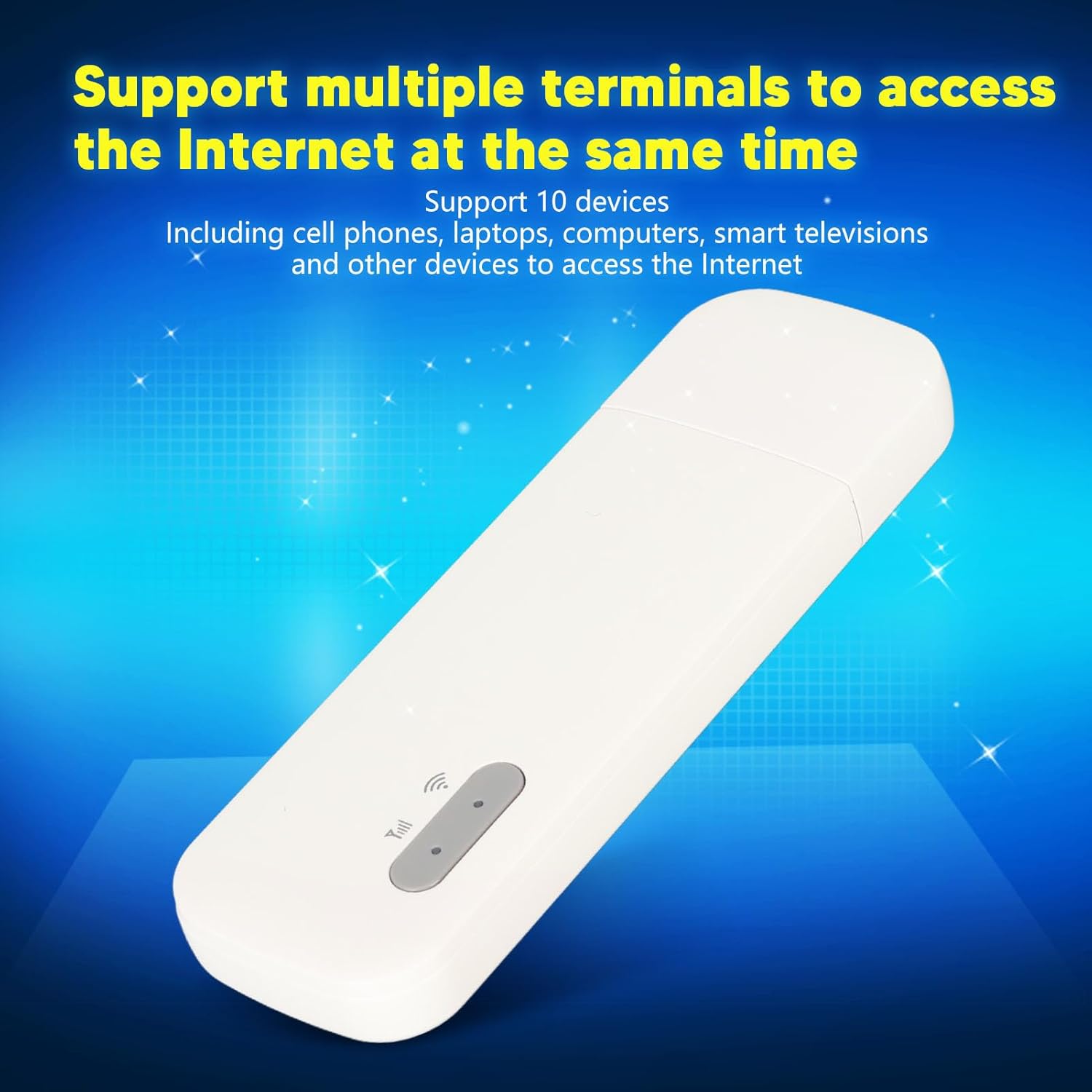
Figure 3.3: Device supporting simultaneous access for multiple terminals.

Figure 3.4: Device providing fast and stable high-speed internet access.
4. Nastavení
Follow these steps to set up your 4G USB WiFi Dongle:
- Vložení karty Micro SIM: Locate the Micro SIM card slot on the device. Carefully insert your activated Micro SIM card into the slot until it clicks into place. Ensure the card is oriented correctly.
- Připojení k napájení: Plug the USB connector of the dongle into a compatible USB power source. This can be a mobile phone charger, car charger, power bank, or a USB port on a laptop/computer.

Figure 4.1: USB-A connector for power supply.
The device is designed for plug-and-play operation. Once powered, it will automatically detect the SIM card and establish a 4G network connection, broadcasting a Wi-Fi signal.
5. Návod k obsluze
After successful setup, the device will begin broadcasting a Wi-Fi network. The indicator lights will provide status information.

Figure 5.1: Indicator lights for signal and Wi-Fi status.
Připojovací zařízení:
- On your Wi-Fi enabled device (e.g., smartphone, laptop), search for available Wi-Fi networks.
- Select the network name (SSID) corresponding to your Gavigain 4G USB WiFi Dongle. The SSID and password are typically found on a label on the device or in the packaging.
- Po zobrazení výzvy zadejte heslo Wi-Fi.
- Once connected, your device will have internet access through the dongle's 4G connection.
The dongle supports up to 10 simultaneous connections. For security, the device utilizes WPA and WPA2 encryption protocols. It is recommended to change the default Wi-Fi password for enhanced security.
6. Údržba
To ensure the longevity and proper functioning of your Gavigain 4G USB WiFi Dongle, follow these maintenance guidelines:
- Udržujte zařízení čisté a bez prachu. K čištění používejte měkký, suchý hadřík.
- Nevystavujte zařízení extrémním teplotám, přímému slunečnímu záření nebo vysoké vlhkosti.
- Nenechte zařízení spadnout a nevystavujte jej silným nárazům.
- Ensure the Micro SIM card slot is free from debris.
- Disconnect the device from the power source when not in use for extended periods.
7. Řešení problémů
If you encounter issues with your Gavigain 4G USB WiFi Dongle, refer to the following common troubleshooting steps:
| Problém | Možná příčina | Řešení |
|---|---|---|
| Žádné připojení k internetu | SIM card not inserted correctly or not activated; no 4G signal; device not powered. | Ensure SIM card is properly inserted and active. Check for 4G network availability in your location. Verify the device is receiving power from the USB source. |
| Pomalá rychlost internetu | Weak 4G signal; too many connected devices; network congestion. | Move to an area with better 4G signal. Disconnect unnecessary devices. Contact your service provider if issues persist. |
| Nelze se připojit k Wi-Fi | Incorrect Wi-Fi password; device not broadcasting Wi-Fi. | Double-check the Wi-Fi password. Ensure the dongle is powered on and its Wi-Fi indicator light is active. Restart the dongle and your connecting device. |
| Device is not recognized by computer | USB port issue; driver not installed (if applicable). | Try a different USB port. Ensure the device is designed for data transfer if you expect it to be recognized as a storage device or modem by a computer. |
8. Specifikace
Technical specifications for the Gavigain 4G USB WiFi Dongle:
| Funkce | Detail |
|---|---|
| Model | B0CLB2QDDY |
| Typ položky | 4G USB WiFi |
| Materiál | ABS |
| Barva | Bílý |
| Slot pro SIM kartu | Micro SIM karta |
| Pásma 4G LTE | B1, B3, B5, B40 |
| Podpora Wi-Fi | 802.11 b, g, n |
| Maximální počet uživatelů | Až do 10 |
| Hmotnost položky | 1.41 unce |
| Výrobce | Gavigain |
9. Záruka a podpora
For warranty information or technical support, please refer to the product packaging or contact Gavigain customer service through the retailer where the product was purchased. Keep your purchase receipt for warranty claims.