
1. Úvod
This manual provides detailed instructions for the Varmilo VA Series V2 Aurora Bluetooth White LED Mechanical Keyboard. It covers setup, operation, maintenance, and troubleshooting to ensure optimal performance and user experience. The VA Series V2 features an upgraded design with a standard USB-C cable, a double-section kickstand for enhanced adjustability, North-facing LEDs, and sound-proof silicone pads for a quieter typing experience. Indicator lights are positioned on the top right to minimize distractions.
2. Obsah balení
Po vybalení zkontrolujte obsah balení. Pokud některé položky chybí nebo jsou poškozené, kontaktujte zákaznickou podporu.
- Varmilo VA Series V2 Aurora Mechanical Keyboard
- USB-C kabel
- Uživatelská příručka (tento dokument)
3. Nastavení
3.1 Fyzické nastavení
- Rozbalte klávesnici: Opatrně vyjměte klávesnici a veškeré příslušenství z obalu.
- Nastavení stojánků: Klávesnice je vybavena dvěmatage height adjustable feet. Flip out the desired kickstands on the underside of the keyboard to achieve your preferred typing angle.

Image: The underside of the keyboard, highlighting the two-stage adjustable kickstand for ergonomic positioning.
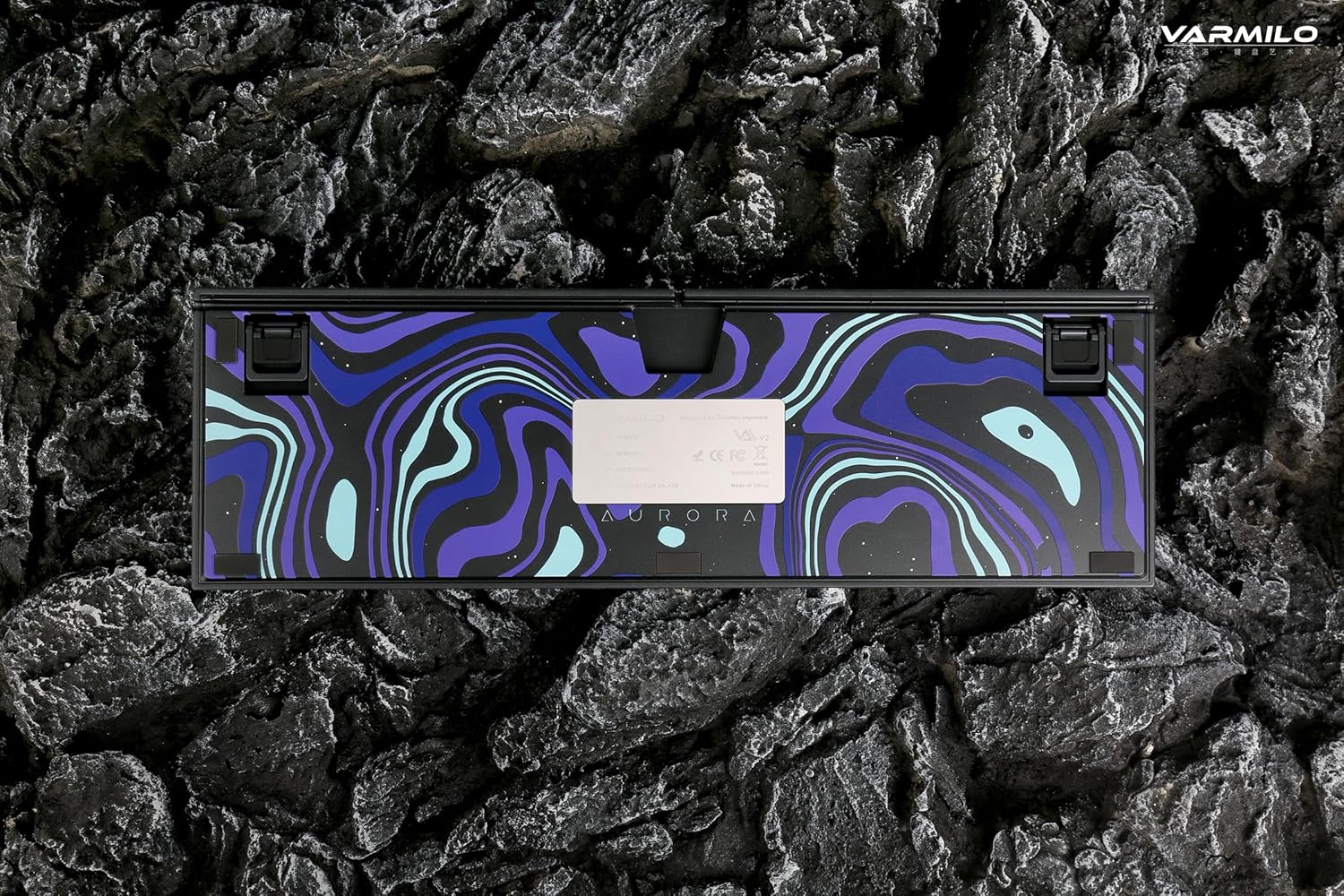
Image: The bottom of the keyboard, illustrating the cable grooves that allow the USB-C cable to exit from the left, right, or middle.
3.2 Způsoby připojení
3.2.1 Drátové připojení (USB-C)
- Vyhledejte port USB-C na zadní straně klávesnice.
- Connect the provided USB-C cable to the keyboard and the other end to an available USB port on your computer or device.
- The keyboard will be automatically recognized by your operating system. The indicator light will show charging status if the battery is low.
3.2.2 Bezdrátové připojení Bluetooth
The Varmilo VA Series V2 Aurora keyboard supports connecting up to 3 devices wirelessly via Bluetooth.
- Přepněte do režimu Bluetooth: Locate the mode switch on the keyboard (usually on the back or side) and set it to Bluetooth mode.
- Vstupte do režimu párování: Stiskněte a podržte Fn + Vložit (pro zařízení Bluetooth 1), Fn + Home (pro zařízení Bluetooth 2) nebo Fn + Page Up (for Bluetooth device 3) for 3-5 seconds until the indicator light flashes rapidly, indicating pairing mode.
- Povolte Bluetooth na svém zařízení: On your computer, smartphone, or tablet, go to Bluetooth settings and turn on Bluetooth.
- Vyberte klávesnici: Look for "Varmilo VA2" or a similar name in the list of available devices and select it to pair.
- Potvrdit spárování: Once paired, the indicator light on the keyboard will stop flashing and remain solid for a few seconds, then turn off or show battery status.
- Pair Additional Devices: Repeat steps 2-5 using a different Fn key combination (Fn + Home or Fn + Page Up) to pair up to two more devices.
4. Návod k obsluze
4.1 Přepínání mezi zařízeními
- To switch to Bluetooth device 1: Press Fn + Vložit.
- To switch to Bluetooth device 2: Press Fn + Home.
- To switch to Bluetooth device 3: Press Fn + Page Up.
- To switch to Wired mode: Set the mode switch on the keyboard to Wired mode.
4.2 Ovládání podsvícení LED
The keyboard features a White LED backlight. Use the following key combinations to control the backlight:
- Fn + < (Left Arrow): Snižte jas podsvícení.
- Fn + > (Right Arrow): Zvyšte jas podsvícení.
- Fn + šipka nahoru: Change backlight mode/effect.
- Fn + šipka dolů: Change backlight mode/effect (reverse direction).
- Fn + Z: Turn backlight on/off.
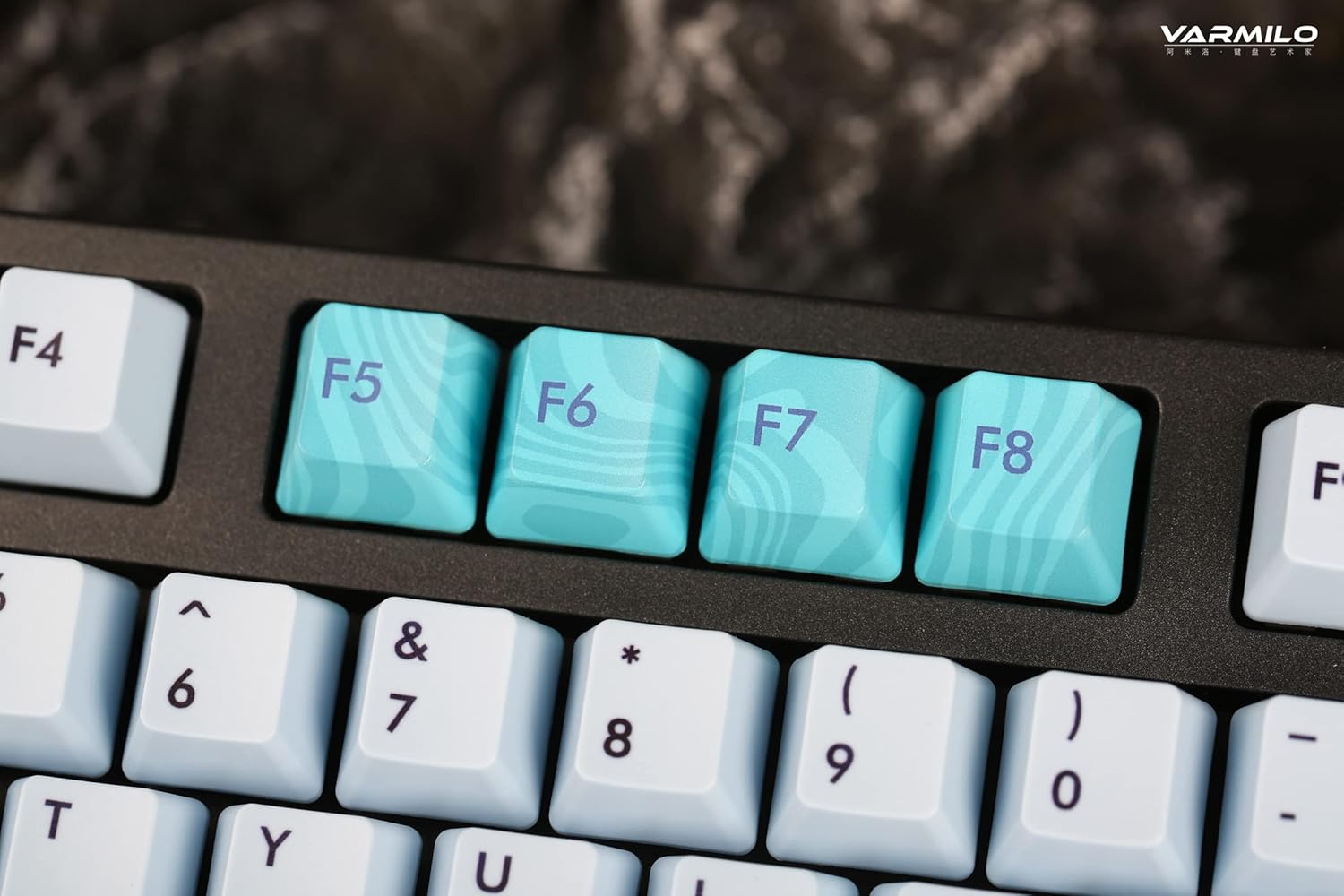
Image: Close-up of the arrow keys, which are used in combination with the Fn key to control backlight brightness and modes.
4.3 Funkční klávesy a ovládací prvky multimédií
The keyboard features a full-size (104 + 4) layout with dedicated function keys and multimedia controls accessible via the Fn klíč.
- Fn + F1–F12: Access various system functions (e.g., media playback, volume control, screen brightness). Refer to your operating system's settings for specific mappings or common keyboard shortcuts.
- Fn + klávesa Windows: Zamkněte/odemkněte klávesu Windows, abyste zabránili nechtěnému stisknutí během hraní.
- Fn + pravý Ctrl: Switch between Mac/Windows layout (if applicable, check specific model features).

Obrázek: Detailní záběr view of the F5-F8 keys, showcasing their unique design and potential secondary functions.
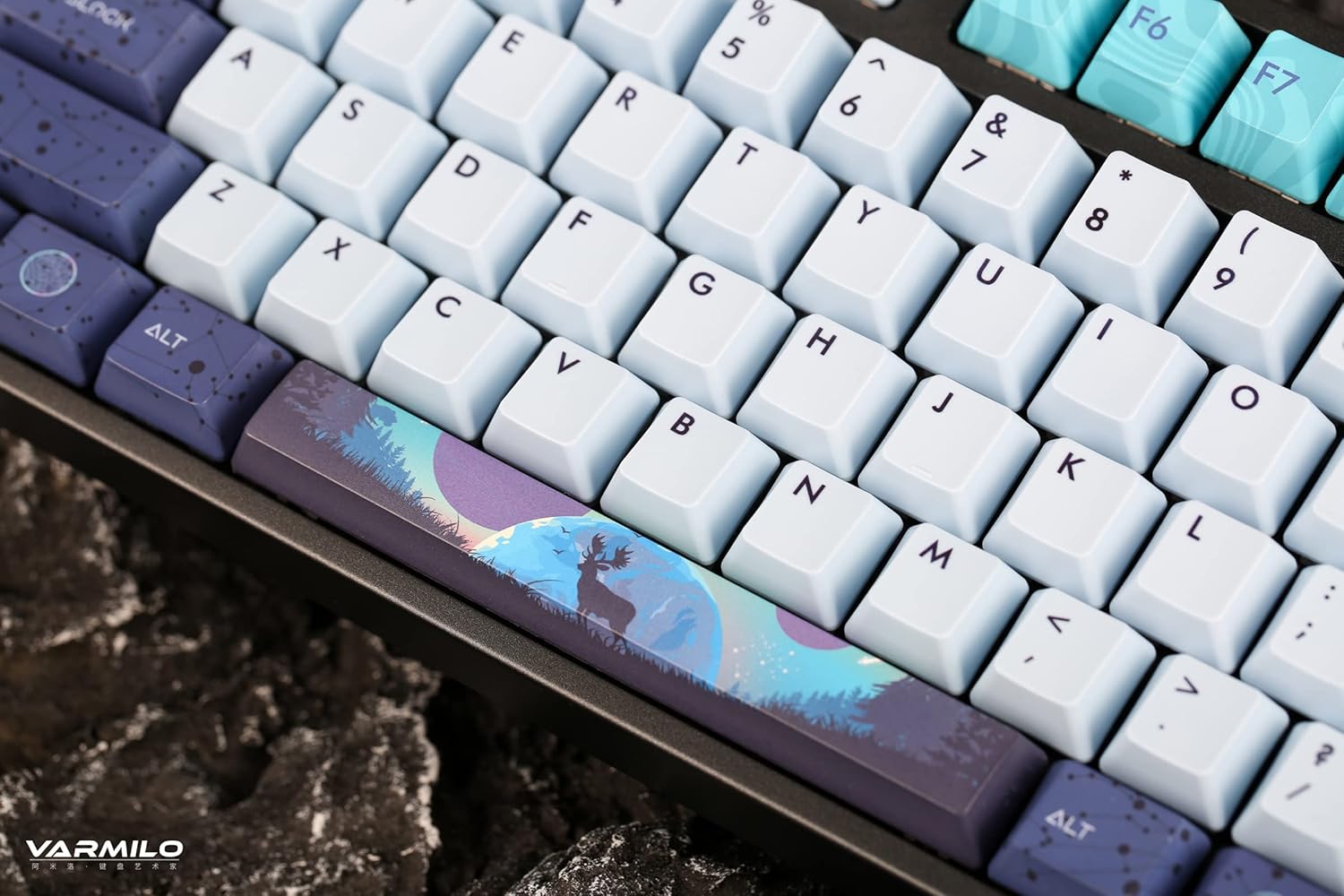
Obrázek: Podrobný view of the keyboard's keycaps, including a custom-designed spacebar, highlighting the thick Dye Sub PBT keycaps.
5. Údržba
Proper maintenance ensures the longevity and performance of your Varmilo keyboard.
- Čištění: Use a soft brush or compressed air to remove dust and debris from between the keycaps. For stubborn dirt, gently wipe the keycaps with a damp cloth and mild soap solution, ensuring no liquid enters the keyboard.
- Demontáž krytky kláves: If you need to clean under the keycaps or replace them, use a keycap puller. Gently pull the keycap straight up to avoid damaging the switch. The keyboard features durable Dye Sub PBT keycaps.
- Skladování: Pokud klávesnici delší dobu nepoužíváte, skladujte ji v suchém a bezprašném prostředí.
- Vyhněte se tekutinám: Do not expose the keyboard to liquids. Spills can cause permanent damage.
6. Řešení problémů
| Problém | Možná příčina | Řešení |
|---|---|---|
| Klávesnice nereaguje (kabelová) | Loose USB-C cable connection; faulty USB port; incorrect mode. |
|
| Klávesnice nereaguje (Bluetooth) | Not paired; out of range; low battery; incorrect Bluetooth channel selected. |
|
| Nefunguje podsvícení | Backlight turned off; brightness set to minimum; low battery. |
|
| Klávesy se neregistrují nebo se píší dvakrát | Dust/debris under keycap; switch malfunction; software issue. |
|
7. Specifikace
| Funkce | Detail |
|---|---|
| Značka | Varmilo |
| Model | VA Series V2 Aurora |
| Typ klávesnice | Mechanické |
| Typ přepínače | Kailh Prestige Red |
| Konektivita | USB-C (kabelové), Bluetooth (bezdrátové) |
| Bezdrátová zařízení | Connects up to 3 devices wirelessly |
| Klíčenky | Silný subkutánní barvivo PBT |
| Podsvícení | White LED, North-facing |
| Rozložení | Full-size (104 + 4 keys) |
| Kompatibilní zařízení | Notebook, PC, Smartphone, Tablet |
| Speciální funkce | Dvou-stage height adjustable feet, Sound-proof silicone pads, Cable grooves |
| Materiál | Silicone (internal sound dampening) |
8. Záruka a podpora
Varmilo products are designed for quality and durability. For warranty information, technical support, or service inquiries, please refer to the official Varmilo webnebo kontaktujte svého prodejce.
You can visit the official Varmilo Store for more information: Obchod Varmilo na Amazonu.