
1. Úvod
Welcome to the user manual for your new SGIN E10P 10-inch Kids Tablet. This guide provides essential information on setting up, operating, maintaining, and troubleshooting your device. Please read this manual thoroughly to ensure proper use and to maximize your tablet's features.
Co je v krabici
Po vybalení se prosím ujistěte, že jsou přítomny všechny níže uvedené položky:
- SGIN E10P Kids Tablet (with protective case)
- Uživatelská příručka
- Kabel USB typu C
- Napájecí adaptér (nabíječka)
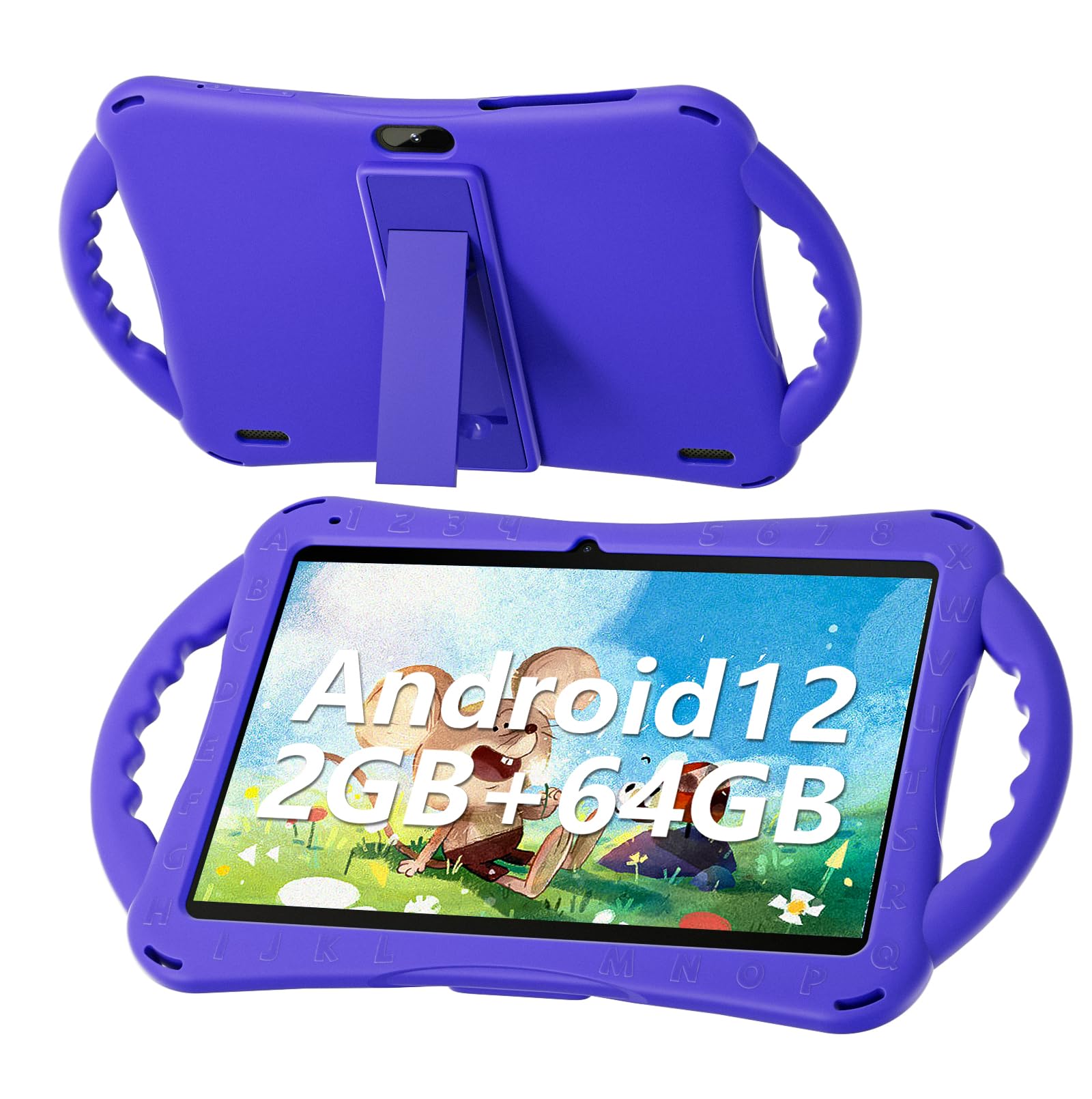
Figure 1: SGIN E10P Kids Tablet with its protective case.
2. Konec produktuview
Familiarize yourself with the physical components of your SGIN E10P Kids Tablet.

Figure 2: Labeled diagram of the SGIN E10P Kids Tablet components.
- Přední kamera: Pro videohovory a selfie.
- Zadní kamera: Pro pořizování fotografií a videí.
- Řečníci: Audio výstup.
- Port typu C: Pro nabíjení a přenos dat.
- Slot na kartu TF: For expanding storage with a microSD card.
- Sluchátkový jack: Pro připojení drátových sluchátek.
- Zvýšení hlasitosti: Button to raise the audio level.
- Snížit hlasitost: Button to lower the audio level.
- Bracket (Kickstand): Integrovaný stojánek pro handsfree viewIng.
- Armrest (Handle): Ergonomic handles on the protective case for easy gripping.
3. Nastavení
3.1 Nabíjení tabletu
Before first use, fully charge the tablet. Connect the USB Type-C cable to the tablet's Type-C port and the other end to the power adapter. Plug the power adapter into a wall outlet. The battery indicator on the screen will show charging status. A full charge typically takes several hours.
3.2 Zapnutí/vypnutí
- Zapnutí: Press and hold the Power button (usually located on the side or top edge) until the SGIN logo appears on the screen.
- Vypnutí: Stiskněte a podržte tlačítko napájení, dokud se nezobrazí nabídka. Z možností vyberte možnost „Vypnout“.
- Restartovat: Stiskněte a podržte tlačítko napájení, dokud se nezobrazí nabídka. Z možností vyberte možnost „Restartovat“.
3.3 Počáteční nastavení
The first time you power on the tablet, you will be guided through an initial setup process:
- Výběr jazyka: Vyberte preferovaný jazyk.
- Wi-Fi připojení: Vyberte svou síť Wi-Fi a zadejte heslo pro připojení k internetu.
- Účet Google: Sign in with an existing Google account or create a new one. This is necessary for downloading apps from the Google Play Store.
- Datum a čas: Nastavte správné datum a čas nebo nechte síť, aby je nastavila automaticky.
- Rodičovská kontrola: Configure Google Kids Space or other parental control features to manage content and screen time for children.
4. Ovládání tabletu
4.1 Základní navigace
The SGIN E10P tablet uses a touch-sensitive screen for navigation:
- Klepněte na: Jedním dotykem obrazovky otevřete aplikaci, vyberete položku nebo stisknete tlačítko.
- Dotkněte se a podržte: Stisknutím a podržením položky zobrazíte další možnosti nebo ji přesunete.
- Výpad: Tažením prstu po obrazovce můžete procházet stránky nebo seznamy.
- Přiblížení/zvětšení prsty: Položte dva prsty na obrazovku a od sebe je přiblížte, přiblížením je oddálíte.
4.2 Připojení k Wi-Fi
To connect or manage Wi-Fi networks:
- Přejít na Nastavení > Síť a internet > Wi-Fi.
- Přepnout Wi-Fi On.
- Vyberte požadovanou síť ze seznamu a v případě potřeby zadejte heslo.

Figure 3: The tablet supports both 2.4GHz and 5GHz Wi-Fi for stable connections.
4.3 Applications and Content
The tablet runs on Android 12 and comes with access to the Google Play Store, allowing you to download a wide range of applications. It is pre-configured for children's use, supporting apps like YouTube Kids, educational games, and other child-friendly content.

Figure 4: The Android 12 interface with various pre-installed and downloadable kids' apps.
4.4 Rodičovská kontrola
Utilize the built-in parental control features to manage your child's tablet experience. This includes setting screen time limits, filtering content, and approving app downloads. Access these settings through the Google Family Link app or directly in the tablet's settings under "Digital Wellbeing & parental controls."
5. Údržba
5.1 Čištění
- Obrazovka: Použijte měkký hadřík bez žmolků, speciálně určený pro elektroniku. V případě odolných šmouh lehceampOtřete hadřík vodou nebo roztokem na čištění obrazovek (nestříkejte přímo na obrazovku).
- Věc: The silicone protective case can be wiped with a damp cloth and mild soap if necessary. Ensure it is completely dry before reattaching it to the tablet.
- Porty: Keep all ports (USB-C, headphone jack, TF card slot) free of dust and debris. Use a soft brush or compressed air if needed.
5.2 Péče o baterii
The tablet is equipped with a 5000mAh battery, providing extended usage time.

Figure 5: The tablet features a 5000mAh battery for prolonged use.
- Vyhněte se extrémním teplotám, protože mohou snížit životnost baterie.
- Používejte pouze dodanou nabíječku a kabel, abyste předešli poškození.
- Pro optimální životnost baterie se vyvarujte častého úplného vybíjení baterie nebo jejího delšího nabití na 100 %.
5.3 Skladování
Store the tablet in a cool, dry place away from direct sunlight and moisture when not in use.
6. Řešení problémů
This section addresses common issues you might encounter with your SGIN E10P tablet.
6.1 Tablet se nezapíná
- Ensure the tablet is sufficiently charged. Connect it to the charger for at least 30 minutes before attempting to power it on again.
- Stiskněte a podržte tlačítko napájení po dobu 10–15 sekund pro provedení vynuceného restartu.
6.2 Problémy s připojením k Wi-Fi
- Zkontrolujte, zda je v nastavení tabletu povolena Wi-Fi.
- Ověřte, zda váš Wi-Fi router funguje správně a zda se k němu mohou připojit další zařízení.
- Forget the network in the tablet's Wi-Fi settings and reconnect.
- Restart both the tablet and your Wi-Fi router.
6.3 Pády nebo zamrzání aplikací
- Zavřete a znovu otevřete aplikaci.
- Vymažte mezipaměť a data aplikace v Nastavení > Aplikace > [Název aplikace] > Úložiště a mezipaměť.
- Ensure the app is updated to its latest version via the Google Play Store.
- Restartujte tablet.
6.4 Pomalý výkon
- Zavřete nepotřebné aplikace na pozadí.
- Vymažte data z mezipaměti aplikací a systému.
- Ensure there is sufficient storage space available. Delete unused apps or files.
- Consider performing a factory reset as a last resort (Poznámka: This will erase all data on the tablet. Back up important file(nejprve).
7. Specifikace
Key technical specifications for the SGIN E10P Kids Tablet:
| Funkce | Specifikace |
|---|---|
| Značka | SGIN |
| Číslo modelu | E10P |
| Velikost obrazovky | 10 palce |
| Rozlišení obrazovky | 1280 x 800 |
| Procesor | 1.5 GHz Allwinner Quad-core A133 |
| BERAN | 2 GB |
| Úložiště (ROM) | 64 GB |
| Rozšiřitelné úložiště | TF Card Slot (for additional expansion) |
| Operační systém | Android 12 |
| Zadní WebRozlišení vačky | 5 MP |
| Přední kamera | 2 MP |
| Kapacita baterie | 5000 XNUMX mAh |
| Konektivita | 2.4G/5G Wi-Fi, Bluetooth 4.2 |
| Rozměry (DxŠxV) | 10.1 x 6 x 0.4 palce |
| Hmotnost položky | 2.27 libry |
8. Záruka a podpora
SGIN provides a 1-year maintenance period from the date of purchase for this product. If you encounter any issues or require assistance, please contact SGIN customer support.
For further support, please refer to the contact information provided with your purchase documentation or visit the official SGIN webmísto.