
Zavedení
This manual provides essential instructions for the setup, operation, maintenance, and troubleshooting of your Sharp 4T-C70DK1X 70-inch 4K Android Smart LED TV. Please read this manual thoroughly before using your television to ensure proper and safe operation. Keep this manual for future reference.
Nastavení
1. Vybalování
Carefully remove the television and all accessories from the packaging. Retain the packaging materials for potential future transport or service needs. Ensure all components listed in the packing list are present.
2. Připevnění stojanu
Place the TV screen-down on a soft, flat surface to prevent damage. Align the stand components with the designated slots on the TV's base. Secure the stand using the provided screws. Ensure the stand is firmly attached before placing the TV upright.
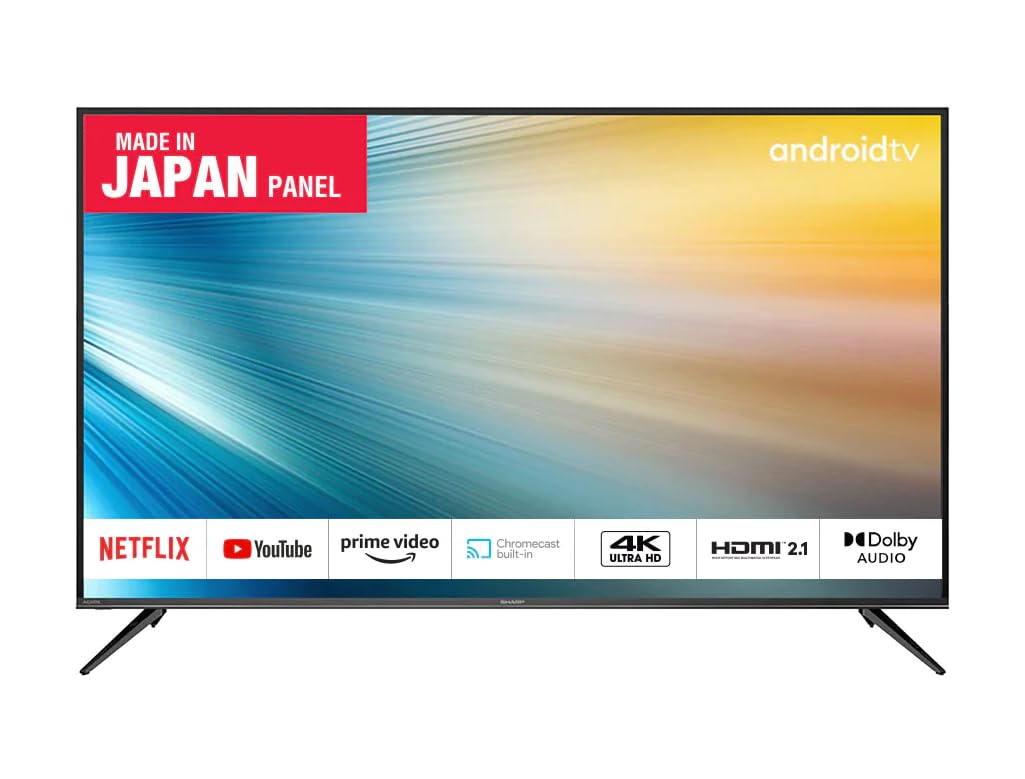
Obrázek: Boční view of the Sharp 4T-C70DK1X television, illustrating the slim profile and the attached table stand. This view helps in understanding the TV's depth and how the stand supports it.
3. Montáž na stěnu (volitelné)
If you choose to wall mount your TV, ensure you use a VESA-compatible wall mount (400 x 400 mm) and follow the instructions provided with the wall mount kit. Professional installation is recommended for wall mounting to ensure safety and proper alignment.
4. Připojení periferií
Connect your external devices such as set-top boxes, gaming consoles, or Blu-ray players to the TV's HDMI ports. Use the USB ports for connecting USB storage devices. Ensure all cables are securely connected.
- HDMI porty: Pro vstup zvuku a videa ve vysokém rozlišení.
- USB porty: Pro přehrávání médií z USB disků.
- Anténní/kabelový vstup: For DVB-T2 digital TV signal.
- Napájecí kabel: Connect to a suitable power outlet (220 VAC 50 Hz).
Návod k obsluze
1. Zapnutí/vypnutí
Press the power button on the remote control or on the TV to turn the TV on or off. A red indicator light typically signifies standby mode, while no light or a blue light indicates the TV is active.
2. Průvodce počátečním nastavením
Upon first power-on, the TV will guide you through an initial setup wizard. This includes language selection, network connection (Wi-Fi or Ethernet), Google account login, and channel scanning for DVB-T2 signals.
3. Navigace v rozhraní Android TV
Use the directional buttons and the OK button on your remote control to navigate the Android TV home screen. Access apps, settings, and input sources from this interface. The home screen provides quick access to streaming services like YouTube and other installed applications.
4. Používání hlasového ovládání
Your Sharp TV supports intelligent voice recognition via Google Assistant. Press the dedicated voice control button on your remote and speak commands to search for content, control playback, or adjust settings.
5. Výběr zdroje vstupu
To switch between connected devices (e.g., HDMI 1, HDMI 2, USB, DVB-T2), press the "Input" or "Source" button on your remote control and select the desired input from the on-screen menu.
6. DVB-T2 Digital TV Setup
After connecting your antenna, navigate to the TV settings menu and select "Channel Scan" or "Auto Tuning" to search for available DVB-T2 digital channels. This process may take several minutes.
Údržba
1. Čištění obrazovky
Jemně otřete obrazovku měkkým, suchým hadříkem z mikrovlákna. V případě odolných skvrn lehceamphadřík vodou nebo specializovaným čističem obrazovek. Nestříkejte kapalinu přímo na obrazovku. Vyhněte se použití abrazivních čisticích prostředků nebo rozpouštědel.
2. Čištění těla televizoru
Wipe the exterior surfaces of the TV with a soft, dry cloth. If necessary, a slightly damp cloth can be used, followed by a dry cloth. Ensure no moisture enters the ventilation openings.
3. Aktualizace softwaru
Your Android TV may receive automatic software updates. Ensure your TV is connected to the internet to receive these updates, which can improve performance and add new features. You can also manually check for updates in the settings menu.
Odstraňování problémů
Než kontaktujete zákaznickou podporu, prostudujte si prosím následující běžné problémy a jejich řešení:
- Bez napájení:
- Zkontrolujte, zda je napájecí kabel bezpečně zapojený do televizoru i do zásuvky.
- Ensure the wall outlet is functioning by testing it with another device.
- Stiskněte tlačítko napájení na samotném televizoru, nejen na dálkovém ovladači.
- Žádný obraz/zvuk:
- Verify the correct input source is selected (e.g., HDMI 1, DVB-T2).
- Zkontrolujte, zda jsou všechna kabelová připojení (HDMI, anténa) bezpečná.
- Upravte nastavení jasu a kontrastu v nabídce televizoru.
- Dálkové ovládání nefunguje:
- Vyměňte baterie v dálkovém ovladači.
- Ujistěte se, že mezi dálkovým ovladačem a infračerveným senzorem televizoru nejsou žádné překážky.
- Pair the remote again if it's a Bluetooth remote (refer to initial setup instructions).
- Problémy s připojením k síti:
- Restartujte Wi-Fi router.
- Zkontrolujte heslo k Wi-Fi a nastavení sítě na televizoru.
- Try connecting via an Ethernet cable if available.
Specifikace
| Funkce | Detail |
|---|---|
| Číslo modelu | 4T-C70DK1X |
| Velikost obrazovky | 70 palce |
| Rezoluce | 4K (UHD) |
| Technologie displeje | LED-LCD |
| Obnovovací frekvence | 60 Hz |
| Podpora HDR | HDR10 |
| Operační systém | Android TV |
| Typ tuneru | DVB-T2 |
| Konektivita | HDMI (Total 1), USB (Total 1), Bluetooth, Wired (Ethernet) |
| Hlasové ovládání | Google Assistant |
| Typ montáže | Table Mount, VESA 400 x 400 mm |
| Rozměry produktu (D x Š x V) | 17.1 D x 156.4 W x 103.4 V centimetrů |
| Voltage | 220 VAC 50 Hz |
Záruka a podpora
1. Informace o záruce
This Sharp 4T-C70DK1X television comes with a 3letá omezená záruka provided by Sharp. Please retain your proof of purchase for warranty claims. The warranty covers manufacturing defects under normal use. For full terms and conditions, refer to the warranty card included with your product or contact Sharp customer service.
2. Zákaznická podpora
For technical assistance, service inquiries, or further information, please contact Sharp customer support. Contact details can typically be found on the official Sharp website for your region or on the warranty documentation.